
Clearing RAM and the standby list without restarting the computer.


Normally, when we open large programs or play demanding games and then close them, Windows usually keeps some buffer in a part called Standby Memory to allow for faster restarts. However, sometimes the system doesn't release this RAM when a new program needs it, resulting in stuttering (intermittent lag) or full RAM even though all programs are closed.
We can use a free and safe program from Microsoft Sysinternals called RAMMap to clear standby memory in a single click.
How to enable and clear RAM.
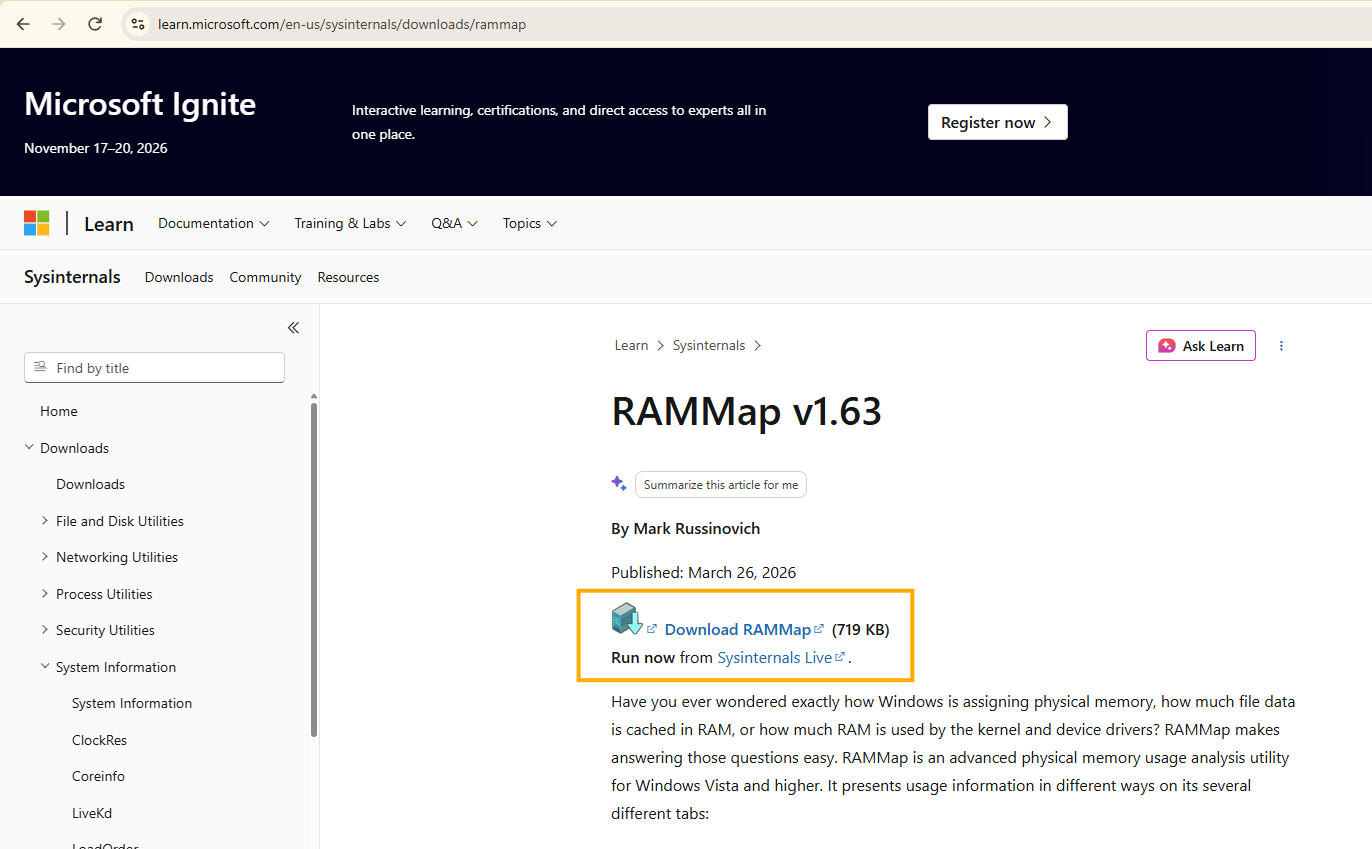
1.Download RAMMap from Microsoft.
Go to the Microsoft Sysinternals website and search for and download the RAMMap program (it's a very small .zip file, no installation required).
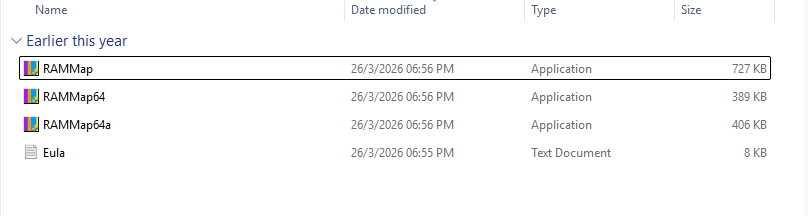
Verification: After extracting the zip file, you will find the RAMMap.exe file, ready for use.
2.Activate with Administrator privileges.
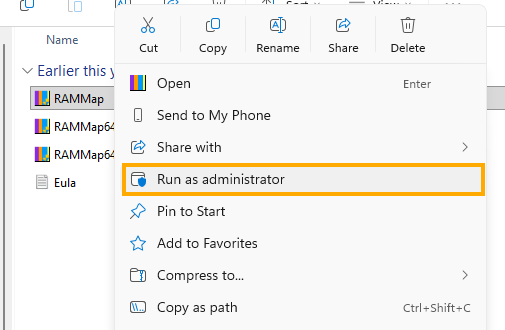
Right-click RAMMap.exe and select Run as administrator.
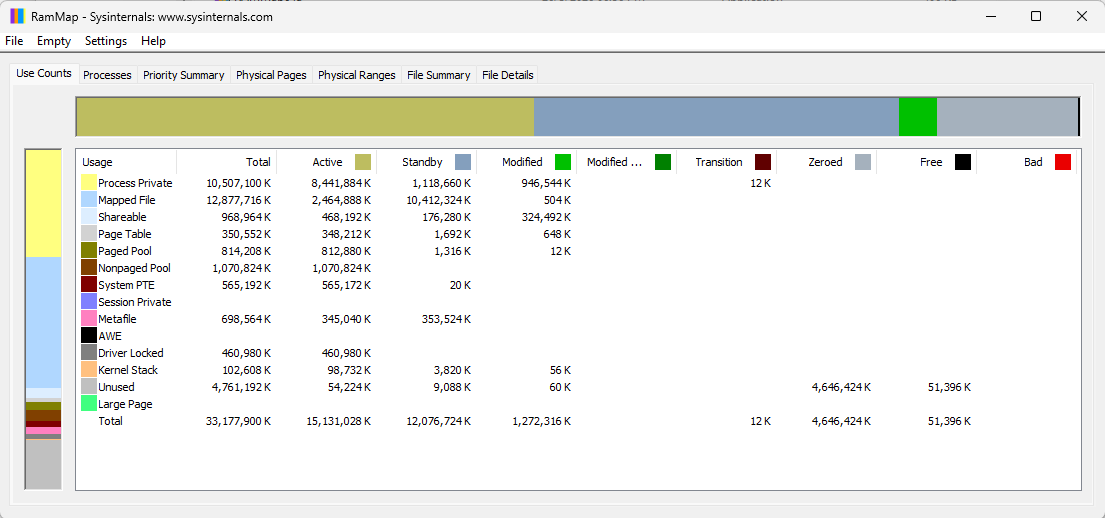
Monitoring: A program window will open, displaying graphs and tables showing the total RAM usage on the device in real-time.
3.Clear Standby Memory.
In the top menu bar, select Empty > rightarrow > and click Empty Standby List.
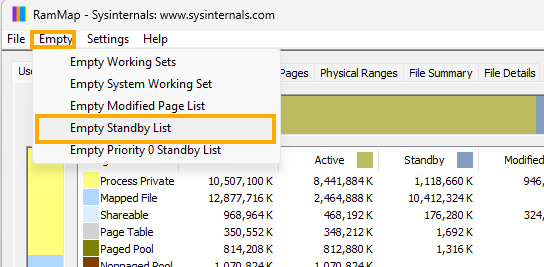
Verification: Look at the gray (Standby) area in the bar graph on the left. The value will immediately drop to almost 0 MB, making the RAM fully available and ready for use.
finished.
end..