
How to use Winget Update All Programs.


For Windows 11 users who need to deal with large amounts of data or files, the solution is to "use Windows Terminal + Winget to install and update programs for the entire system in a single command."
Normally, when reinstalling Windows or updating multiple programs simultaneously (such as Chrome, 7-Zip, VLC, Line, PowerToys), we usually have to spend time opening each browser, visiting each website one by one, downloading the installation files, and then manually clicking Next > Next > Install for each program. Besides being time-consuming, this also risks accidentally installing bloatware.
With the Winget (Windows Package Manager) tool already installed with Windows 11, you can search, install, or update all programs on your machine to the latest version at the same time through a single command line.
- Update all programs on the computer simultaneously (Batch Update).
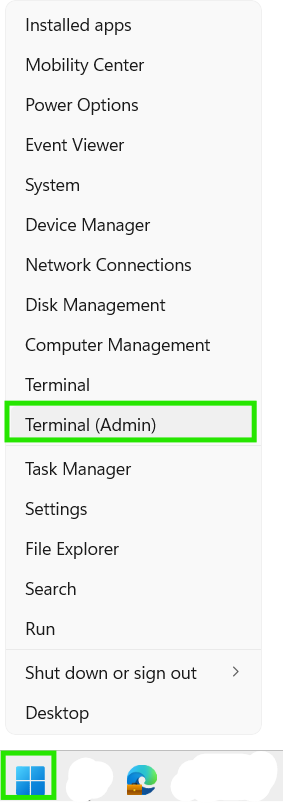
1.1 Right-click the Start button (or press Windows + X) and select Terminal (Admin).
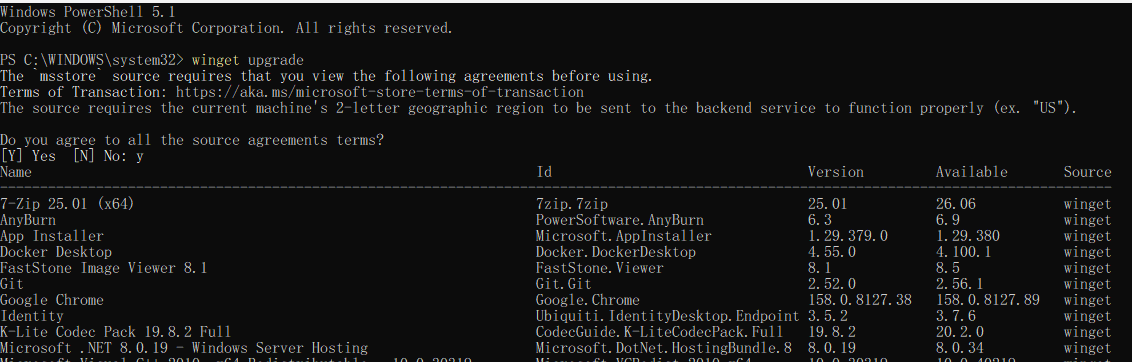
1.2 Type the command below to check which programs on your computer have newer versions available:
PowerShell
winget upgrade1.3 The results will be as follows:
1.4 To update all programs in the list to the latest version at once, type the command:
PowerShell
winget upgrade --all --accept-source-agreements --accept-package-agreements
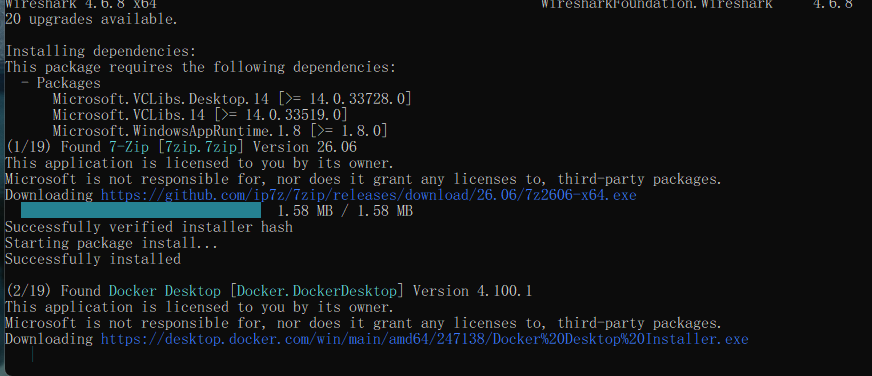
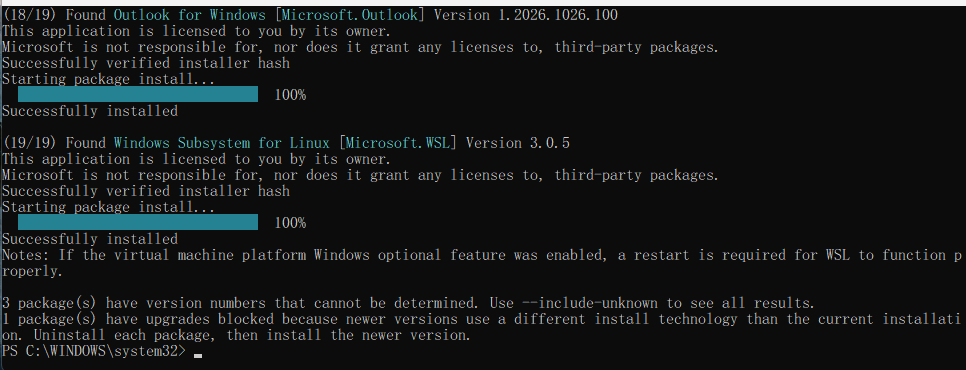
**(The system will silently download and install updates for all programs in the background without needing to click Next.)
finished..
end..