
How to setting up "Mouse Without Borders"


To set up Mouse Without Borders (included in Microsoft PowerToys) to control 2–4 Windows computers simultaneously with a single mouse and keyboard over the same LAN or Wi-Fi network, follow these steps.
Things to prepare before starting.
- All computers must be connected to the same network subnet via Wi-Fi or LAN cable.
- Install Microsoft PowerToys on every computer you want to connect.
Steps for connecting the main and secondary machines.
- Enable it on the main machine (the one with the mouse and keyboard connected).
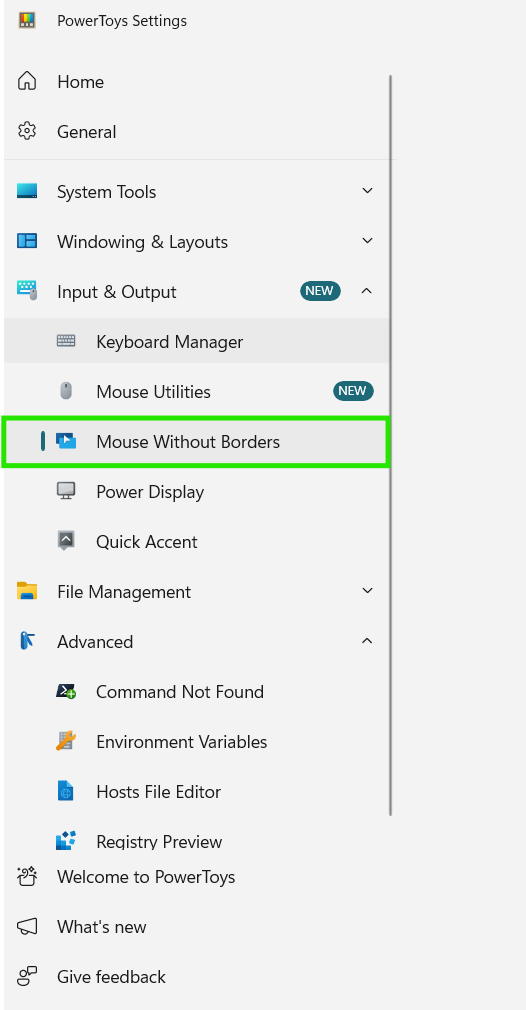
- Open Microsoft PowerToys. Go to the left-hand menu and select Mouse Without Borders.
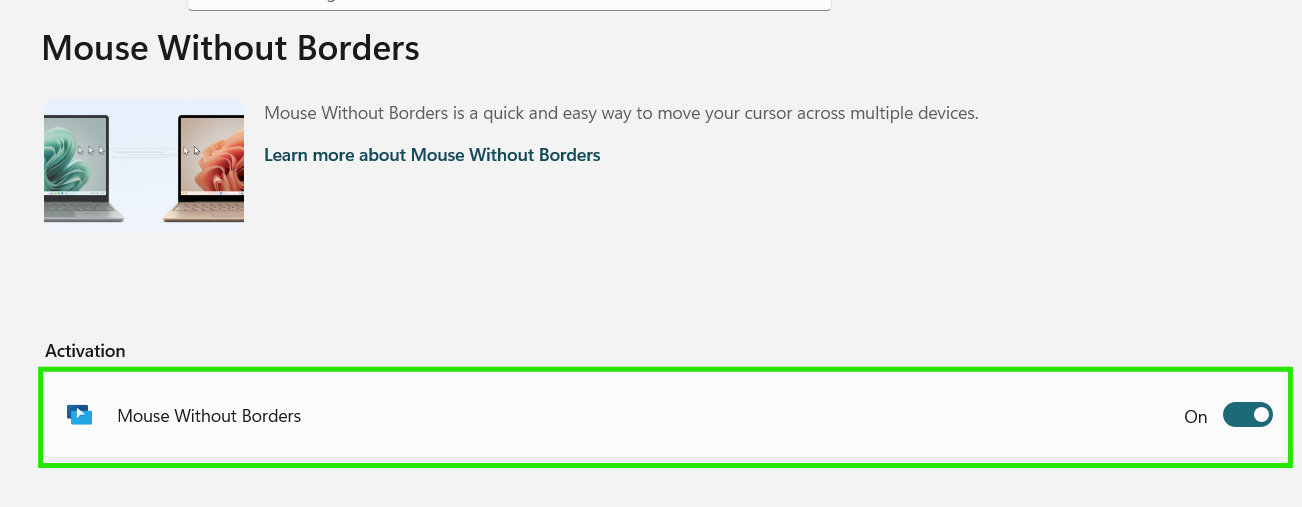
- Press the switch to turn on Enable Mouse Without Borders.
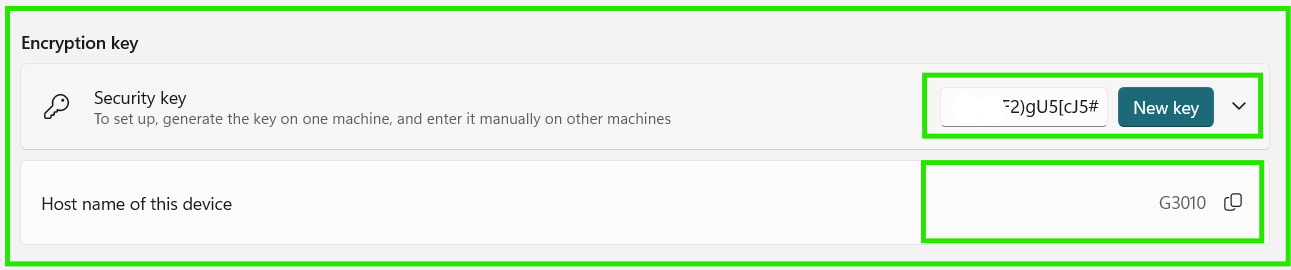
- Press the "New key" button. The system will randomly generate a security key and display "This device's name" (the primary device name). Keep this page open.
- Connect from the second device (and the third and fourth devices if needed).
- Open Microsoft PowerToys on the second machine. Go to Mouse Without Borders and turn on the Enable switch.
- Enter the Security key and the primary device name from step 1 into the designated fields, then press the Connect button.
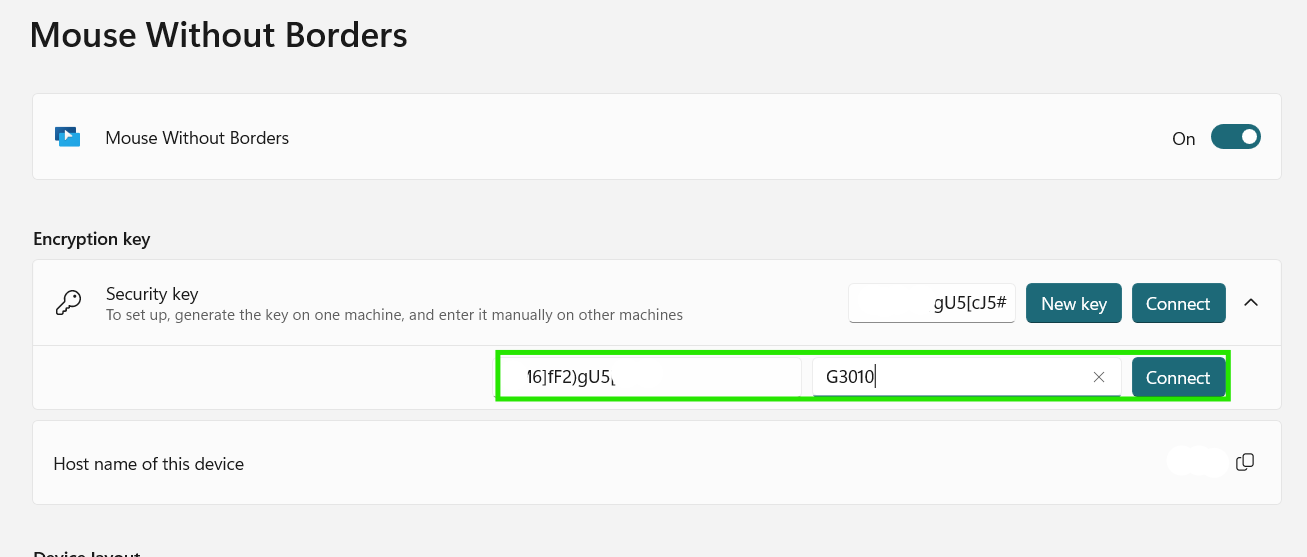
- Wait approximately 5–10 seconds. Once the connection is successful, the names of both computers will appear in the device layout frame on both sides.
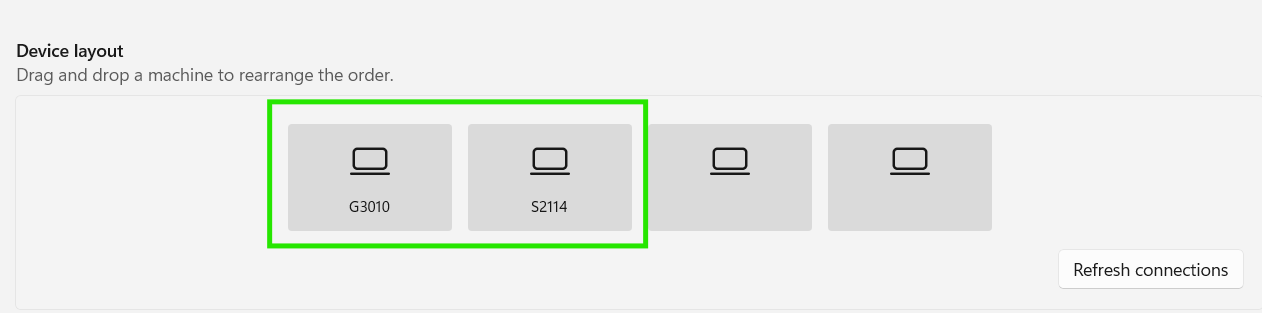
finished..
end..