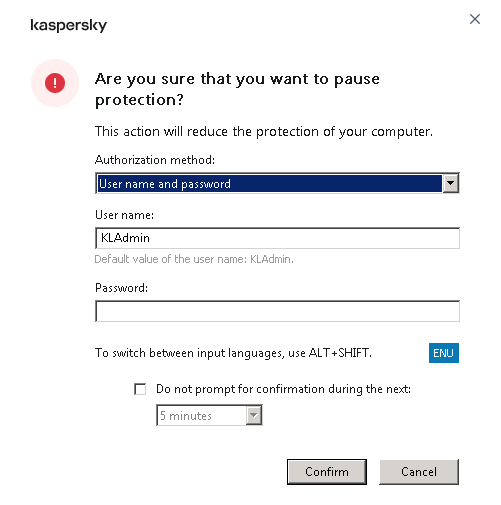
Kaspersky: Add more password protect user on Kaspersky to set or management setting


Default user for enable password protection on kaspersky endpoint security is KLAdmin. Also when to disable or exit the Kaspersky Endpoint security on the client computer it need to use this password. So, this will show to how to add more users on kespersky endpoint security.
- Open "Kaspersky Security Center"
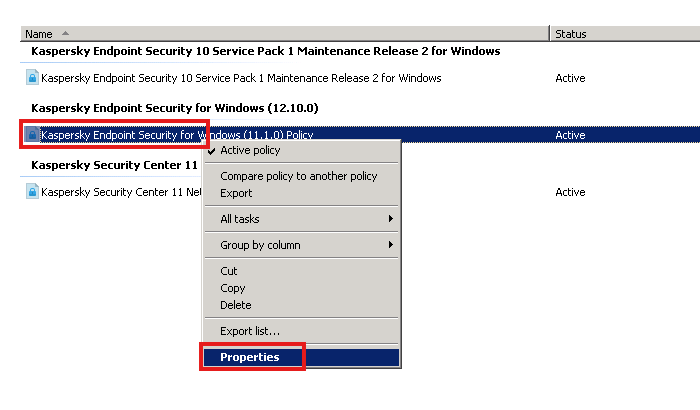
- "Administration Server KAS" > "Managed devices"
- Right click > "Properties"
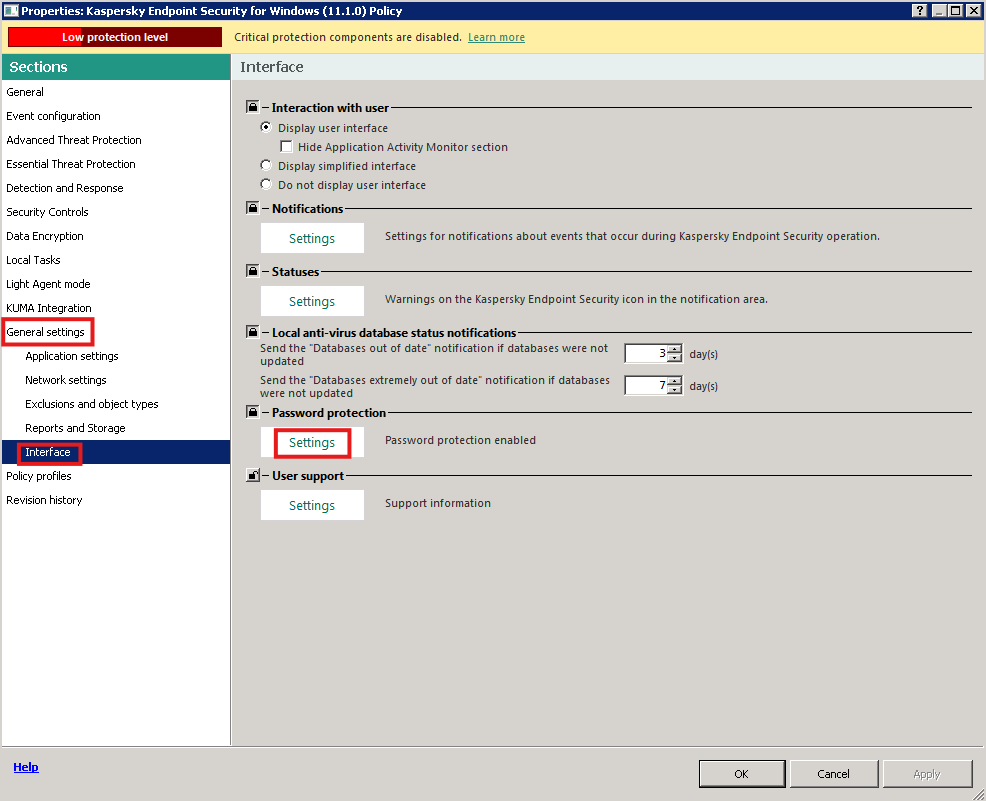
4. "General settings" > "Interface" > "Password protection" > "Settings"
5. "+Add" to add user
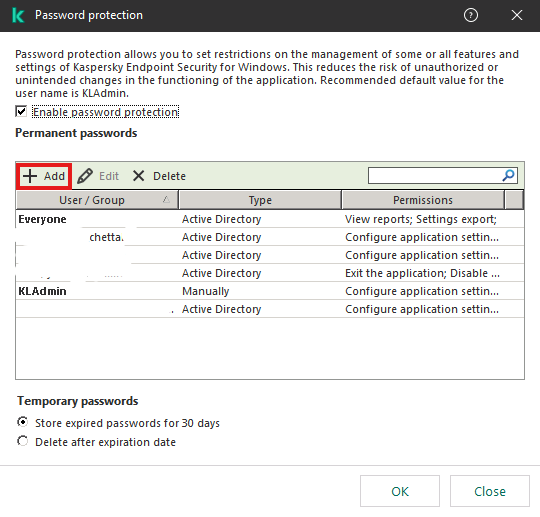
6. Add user/group from Active directory
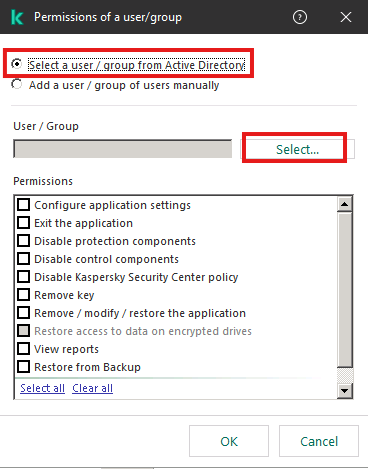
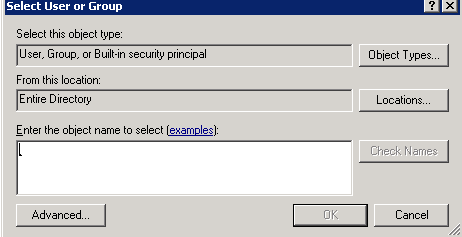
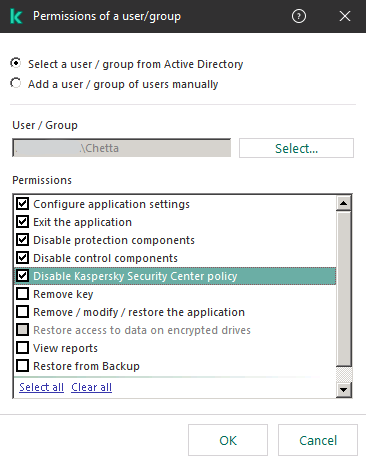
7. Set the permission for user and OK
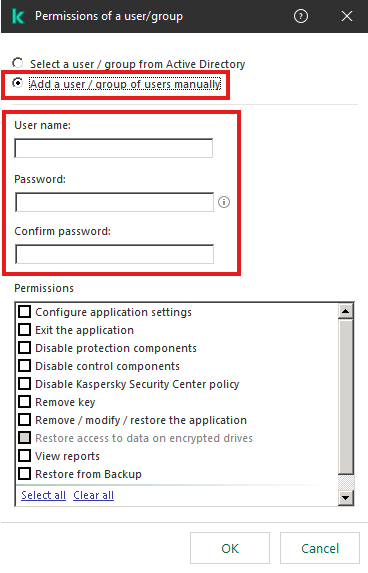
8. Also can add user manual by create username and password and set permissions
9. Test exit or modify setting on kaspersky endpoint security.