Check health of SSD or NVMe drive on Windows11.


To check the health of an SSD or NVMe drive, you need to look at its SMART (Self-Monitoring, Analysis, and Reporting Technology) data, which tracks drive temperature, health percentage, read/write totals, and errors.
This some method to check health of SSD or NVMEe.
Method 1: Windows SYSTEM
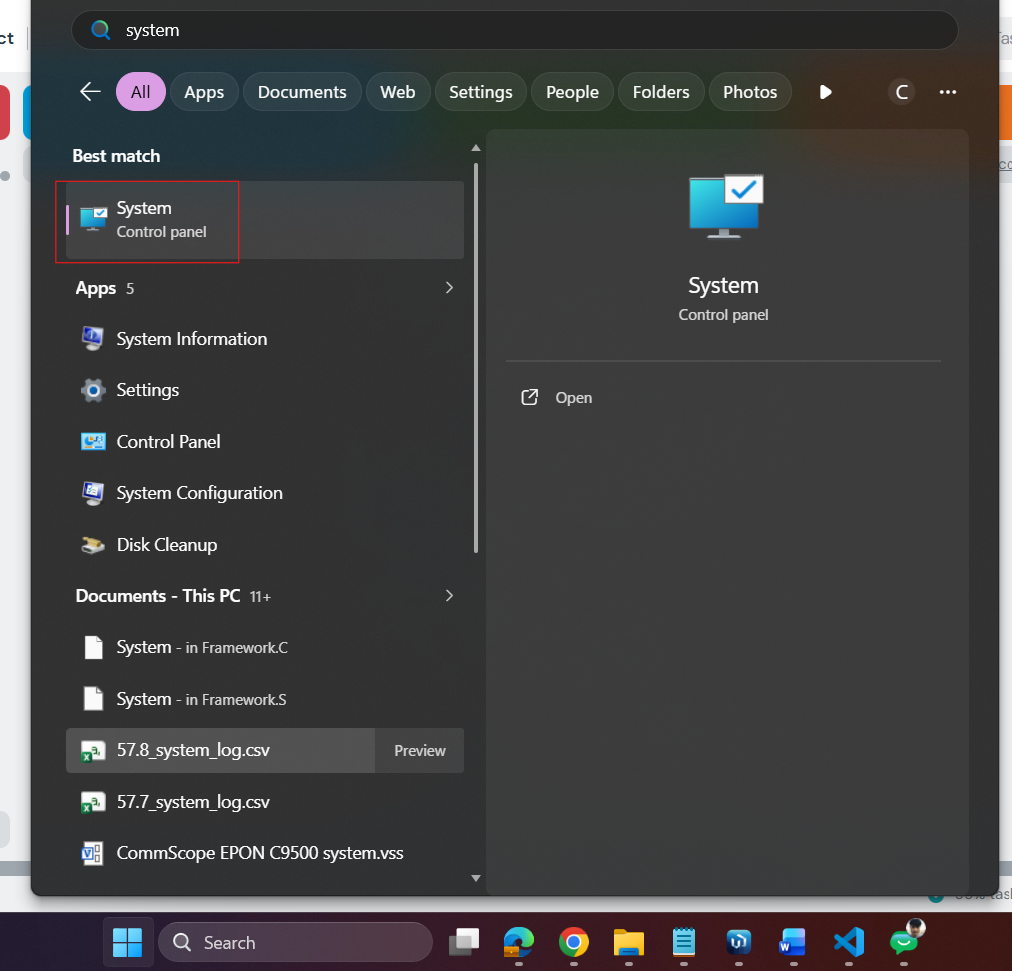
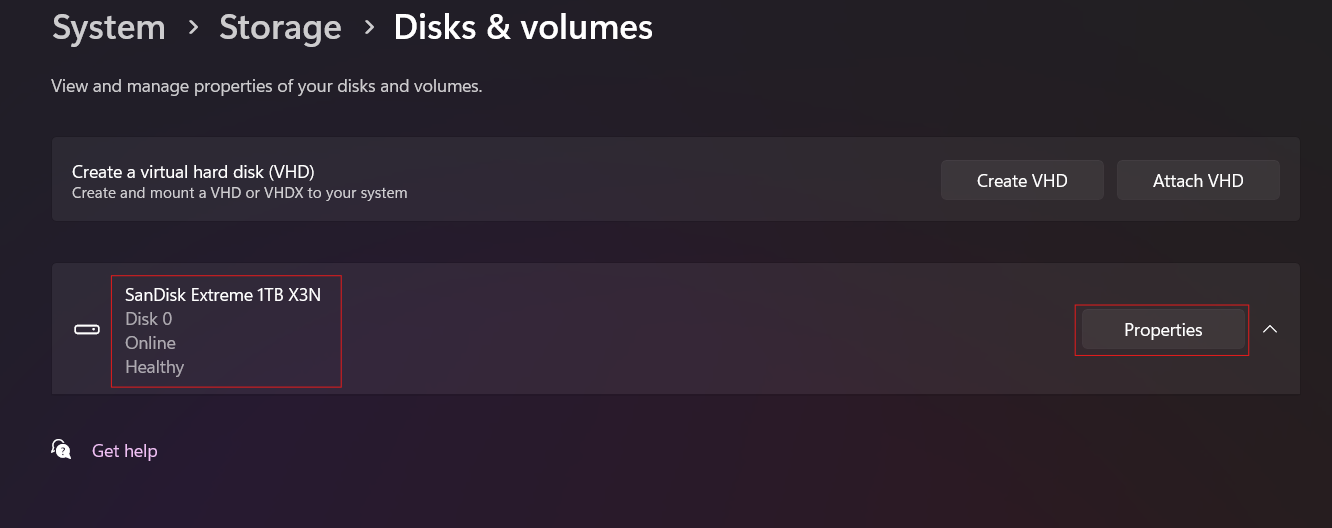
- Goto "Start" > "System".
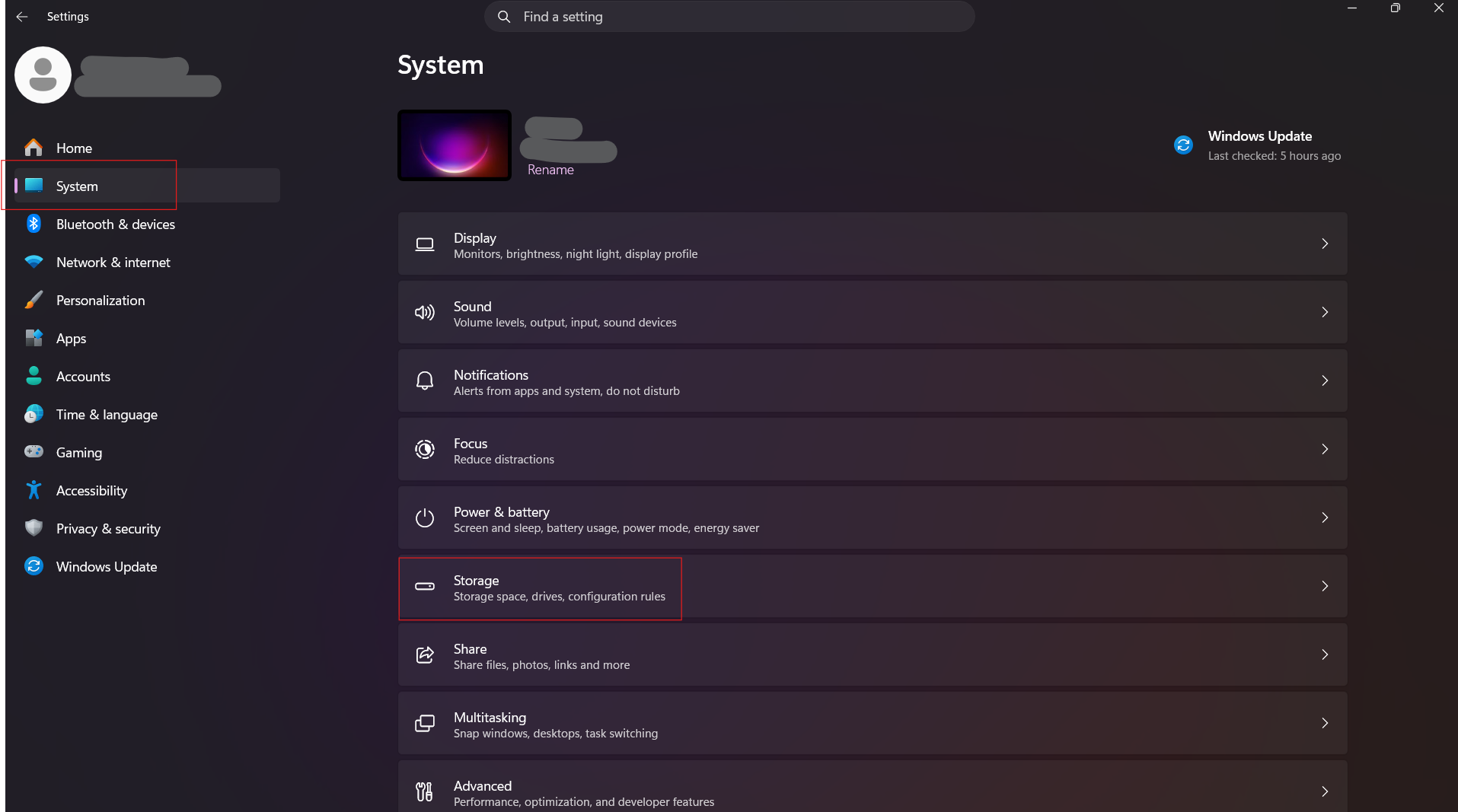
- "System" > "Storage".
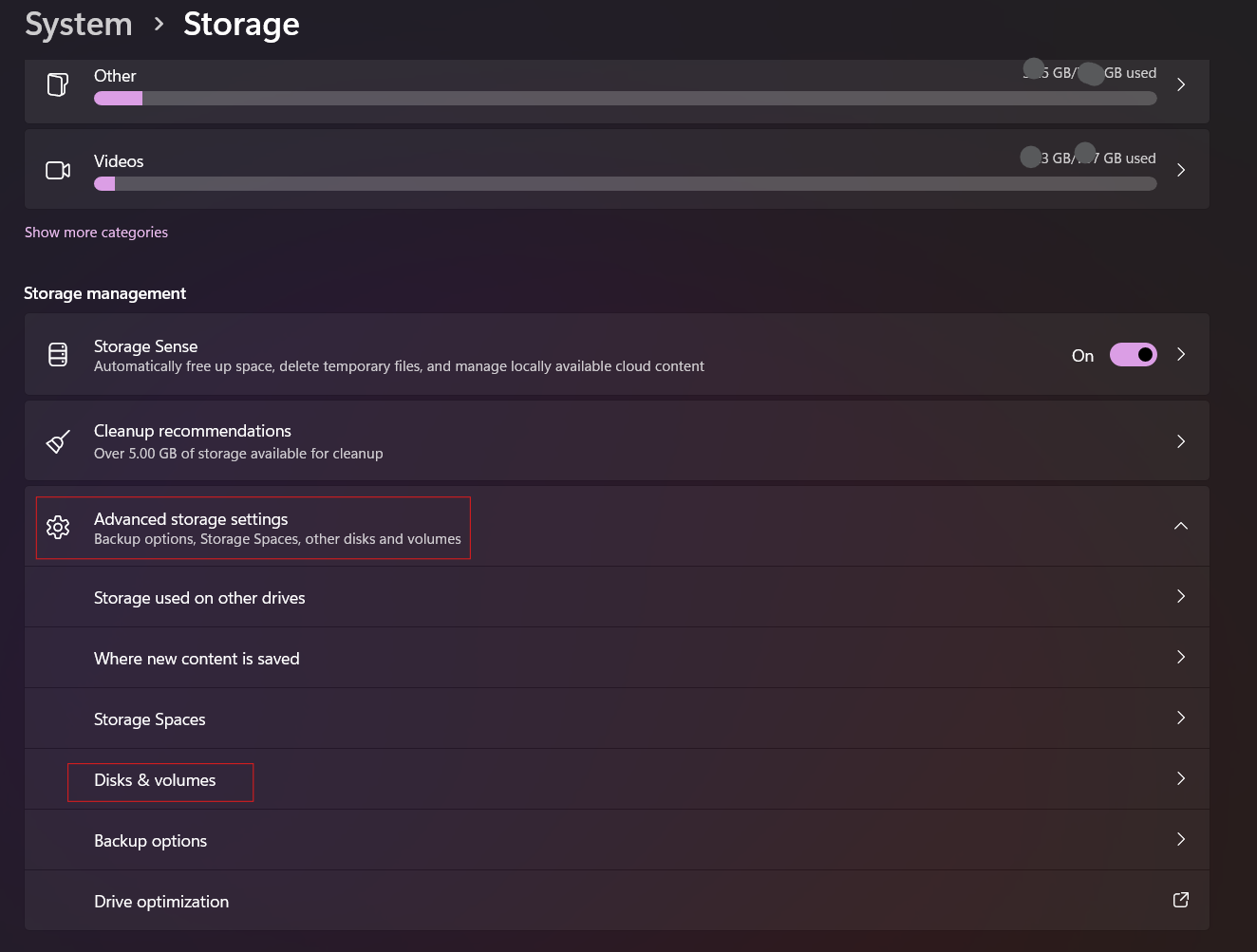
- "Advanced storage settings" > "Disk & volumes".
- Select disk you prefer to check then click "Properties".
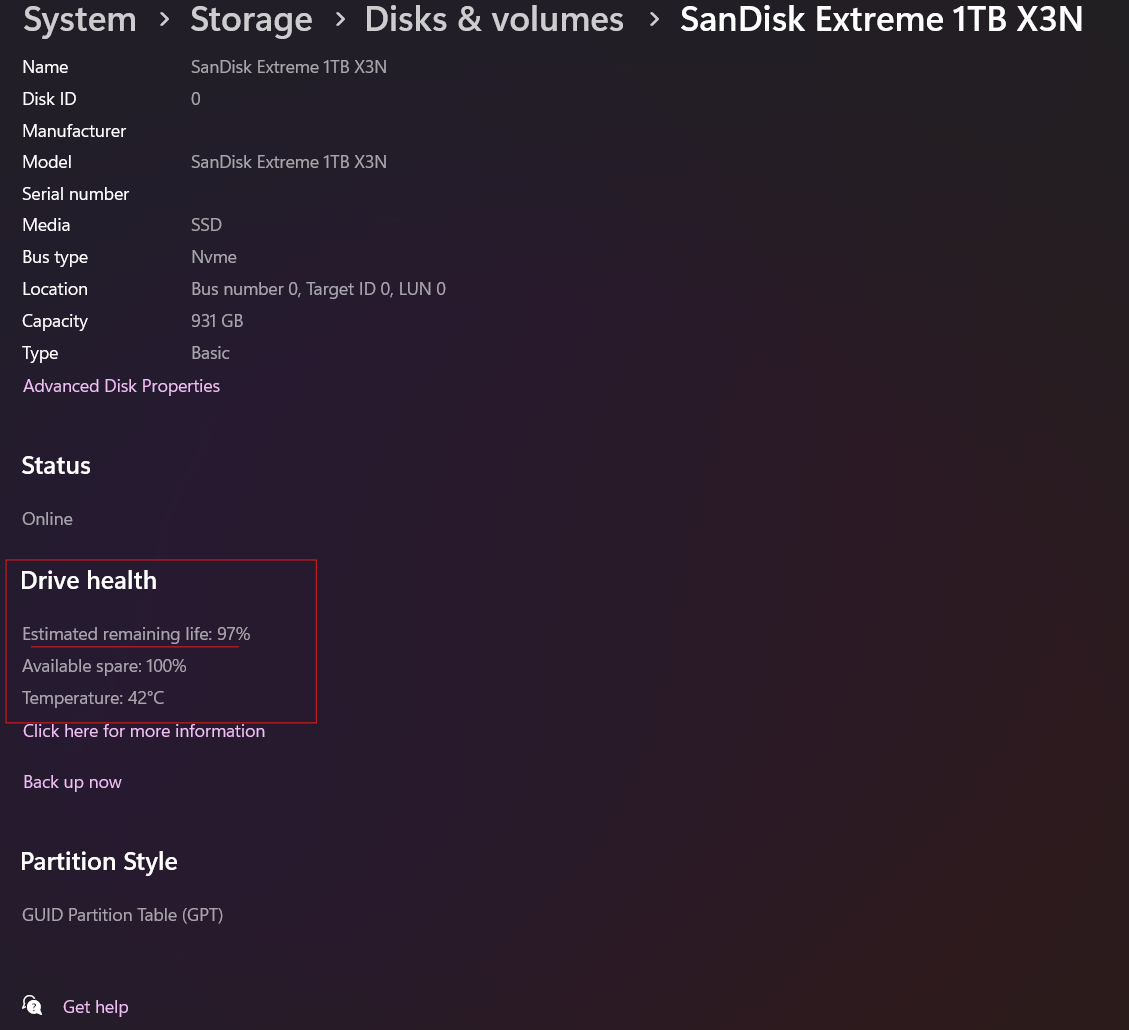
- Navigated to "Drive health". Check on Estimated remaing life.
Ref: https://support.microsoft.com/en-us/windows/experience/storage-filemanagement/what-to-do-about-a-critical-warning-for-a-storage-device
Method 2: PowerShell command
- Open PowerShell as Administrator.
- Use Get-PhysicalDisk command.
Get-PhysicalDisk | Select-Object DeviceId, FriendlyName, MediaType, OperationalStatus, HealthStatus

- Use Get-StorageReliabilityCounter command.
Get-StorageReliabilityCounter -PhysicalDisk (Get-PhysicalDisk) | Select-Object DeviceId, Temperature, ReadErrorsTotal, WriteErrorsTotal, PowerOnHours

Method 3: Using 3rd party program "CrystalDiskInfo"
- Download "https://sourceforge.net/projects/crystaldiskinfo/"
- Extract and run the program.
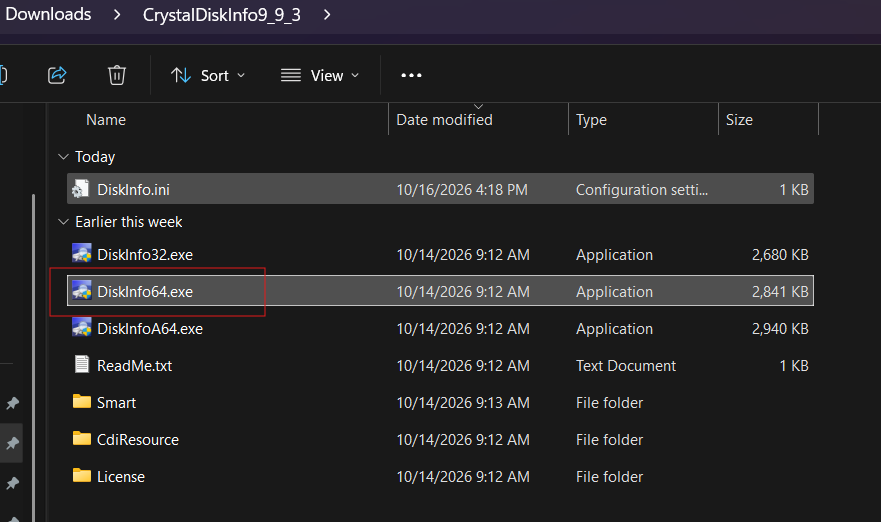
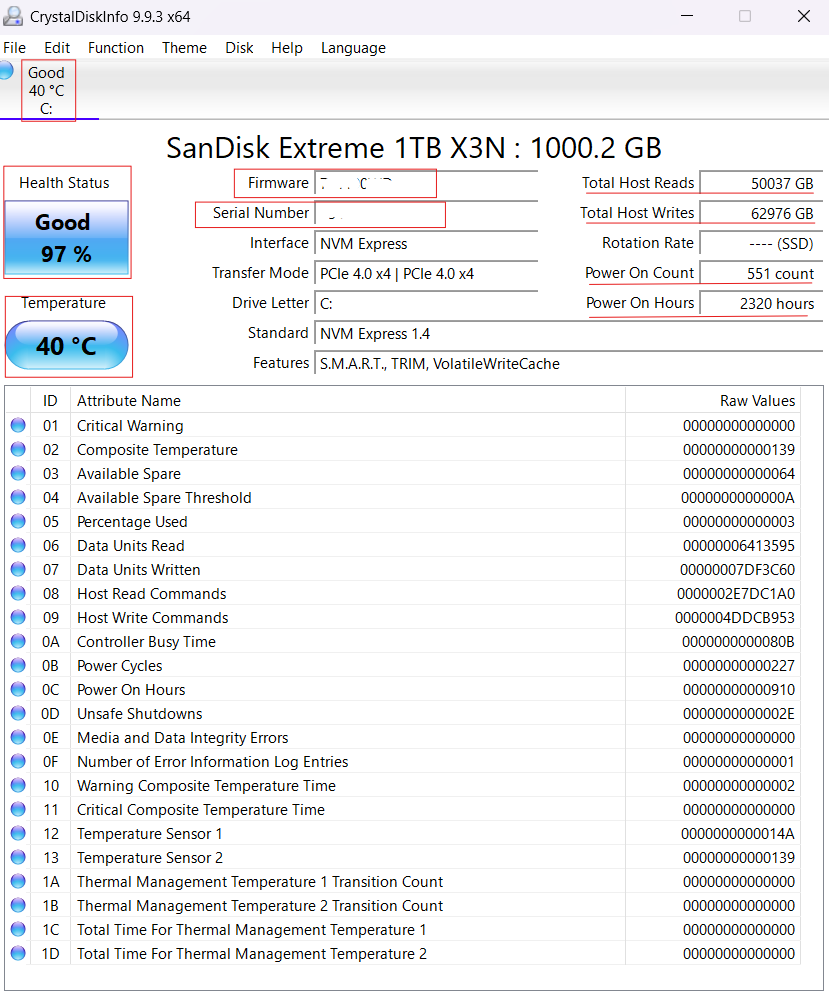
- Program will showed (Status, Temperature, Firmware, Serial Number, Total Host Reads/Writes, Power On Count, Power On Hours).