
Chrome Remote Desktop


Used chrome remote desktop to share your screen.
Note: Chrome need to sign-in with google account.
- Open "Chrome".
- Go to "Custome and control Google Chrome" > "Extensions" > "Visit Chrome Web Store".
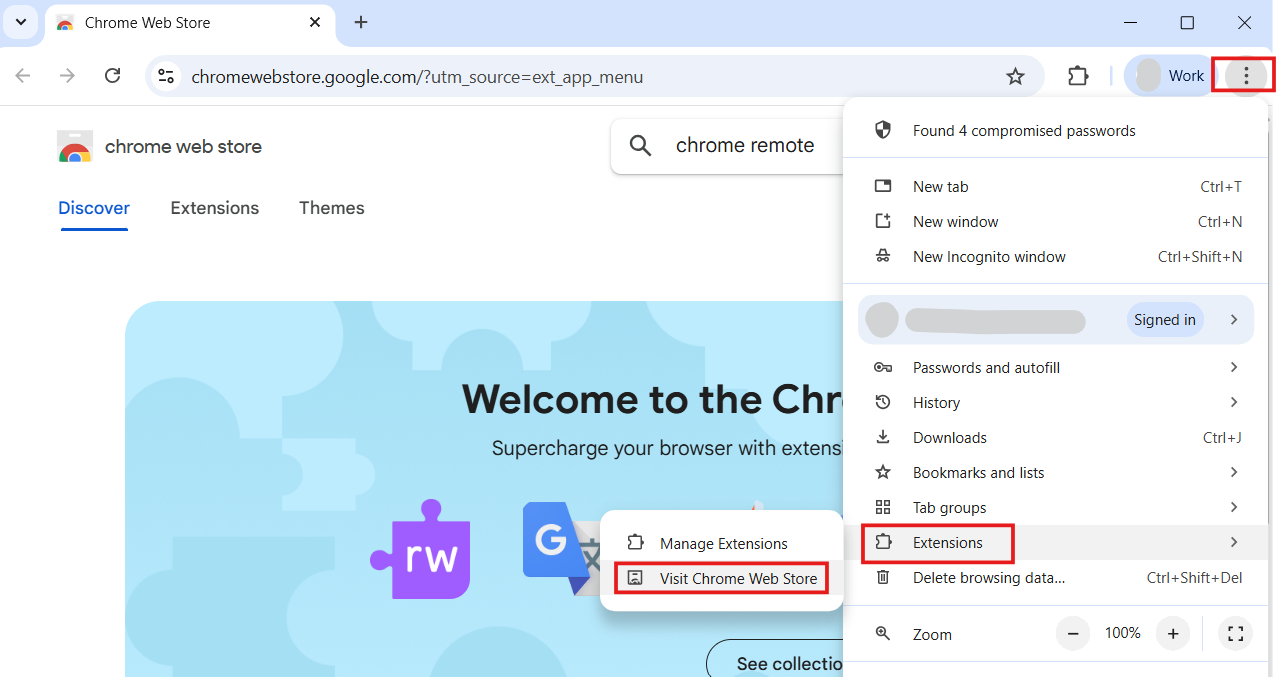
- Search "Chrome Remote Desktop".

- Add the extension to chrome.
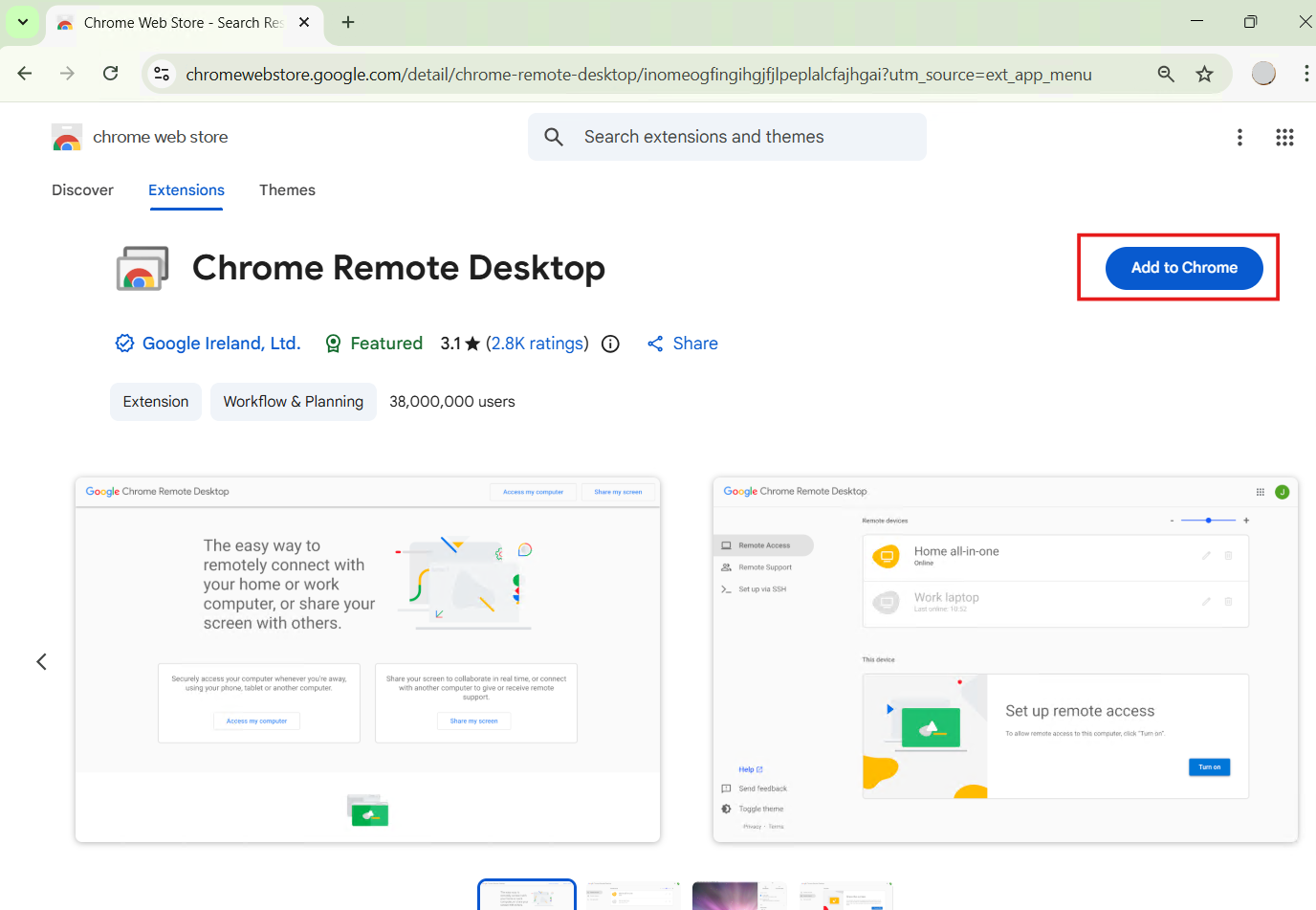
- Add the Extension.
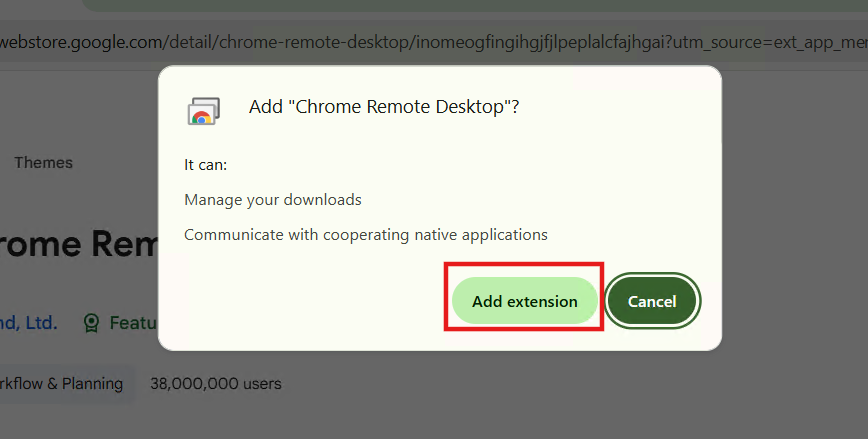
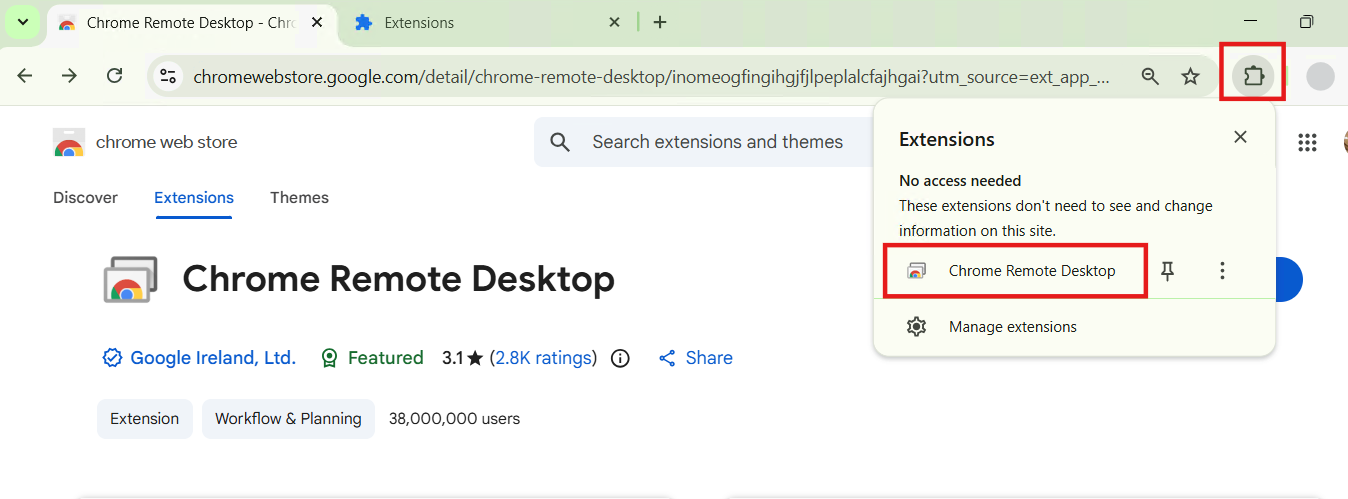
- Open "Chrome Remote Desktop" by goto Extension > Chrome Remote desktop.
- To share this computer screen click "Share my screen".

- Install "Chrome Remote Desktop" to more feature.

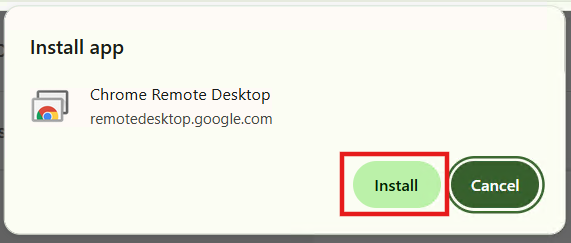

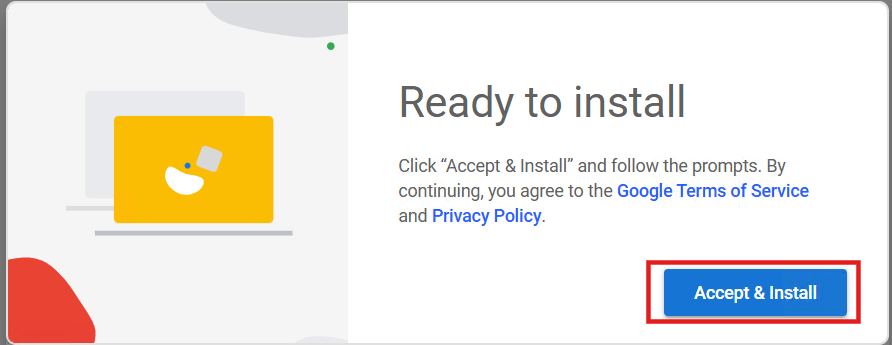
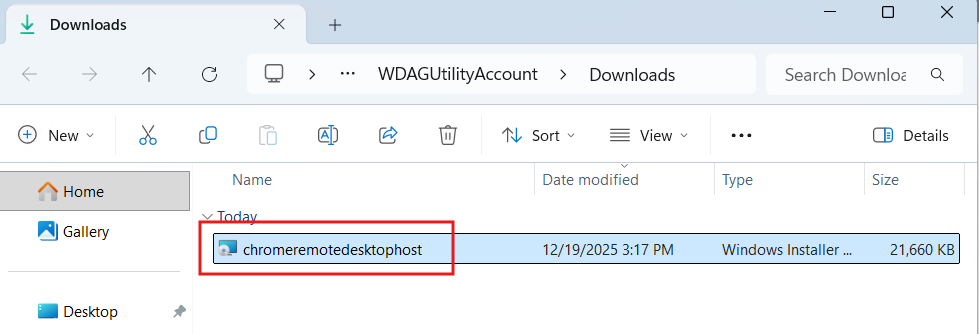
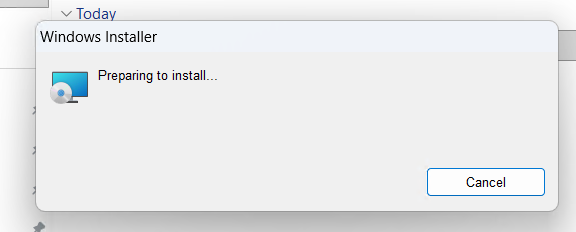
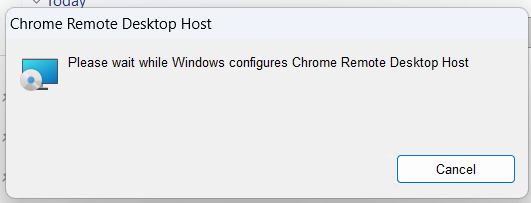
- Aftger installed. Generate Code to share your computer will showed.

- Click to generate the code.
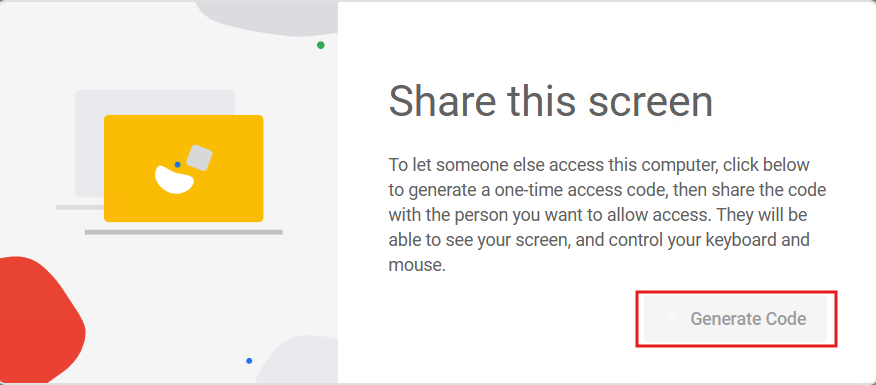
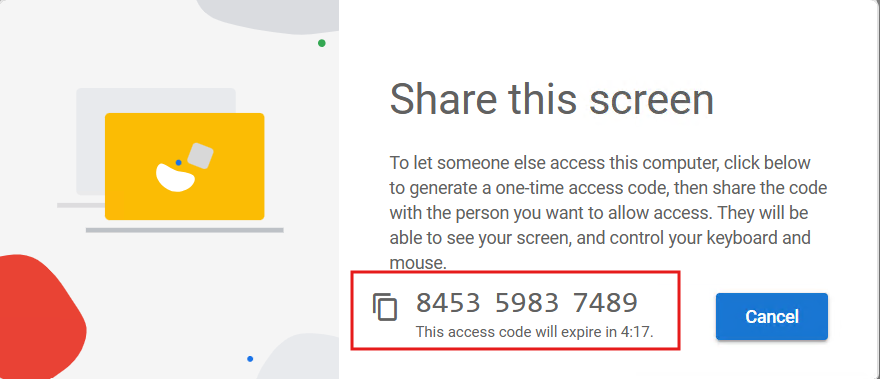
- Copy the code and share to remote access.
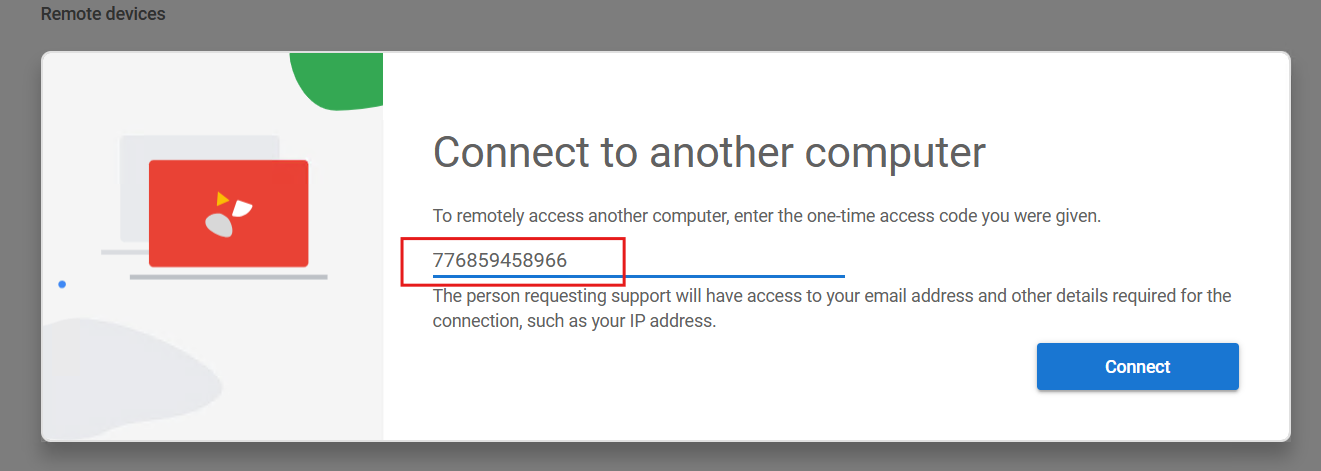
- On remote access site, scroll down to remote device section and enter the access code.


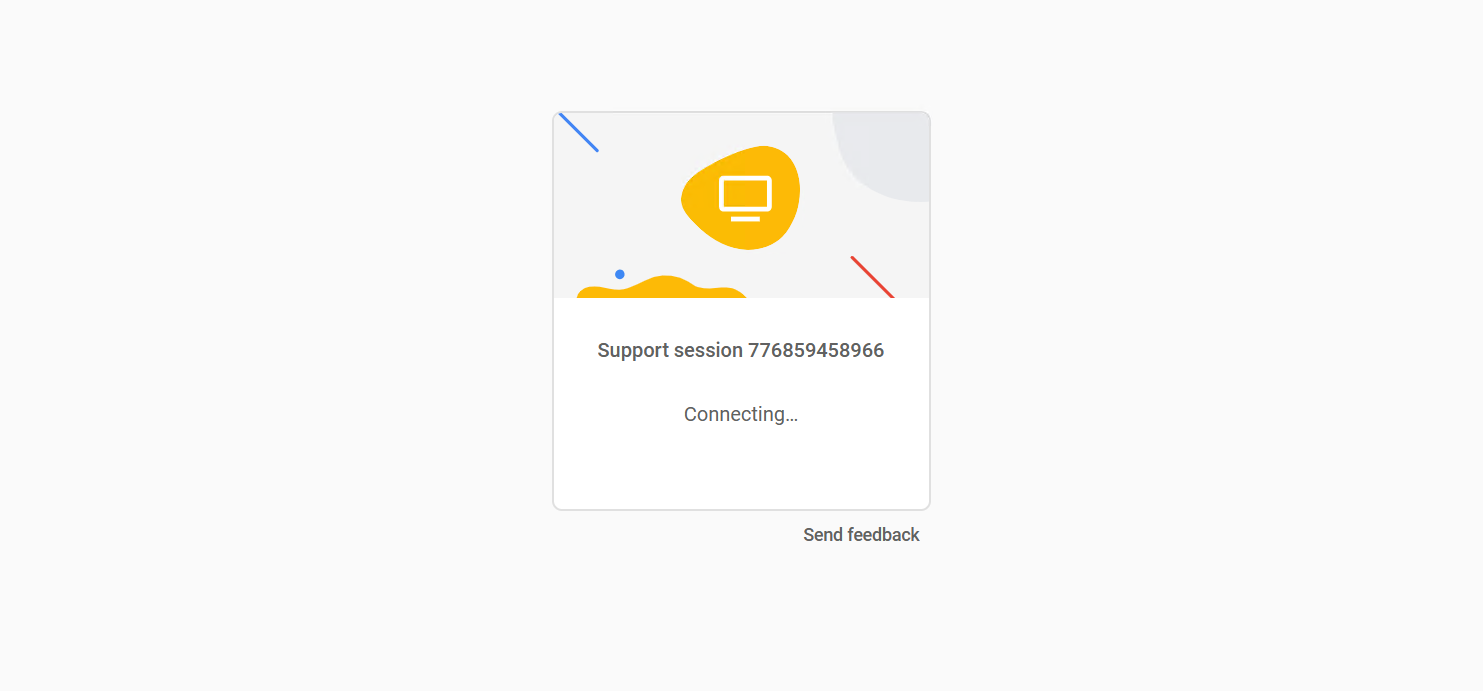
- After connect on client will show dialog box request to allow access.
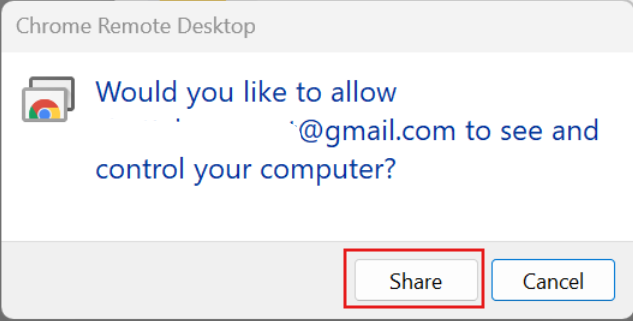
- Now remote is connected.
