
Computer tips "Custom Scaling Display".


Today, I'd like to share a trick to solve a very common problem we encounter while working: "When we restart our computer, the program bar is too wide and thick, or the taskbar icons are unusually large," leaving less screen space available for working.
This trick is called Custom Scaling on Windows 10 and 11, which is more effective and precise than simply adjusting the screen resolution.
How to fix a screen that's too big/too wide using Custom Scaling.
Normally, Windows sets the scaling to 100%, 125%, or 150% depending on your monitor. However, sometimes after system updates or connecting an external monitor, this setting may become distorted, making everything on the screen appear too wide and bulky. You can lock the most stable setting using this method.
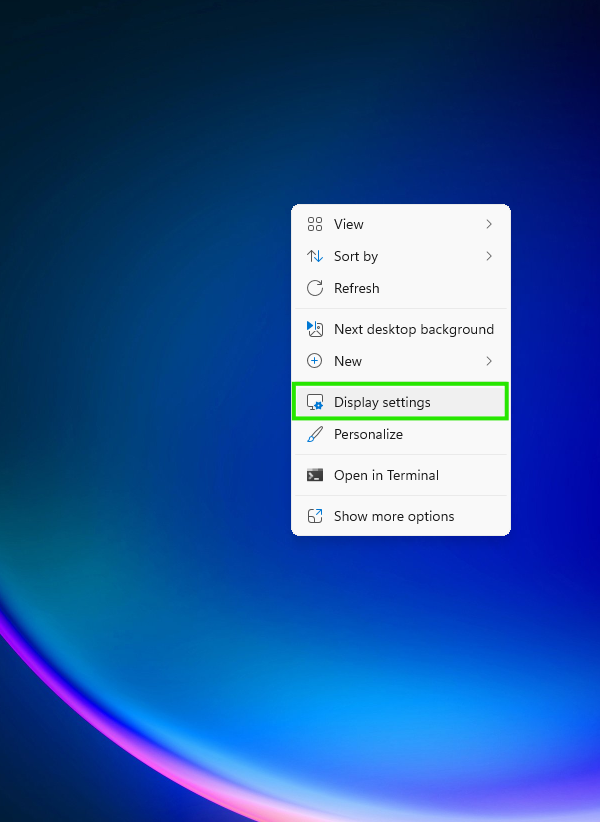
- Right-click on an empty area of the Desktop and select Display settings.
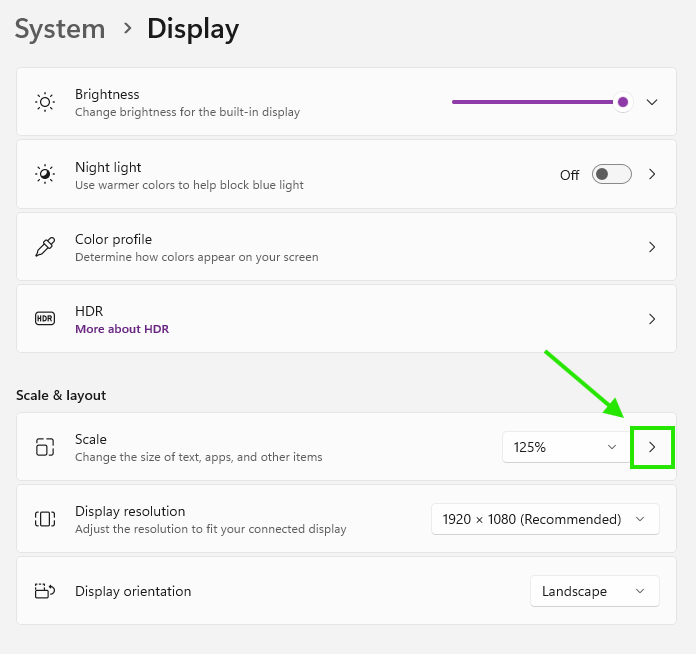
- Scroll down to the Scale & layout section. Instead of selecting a number in the regular box, click the arrow or tap on the word "Scale" (where the percentage is displayed) to access the Advanced scaling settings page.
- In the Custom scaling field, type the number 100 or 110. (100 is the standard size that doesn't scale at all, which helps to make program bars thinner and saves the most screen space.)
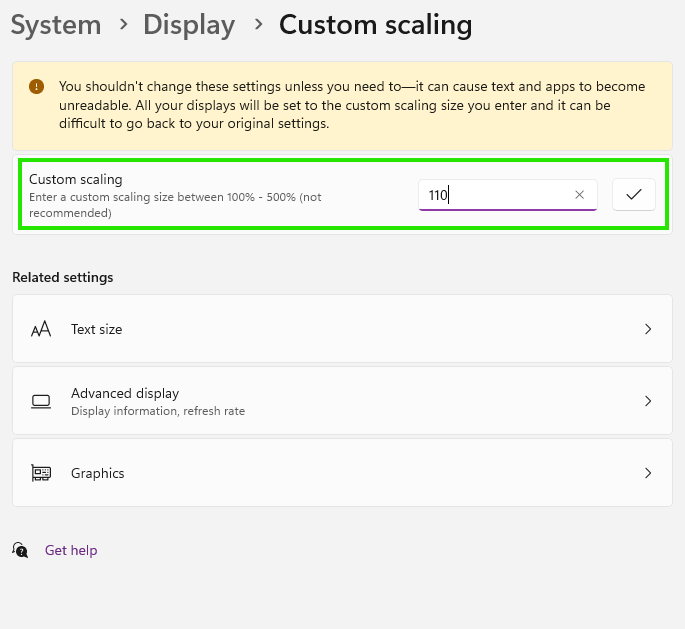
- Press the checkbox (Apply). The system will display a warning message prompting you to sign out. Press Sign out and then log in again to see the correct results.

finished..