
Computer tips "Voice Typing" on Windows 11.


Voice Typing Tip: Too lazy to type? Just speak and let the computer type for you! (Supports Thai very clearly)
If you need to type long summaries, articles, or check out ideas but don't want to move your fingers while typing, Windows has a very smart voice-to-text feature that accurately supports the Thai language.
How to use:
- Click the mouse in the field where you want to type the text (e.g., Word, Notepad, or a chat box).
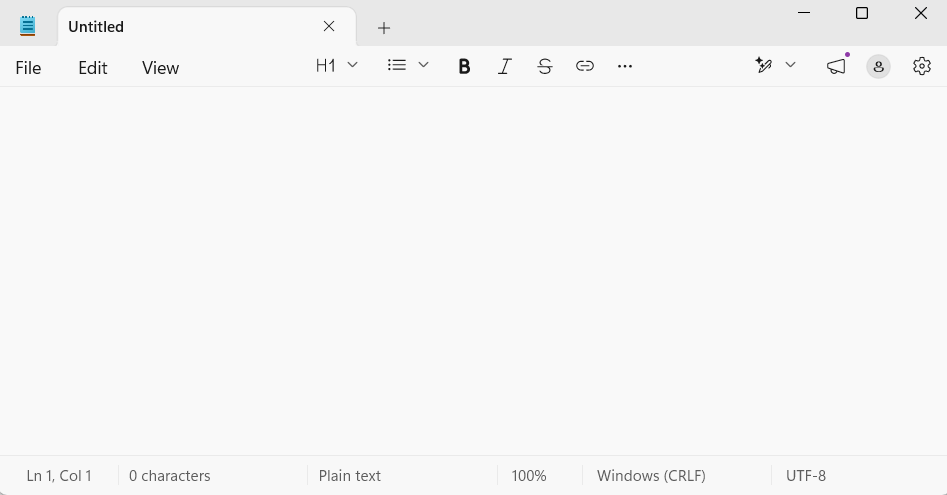
- Press the Windows + H keys on your keyboard.
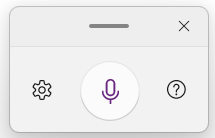
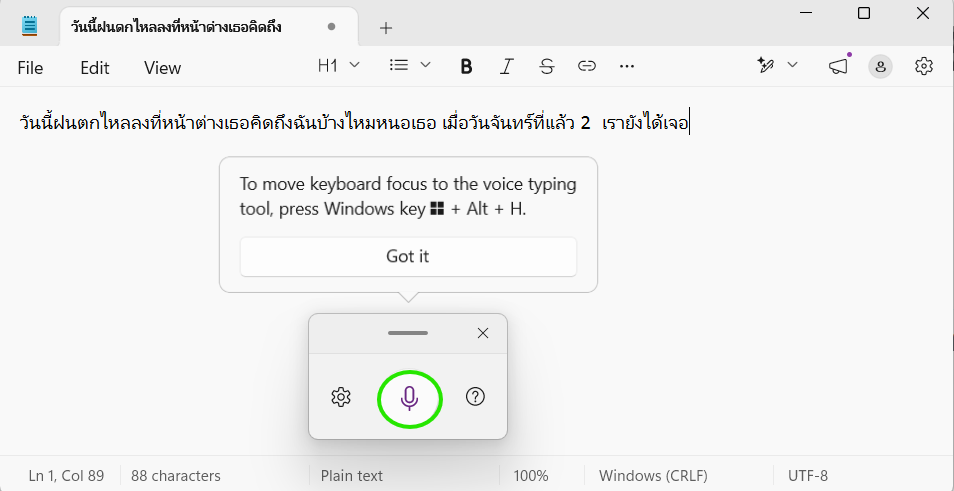
- A microphone icon will appear, allowing you to start speaking into the microphone immediately. The system will quickly convert your speech into Thai text.
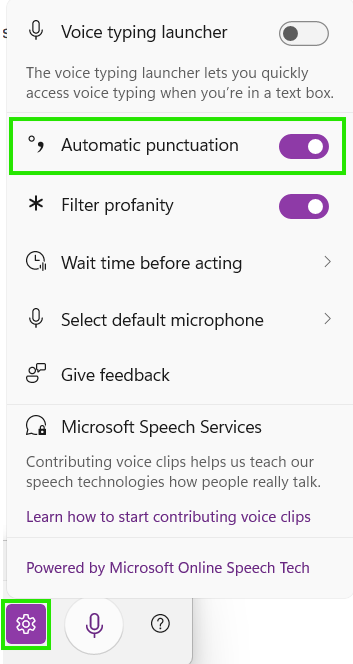
- Additional tip: We recommend clicking the gear icon (Settings) on the microphone window and enabling the Voice contribution and Auto-punctuation functions. The system will automatically add pauses and quotation marks when you pause while speaking.
end..