
Computer tips "Extract text from images/videos" on Windows 11.


Have you ever encountered a slide from a professor, an image on Facebook, or code in a YouTube video and wanted to copy the text, but couldn't highlight and copy it, forcing you to type it out manually?
If you're using Windows 11, you don't need to install any other programs! The new version of the screen capture tool (Snipping Tool) has built-in AI text scanning (OCR)!
How to use.
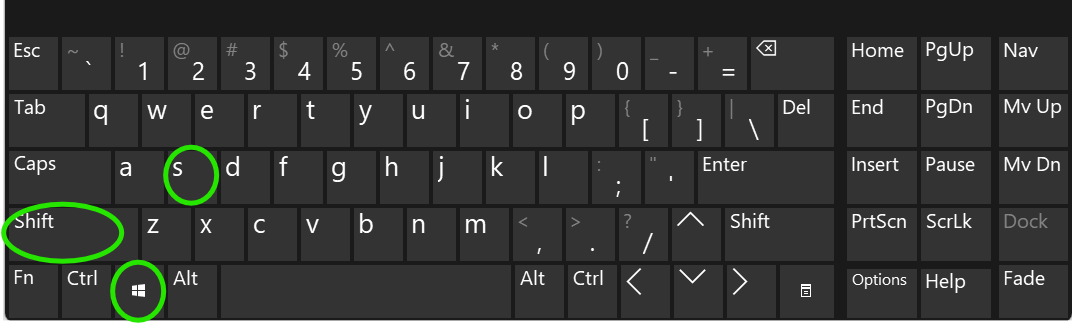
- Press the Windows + Shift + S keys and drag to capture the desired image or text.
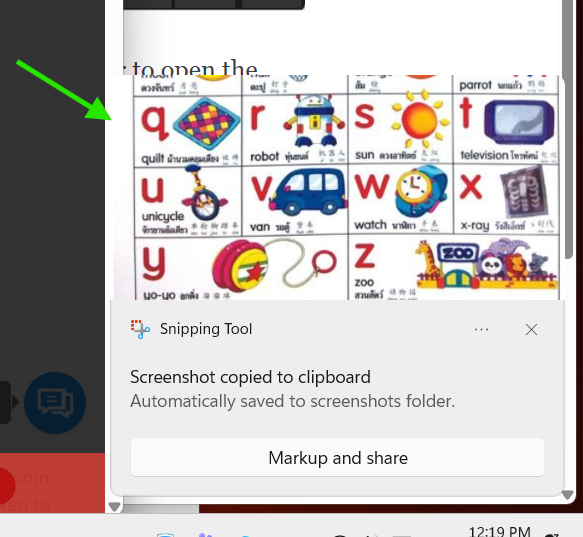
- Click the image preview that pops up in the bottom right corner to open the Snipping Tool window.
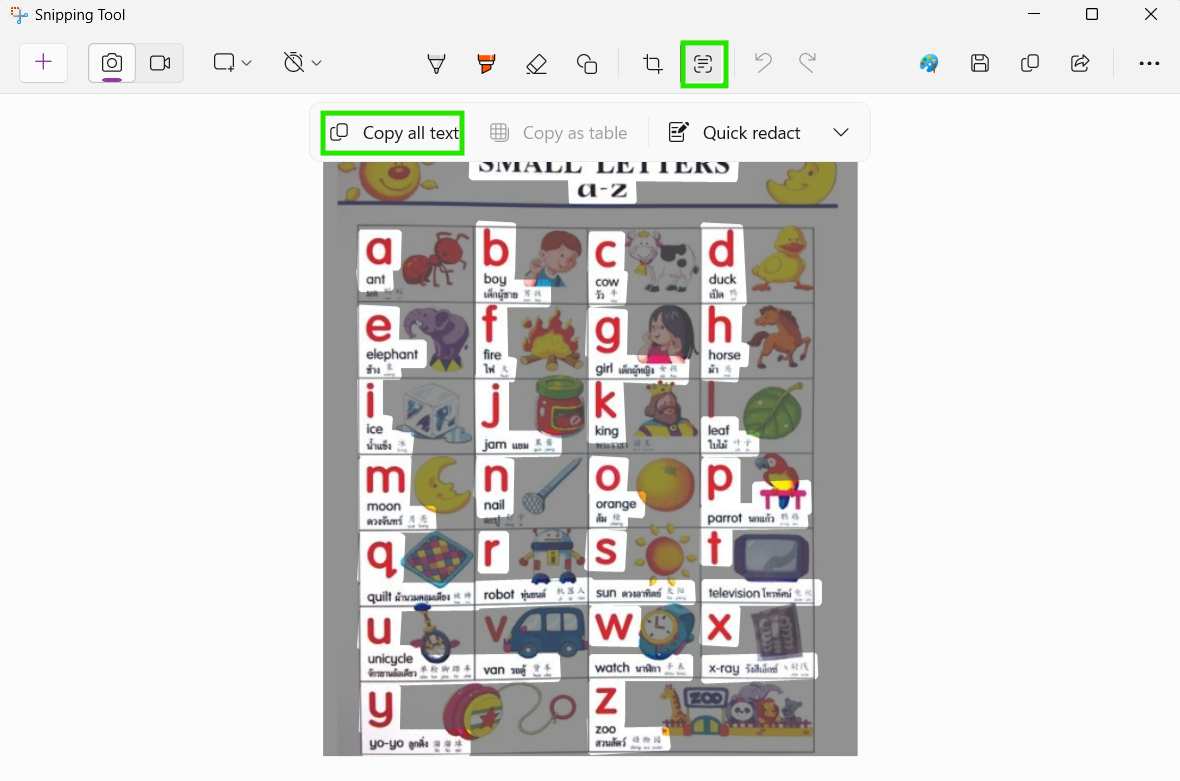
- Click the "Text Actions" button (the icon of a box with lines inside, in the top toolbar).
- The AI will immediately scan the text in the image. You can click "Copy all text" to copy everything, or you can use your mouse to select only the words you want. (Importantly, it supports Thai language and is quite accurate!)
finished..