
Computer tips How to use "FancyZones" in PowerToys.


Normally, when we press Windows + the arrow keys to arrange the Windows window, we can only divide it in half left and right or into four equal corners. This is often not ideal for practical use, especially for those using large monitors (such as ultrawide or 2K/4K monitors).
FancyZones allows you to design your own custom window layout. You can divide it into three columns, create a large central window, and smaller windows for viewing chats on the sides—it's all customizable.
How to enable and set up FancyZones
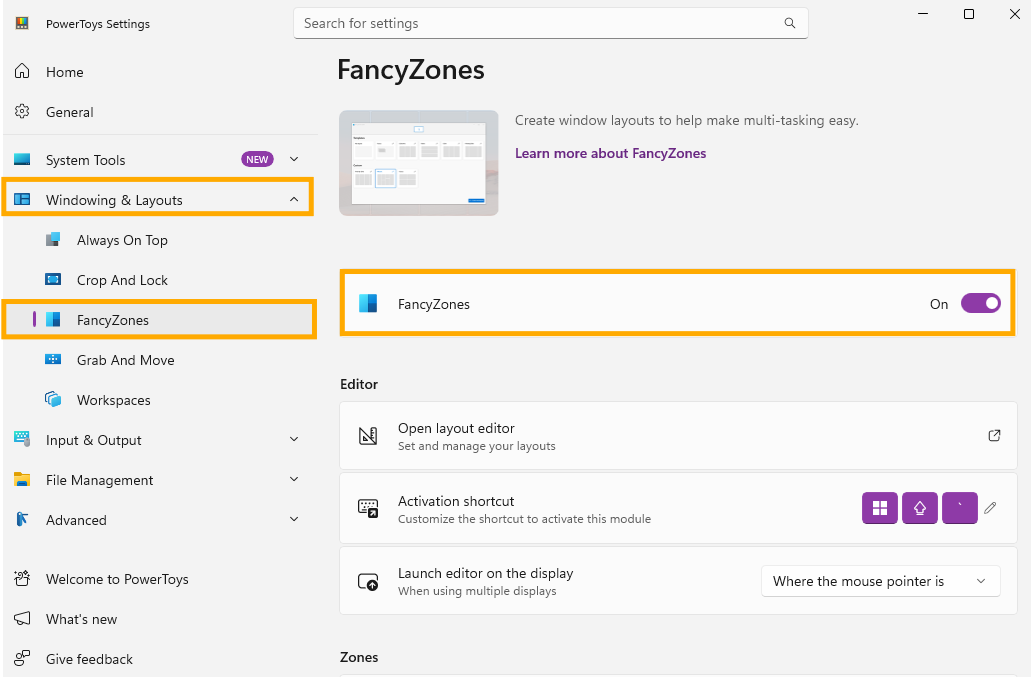
1.Enable FancyZones
Open Microsoft PowerToys. Select the FancyZones menu on the left. Turn on the Enable FancyZones switch.
2.Screen layout design (Layout Editor)
Press the keyboard shortcut Windows + Shift + \ (or press the Launch layout editor button in the program).
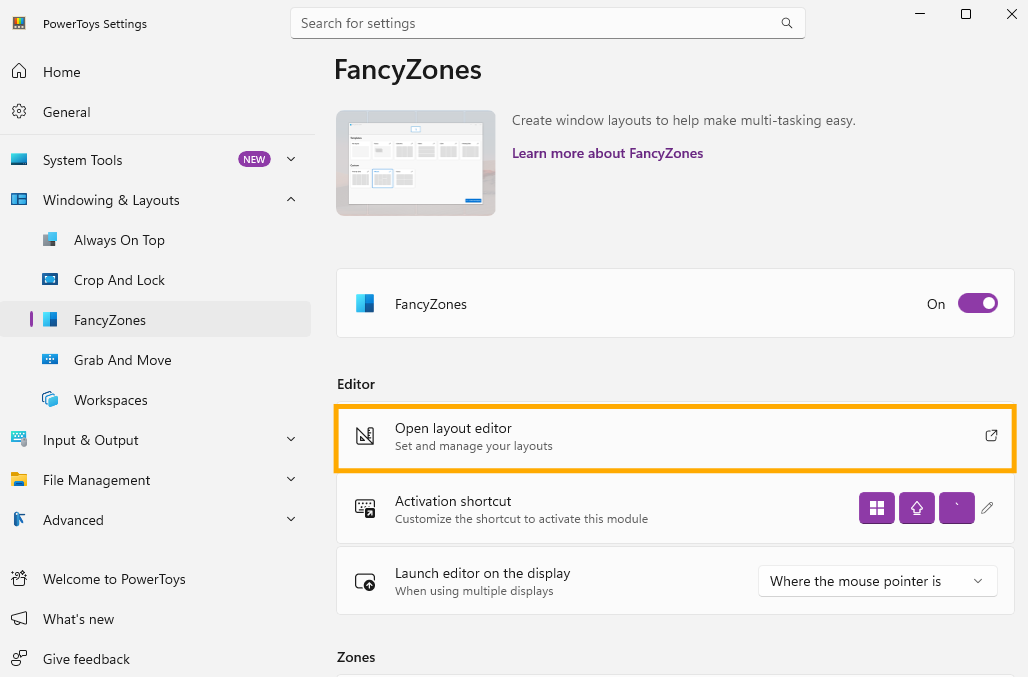
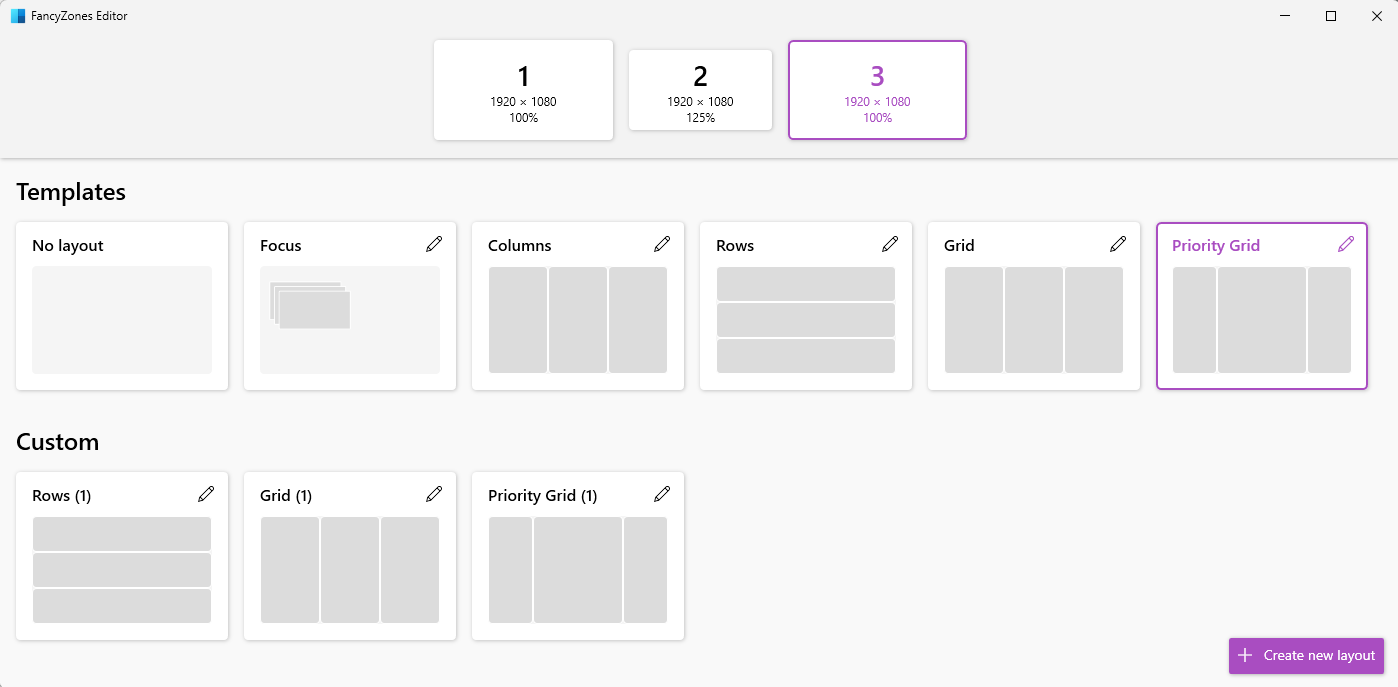
Choose from a pre-designed layout or click Create new layout to draw your own grid and customize the window sizes as needed. Press Save to apply.
3.How to use it in practice
To move a program or web window into its designated space:
- Press and hold the Shift key while dragging the program window.
- The screen will display the frame of the channel we have configured.
- Drag the window and drop it into the desired slot, then release the mouse. The window will instantly expand to fill the entire slot!
finished..
end..