
Computer tip: "Key Remapping" Resetting button settings with PowerToys"


There are some keys on our keyboard that we rarely use, such as Caps Lock, Scroll Lock, or the right-hand Windows key. We can repurpose them for more useful functions using Keyboard Manager in the PowerToys application.
Transforming rarely used keys into powerful ones, also known as key remapping, using Microsoft PowerToys is a great way to significantly improve typing speed and productivity.
Below is a detailed, step-by-step guide.
Things to prepare before starting.
- Download and install Microsoft PowerToys.
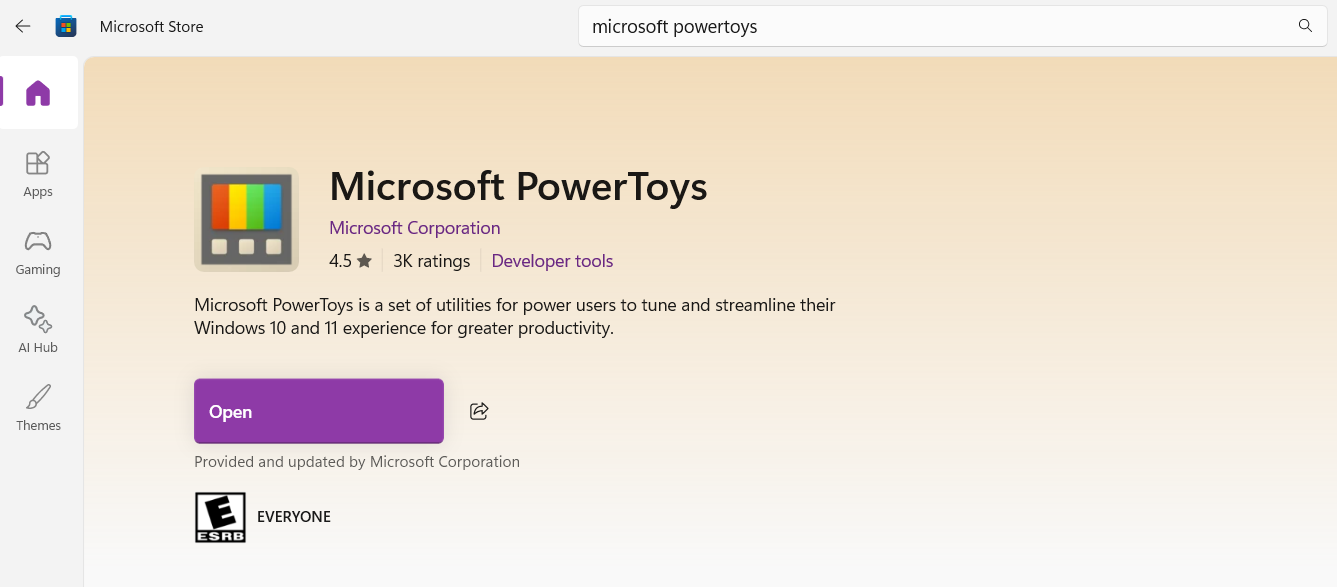
- Open the Microsoft Store on your computer and search for "Microsoft PowerToys". Click Install.
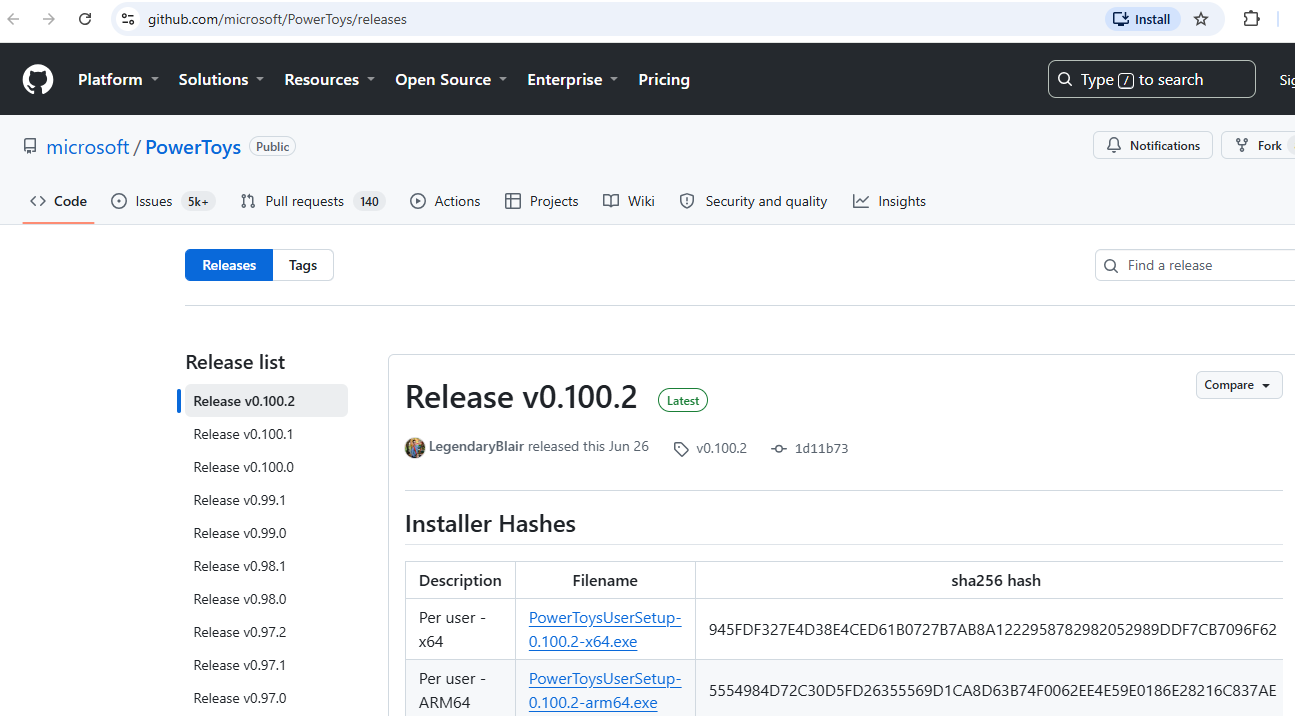
- (Or download the installation file directly from GitHub - Microsoft PowerToys)
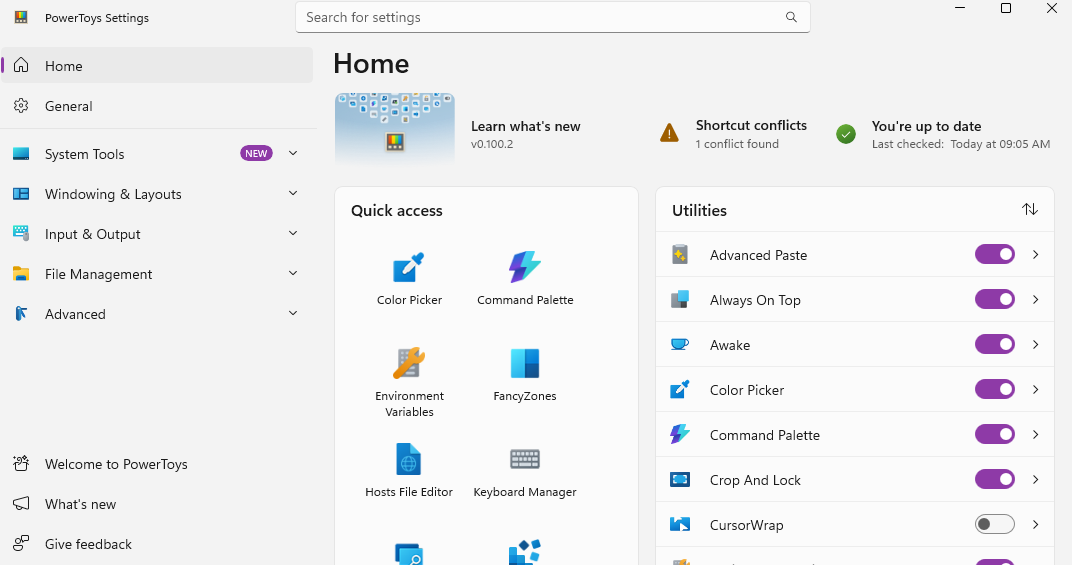
- Open the PowerToys program (you can leave it running in the background).
Case 1: Change a single key to another key (Single Key Remap)
(A popular example: Change the often-accidental Caps Lock key to become the Backspace or Ctrl key.)
- Open the PowerToys program.
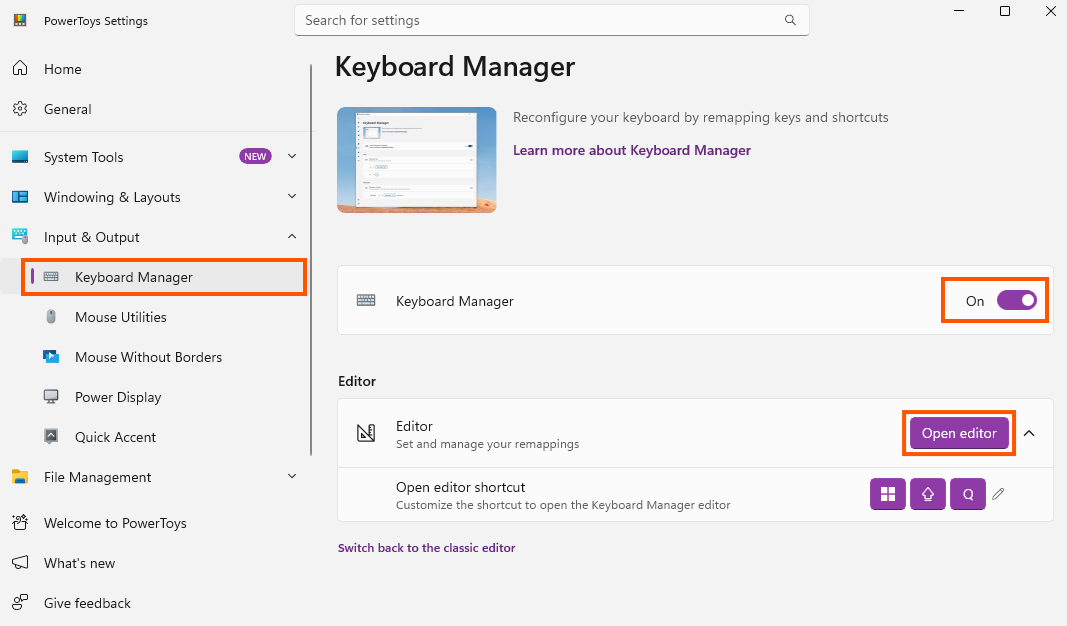
- On the left-hand menu, select Keyboard Manager.
- Look at the right side; make sure the Enable Keyboard Manager switch is turned on.
- Click the "Open editor" button (to change the function of a key).
- A window will pop up; click the + icon (Add key remapping).
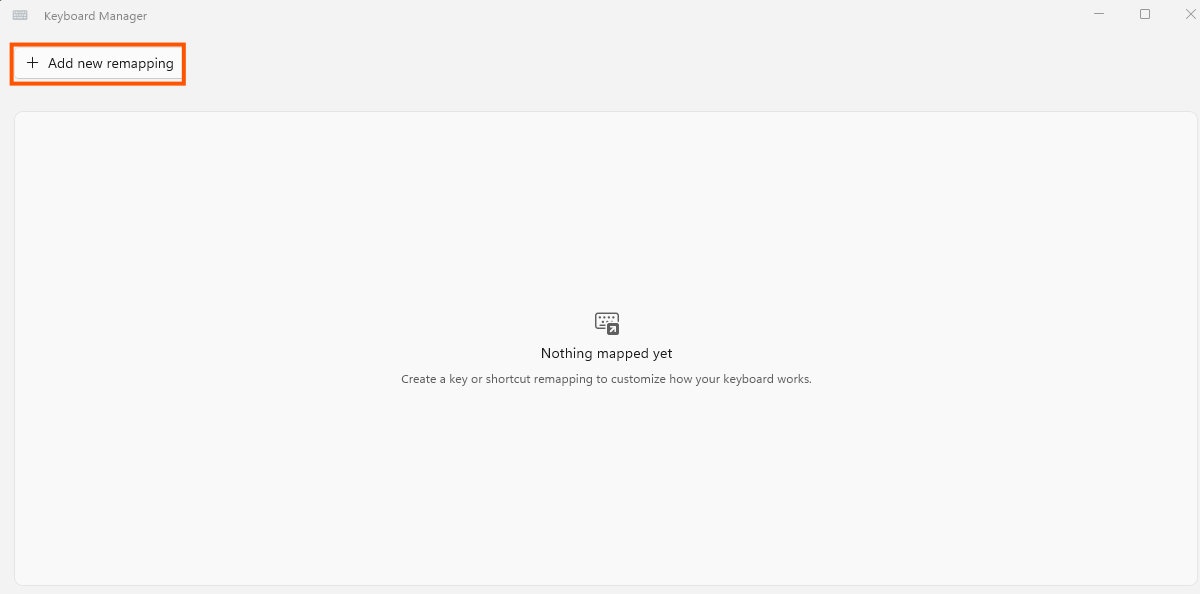
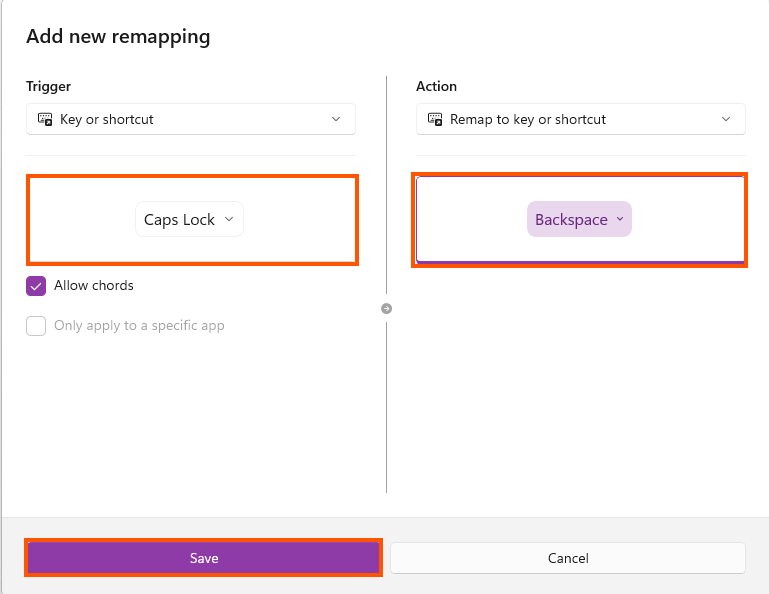
- Left side settings (Select/Physical Key): The original key on your keyboard that you want to change.
- Click the Type button and then press a key on your physical keyboard (e.g., press the Caps Lock key).
- Right-hand side settings (To send/Mapped To): New button that you want it to replace.
- Select Backspace or another key from the drop-down list.
- Click Save.
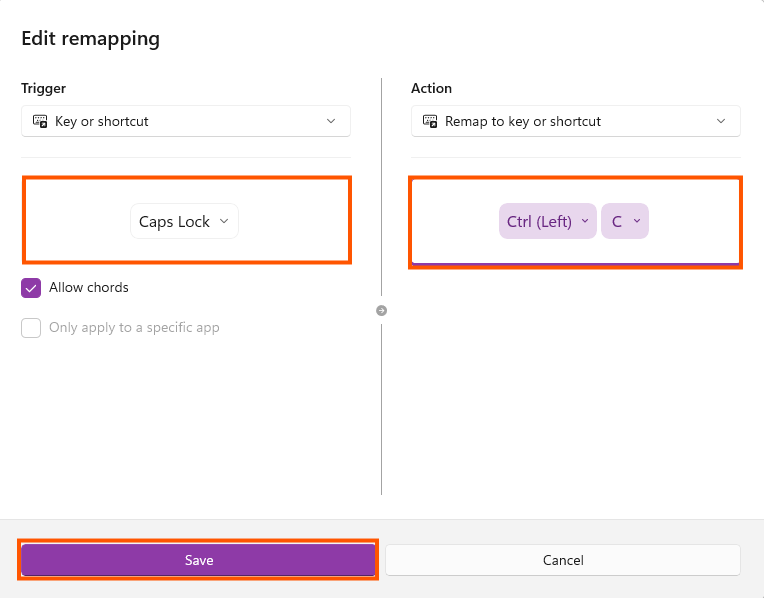
Case 2: Convert a single key into a large set of shortcuts (Remap Key to Shortcut).
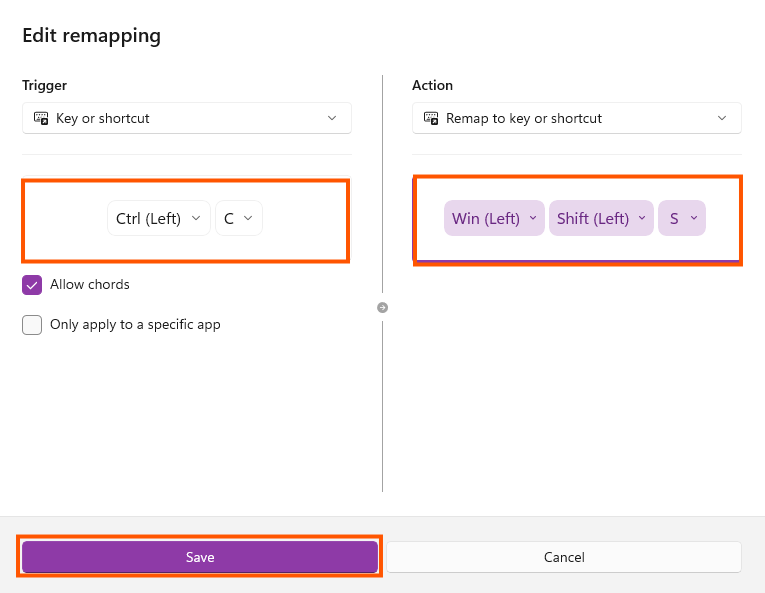
Case 3: Change the existing shortcut to a new, easier-to-use shortcut (Remap a Shortcut).
You can follow the steps of Case 1 immediately, just change Remap Key to Shortcut.
or
Additional tips and precautions.
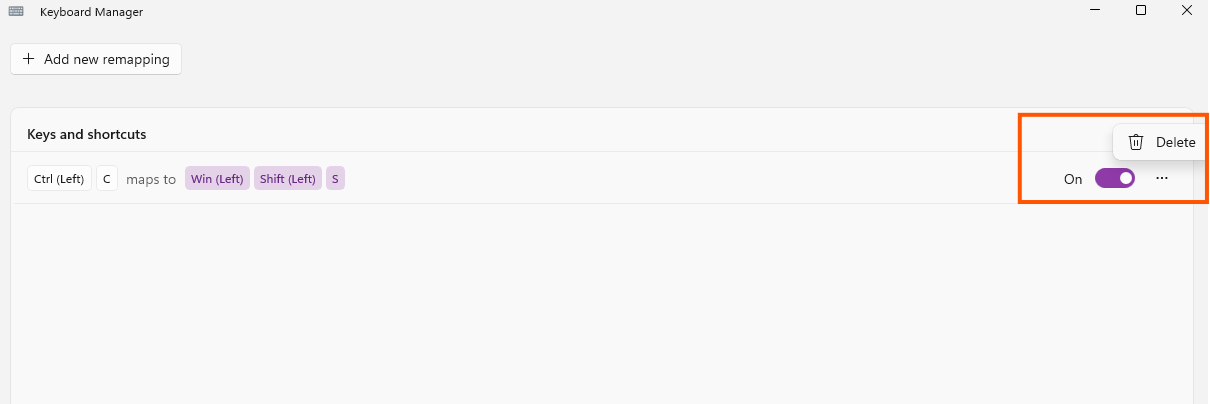
- Cancelling/Deleting Settings: If you don't like the settings on a particular day, go back to the Remap a Key page, click the trash can icon next to the item, and then press OK. The keyboard will revert to its default settings immediately.
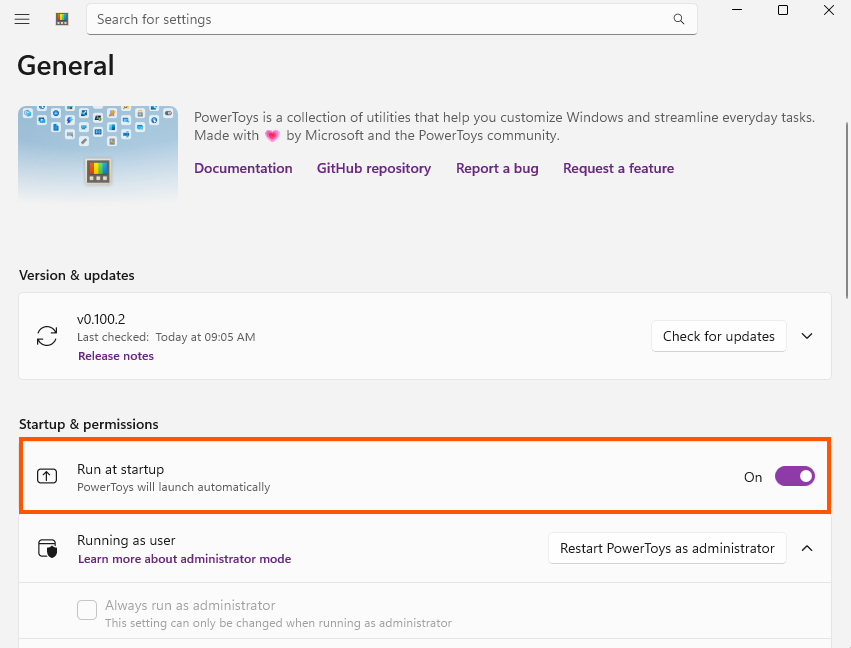
- PowerToys must be left open: The remap script will run as long as PowerToys is running on the system (it's recommended to set "Run at startup" to "On" in PowerToys Settings).
finished..
end..