
Computer tips "How to use GodMode in Windows 11"


GodMode (or God Mode) in Windows is a special folder that collects all the system settings shortcuts in one place, organized in an orderly manner. This eliminates the need to search through multiple menus in the Control Panel or Settings.
Here's how to enable it:
Steps to activate GodMode
- Create new folder.
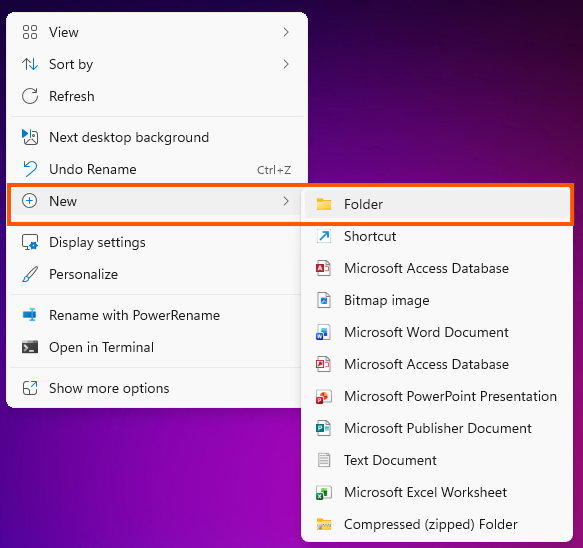
- Right-click on an empty area of the Desktop.
- Select New Folder.
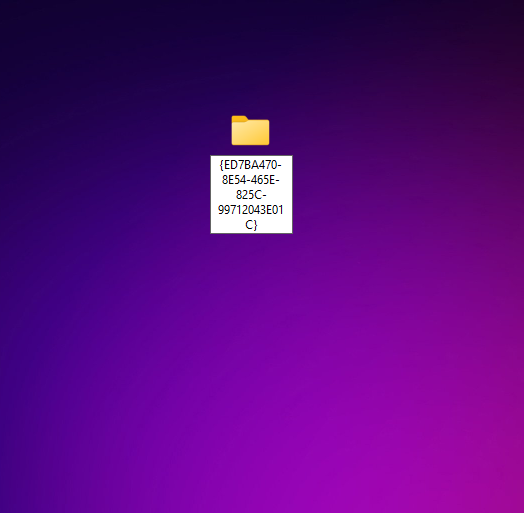
- Change the folder name.
- Copy the entire text code below and paste it into the folder name:
GodMode.{ED7BA470-8E54-465E-825C-99712043E01C}- Press Enter.
- Usage
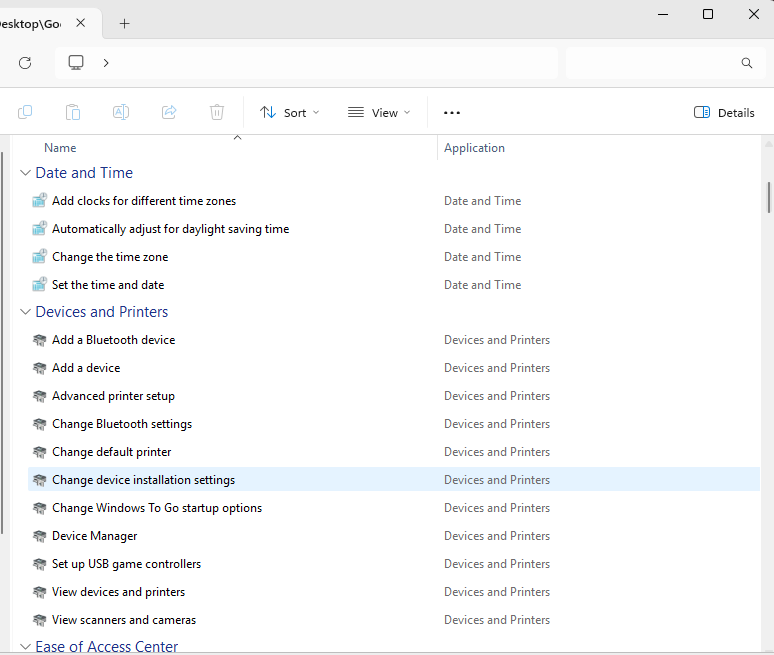
- The folder name will disappear, and the icon will change to a Control Panel image.

- Double-clicking to open it will reveal over 200 system settings (categorized as follows: Power Options, Network and Sharing Center, Administrative Tools, etc.).
*Additional things to know
- Cancellation: If you no longer need it, you can immediately delete the folder without affecting the system.
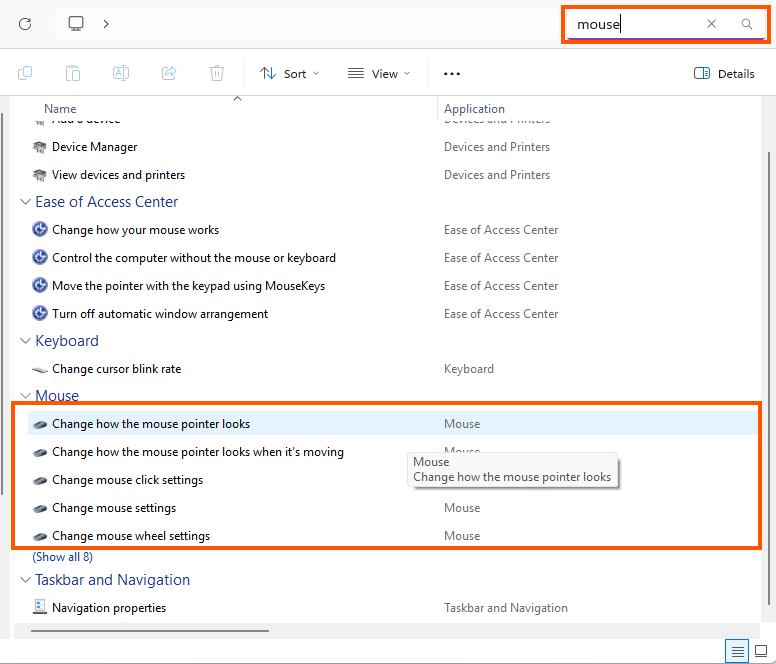
- Easier searching: You can use the search box in the upper right corner of the GodMode folder to quickly find the commands you need.
end..