
Computer tips "How to use Picture-in-Picture feature" on any web browser.


Here's a great trick for entertainment lovers and those who enjoy watching videos on their browser (Google Chrome, Microsoft Edge) that allows you to watch videos while working or scrolling through other social media pages simultaneously, without having to split the window into two small sections. It's the "Picture-in-Picture (PiP) shortcut using a keyboard key."
Normally, when we watch YouTube, we can right-click the video twice and select "Picture-in-Picture" to separate the video window and make it float above other programs. But this trick is even cooler because you can do this on "any website with videos" (not just YouTube) and open it in a fraction of a second using your keyboard.
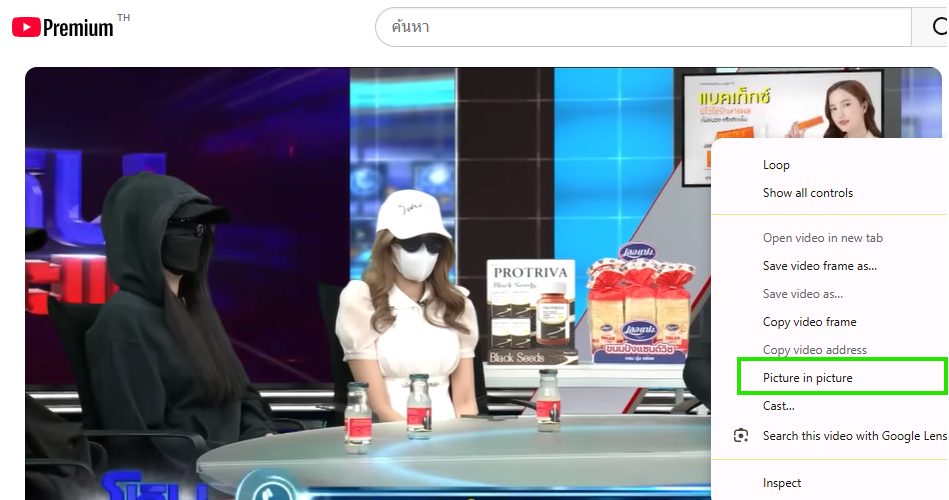

Trick to separate floating video windows with browser shortcuts:
If you're using Windows, this shortcut works with your browser's Media Control system to instantly pull up the video.

Keyboard shortcut to press (while a video is playing on a webpage):
- Alt + P (for Microsoft Edge and Google Chrome browser)
- For Google Chrome, you need to install the genuine Google extension called Picture-in-Picture Extension first.

After splitting the window:
- The video window will always float on top: Even if you open Excel, Word, or a LINE chat window to type, the video will not be obscured.
- Resize and move freely: You can drag your mouse from the corner to enlarge the window, or move it to any corner of the screen that you think won't obstruct your view.
- Skip ads or control the time: Some floating videos in newer versions will have a skip button or a timeline that lets you fast-forward or rewind without switching back to the original tab.
Bonus Tip: If you're using a single-screen notebook, this feature is a lifesaver! You can open tutorial videos or listen to seminars while simultaneously using note-taking software in full screen, without constantly switching between screens by pressing Alt + Tab. Give it a try!
finished..