
Computer tips "Windows Sandbox".


A tip for those who like to experiment: "Windows Sandbox" (Start a private, virtual computer in 10 seconds to test unusual files).
Have you ever been tempted to download unfamiliar programs, files from untrustworthy websites, or click on a link a friend sent but worried about malware? Most people would have to install resource-intensive virtualization programs like VirtualBox or VMware. But actually, Windows comes with a built-in virtual sandbox!
It's a Windows operating system nested within Windows, completely separate from your physical computer, and the coolest thing is, "when you shut it down, everything disappears instantly," as if nothing ever happened.
How to enable this hidden feature:
Requirements: Your computer must be running Windows 10/11 Pro, Enterprise, or Education edition only. (Home edition does not have this feature.)
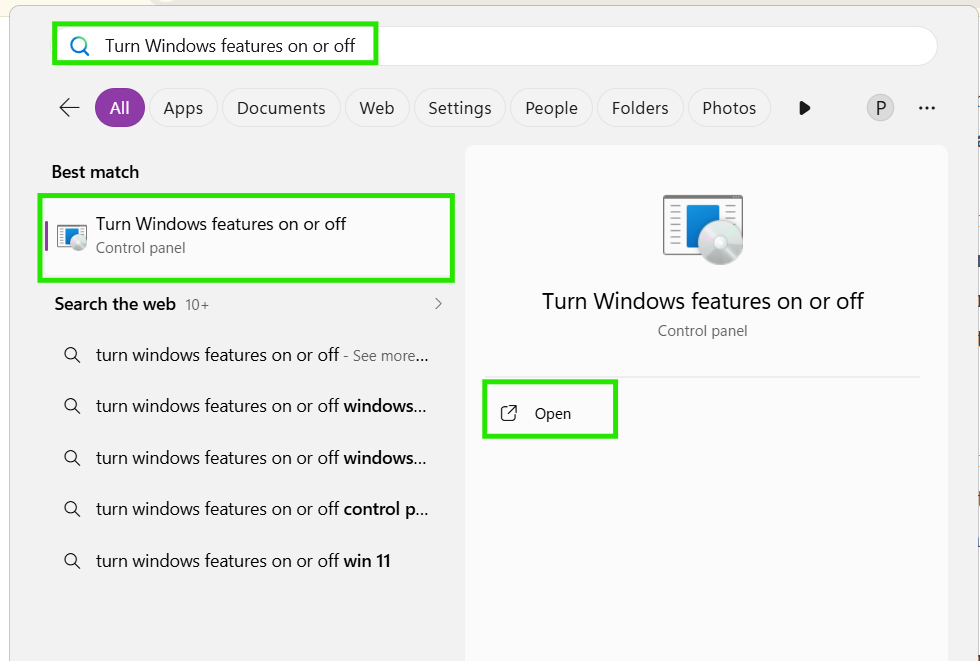
- Press the Start button and type "Turn Windows features on or off" in the search bar.
- Scroll to the option labeled "Windows Sandbox" and put a check mark next to it.
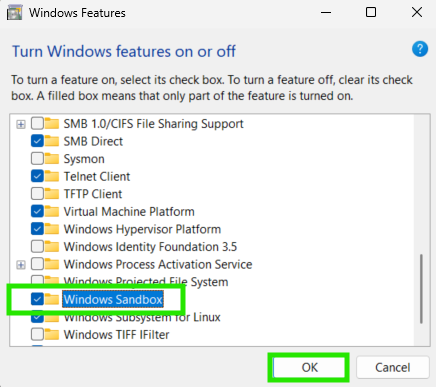
- Press OK, then the system will prompt you to restart the computer once.
How to use it in practice:
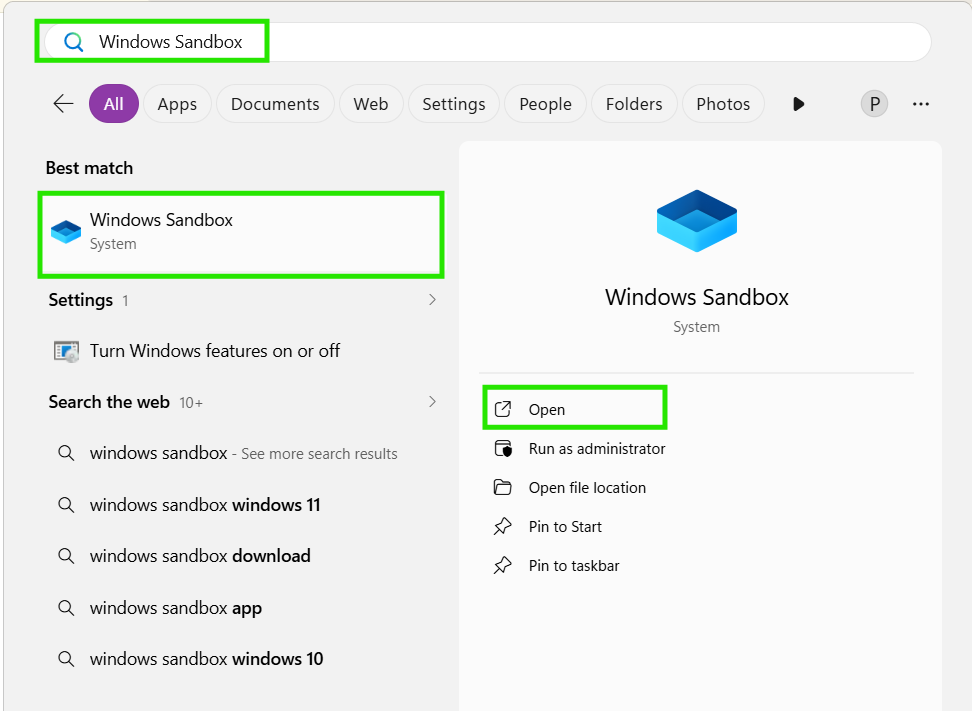
- After restarting your computer, press the Start button and type "Windows Sandbox" in the search bar to open it.
- You'll get a separate, empty Windows 11 window that runs completely independently from your main computer.
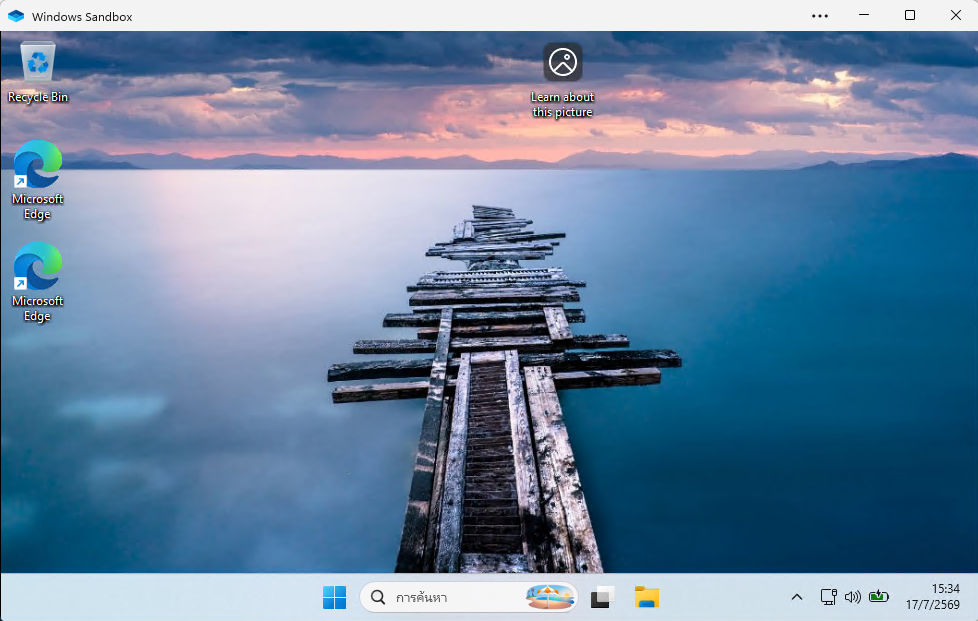
Feel free to experiment: You can drag and drop any suspicious .exe file from your real computer into this sandbox and run it, or even open a browser inside to visit risky websites.
Destroying Evidence: Once you're finished, simply close the Sandbox window (the X in the upper right corner). All programs, viruses, and your activity history within it will be permanently and instantly deleted, leaving no trace or affecting your main computer in any way.
..