
How to setting functions Energy saver on Windows 11.


Windows 11 has streamlined how it handles power management, moving most of the "Energy saver" (formerly Battery Saver) settings into the modern Settings app.
Whether you’re trying to squeeze extra life out of a laptop battery or just want to reduce your desktop’s carbon footprint, here is how you dial those settings in.
1. Accessing the Energy Saver Menu
The quickest way to get there is through the System settings:
- Press Windows Key + I to open Settings.
- Navigate to System > Power & battery.
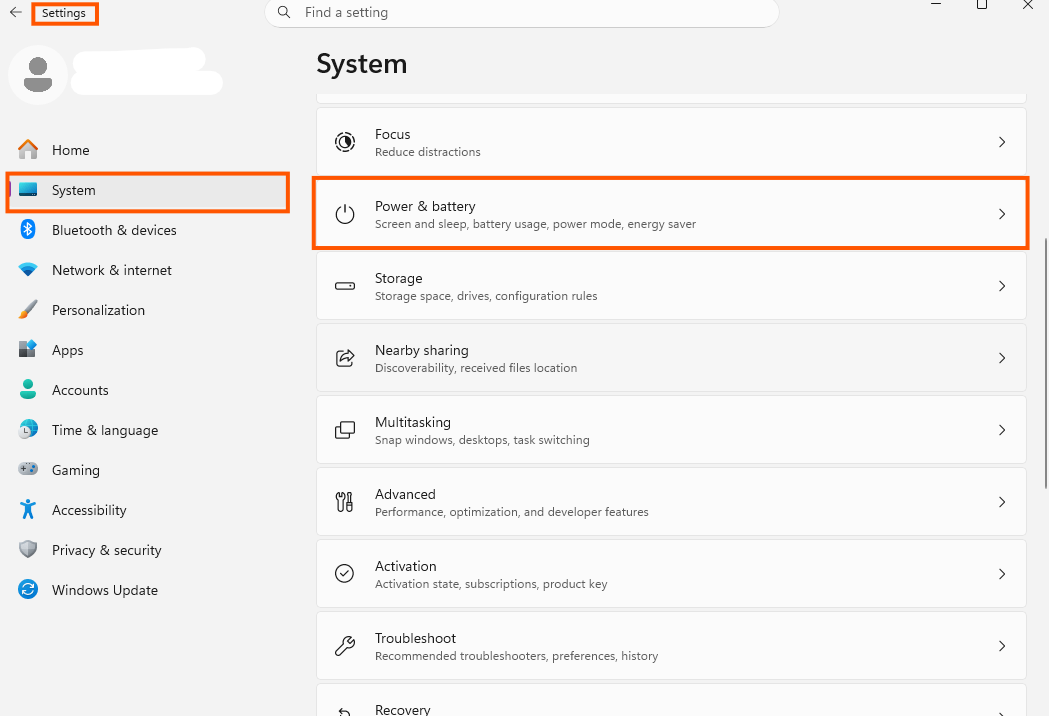
- Look for the Energy saver section (on some builds, this may still be labeled "Battery saver").
- Change the Energy saver percent if you want it.
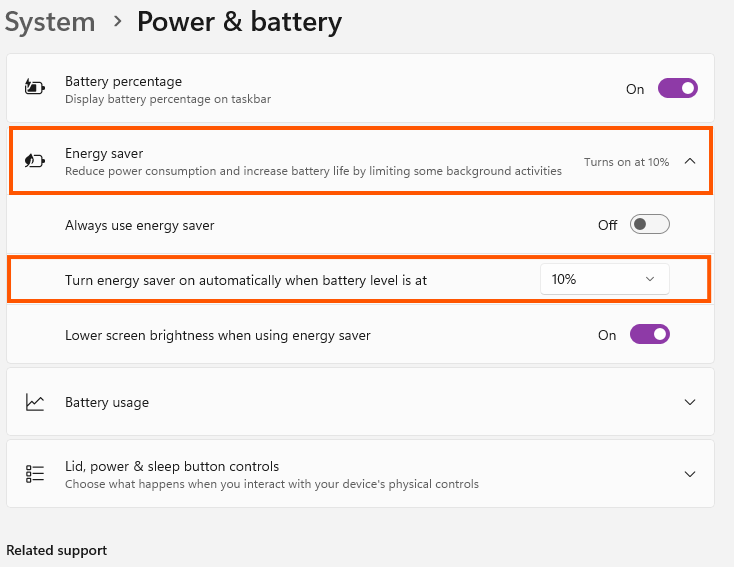
- Now your computer is ready to use.