
Computer tips "Boost Your Productivity with Clipboard History (Windows + V)"


Normally, when you press Ctrl + C to copy text or images, you can only paste (Ctrl + V) the very last item you copied. The moment you copy something new, the previous item is gone forever.
However, Windows has a built-in feature that lets you travel back in time and access dozens of your previously copied items!
How to Enable and Use It:
- Press the shortcut Windows + V on your keyboard.
*If it's your first time using it, a small pop-up will appear. Click the "Turn on" button.
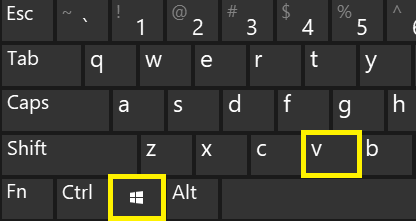
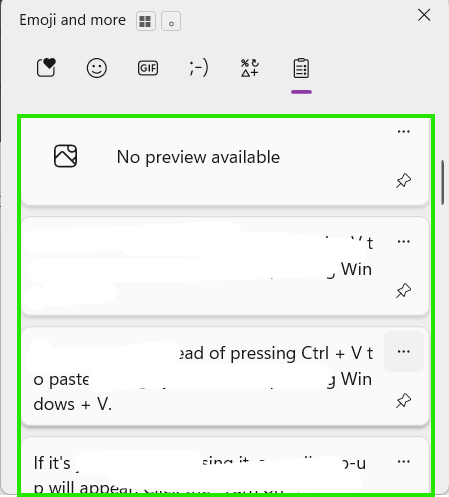
- From now on, instead of pressing Ctrl + V to paste, change your habit to pressing Windows + V.
Great Ways to Use This Feature:
- Stop Constant Screen-Switching: When transferring data from a website to an Excel sheet, you don't need to switch back and forth for every single line. Just press Ctrl + C multiple times on the website to collect all the data you need, then go to Excel and press Windows + V to paste them one by one.
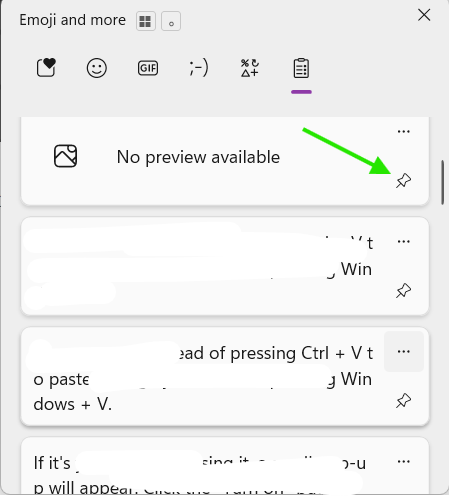
- Pin Frequently Used Texts: If there are things you have to type repeatedly—like your "bank account number," "company address," or "email sign-off"—you can copy them once, then click the Pin icon next to that item. Even if you restart your computer, these pinned items will remain saved and ready to use!
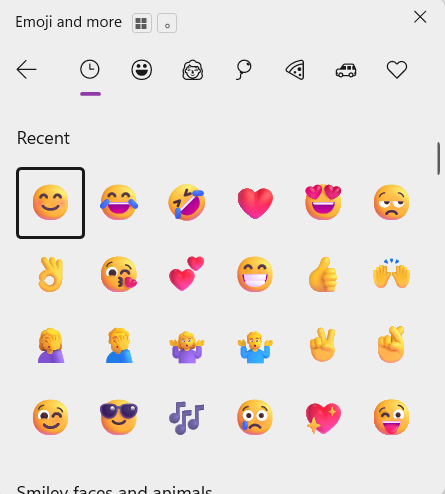
- Bonus Tip: This same pop-up menu also gives you quick access to Emojis, GIFs, and Special Symbols (like the degree sign °, checkmarks ✓, or arrows →). You can use them instantly without having to waste time searching for them on Google!
finish..