
Disable Private Wi-Fi mac address on MacOS (v.15)


On some private network. Before client can connect need to register the device mac address is call (Mac Filter List / Mac Address Filter). But if MacOS default is set as "Fixed". If you check Mac Address from hardware it will difference one as fixed will used the private mac address. So, this how to change to real Mac Address when you want to connect to the network as real Mac Address.
- Go to setting.
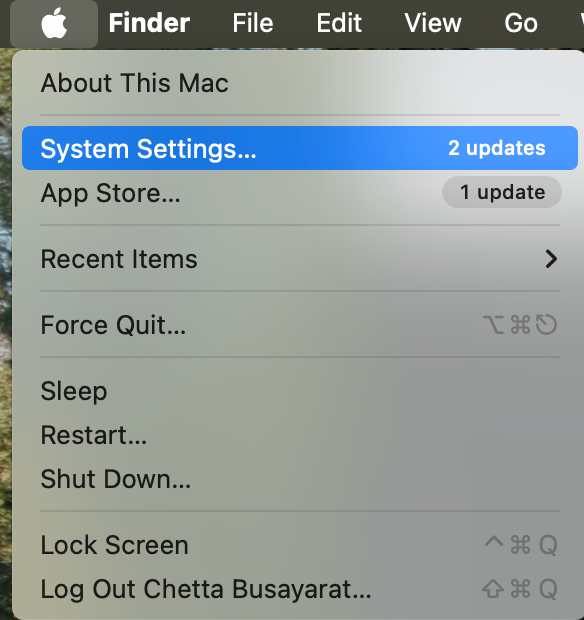
- Wi-Fi > Wi-Fi SSID > Option > Network Setting.

- Default private Wi-Fi address setting is set to "Fiexed". Address is private.

- Change to "Off" to used real mac address on this machine.
(Off: Used for networks that require strict device recognition (Netork controlled by Mac Filter list/Mac Address List).
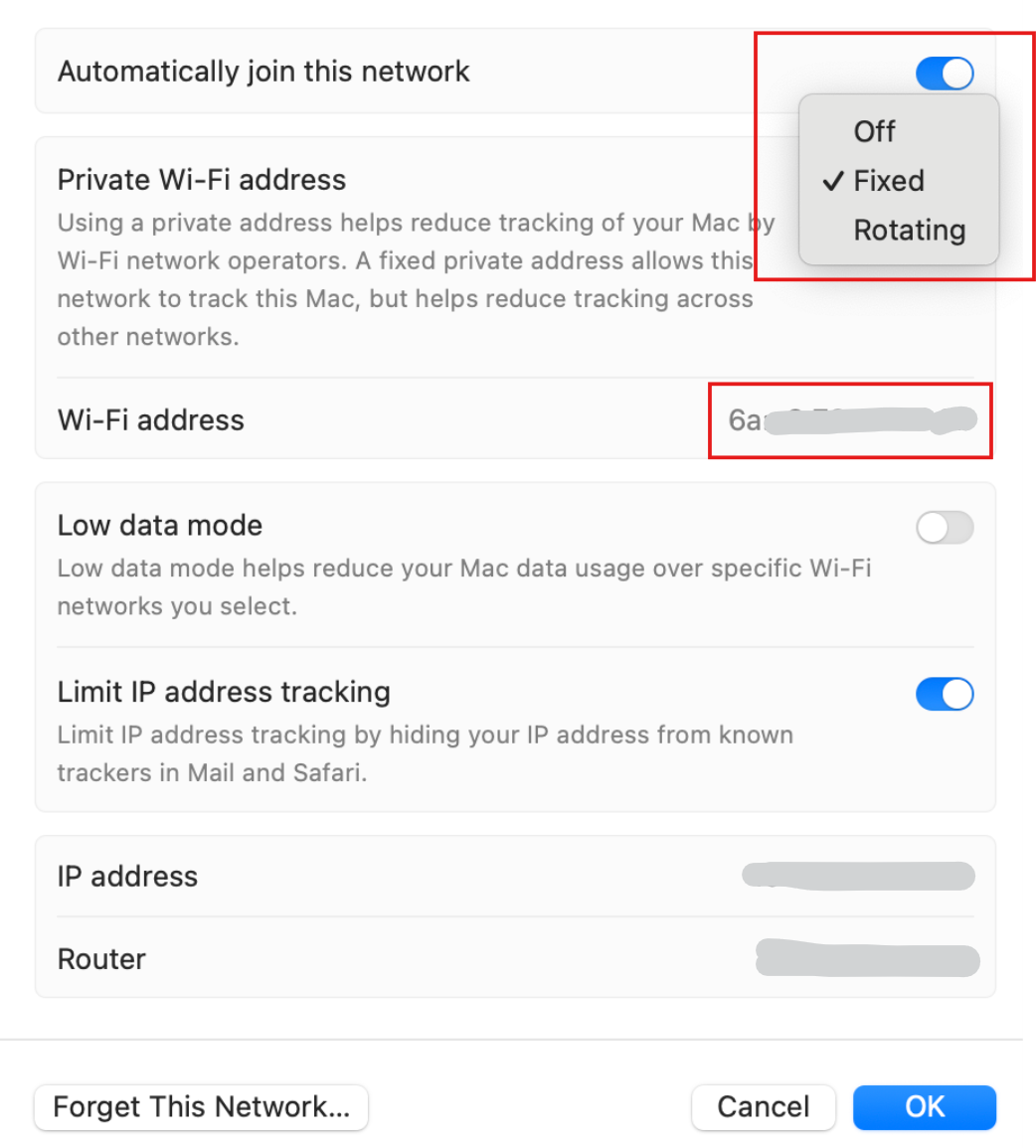
- Now for this SSID will connect with real mac address.
- For difference for Fixed and Rotating is
- Fixed: Alway use the same private mac address for the SSID. This used for work/home network, Need stable connection but need privacy from tracking
- Rotating: Alway change with specific time for the private mac address (Ex. every 2 weeks) this used for public network to prevent tracking on this mac.
- Off: Used for networks that require strict device recognition (Netork controlled by Mac Filter list/Mac Address List