Expand Your Partition with LVM in Ubuntu


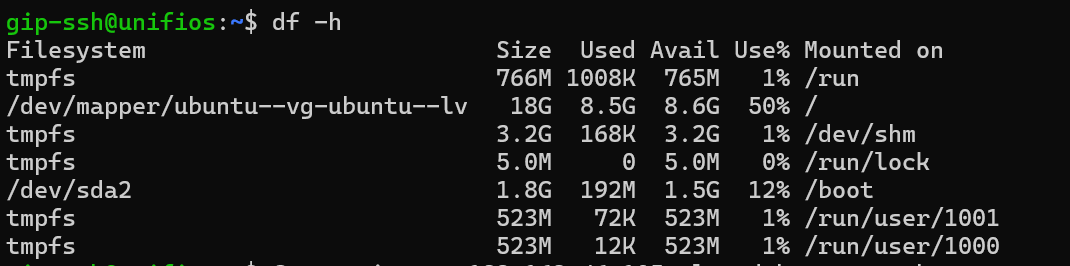
When installing Ubuntu on a virtual machine (VM), it is normal to see only about half of the allocated storage space (e.g., 50GB available on a 100GB disk). This occurs because the default Ubuntu Server installation with Logical Volume Management (LVM) consciously reserves approximately half of the available space for future snapshots or extending volumes, rather than assigning all space to the root partition initially.
Why This Happens
- Default LVM behavior: The installer sets up LVM, but by design, it leaves a significant amount of free space unallocated.
- Snapshots: The extra space is reserved to allow for LVM snapshots without requiring the system to go offline.
- Filesystem Reservation: Ext4 file systems, by default, reserve 5% of space for root users.
How to Fix
- Check Volume Groups: Run the following command to see free space:
sudo vgdisplay
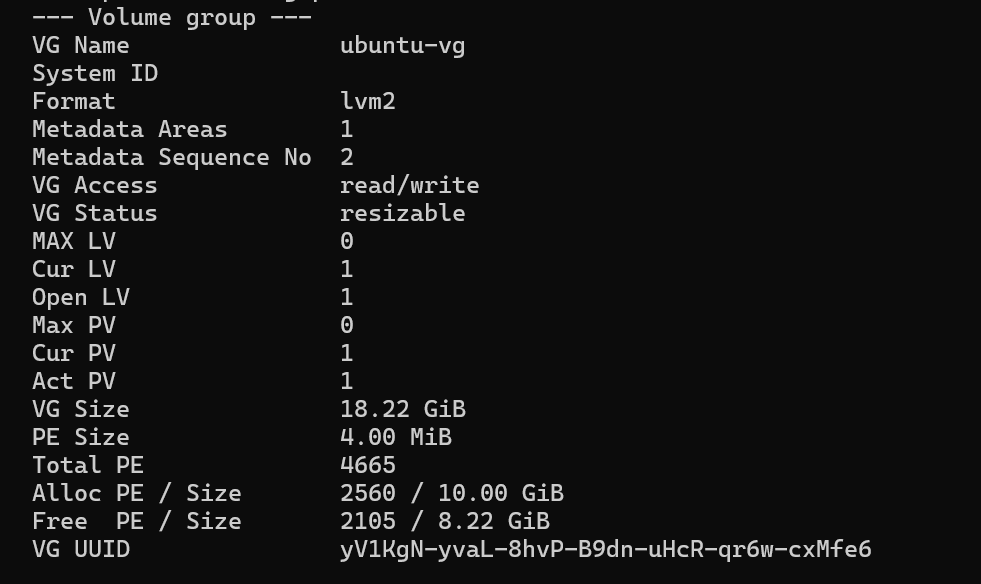
- Extend the Logical Volume: Extend the root logical volume to use 100% of the free space:
sudo lvextend -l +100%FREE /dev/ubuntu-vg/ubuntu-lv

(Note: The exact path may vary, checklvdisplayto confirm your volume path).
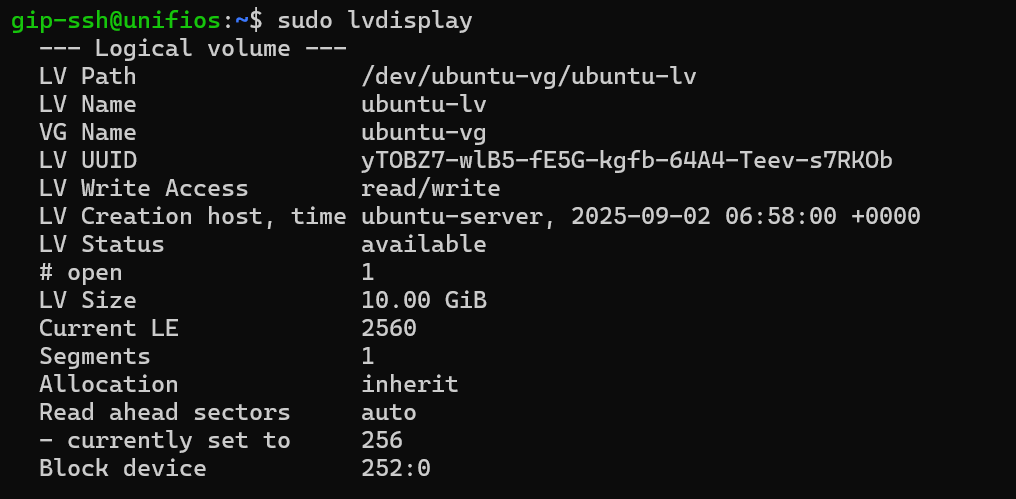
- Resize the Filesystem: Apply the changes to the filesystem:
sudo resize2fs /dev/mapper/ubuntu--vg-ubuntu--lv

- Verify: Check the new size:
df -h