FortiClient VPN: How to Fix Internet Connectivity Issues While Waiting for FortiClient 2FA Emails (IPSec)


If a user is connecting to FortiClient VPN via IPSec with Two-Factor Authentication (2FA) enabled, they may encounter a common issue: the internet connection drops immediately after entering the username and password. This happens while the "Token" prompt is visible, preventing the user from accessing their webmail on the same computer to retrieve the 2FA code.
To resolve this, you can modify the FortiClient configuration file to maintain the internet connection until the authentication process is fully completed.
1. Open FortiClient VPN (VPN setting for IPSec is complete).
2. Unlock FortiClient.
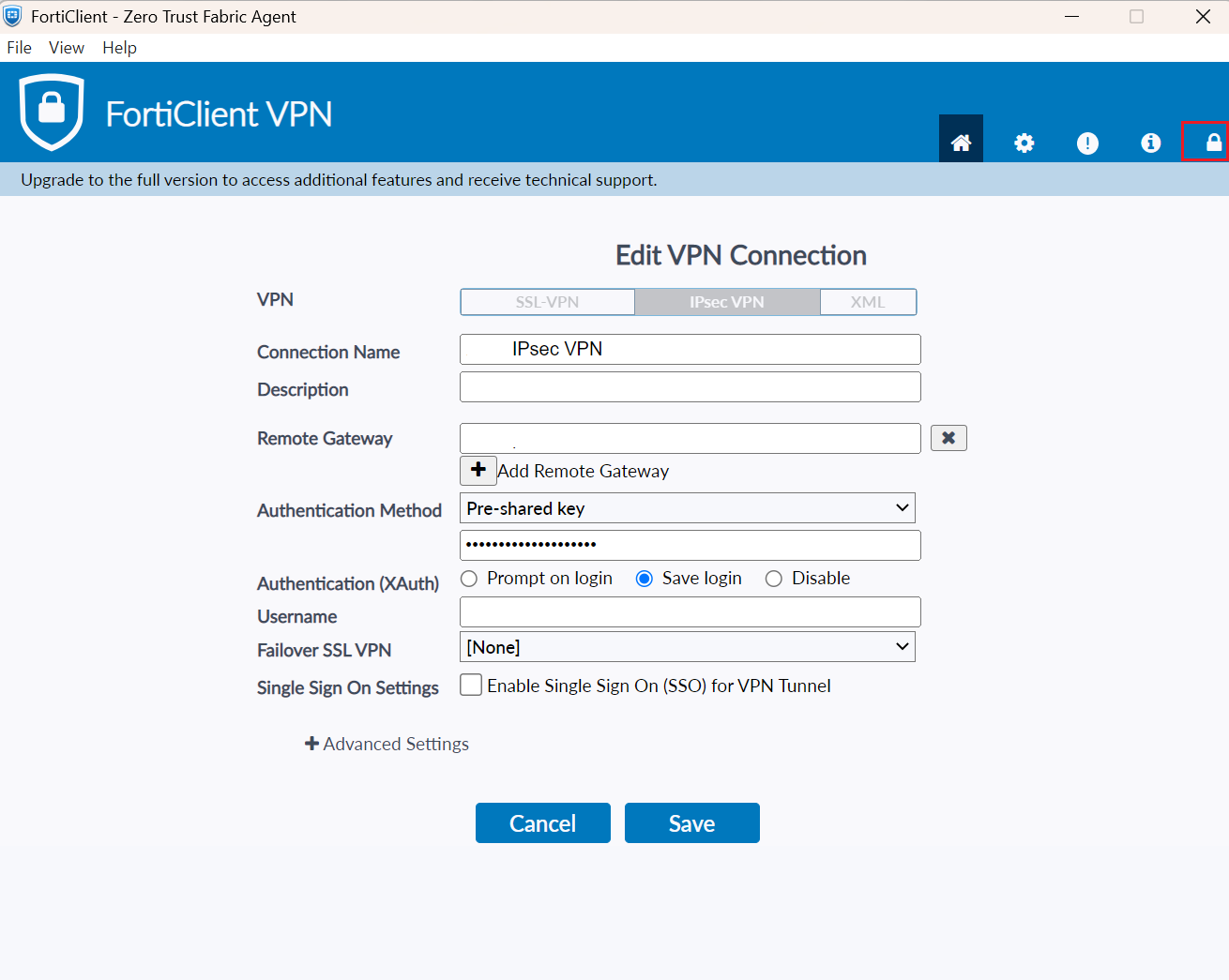
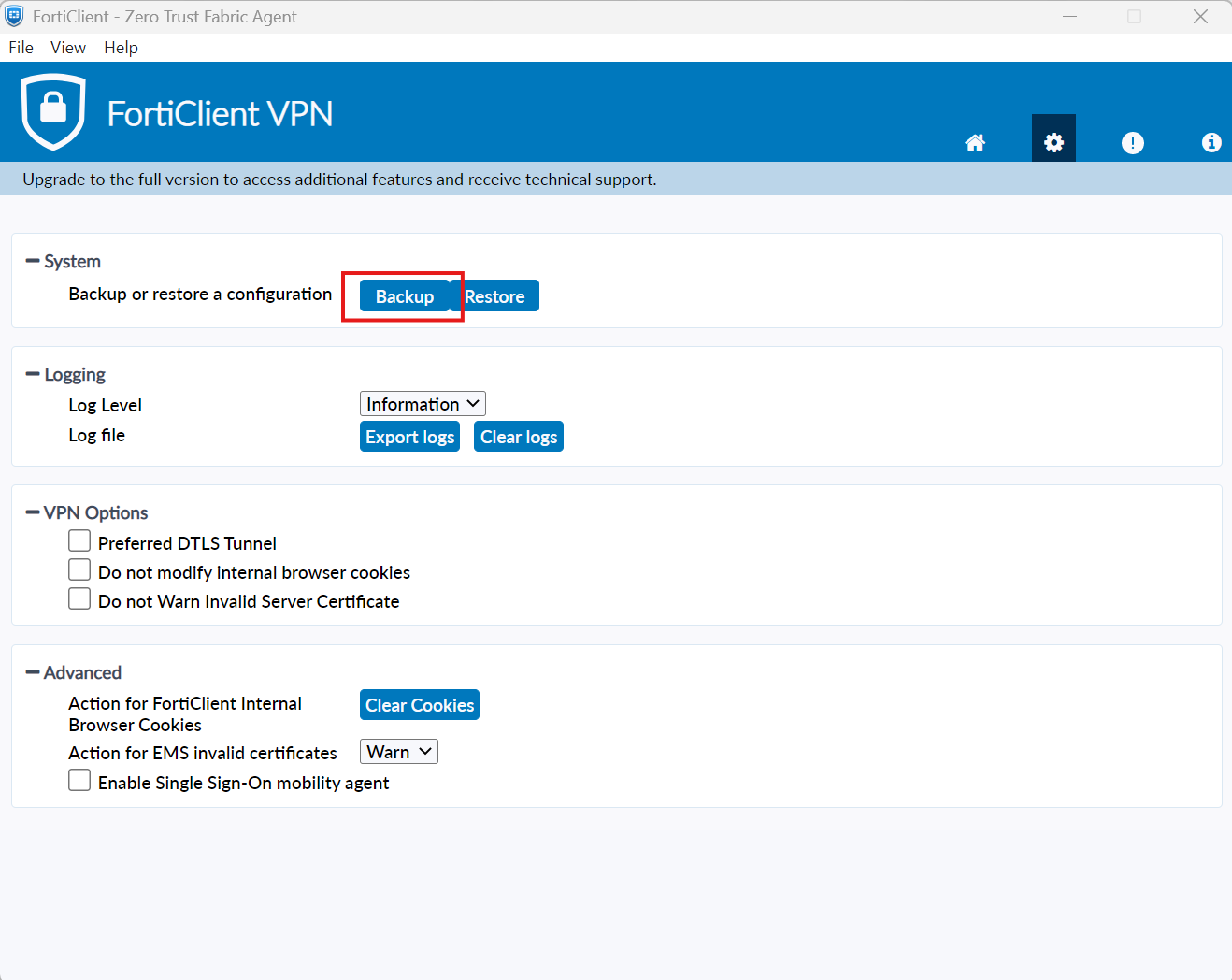
3. Go to "Setting" (Gear icon).
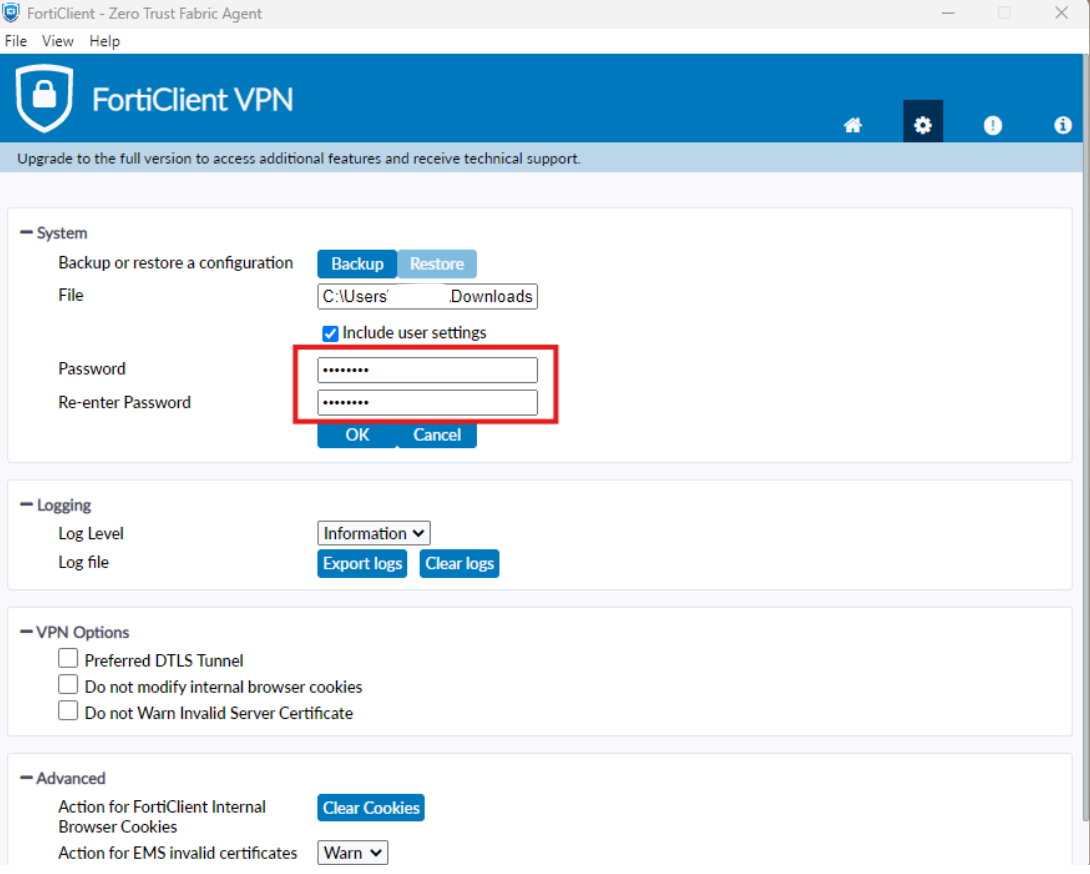
4. "System" > "Backup"
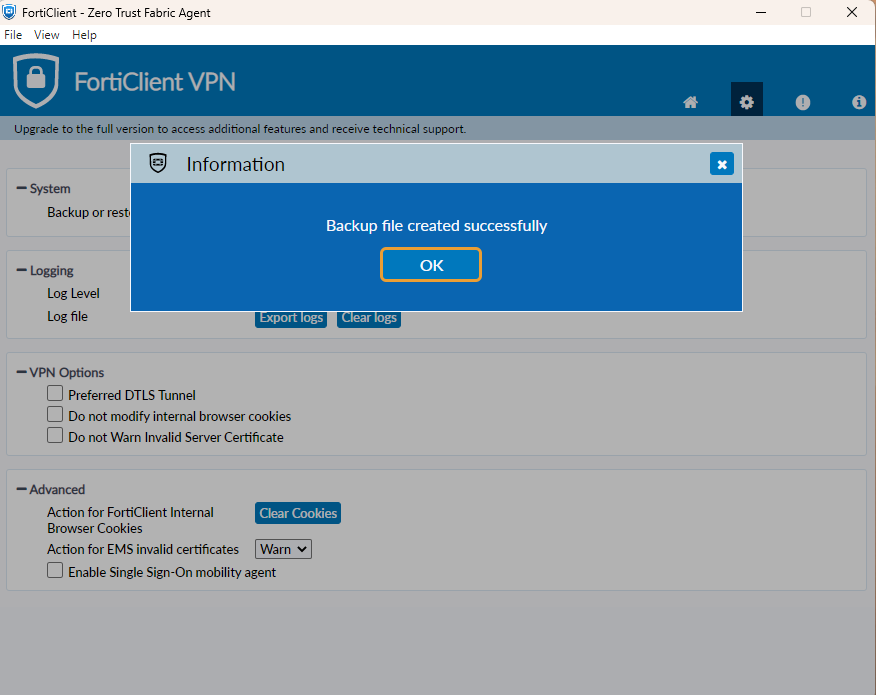
5. Select save location.
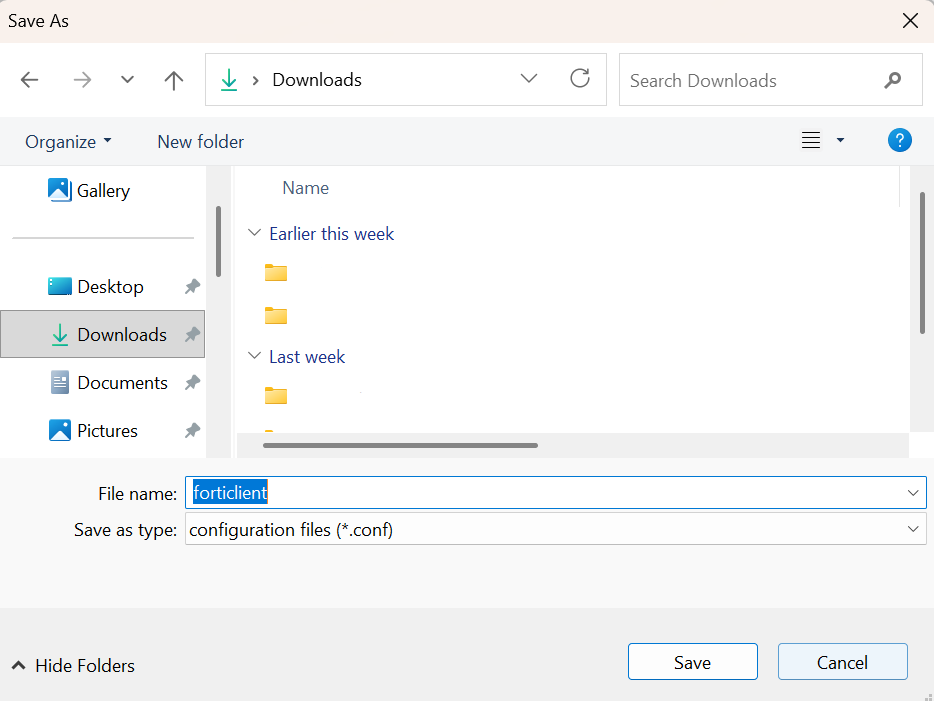
- Enter the password.
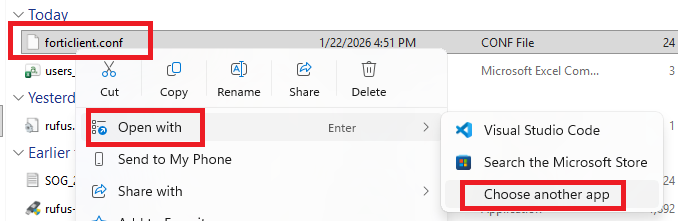
- Open file backup .conf with notepad
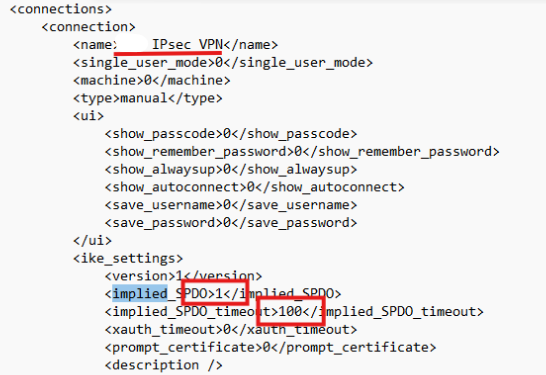
8. Edit the file
From
<implied_SPDO>0</implied_SPDO>
<implied_SPDO_timeout>0</implied_SPDO_timeout>
To
<implied_SPDO>1</implied_SPDO>
<implied_SPDO_timeout>100</implied_SPDO_timeout> << Times (sec) to hold the internet connection.
9. Save the .conf file
- Restore edited .conf back to FortiClient

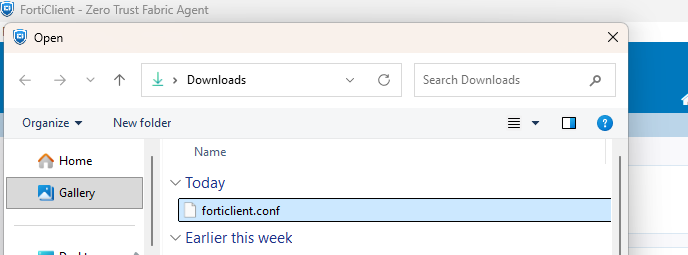
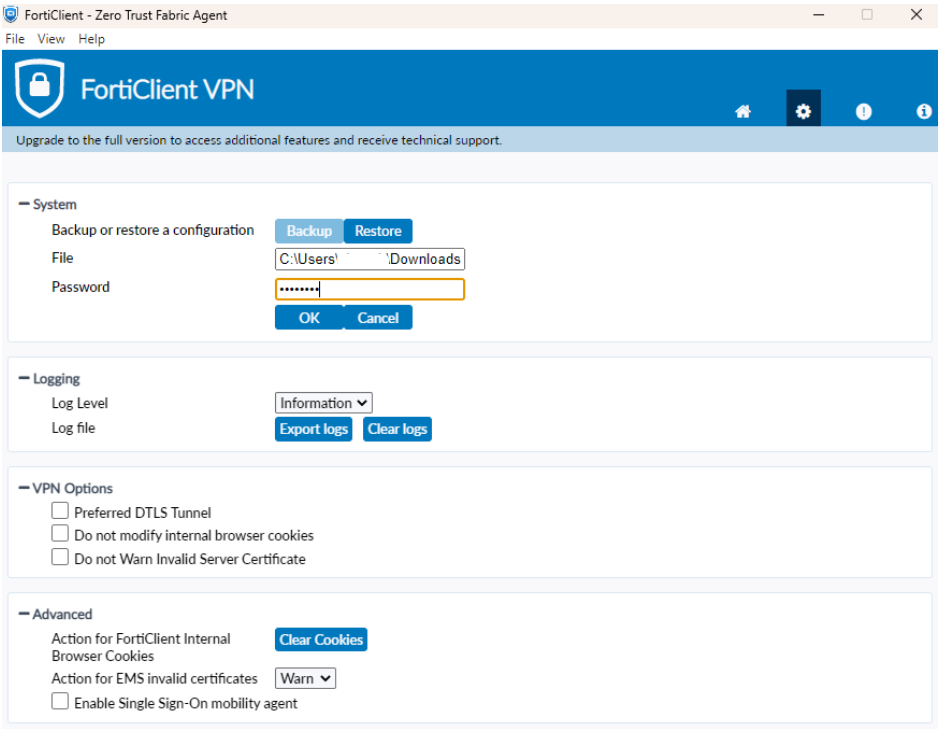
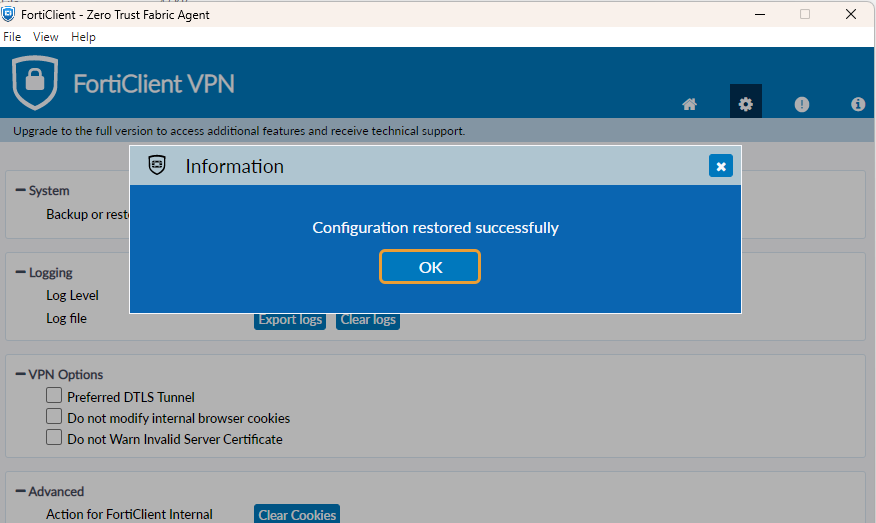
- Test the connection

- While the computer of user pending the verify code should continue internet connection for 100 sec (Normally should enter token within 60sec).
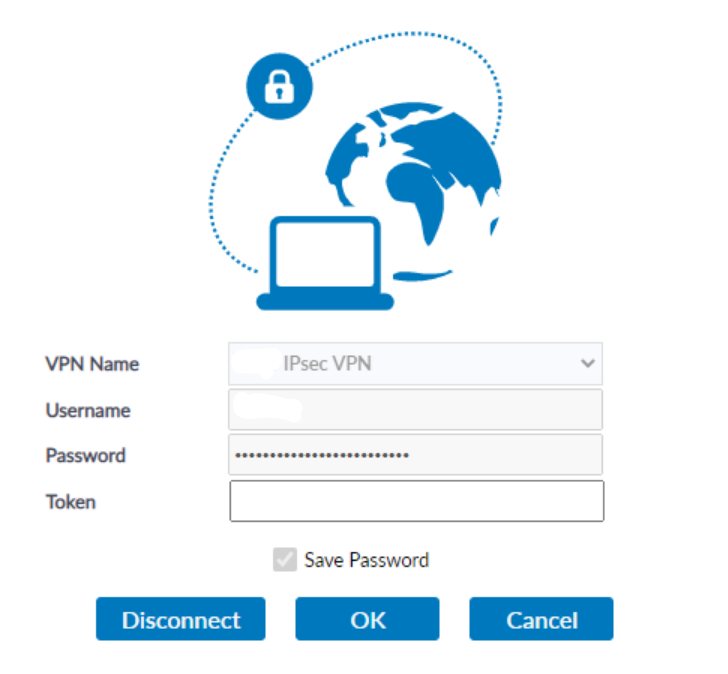
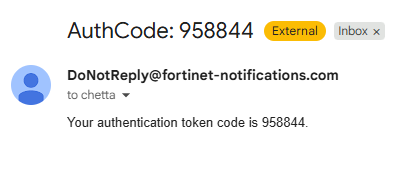
- Email can check on the user computer while waiting the code.
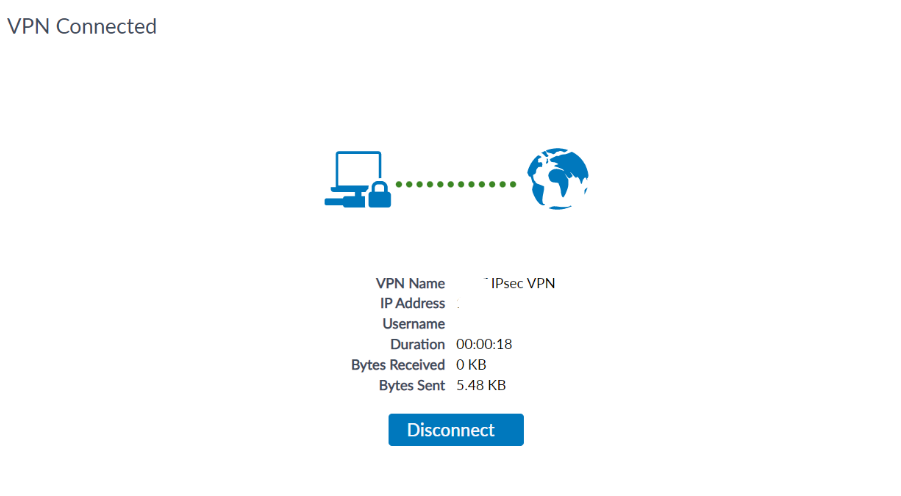
14. And connection sucessfully.
Note: FortiClient should lasted version (this example used v.7.4.3). Some user computer with old version like 7.0.2 this can not resolve the problem.