
How do I set up frequently used programs to open automatically when I turn on the computer?


When it comes to running programs at startup in Windows 11, not every installed application launches automatically every time you turn on your computer; by design, some programs do not need to run alongside the system. However, for frequently used applications, you might prefer to avoid manually launching them every time you need them, opting instead to have them start up automatically. To achieve this, you need to adjust the "Startup Programs" settings so that the desired applications launch as soon as you turn on your computer or log in, allowing you to use them immediately.
There are two main ways to set a program to open automatically when the computer starts up (Startup) in the Windows operating system:
Method 1: Use Task Manager (launch a program already present in the system)
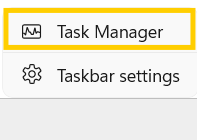
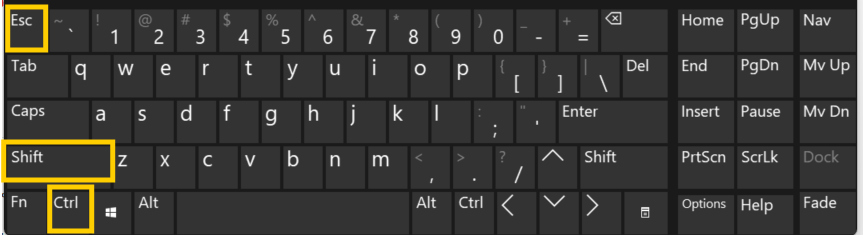
1.1 Right-click the Start button and select Task Manager (or press Ctrl + Shift + Esc simultaneously).
or.
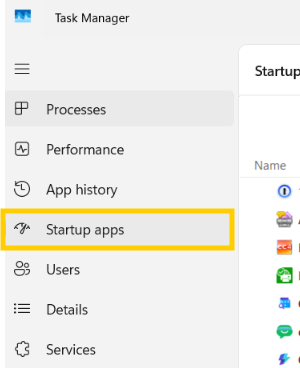
1.2 Go to the "Startup apps" tab (or the speedometer/Startup icon).
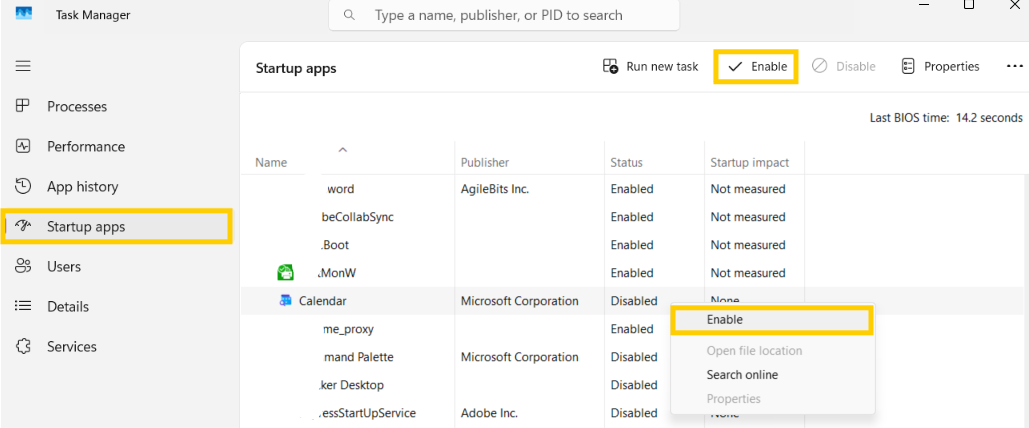
1.3 Click to select the programs you want to open when the computer starts.
1.4 Click the Enable button in the top corner.
Method 2: Use the Startup folder (if you want to add a program or file that is not in the list).
2.1 Press the Windows + R keys on your keyboard simultaneously to open the Run window.
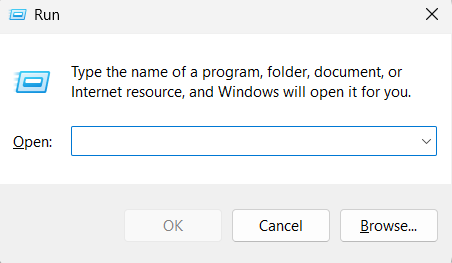
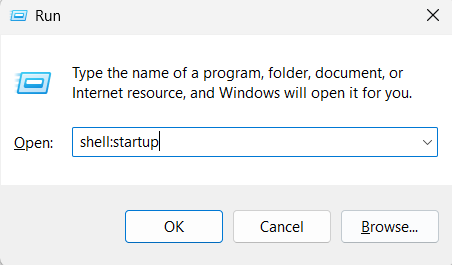
2.2 Type shell:startup and press Enter; a folder window will pop up.
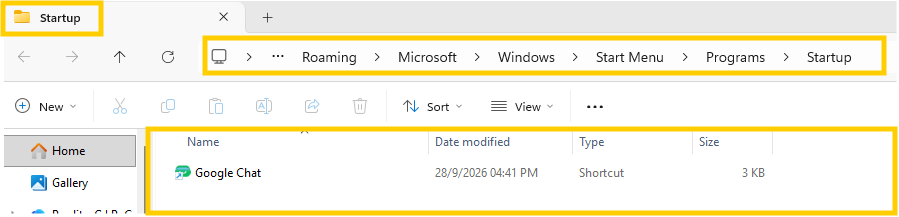
2.3 Copy the shortcut of the desired program and paste it into this folder; the program will then launch automatically the next time you start your computer.
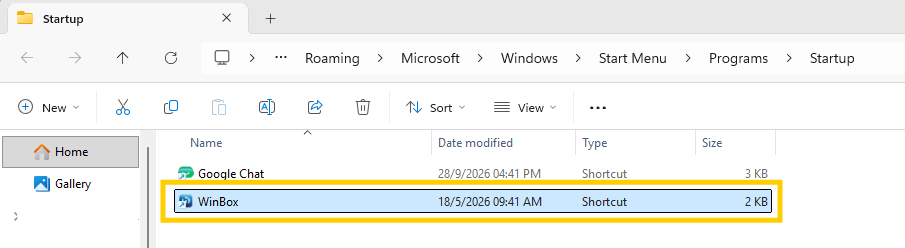
That’s all it takes; the program you want to launch automatically will start up as soon as you turn on your computer.
finished..
end..