
How to change the colors that appear in Windows and your apps (Light or Dark).


Adjusting the Light or Dark mode setting primarily aims to improve your computing experience by tailoring it to your environment and personal preferences.
The main reasons for choosing each mode are as follows:
- To protect your eyes and reduce fatigue (Visual Comfort)
- Dark Mode: Ideal for those working in low light or at night, as it reduces excessive white light from the screen, minimizes glare, and reduces dry eye or fatigue.
- Light Mode: Ideal for use in well-lit rooms or outdoors, as it provides clear contrast similar to reading text on paper, making it easier to read long texts in bright light.
- To help save energy (Battery Saving)
- For notebooks or tablets with OLED or AMOLED screens, selecting Dark Mode can effectively save battery life. This is because the black pixels on these types of screens are essentially "turning off the light" in those areas, thus consuming less power.
- For concentration and focus (Focus and Productivity)
- Using Dark Mode often makes images, videos, or graphic content appear to "pop up" more than usual because there's no surrounding white light to distract your eye, helping you focus better on what's in the center of the screen.
- For aesthetic purposes and personal style.
- Dark Mode is a personalization feature that allows Windows and other applications (like Chrome, File Explorer, and Office) to have a consistent look based on your preferences. Some people feel that Dark Mode gives a more modern and professional (Pro Look) appearance.
In Windows, you can also select "Custom" mode to separate settings, such as:
- Windows Mode: Makes the Taskbar and Start Menu dark for a more aesthetically pleasing look.
- App Mode: Makes apps appear brighter (Light) for easier reading of documents or emails.
Okay, let's get started.
1.Click Start Windows > Settings.

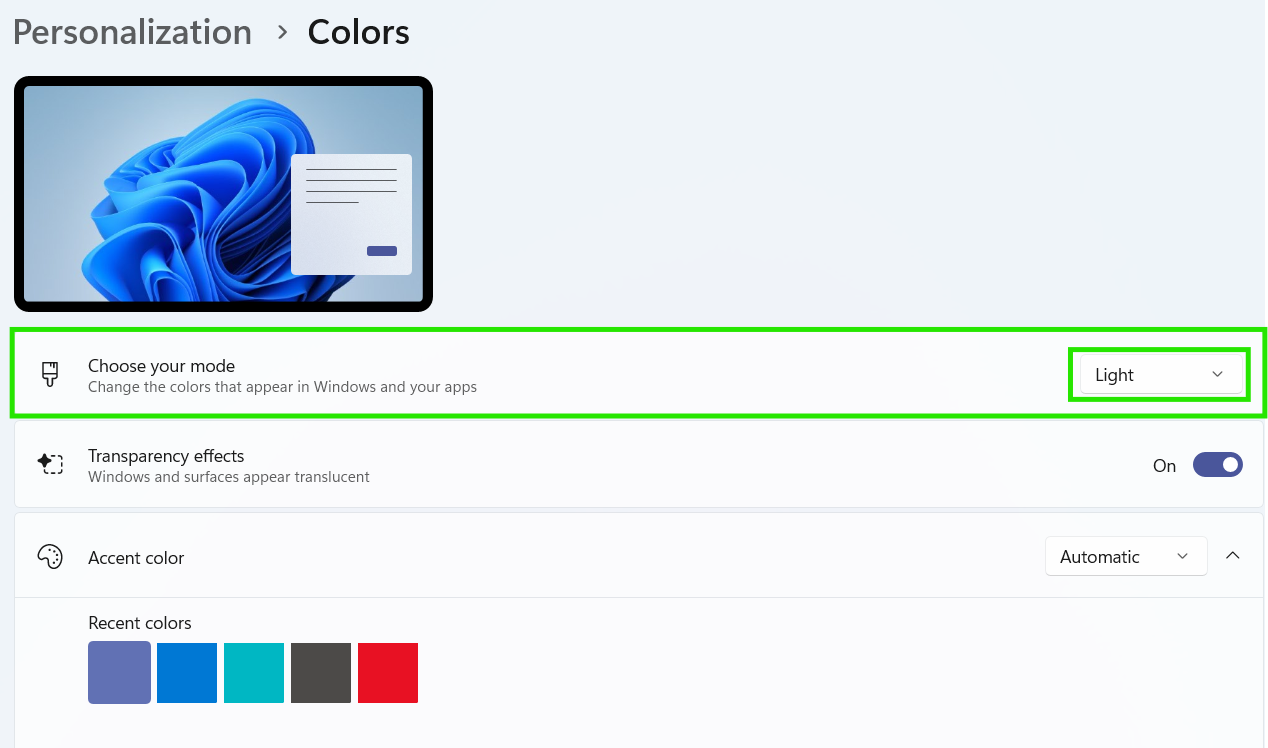
2.Click Personalization, then click Colors.

3.On "Choose your mode" you can choose 3 options in dropdowns.

finished..
end..