
How to configuration Scan file to computer by computer name (bese on HP Printer E47528)


Steps 1.
Prepare your computer.
1.1 Create file folder and share it.

1.2 Add permissions allow Full control.
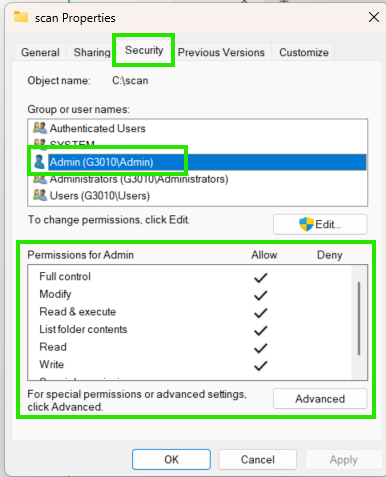
Steps 2.
Prepare your the printer.
2.1 Enter to the Web portal printer.
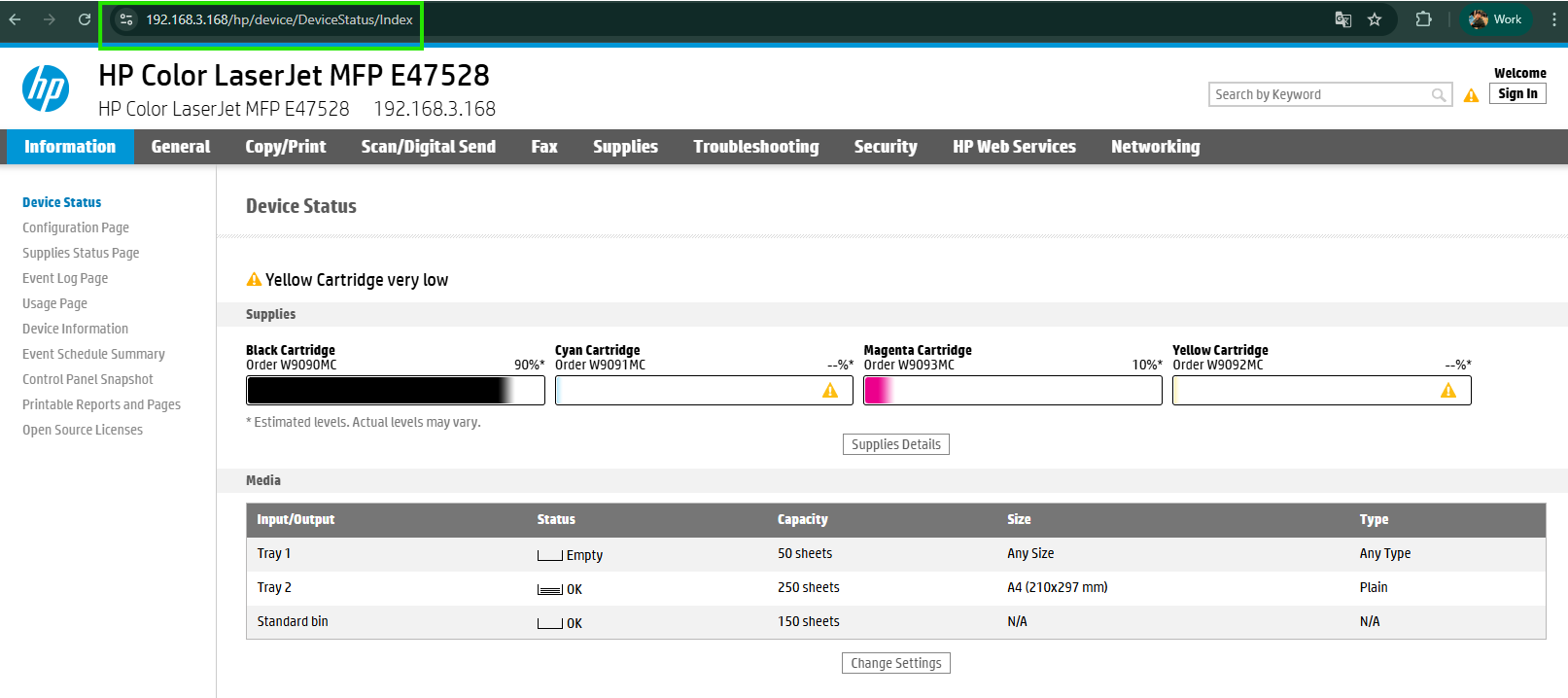
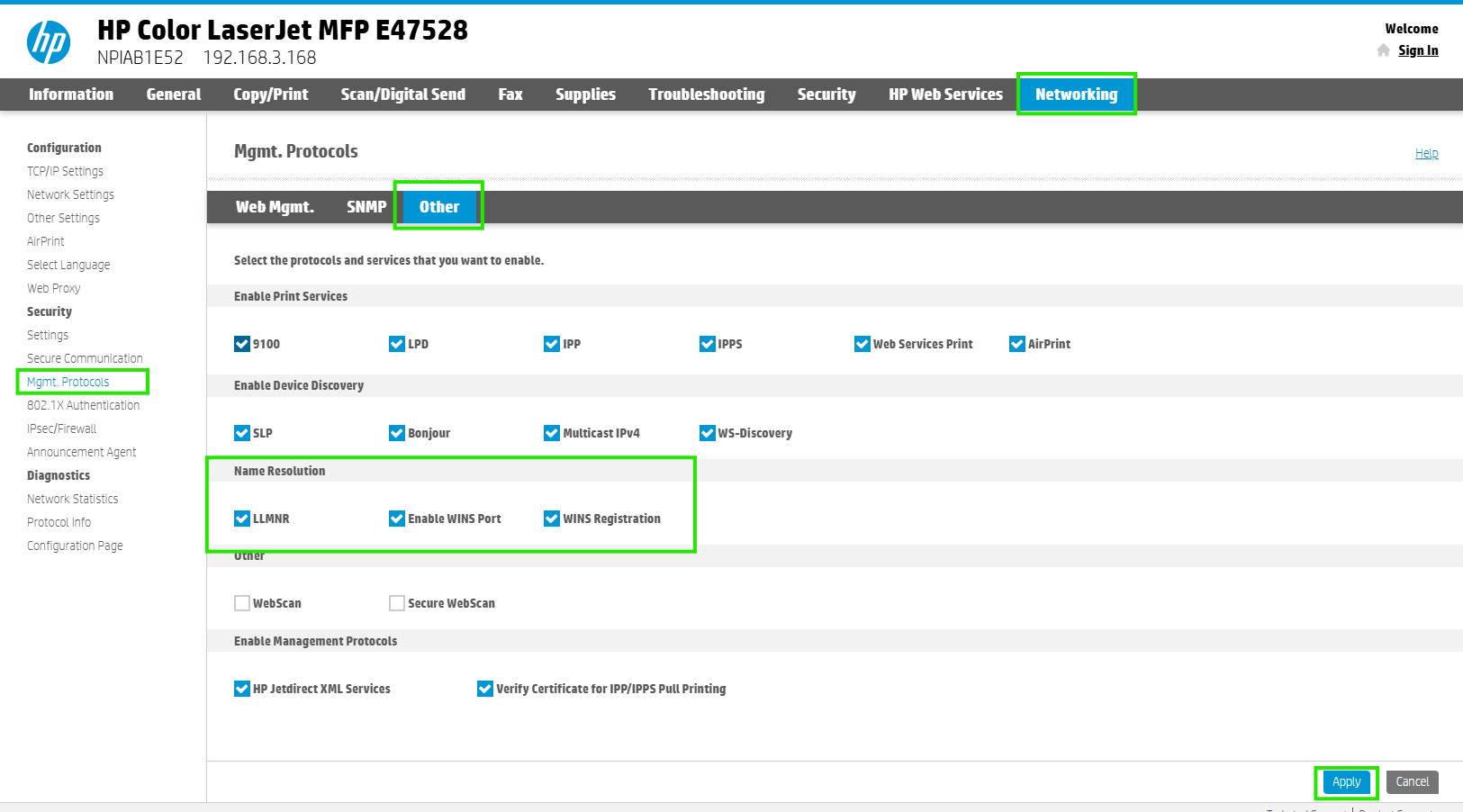
2.2 Go to options taps Networking > Mgmt. Protocols > Other > in Name Resolution choose all of choices then Apply.
2.3 Choose options TCP/IP Settings > Network Identification, On the WINS(IPv4 only) put in the Primary IP and Secondary IP then Apply.

Steps 3.
Set scan file to your computer.
3.1 Go to options taps Scan/Digital Send > Scan to Network Folder > Quick Sets then click Add...
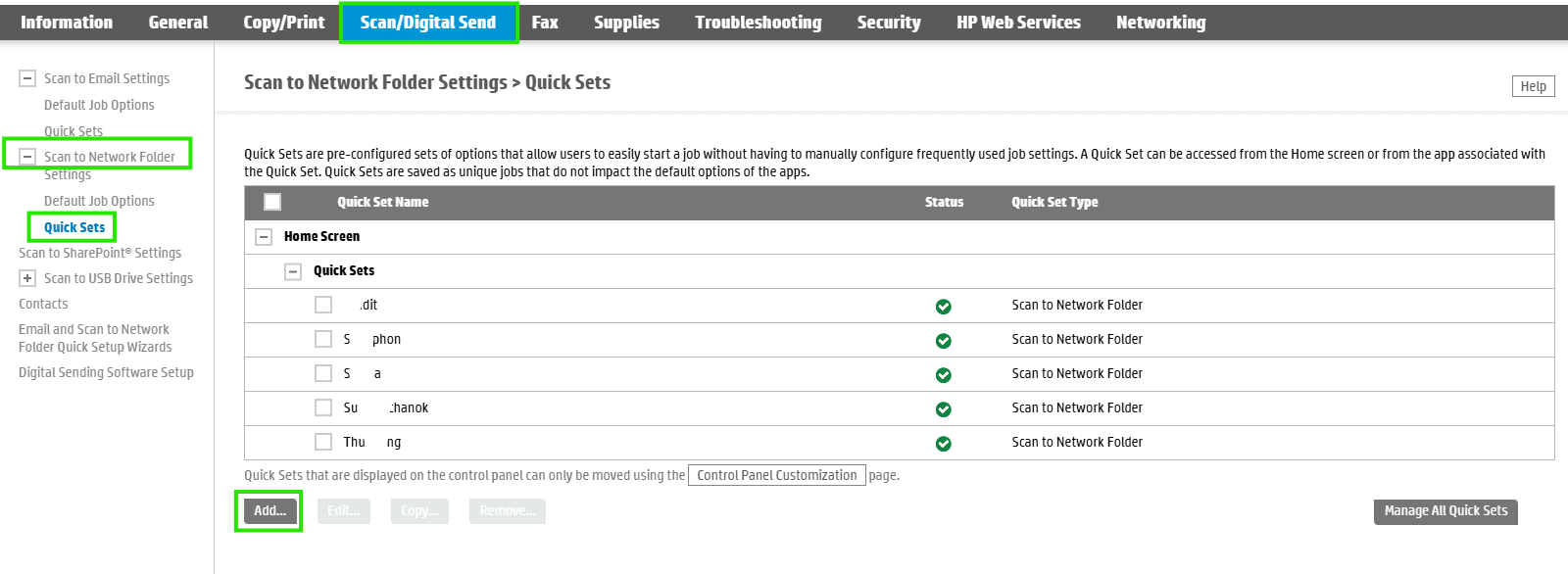
3.2 Enter your name then click Next.

3.3 Click Add...
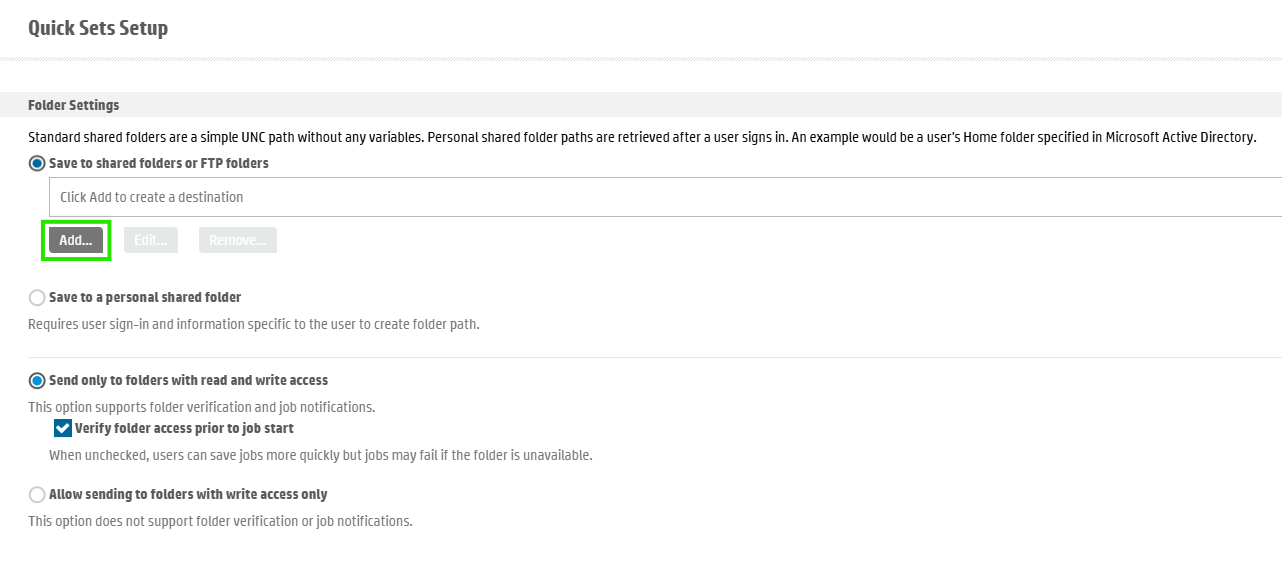
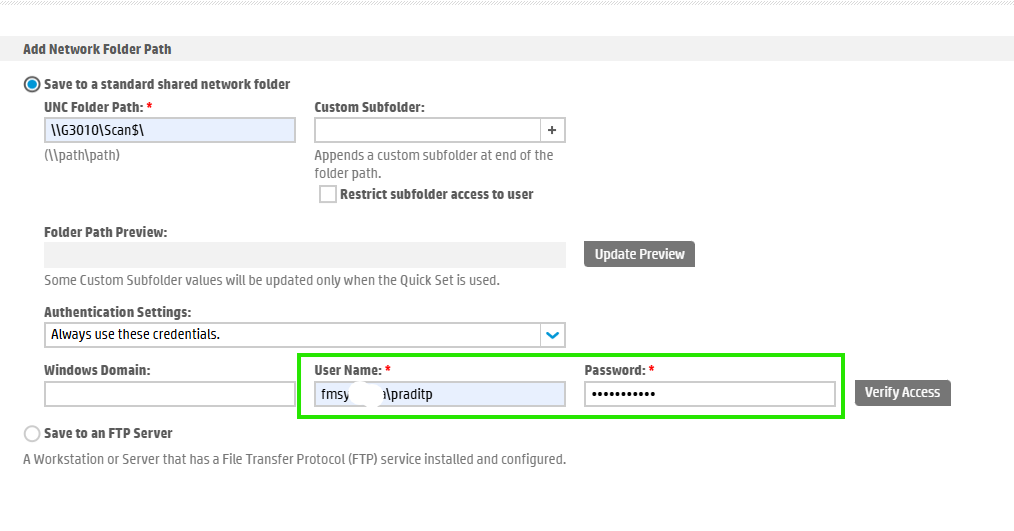
3.4 On the UNC Folder Path:* is same the Network Path of your share, and the Authentication Settings: choose on "Always use these credentials." then put in the user name and your password local.
- note: you can use the user domain just follow this below example.

3.5 The final step is simply to test the connection have be was completed successfully.

finished..
end..