
How to Enable 2FA (by phone number-text message) on Your Gmail Account: A Step-by-Step Guide


- Login to you gmail account.
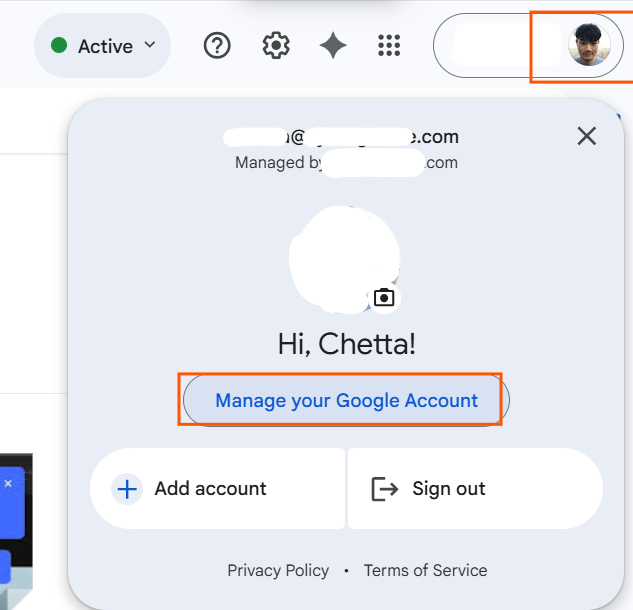
- On top right, go to your manu > "Manage your Google Account".
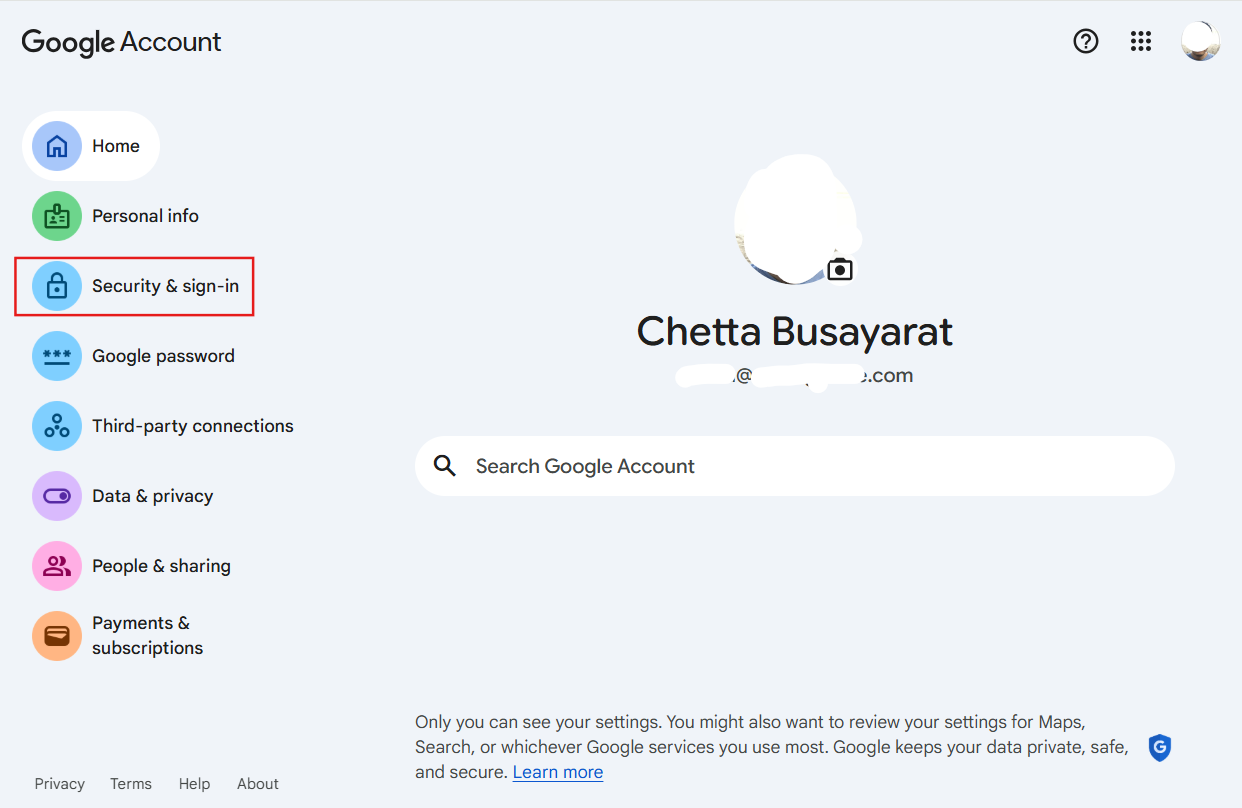
- Security & Sign-in
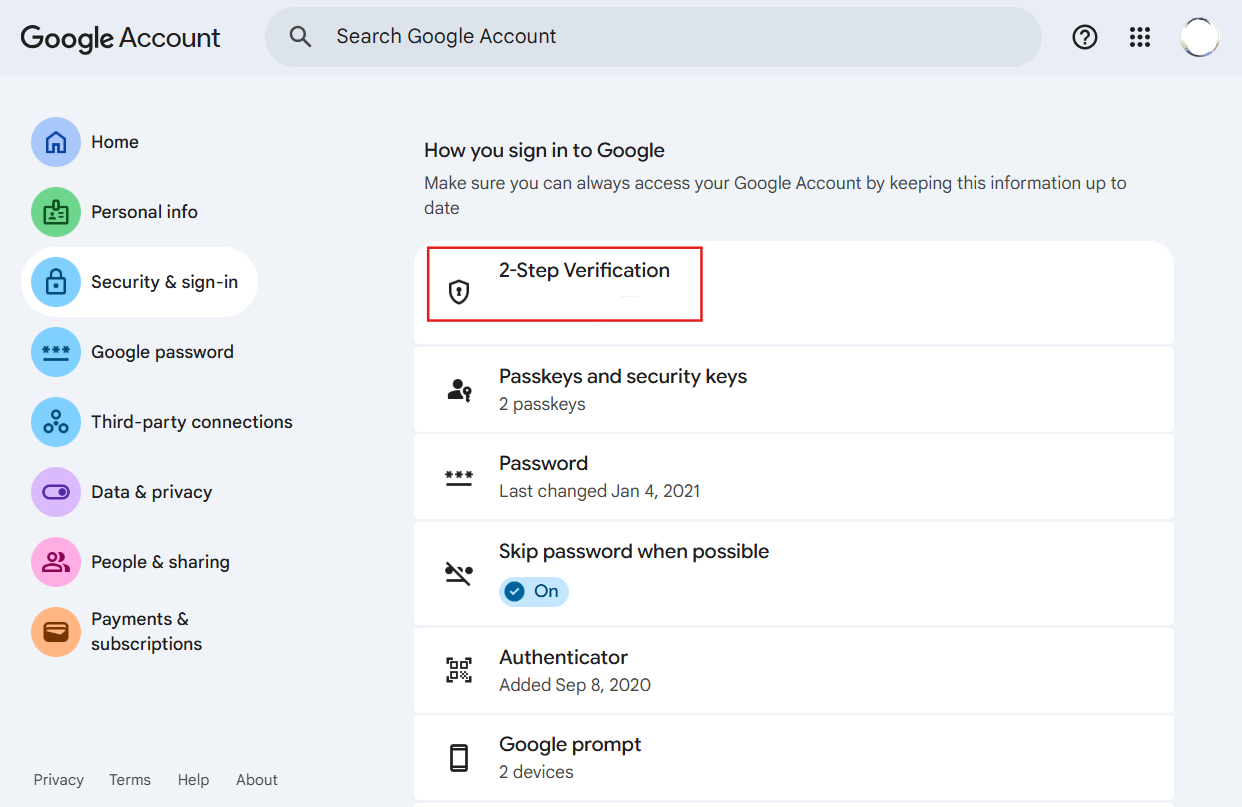
- 2-Step Verification
5. Select second steps for verification (This will try "Phone number").
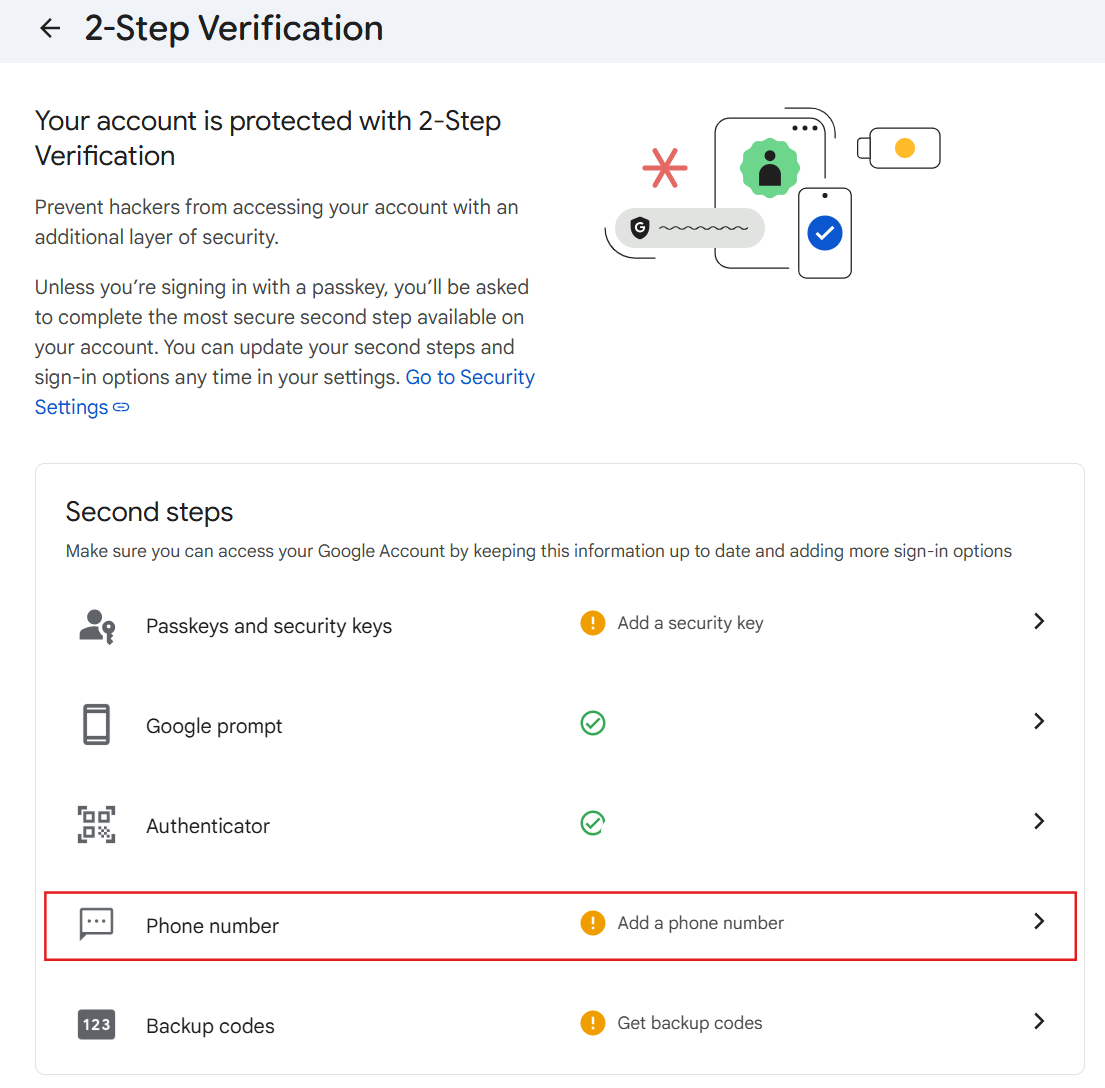
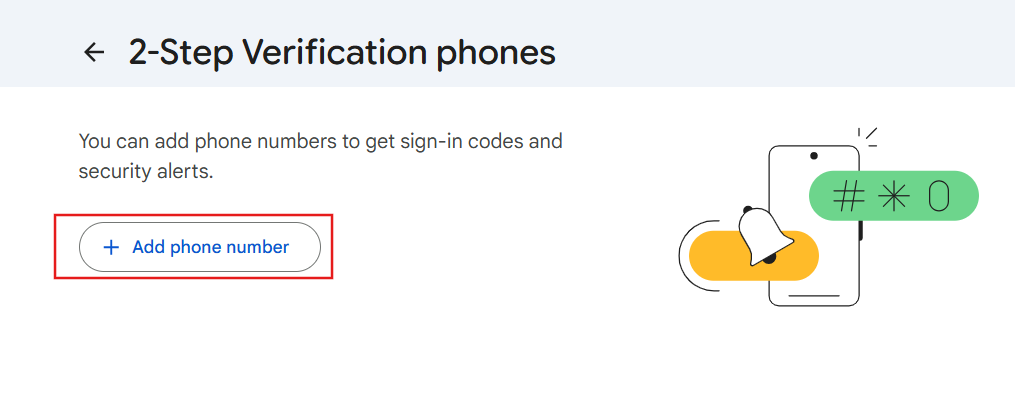
- Add phone number
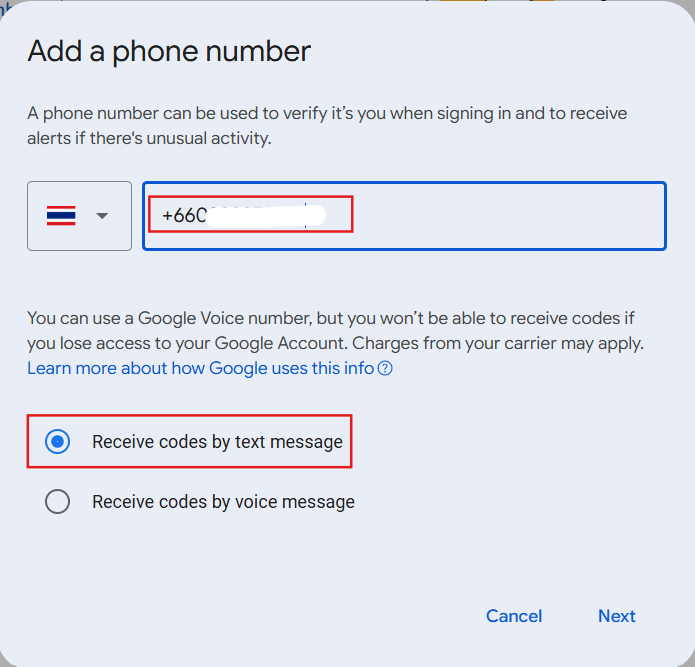
- Enter the phone number and how to get the code (by text message)
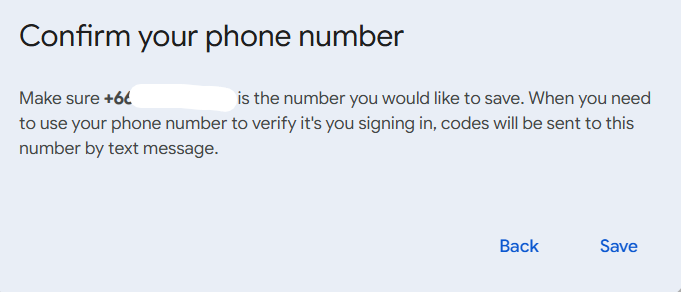
- confirm
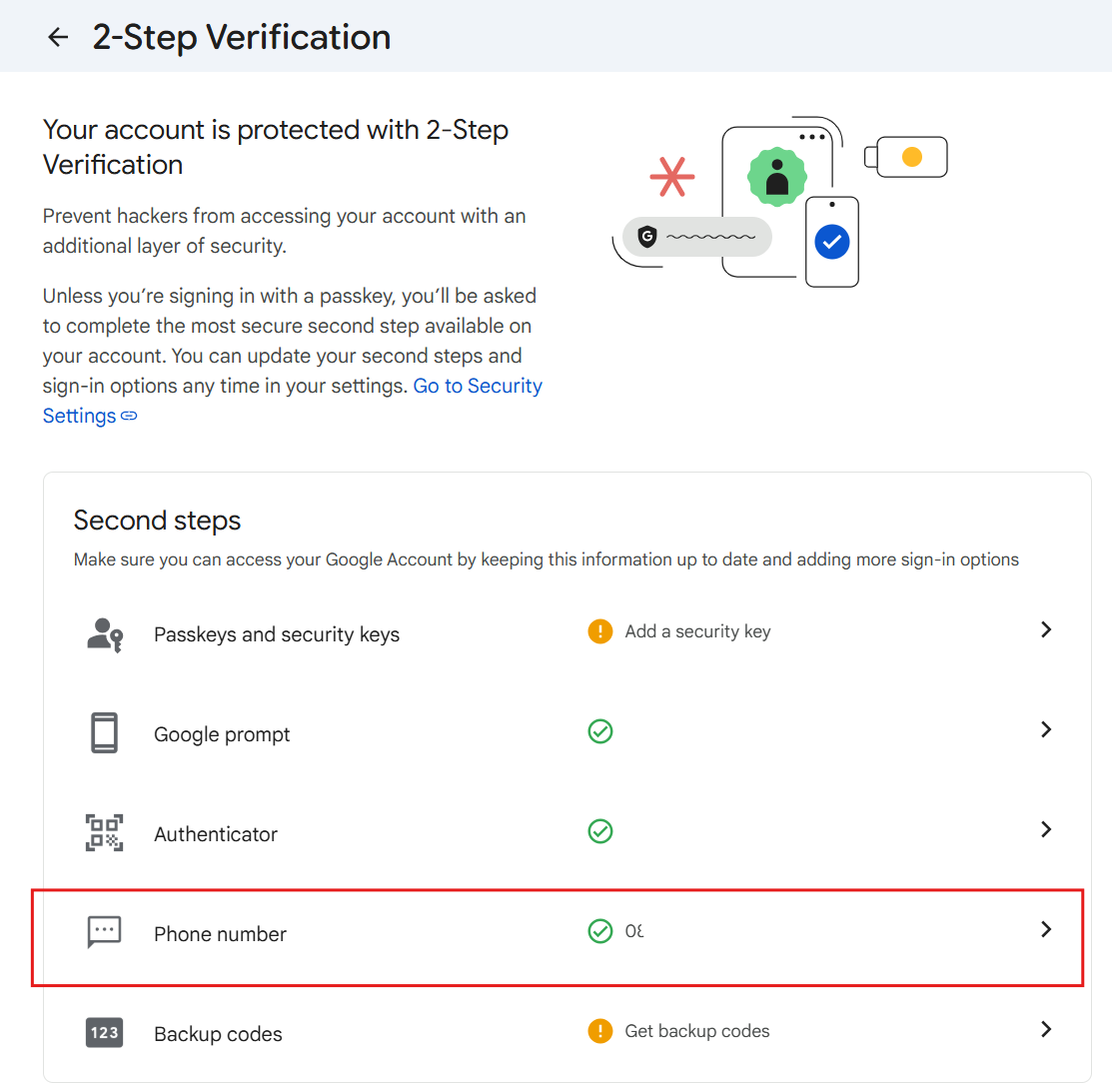
- Now the phone number alrady added to your account.
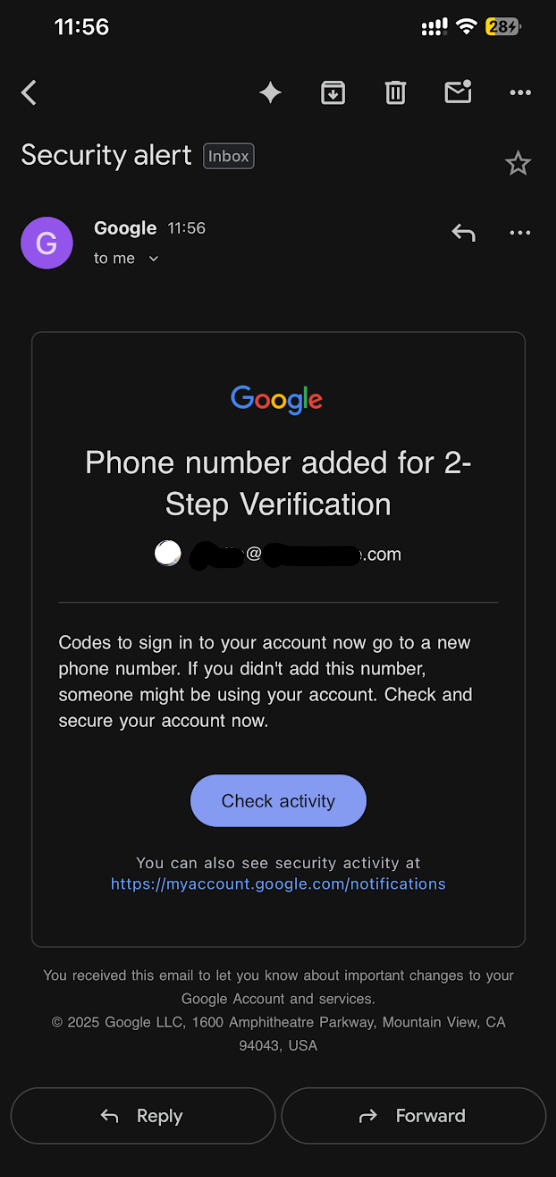
- Email confirm about added 2-step verification on your account.
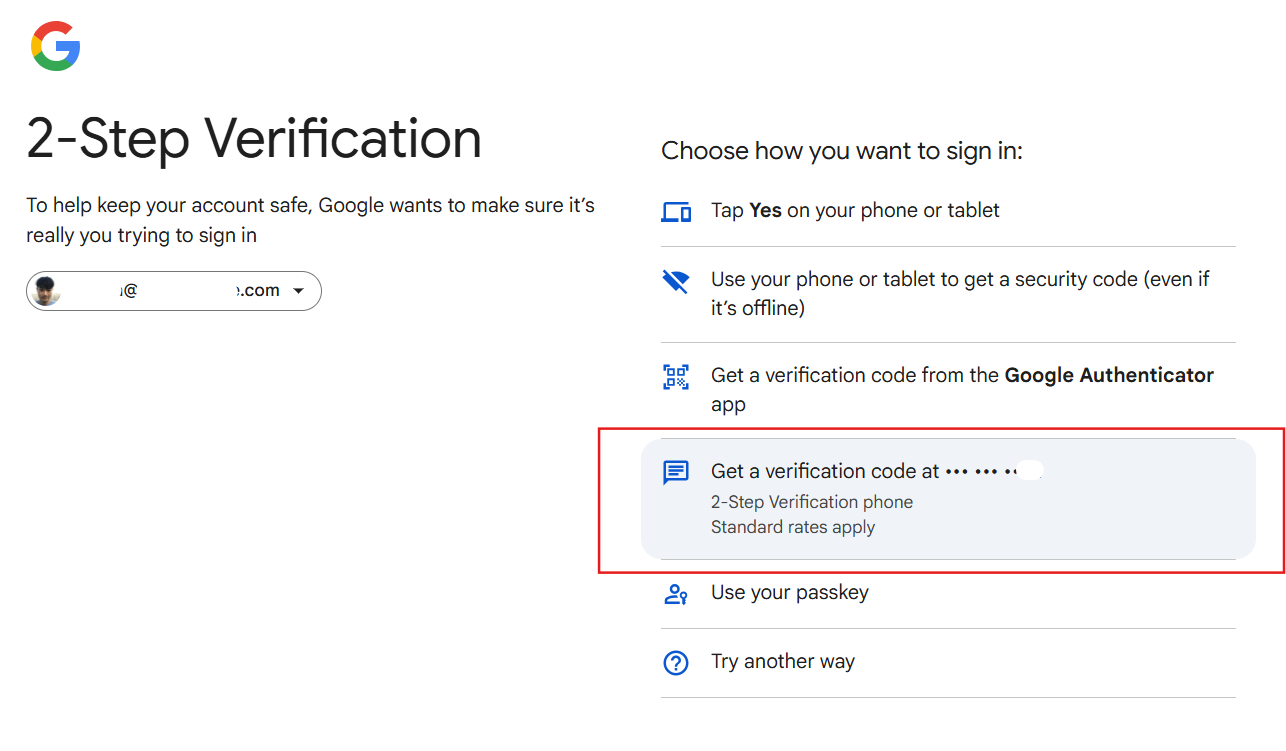
- When login to the google account, after enter the password. Can choose option 2-setep verification.
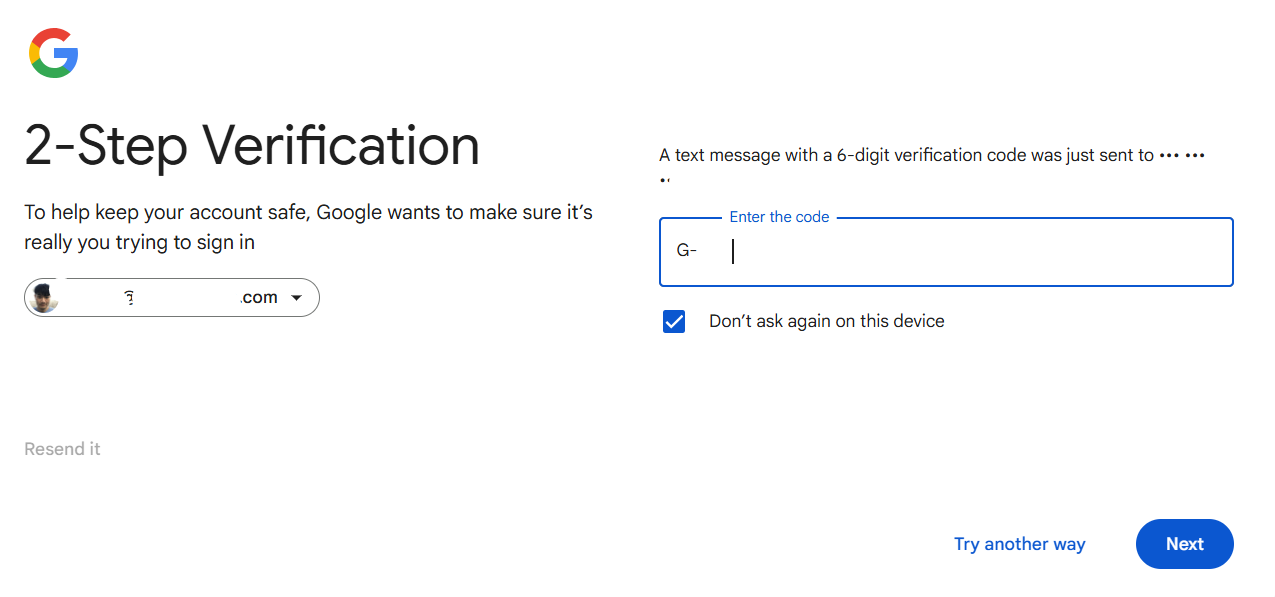
- it will sent the code to your phone number.
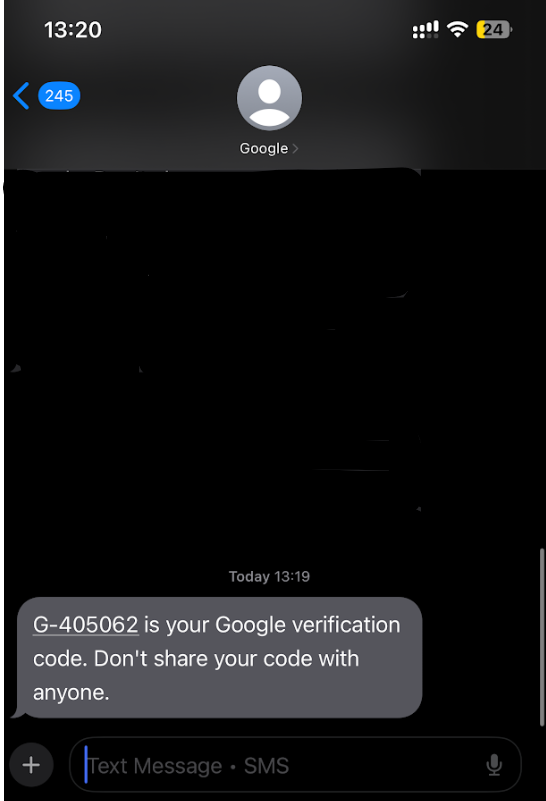
- Check the code on your phone messenger inbox.
- Enter the code to verify.
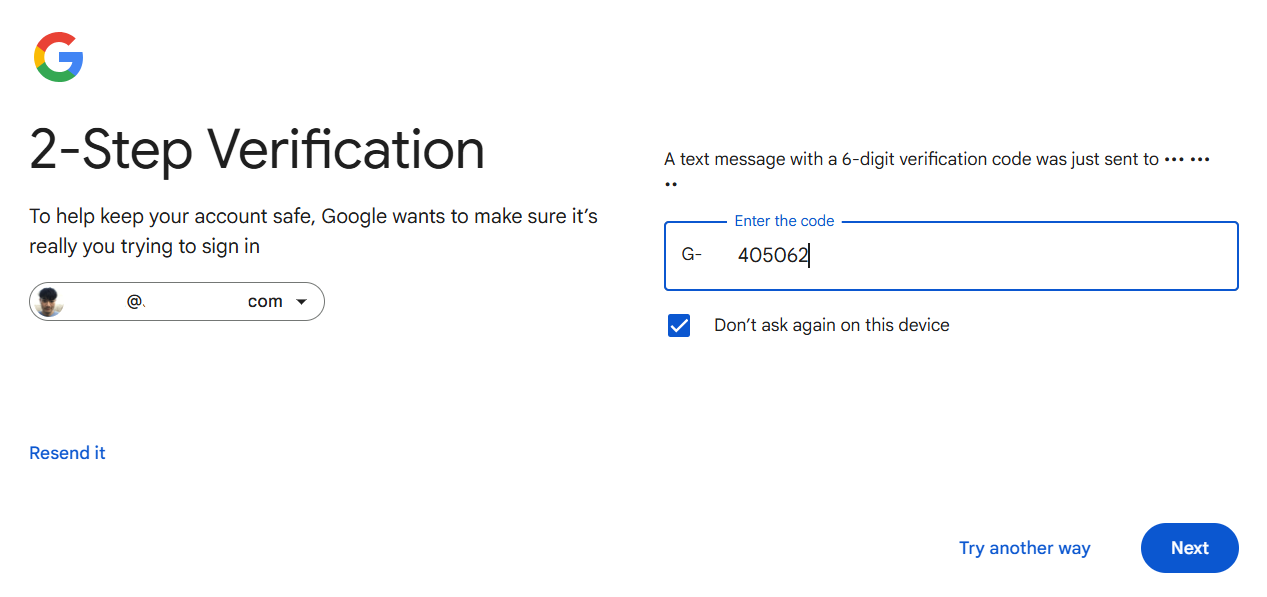
15. Done. After enter the code you can access your account with 2-step verification (phone text message).