
How to handle the Security Warning window when connecting a computer via RDP file

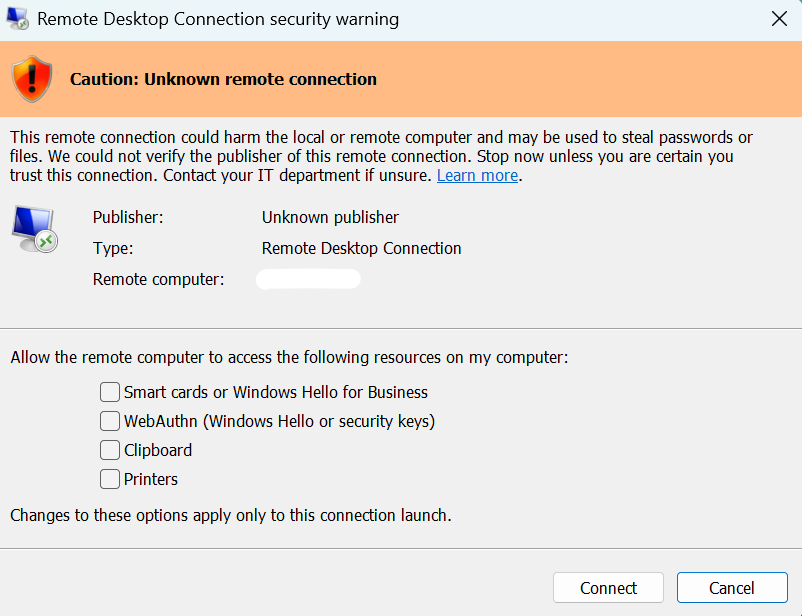
For those who work remotely (Work from Anywhere) or in IT who frequently need to remotely manage servers, you've probably encountered this situation: You double-click a saved .rdp file, but instead of being directed to the login screen, a security warning pops up every time, stating "Unknown Publisher".
In the pop-up window, there are important sections to consider:
Publisher: If it says "Unknown," it means the file is not signed.
Remote computer: Displays the name or IP address of the computer you are about to connect to (in the image, it's 192.168.X.XX). This is very important! You must verify that this is the correct IP address you want to connect to.
Resource Access: Below, there are options to check (e.g., Clipboard, Printers), which allow the remote computer access to resources on your computer.

A frequently asked question is, "Can I just click Connect?" The answer is, "Yes, if you're sure."
If you created the RDP file yourself, or received it directly from your company's IT department, you can click Connect to proceed.
If you don't know the source of the file, or if a strange RDP file suddenly appears, do not click Connect under any circumstances. Malicious individuals may use this vulnerability to steal passwords or files from your computer via the clipboard sharing feature.
Temporary Solution to revert dialog behavior by setting a registry value
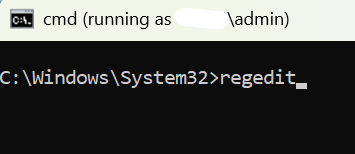
- Open Regedit with admin permission.
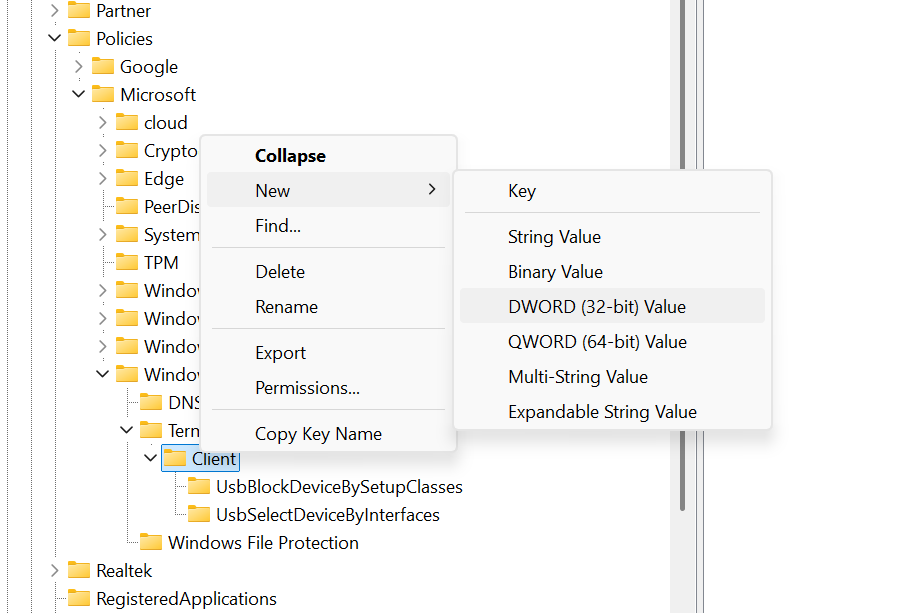
- Go to the key "HKLM\Software\Policies\Microsoft\Windows NT\Terminal Services\Client"
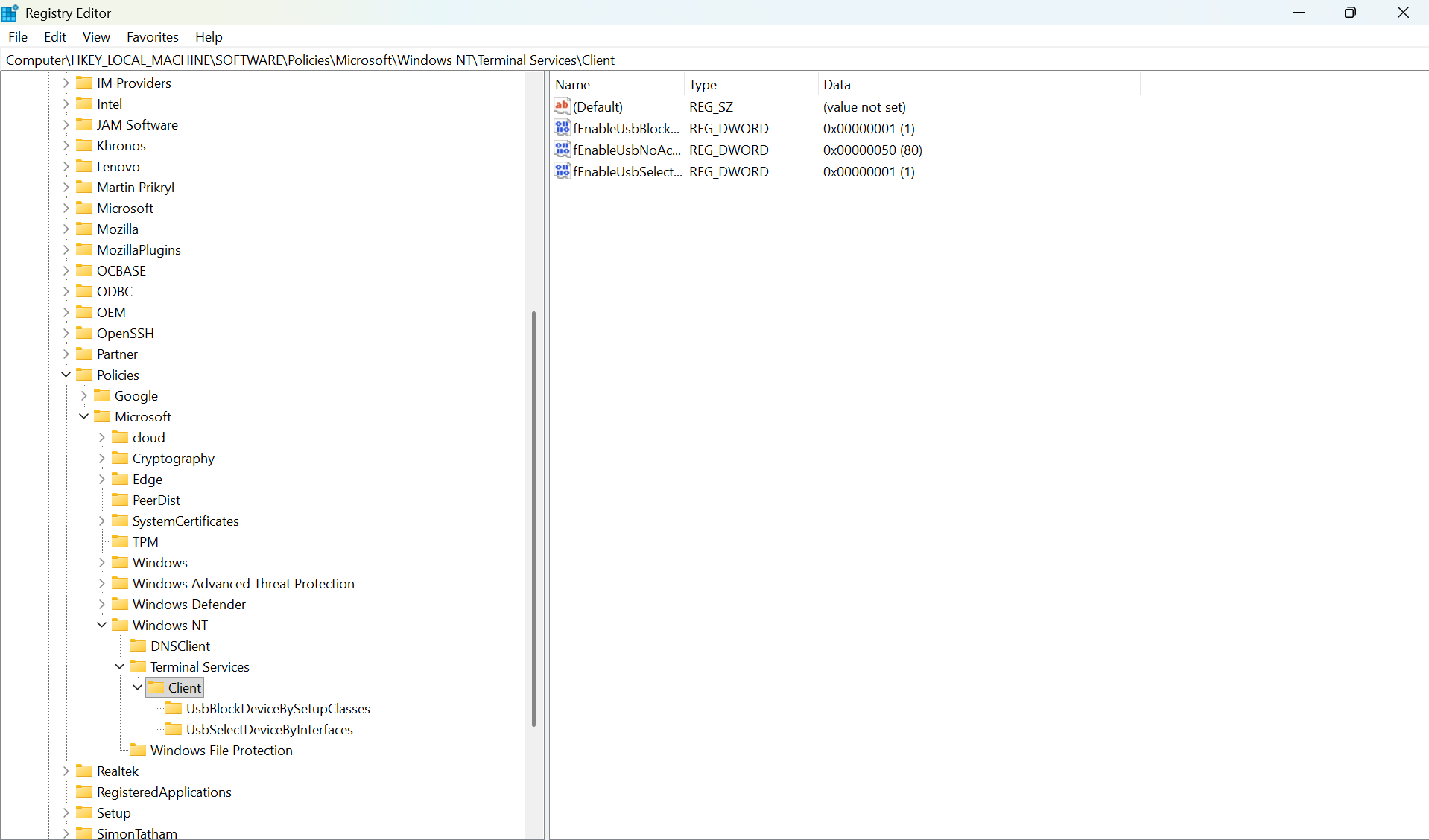
3. Right click on the "Client" to create the New registry item. "New" > "DWORD (32-bit) Value"
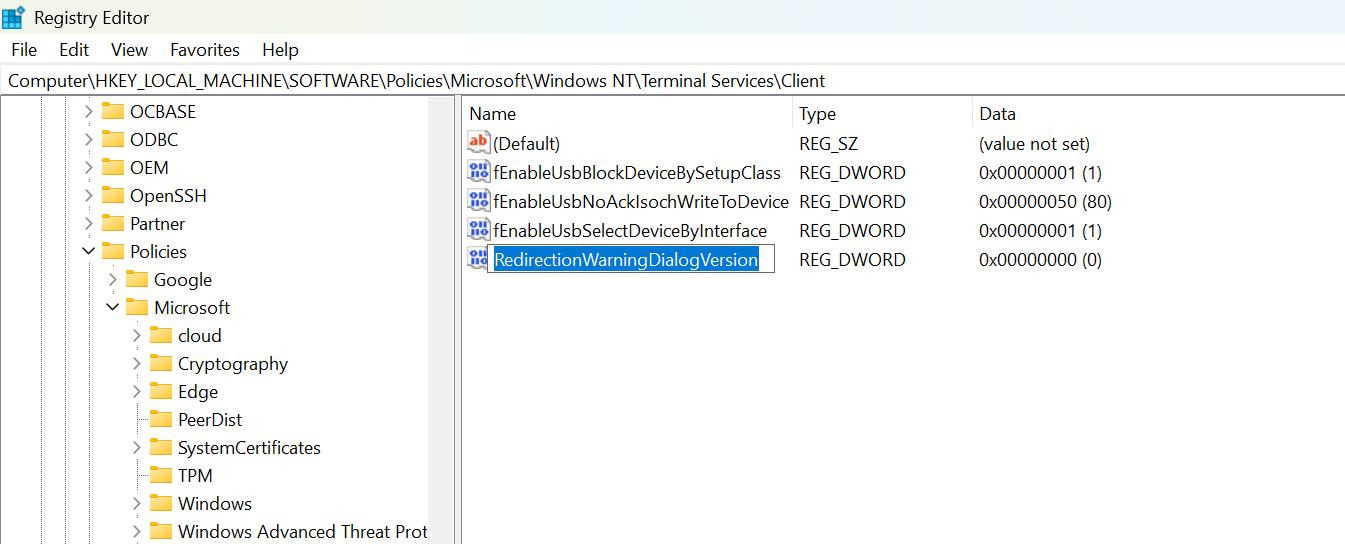
- Name the new key with "RedirectionWarningDialogVersion"
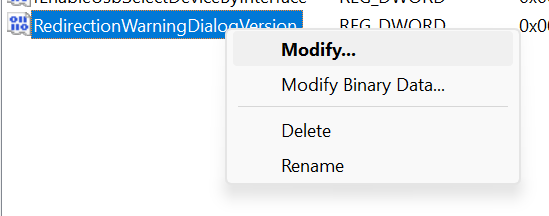
- Right clieck to "Modify"
- Change "Value Data = 1", and OK.

- Try remote desktop by double click on saved RDP icon again.
7. Click "Connect".

8. Click "Show Details".

9. Enter the password.

10. "Yes" to connect to the server.
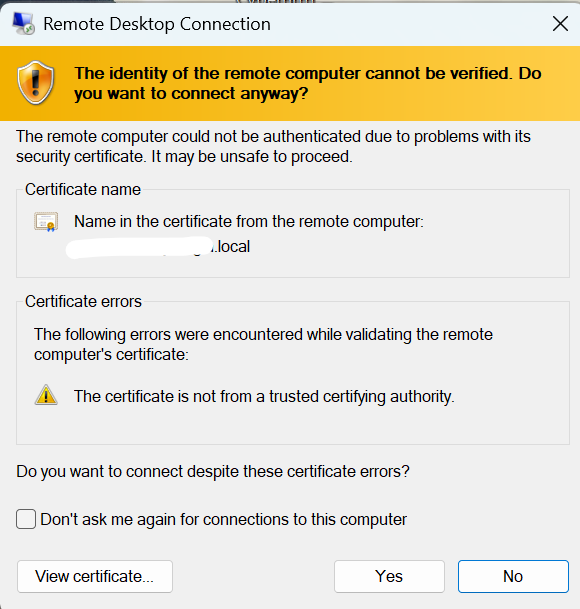
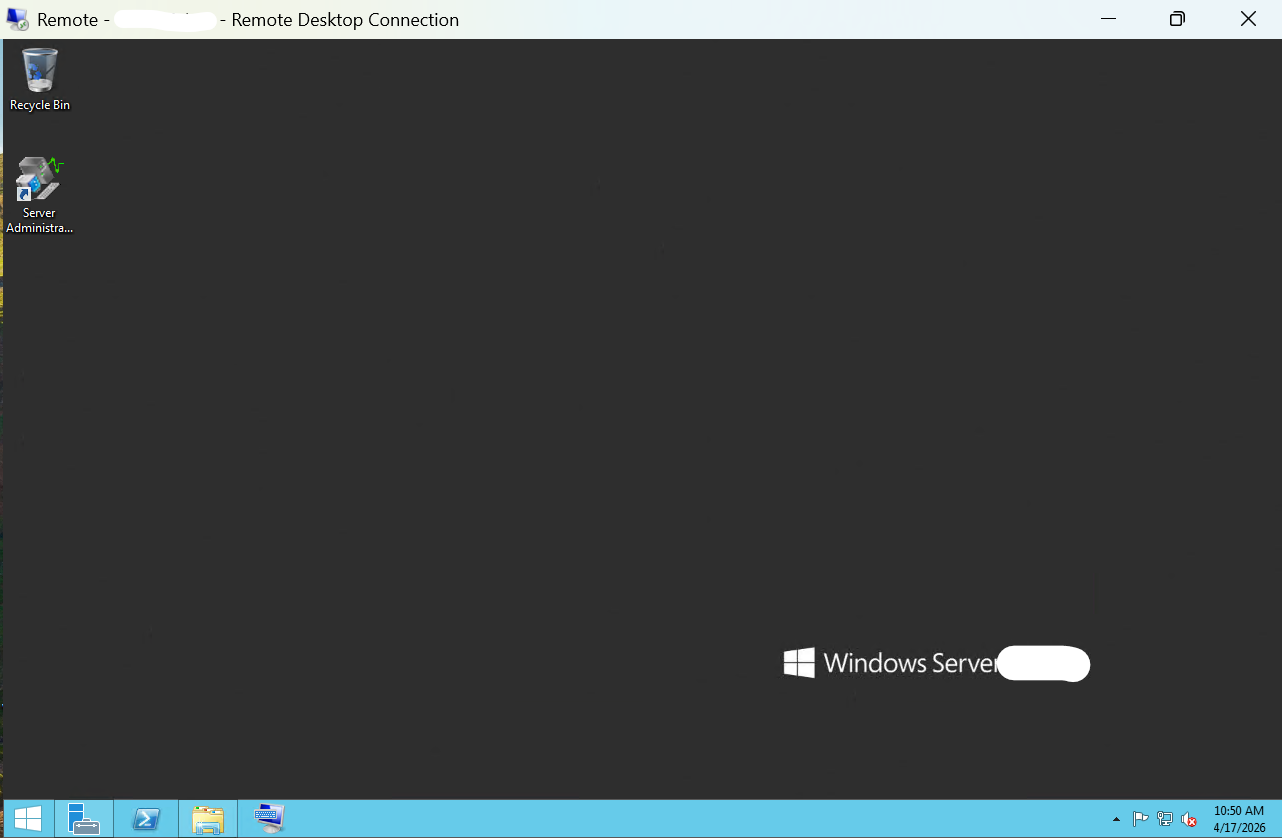
11. Now can connect to the server normally.
Ref: 252838