
How to set options power when Lid Close your Laptop.


Setting what your notebook does when you "close the screen" (e.g., put it to sleep, shut down, or do nothing) in Windows 11 is easy, although the menu is slightly hidden within the old Control Panel.
Here are the steps to set it up:
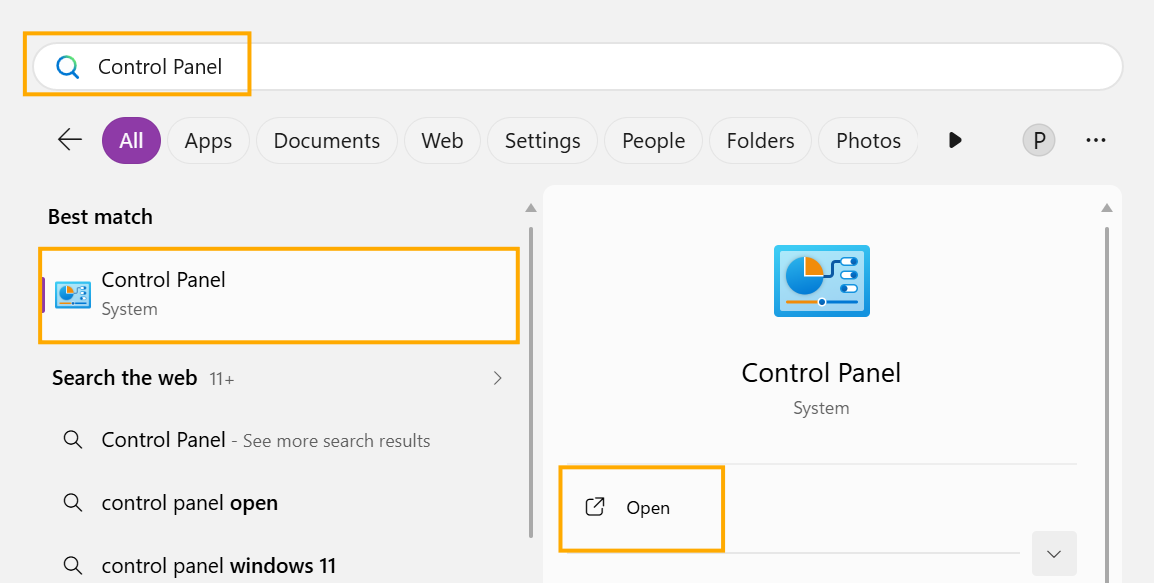
1.To open the Control Panel: Press the Windows + S keys, type "Control Panel," and press Enter.
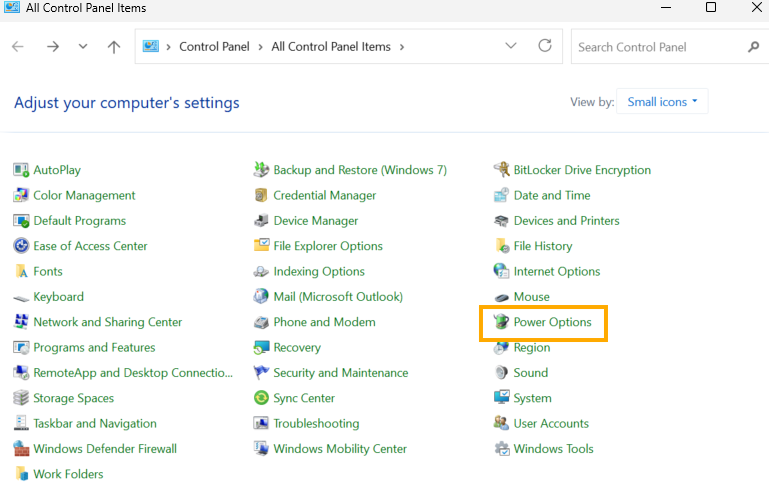
2.Go to the Power category: Select Hardware and Sound > Power Options.
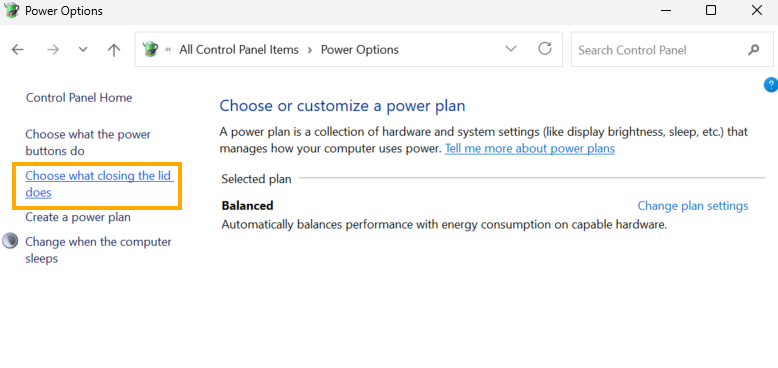
3.Choose the command on the left: In the left-hand menu bar, click "Choose what closing the lid does".
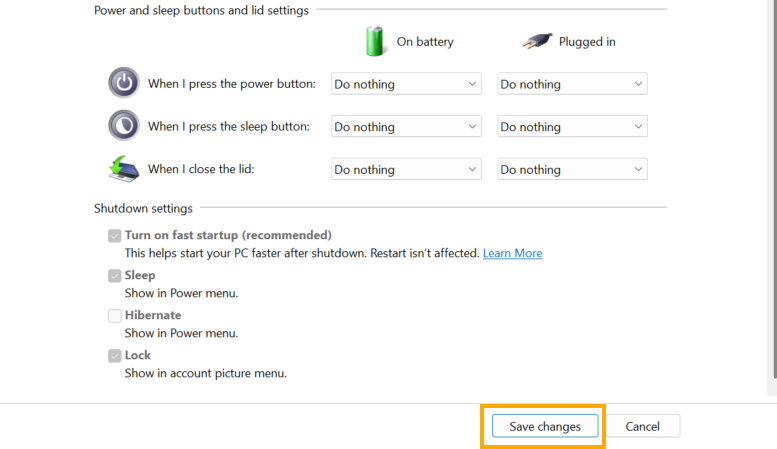
4.Customize to your liking: You'll see options under "When I close the lid," which are divided into two states:
On battery: When using battery power. and Plugged in: When plugged in.
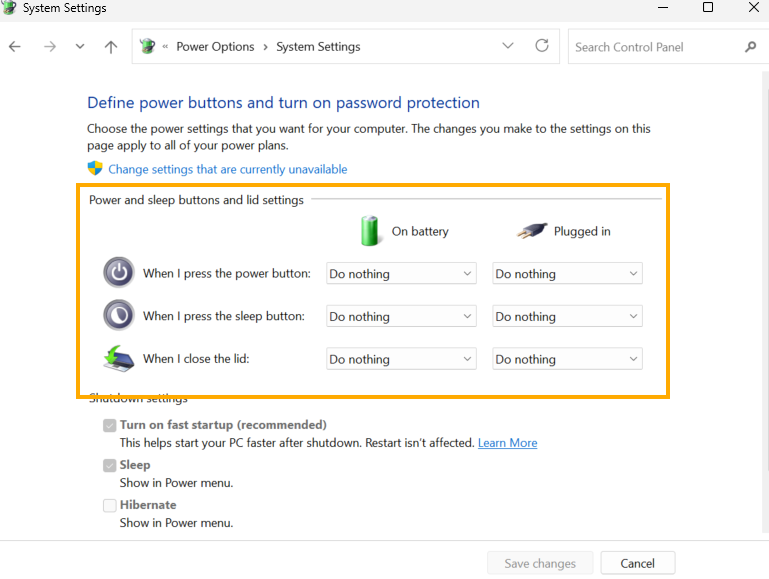
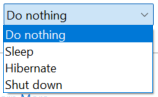
5.Select the desired command:
- Do nothing: The computer continues to operate even when the lid is closed (ideal for users with an external monitor).
- Sleep: Sleep mode (power-saving, but resumes operation quickly).
- Hibernate: Hibernation mode (more power-efficient than Sleep mode because it saves to HDD/SSD).
- Shut down: Shuts the computer down completely.
6.Save your settings: Don't forget to click the "Save changes" button at the bottom.
Caution:
If you select "Do nothing" while folding the screen:
- Beware of heat: If you put your notebook in a bag while it's still running, heat can build up and damage the device.
- Power consumption: If not plugged in, the battery will drain gradually as normal, just like when the screen is left on.
end..