
How to set up iPhone charging to help maintain battery health and limit charging functionality.


To help maintain battery health, enable the "Optimized Battery Charging" and "Charging Limit" settings on your iPhone. (For iPhone 15 and later models)
- Optimized Battery Charging
This feature is available on all iPhone models that support iOS 13 and later, and is the primary way to extend battery life.
How to enable it:
1.1 Go to the "Settings" app. And scroll down and select "Battery."
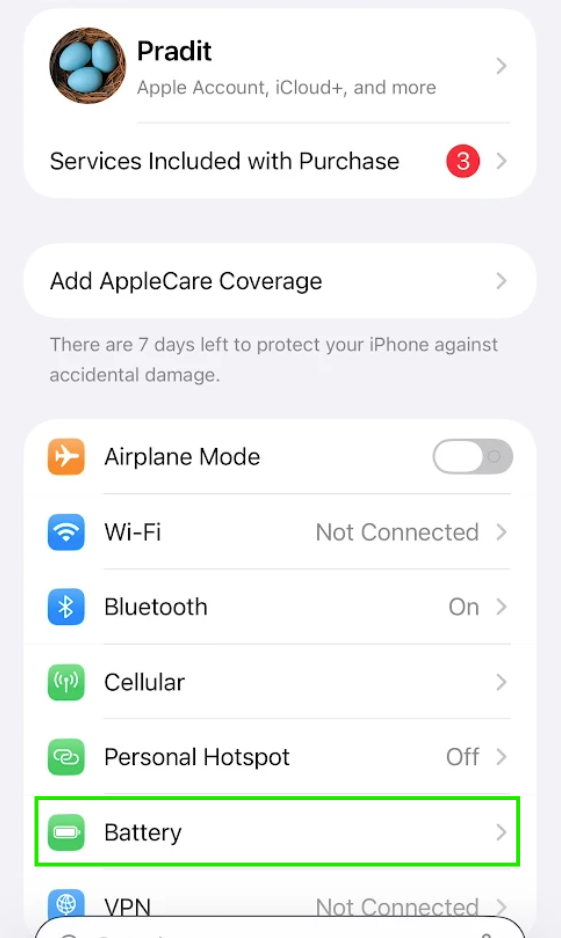
1.2 Select "Charging"

1.3 Tap the "Optimized Battery Charging" switch to enable it.
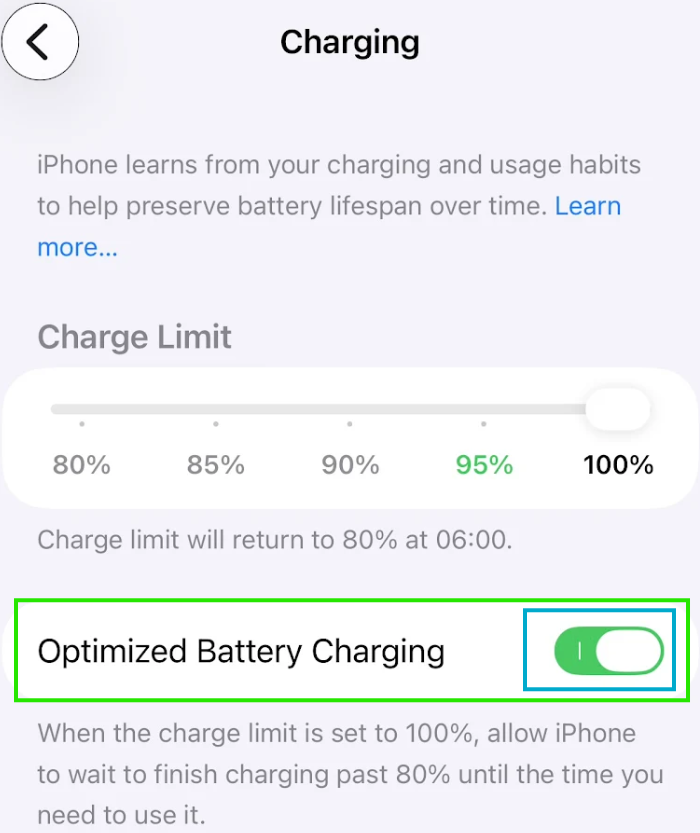
How the function works
Once enabled, your iPhone will learn your daily charging routine (such as when you wake up) and will:
- Quickly charge the battery to 80%.
- Then, it will slow down the charging process.
- It will charge from 80% to 100% before you disconnect the charger.
Purpose: Reducing the amount of time the battery needs to remain fully charged for extended periods will help reduce battery degradation over time.
- Charging Limit
This feature is only available on iPhone 15 and later, and permanently limits charging to 80%.
How to enable it:
2.1 Follow the steps above in "Optimal Battery Charging" but you must turn off "Optimal Battery Charging" then change "Charge Limit" according to your needs.

How the function works
- When this option is selected, the iPhone will only charge to 80% or more according to your needs, then stop charging completely.
Purpose: Maintaining the battery charge between 20% and 80% is the optimal range to reduce battery stress and maximize battery life.
Note:If you want to maximize battery health, you should enable Optimized Battery Charging. For iPhone 15 and later, selecting the 80% Limit will help minimize battery degradation the most, but at the cost of not being able to use it at 100% per charge.
end..