
How you can allow standard user without administrator privileges to run a program or application that needs administrator privileges.


In most enterprise networks user accounts are created with the standard privileges that allow them to open sessions on their computers run their applications like Microsoft Outlook, Excel and other corporate applications in general these applications doesn't need special privileges or administrator rights to work but some applications need administrative privileges to perform some actions on the user computer maybe creating a file in a system protected folder that requires admin privileges to do that if you are a system administrator you may be in a dilemma with this kind of situation, Should you give the user administrator privileges on the workstation by doing so you will provide the user permissions to do what he need on the workstation installing unauthorized software like Torrents, Games, Cryptominers etc the ideal solution would be to give the administrator privileges only to the application to allow it to run as expected, there are many videos and tutorials on the subject and they all suggest using the built-in local administrator account, I'm not going to follow this path for security reasons, Microsoft security guides recommend disabling this account to prevent credential depth attacks when he wants to take control of a machine a hacker always tries to compromise the default administrator account to take ownership of this account this is why will use a new user account and give it administrator privileges, So here are the steps we are going to follow.
Steps:
- Create a user account.
1.1 Search "Computer management" choose "Run as administrator"
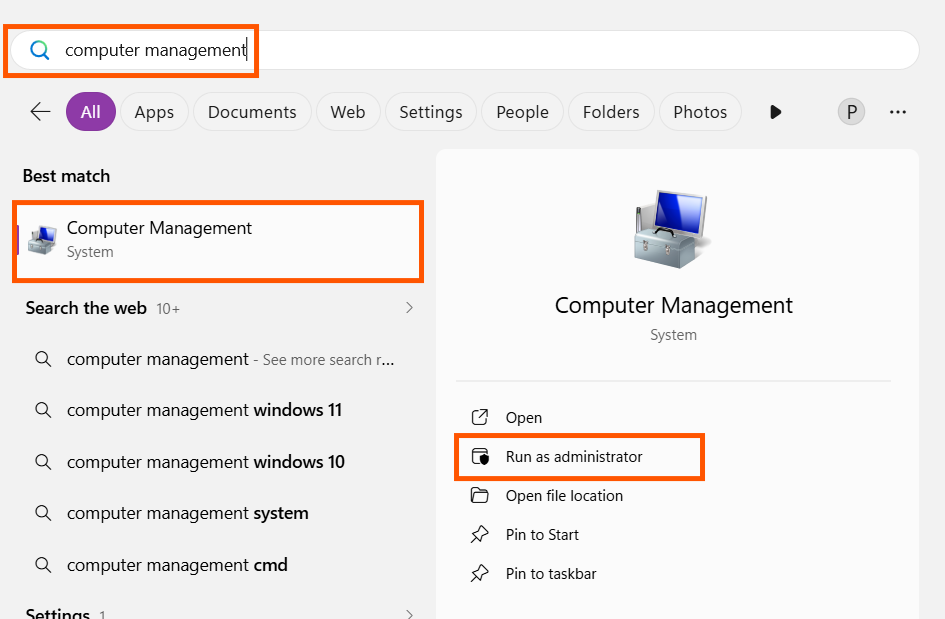
1.2 Right click and selete "New User..."

1.3 Enter the required information. then click "Create"
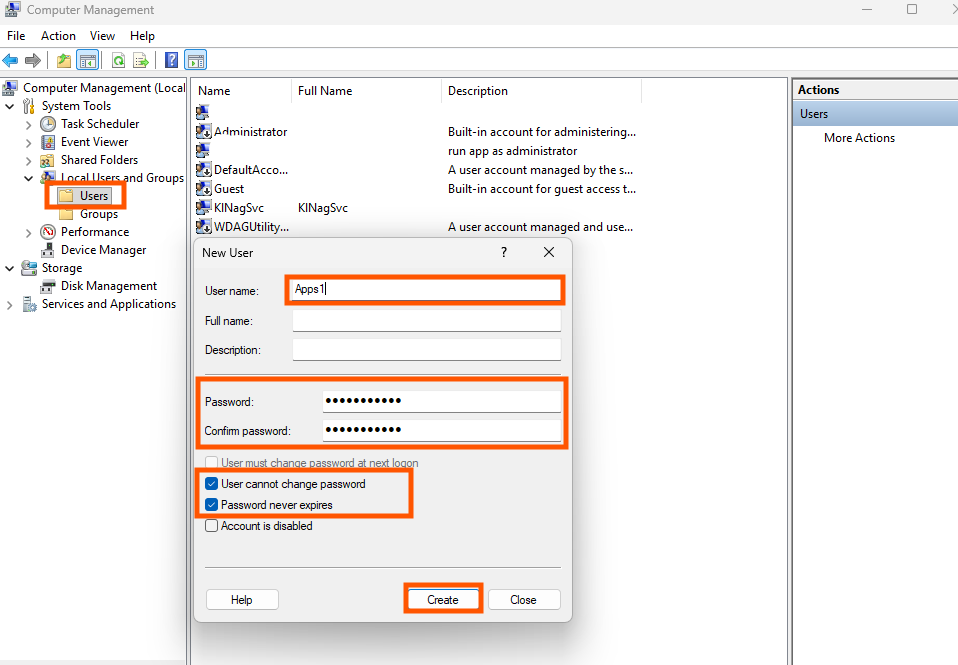
- Add this account to the local Administrator group.
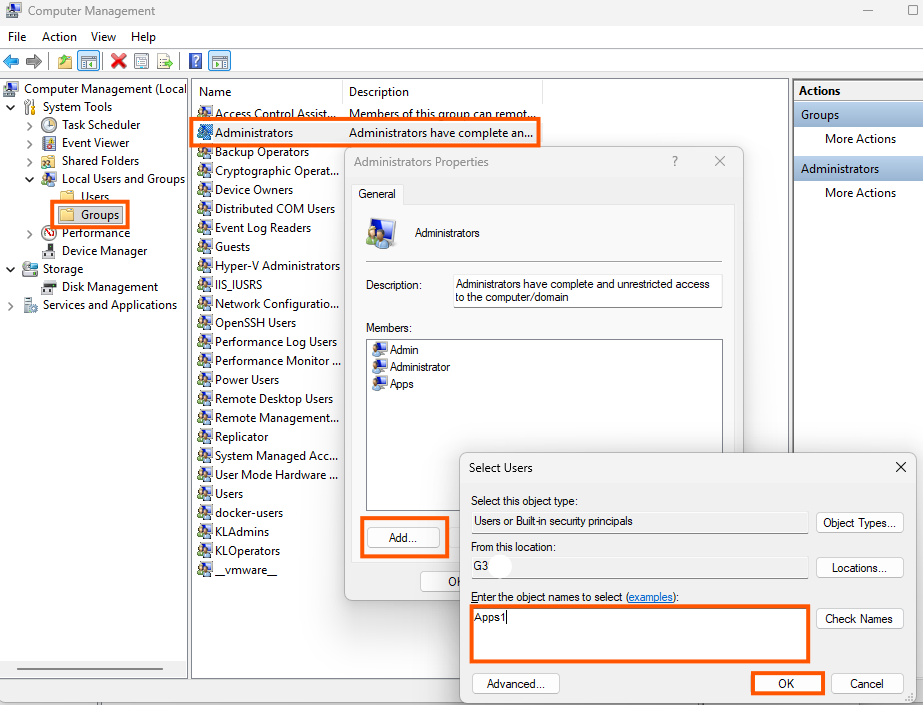
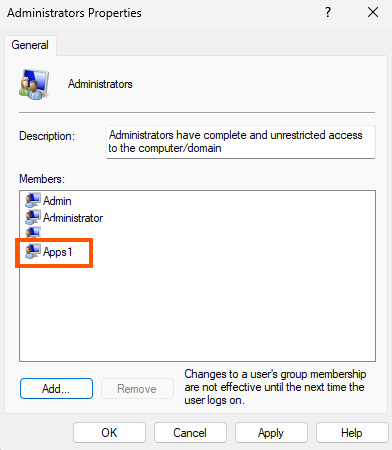
3. Create a shortcut to the application.
3.1 Go to your application and Right click then choose Send to Desktop(create shortcut)
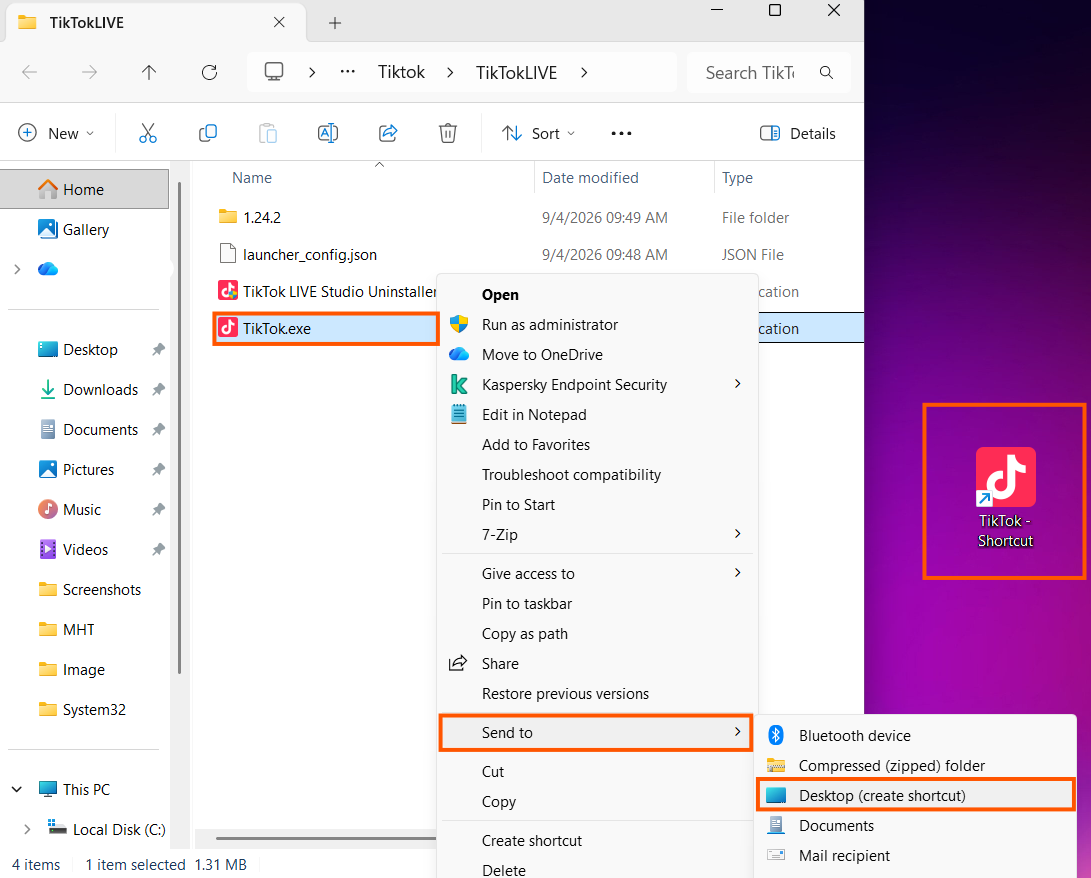
3.2 Now, The state that occurs when you try to open the application, the system will request administrator privileges.
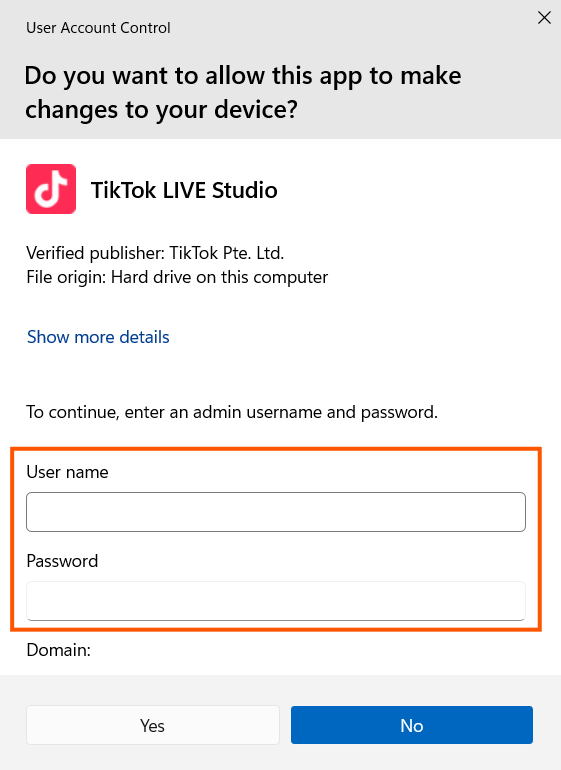
- Give the administrator privileges only to the application.
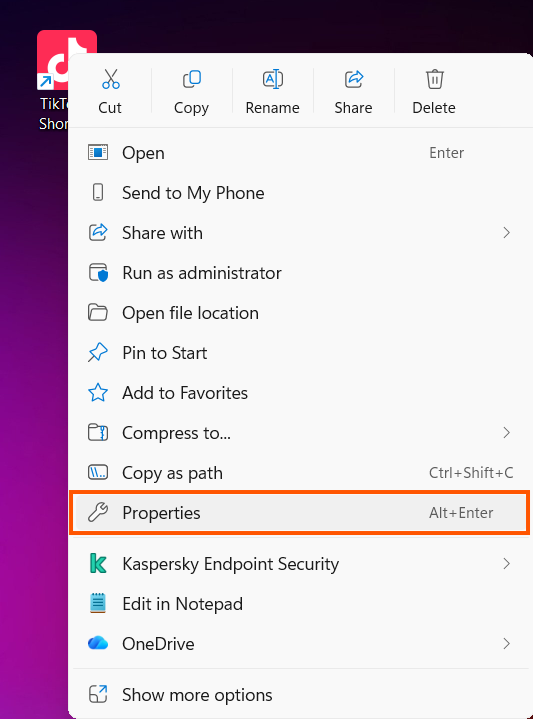
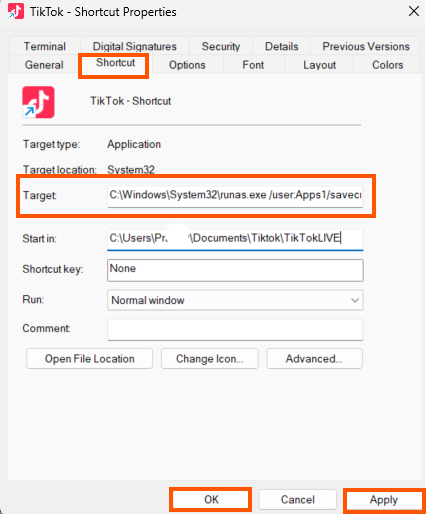
4.1 Right click on shortcut and choose "Properties"
4.2 Edit for new "Target" Command.
- Default Target is: C:\Users\Name of User Login\Documents\Tiktok\TikTokLIVE\TikTok.exe
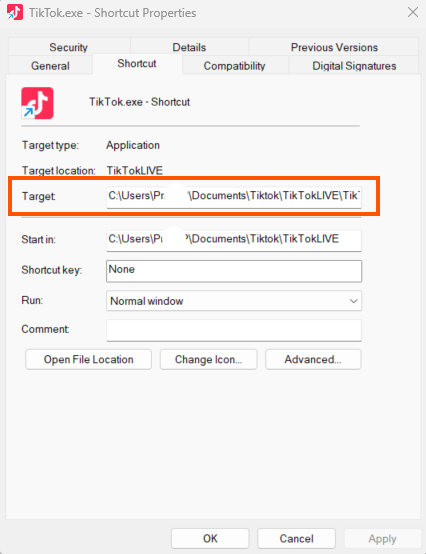
- New Target is:
C:\Windows\System32\runas.exe /user:Apps1 /savecred "cmd /C """C:\Users\Name of User Login\PraditP\Documents\Tiktok\TikTokLIVE\TikTok.exe""
Then click Apply, OK.
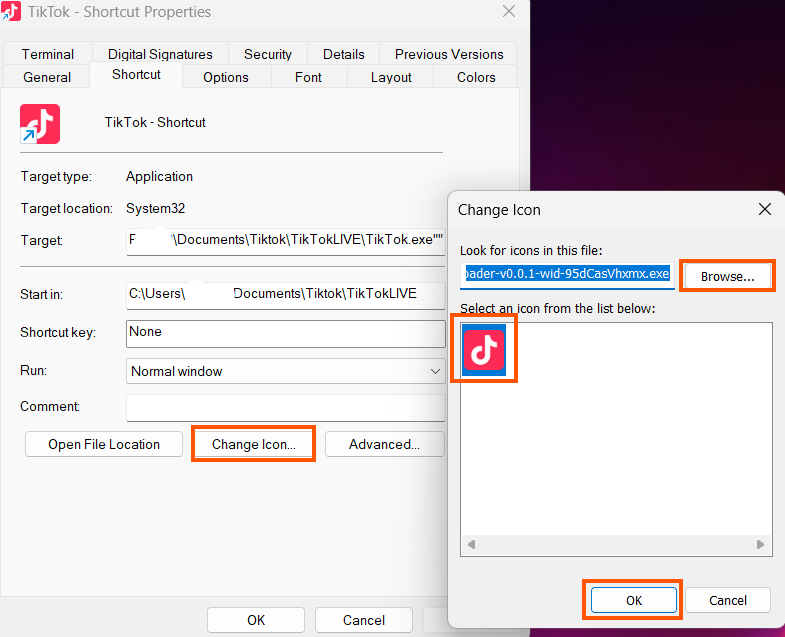
- If you think aesthetics are essential, you can change the icon.
- Run a Application.
5.1 When you try run a application the system command line will request of password of local account administrator privileges, you can type it but the text is not show, then pass Enter.
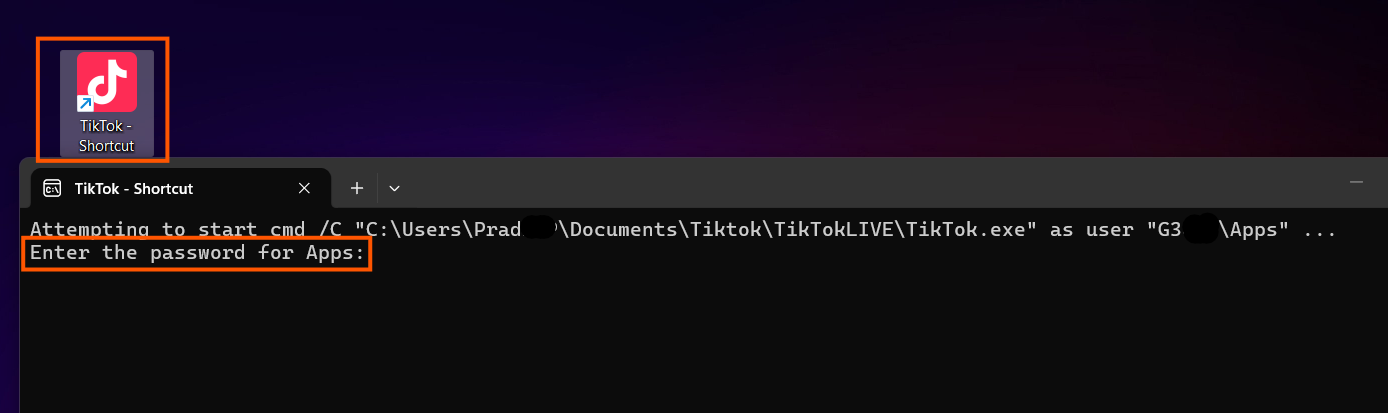
- All of finished, It's working.

end..