
O365: Create White list domain (Allow list) in Exchange online with Mail Flow Rule


To create or allow trusted domain on Exchange online by Mail Flow Rule.
- Login to microsoft admin portal: admin.exchange.microsoft.com
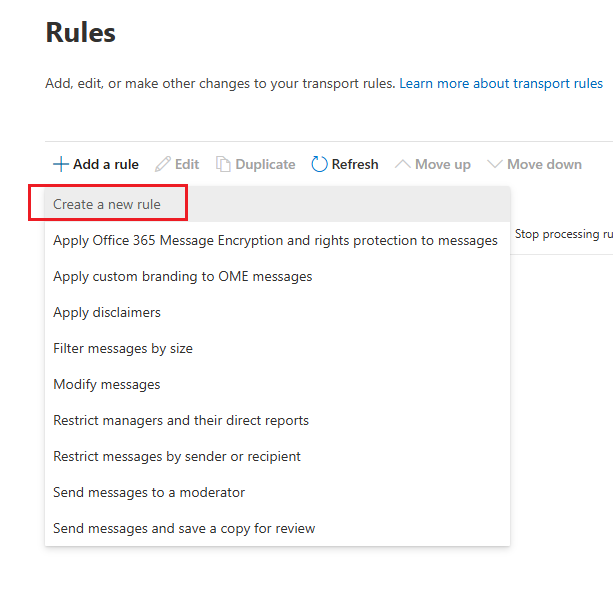
- Goto "Mail Flow" > "Rules" > "Add a rule"

- "Create a new rule"
- Name and set conditions for the rule as below example

- Next

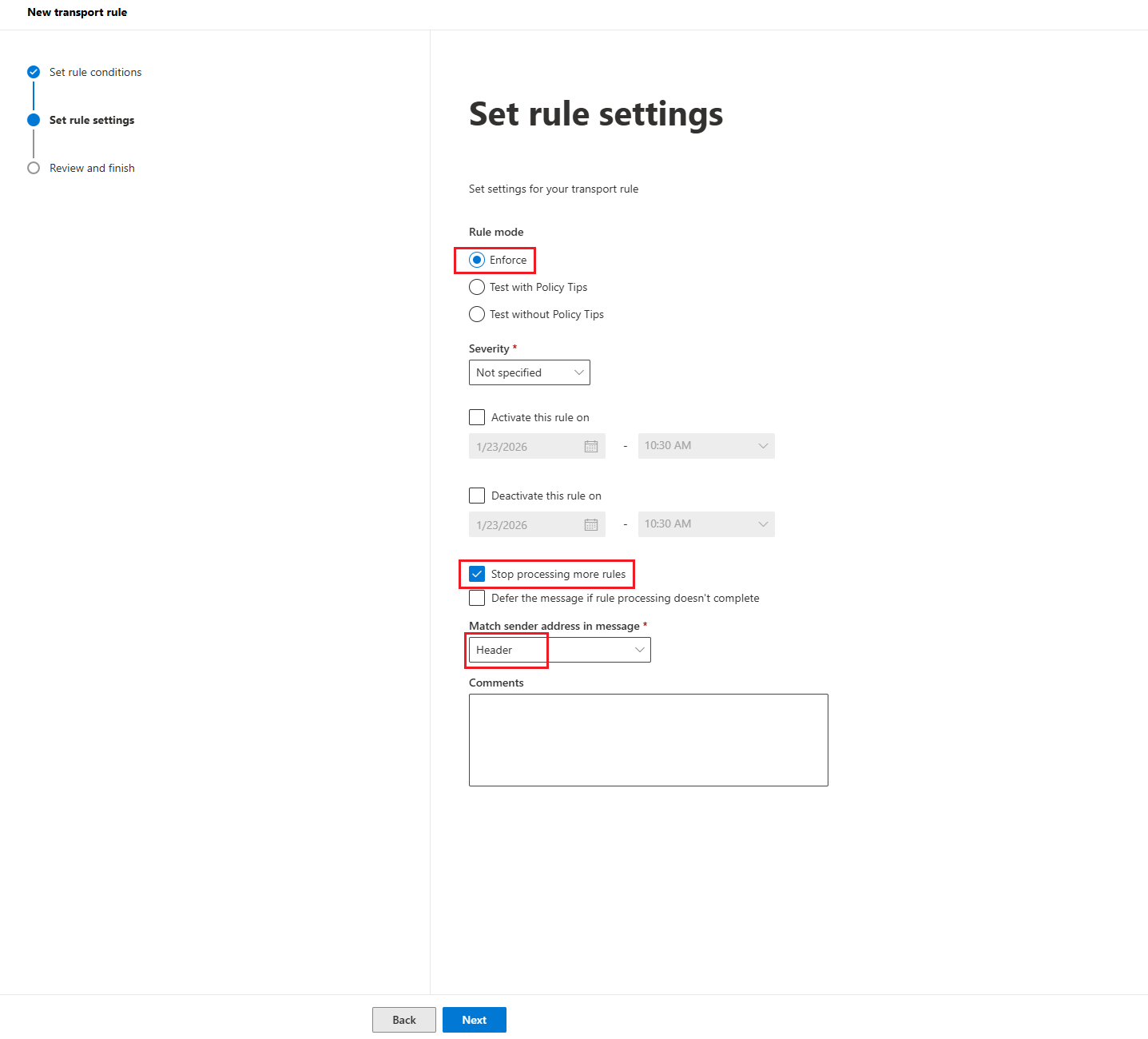
- Set rule setting
- Rule mode: Enforce
- Checked: Stop processing mor rules (Mean: if email matched with this rule then stop check with the next rule)
- Match sender address in message: Header (System check domain on header)
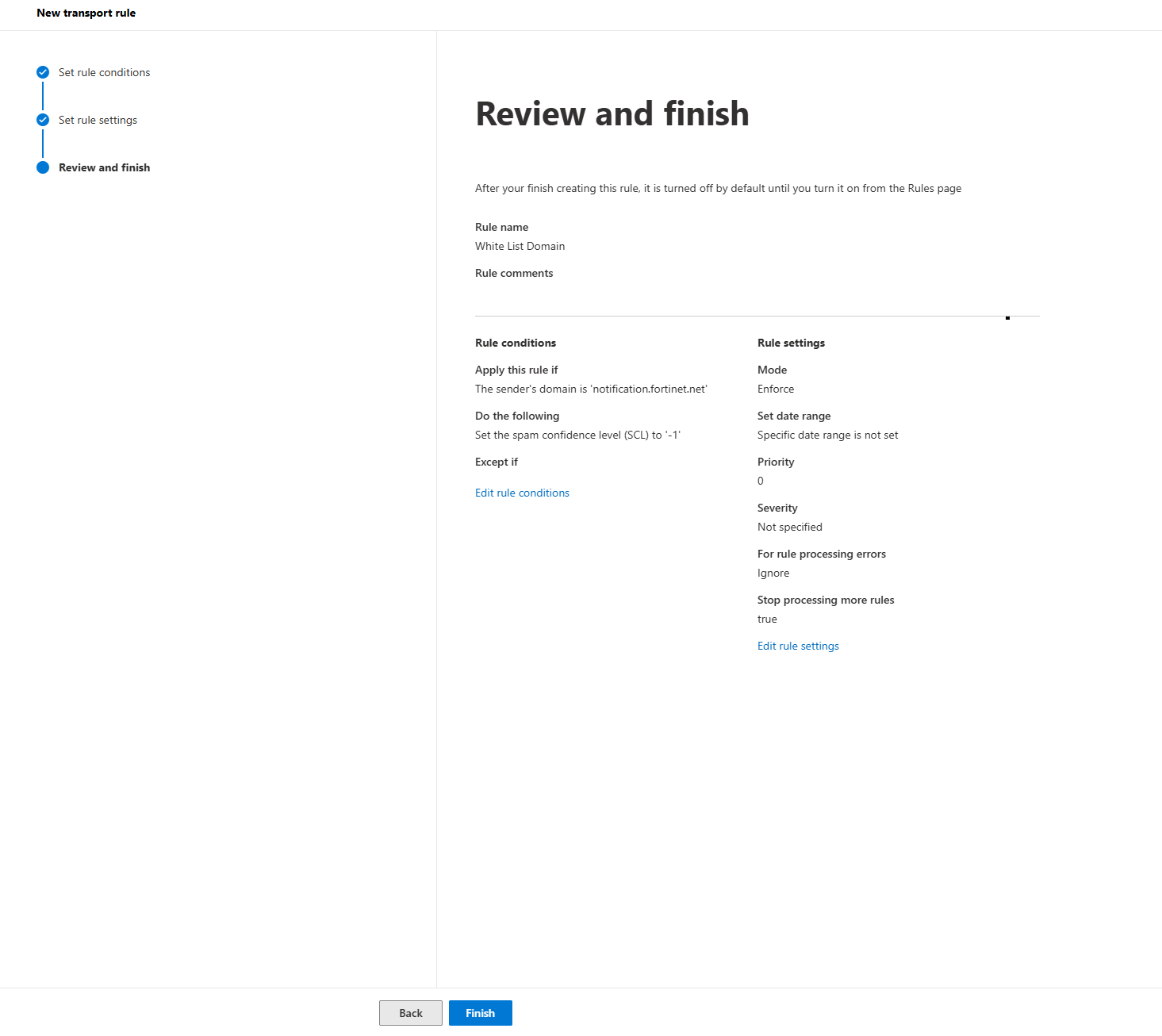
7. Review rule before finish
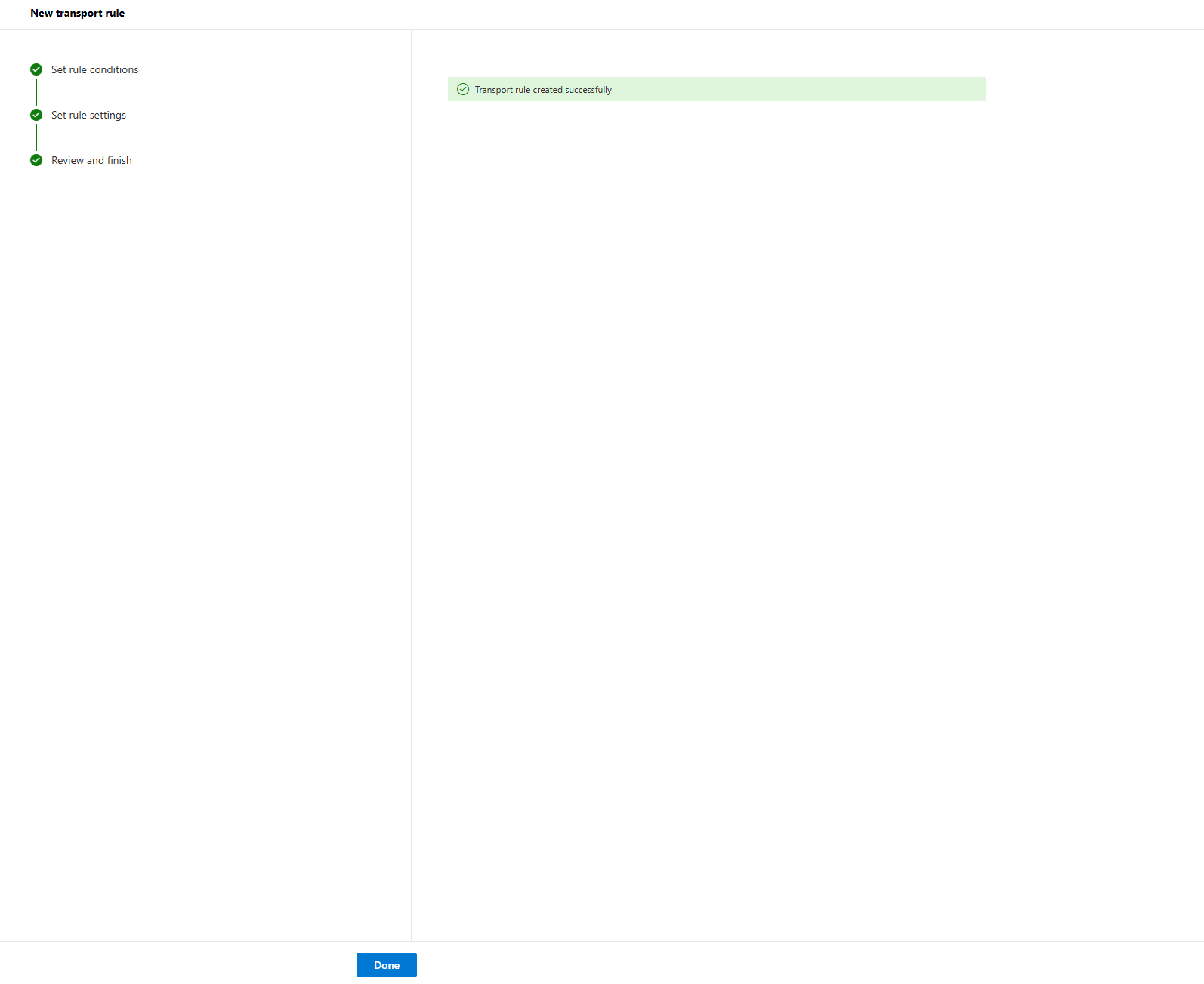
- Finish

- New rule will show in the list
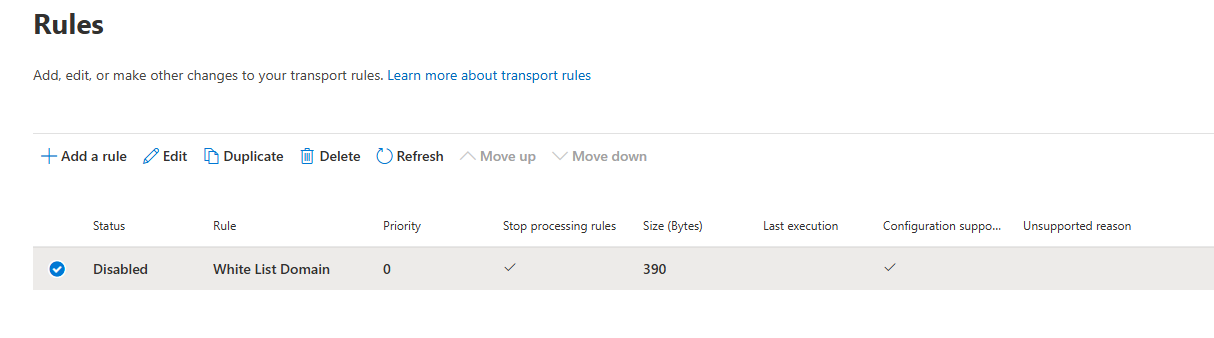
10 . Don not forget to enable this rule.

Note: Do not allow pubic domain to whitlist (example "gmail.com", "outlook.com") as it will allow all that domain email to your email system.