O365: Custom install only outlook by office deployment tool (ODT)


Microsoft office 365, to install application on computer with only some application. In this example will use ODT helpto install only MS Outlook on the computer.
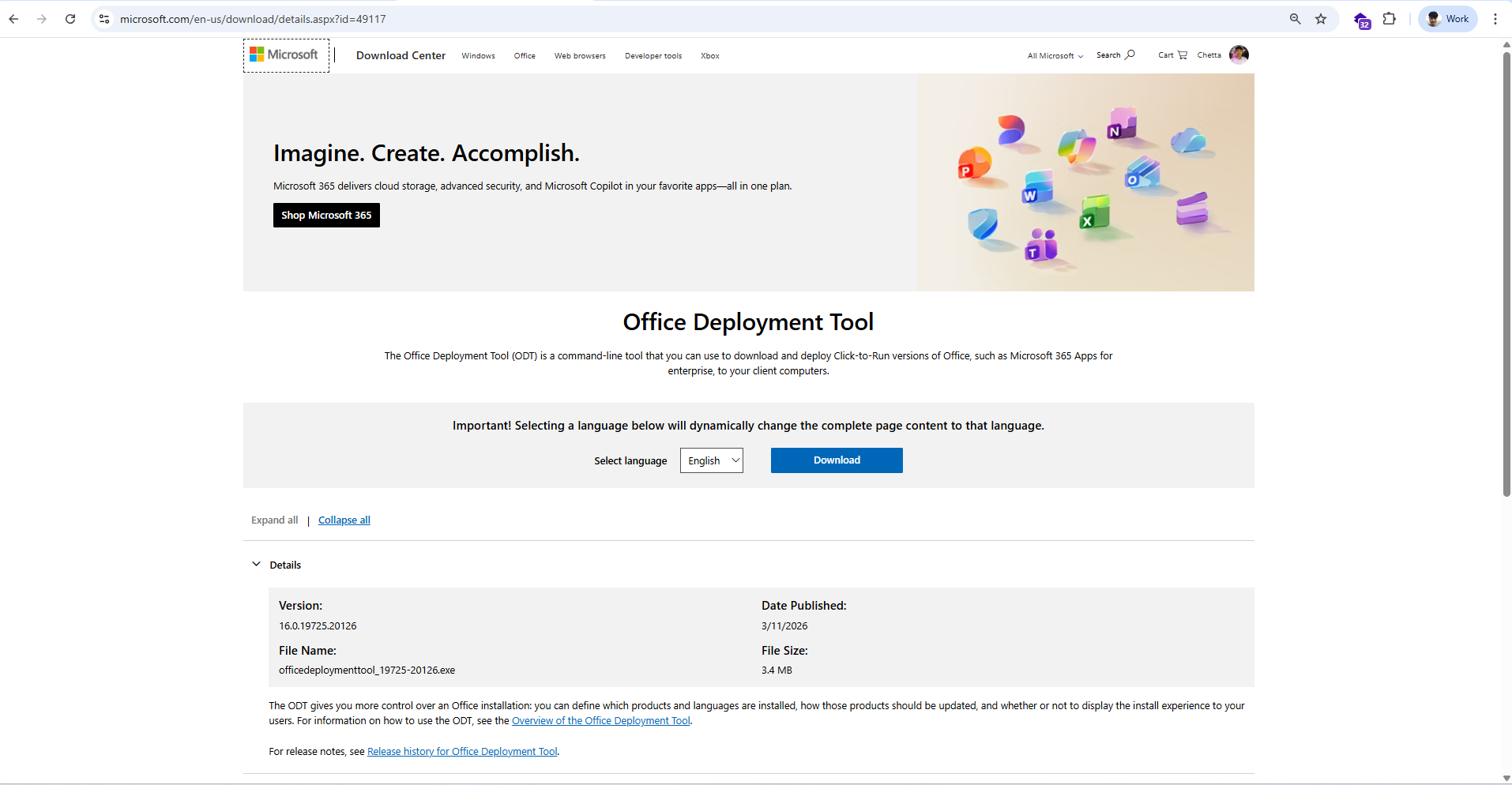
- Download office deployment tools (ODT), (https://www.microsoft.com/en-us/download/details.aspx?id=49117)
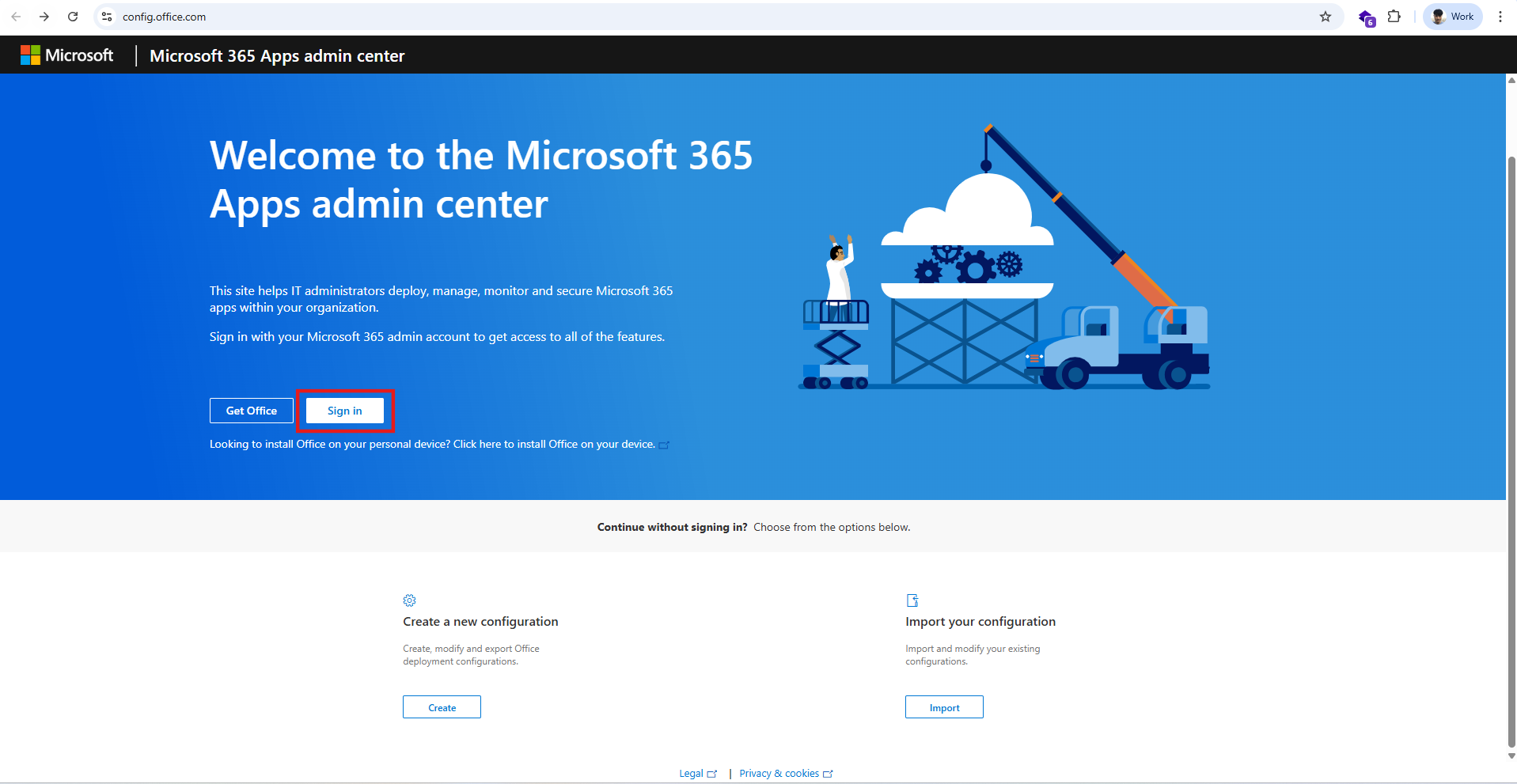
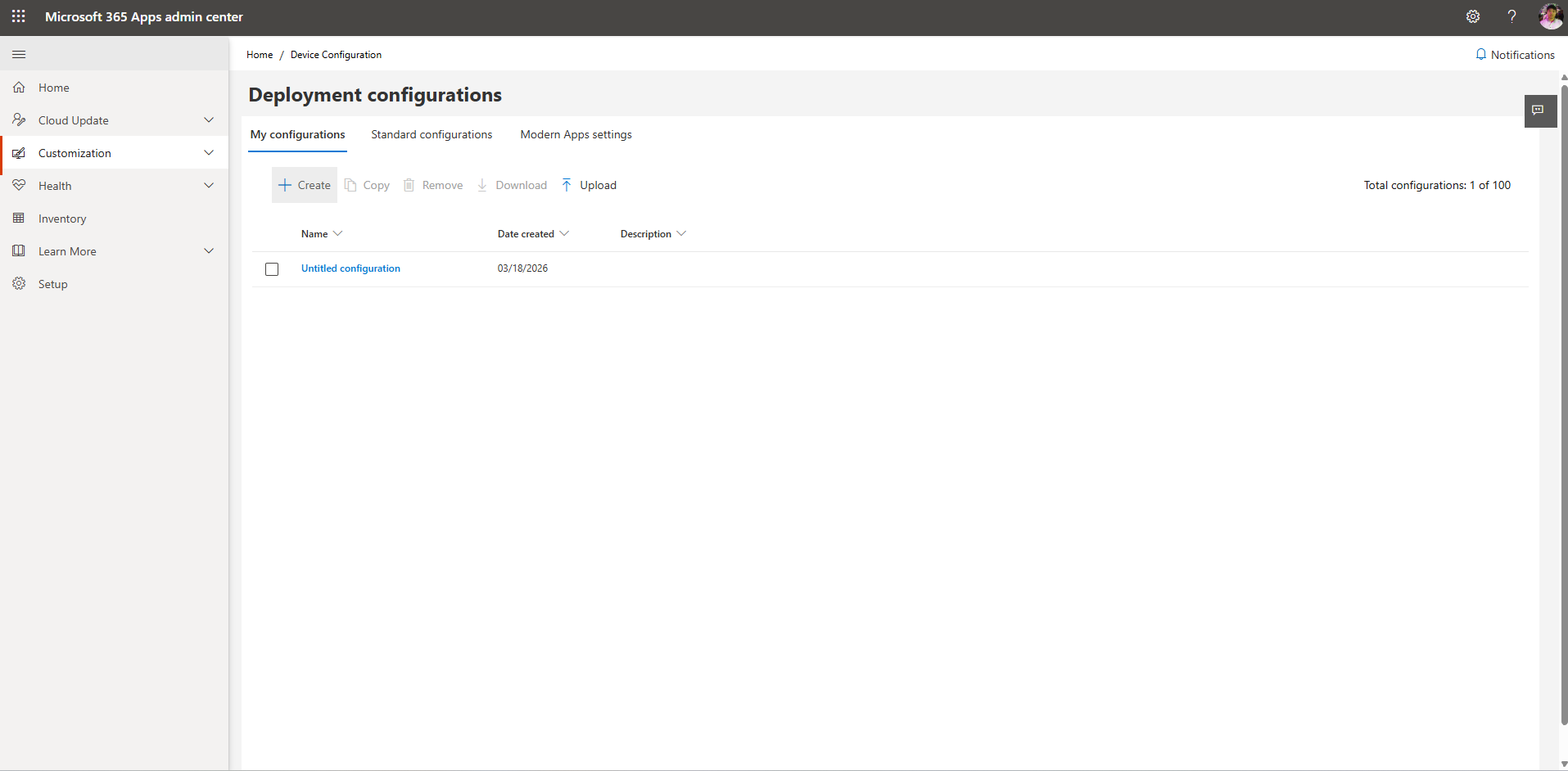
- Go to web site (config.office.com) to create office customization tool.
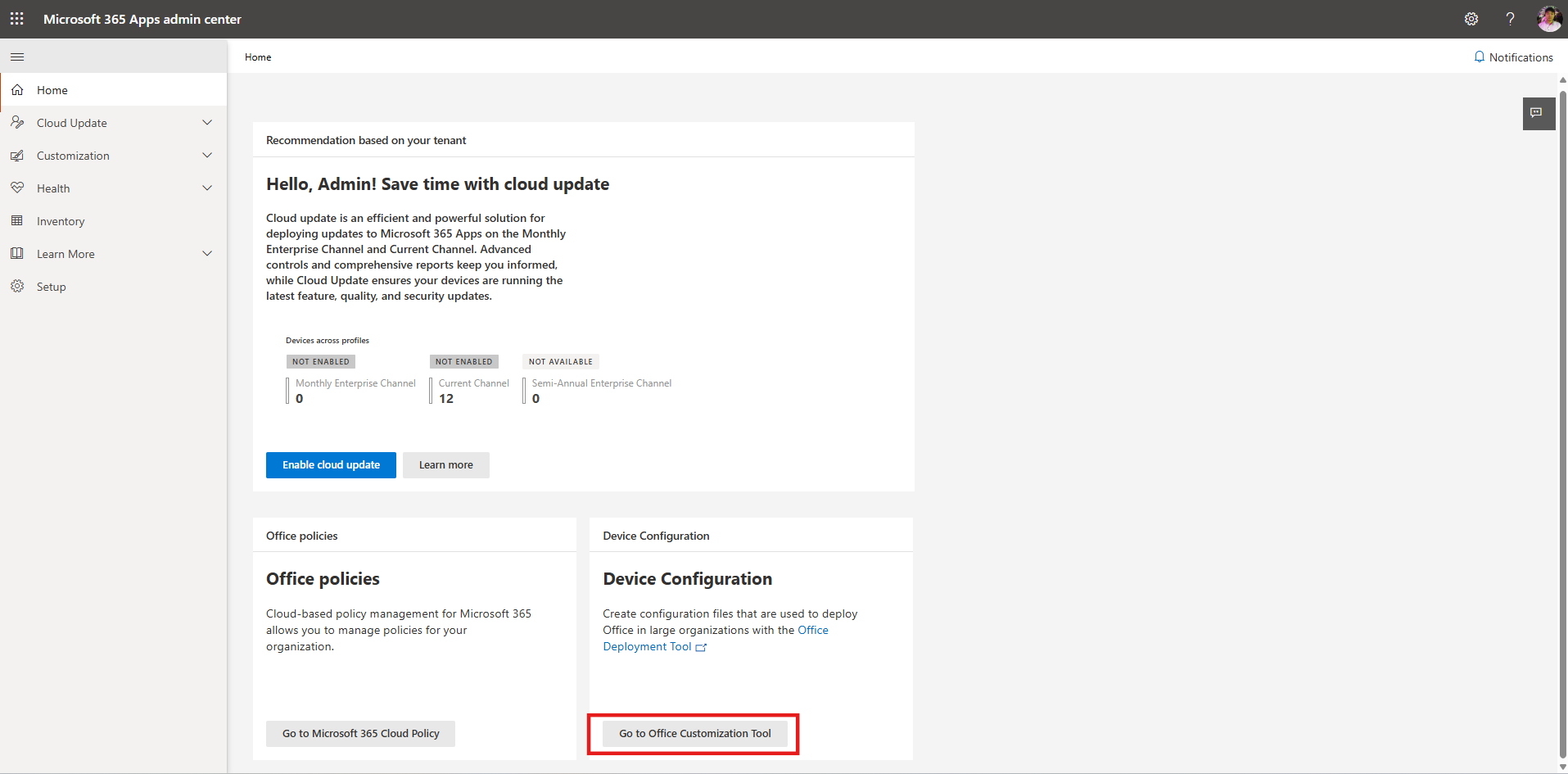
- "Go to Office Customization Tool".
- "+ Create".
- "Create Office Customization Tool".

- In "App" sections, Enable "Outlook (classic)".
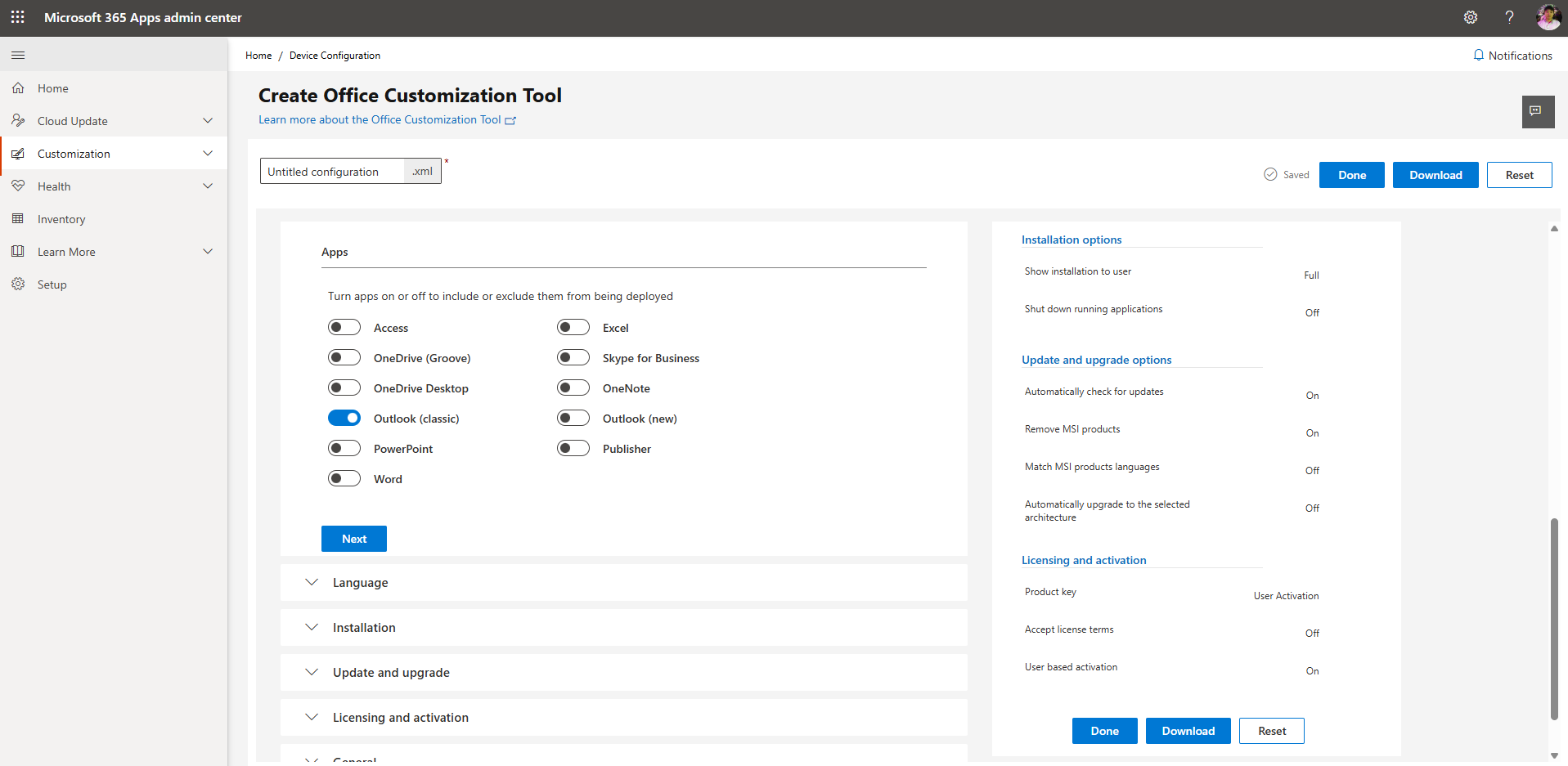
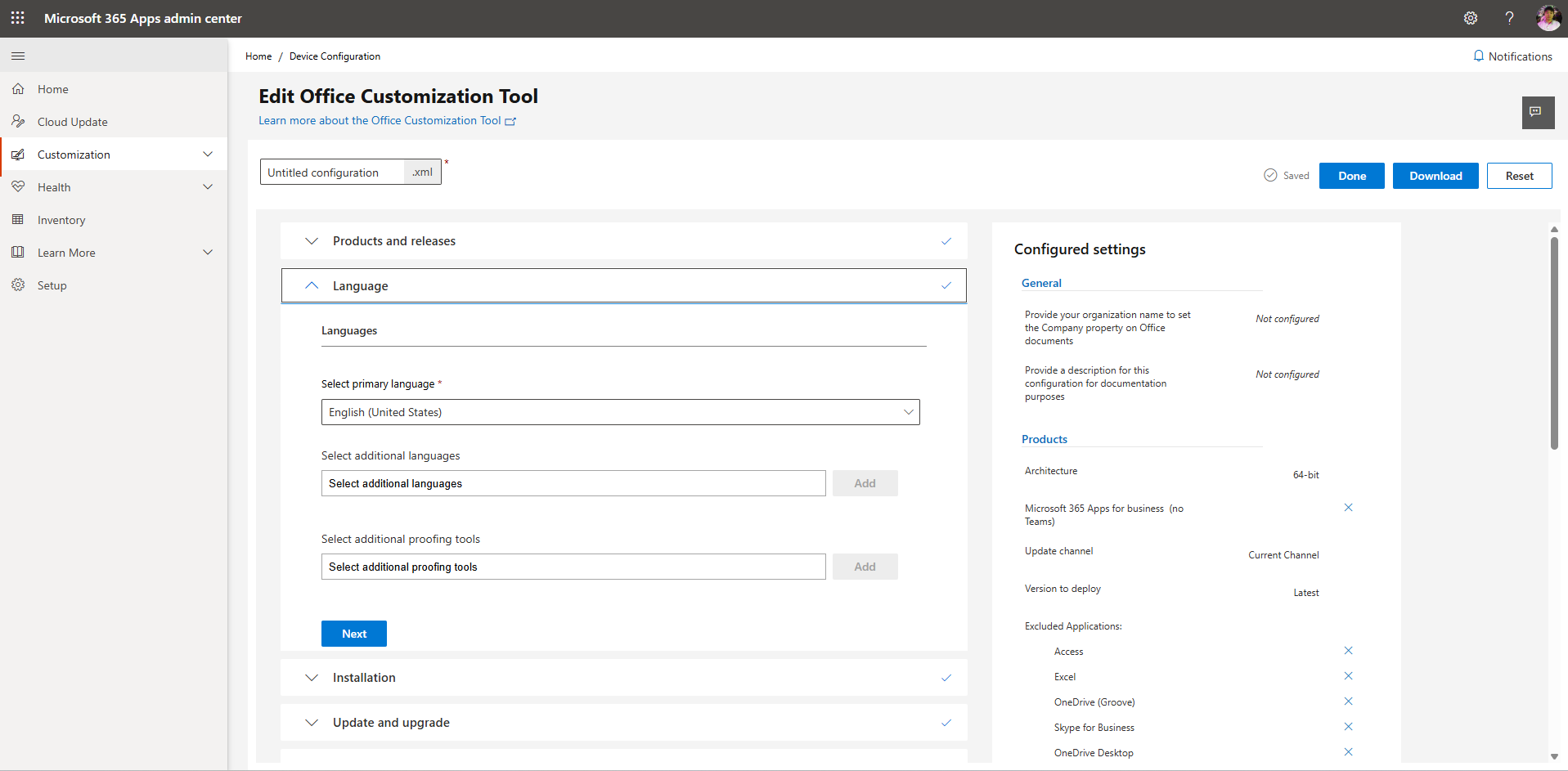
7. Select "Language" > "English (United State)".
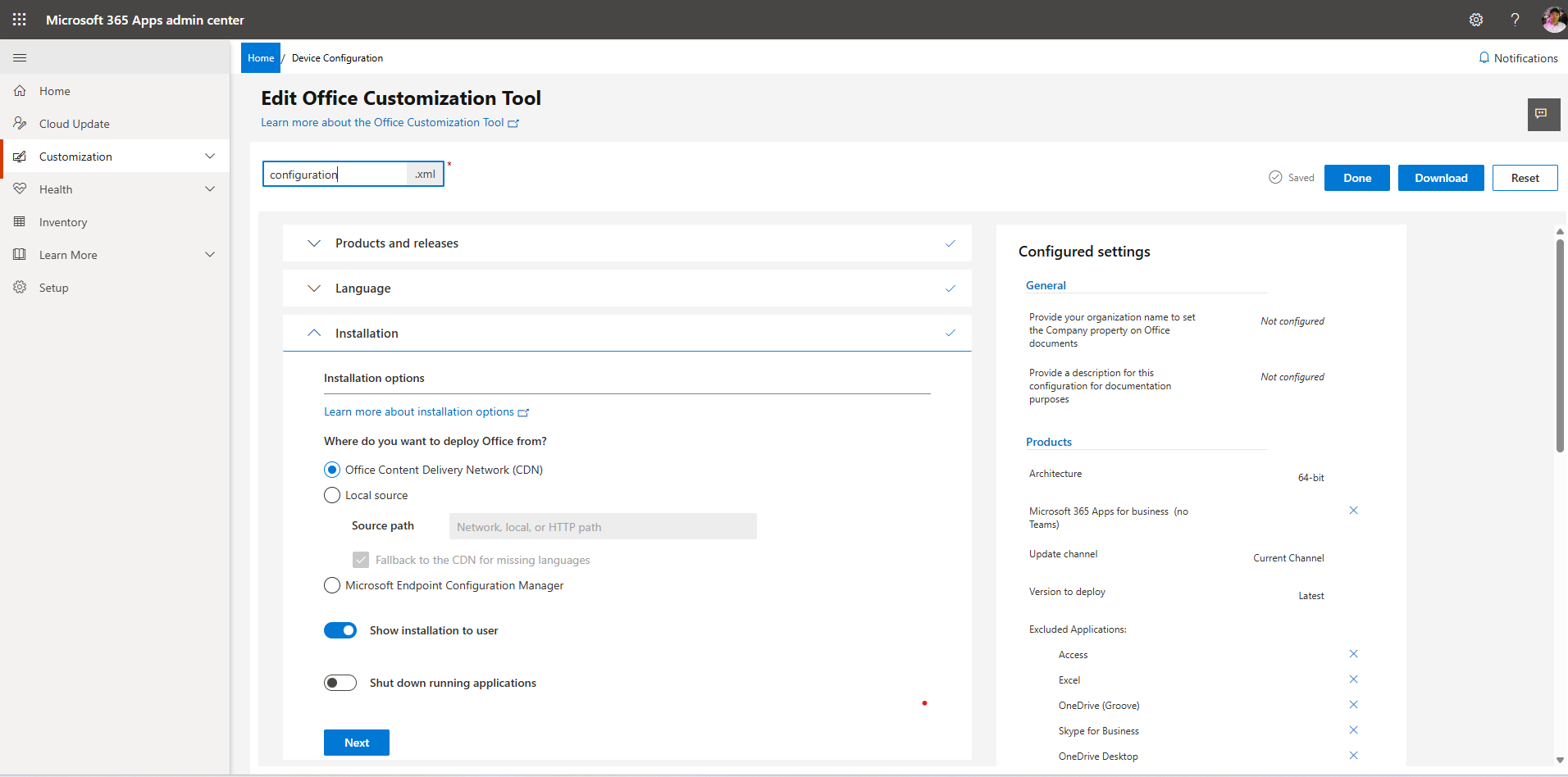
- Named the .xml file. > "Done".
- Select file and download.
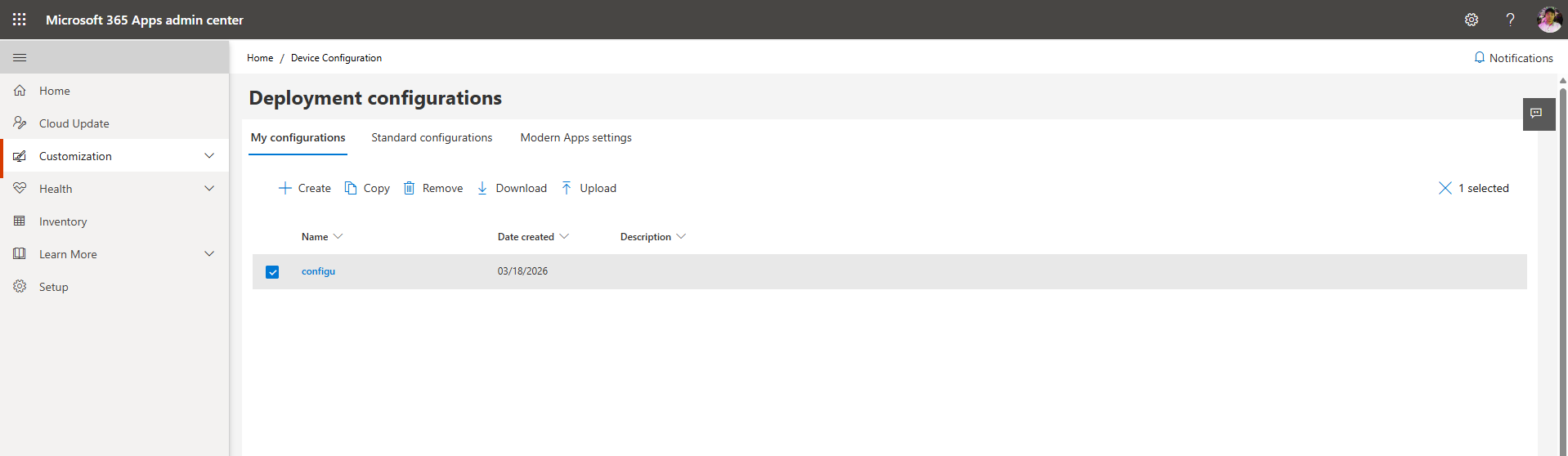
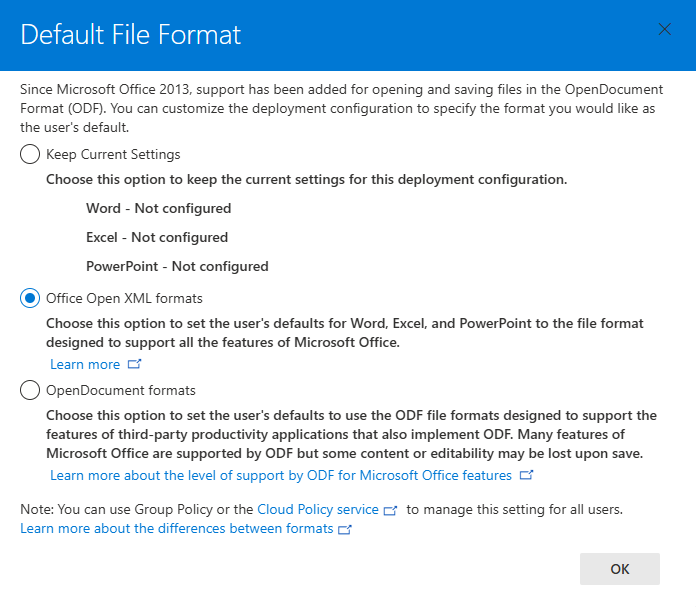
- Select the file format.
11. File Name.
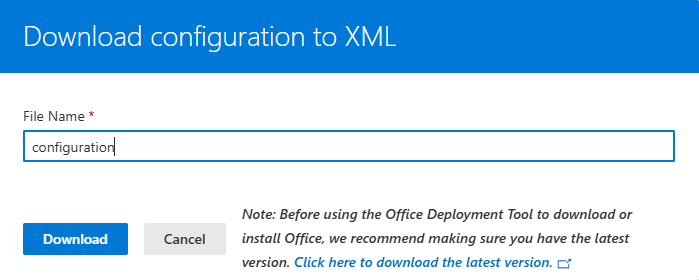
- Save on the same folder.
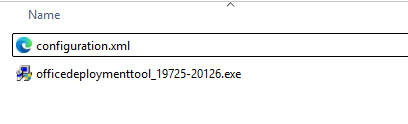
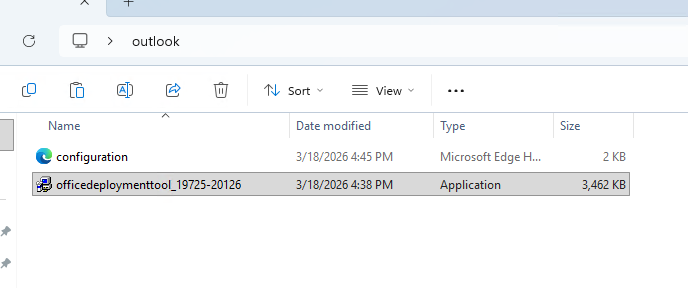
- Double-click on "officedeploymenttool_19725-20126.exe" for extract file.
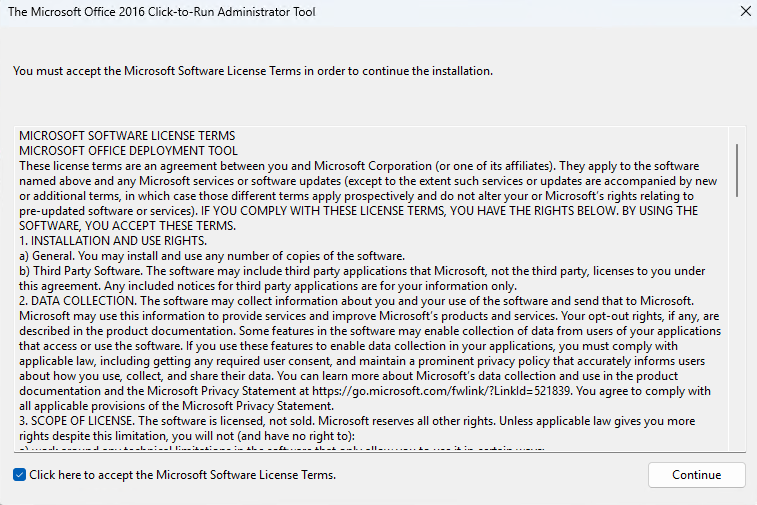
- Accept and continue.
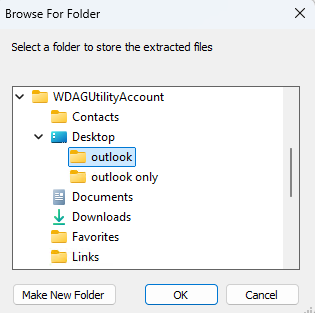
- Select folder to extract.
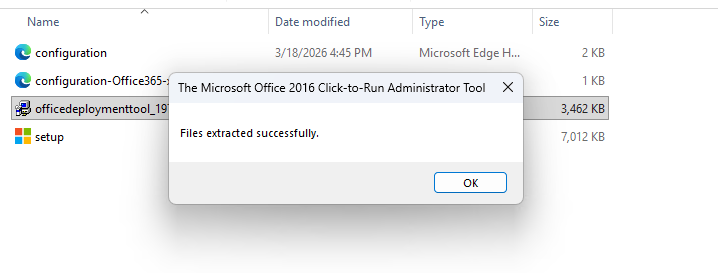
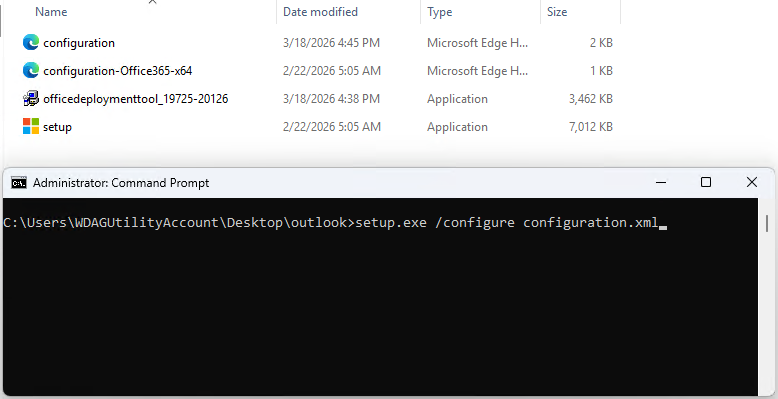
- Setup file will show on the folder.
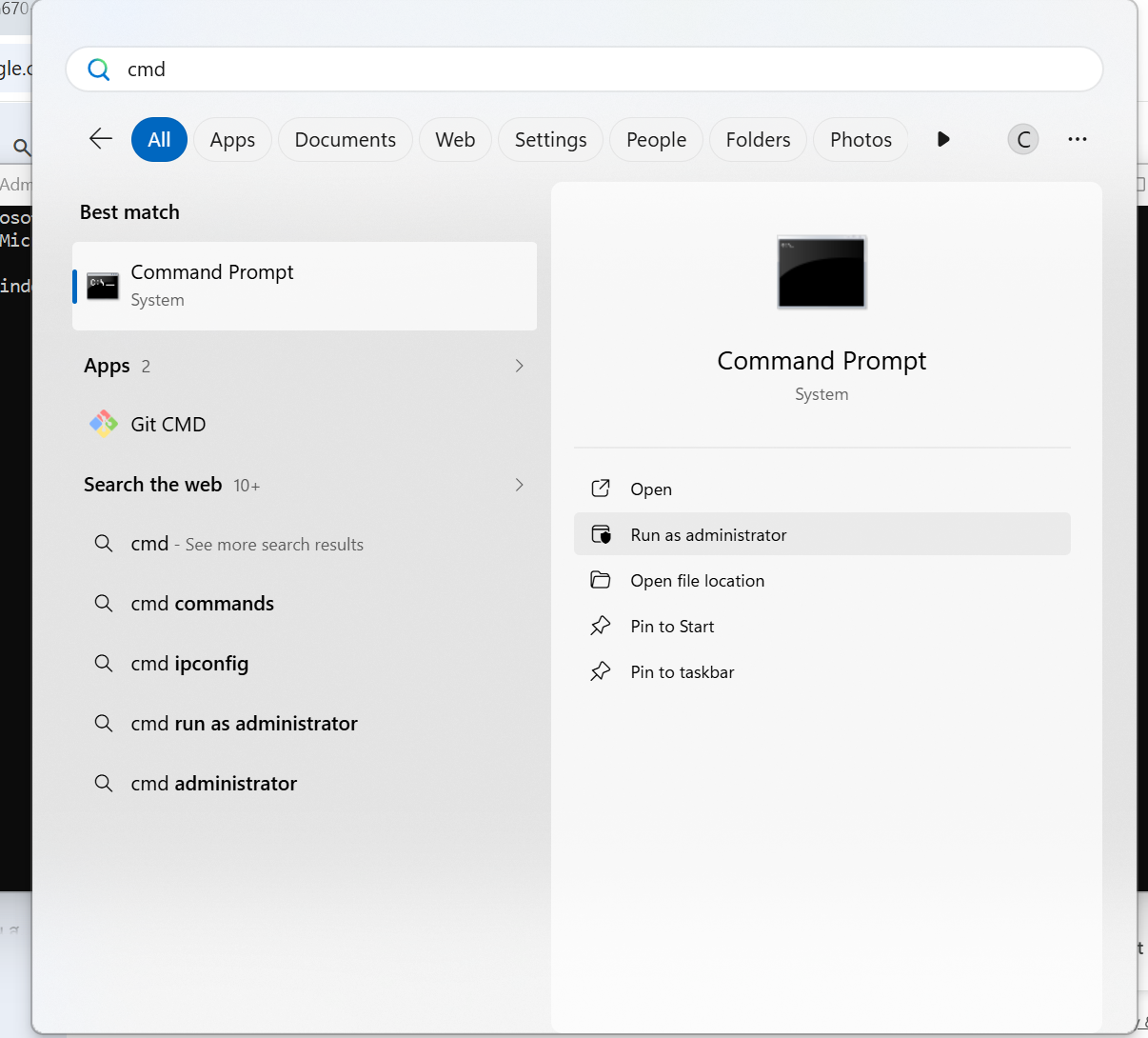
17. Open command prompt as administrator permission.
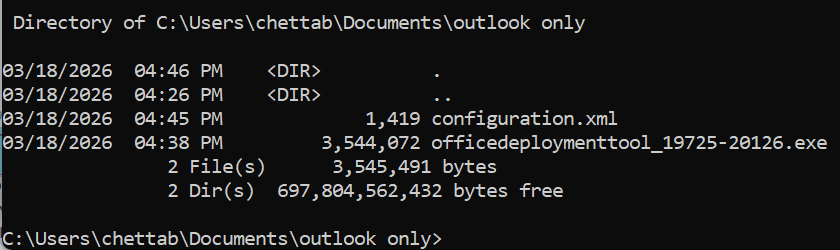
- Brows to directory that save .exe
- Run "setup.exe /configure configuration.xml"
- System will download and install only outlook as configuration file.
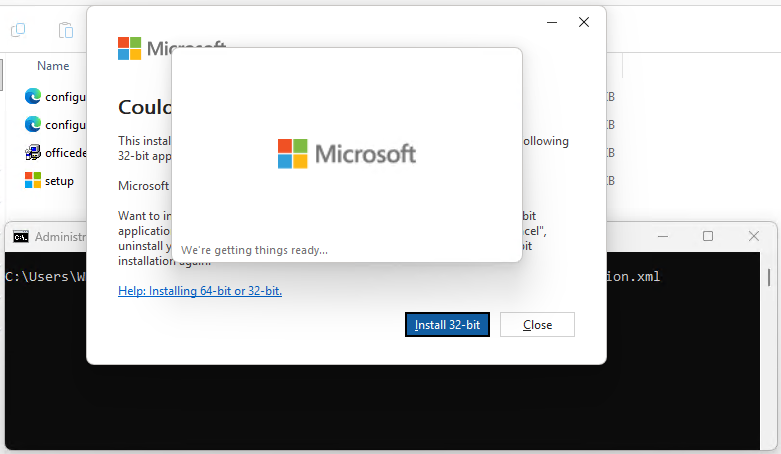
- Downloading.