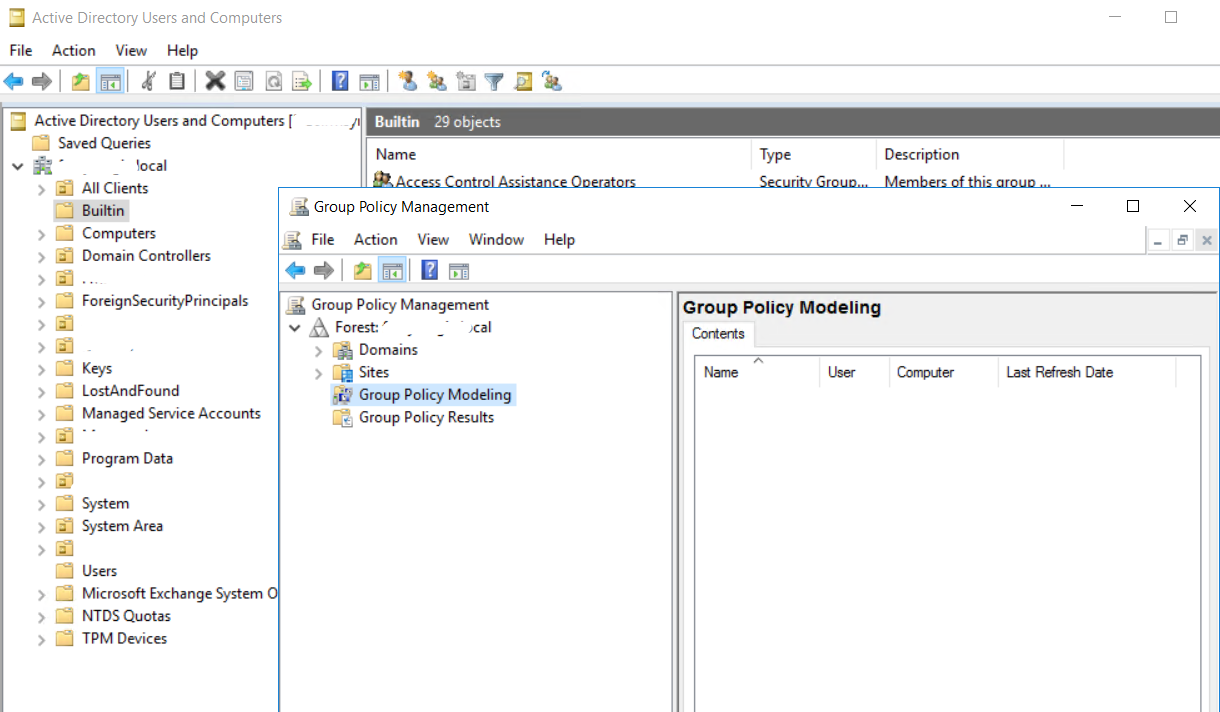
Recovery Server (Domain Controller) from Window Server Backup - full backup (Bare metal recovery) - Part1


Pre setting for system to recovery:
- Windows Server Media boot (USB, CD, ISO).
- Bare Metal Recovery Backup (From production server).
- Server to restore to it need hard drive space equal to or greater than orginal server (Source Volume),* (Example: If original volume SYSTEM (C:) size 500GB, the destination volume must equal to or graater then 500GB)*.
- Note: if this only testing process. Need to disable network or connect this test to the same production server network (To prevent damage to production server).
- This sample test on Hyper-v with ISO mediaboot, Backup source as .vhdx, Windows Server 2016.
Important:
1. The destination volume much equal to or greater than source volume.
2. Disconnect or isolate network from production server on recovery server, (Incase testing).
3. Delete this recovery server after test finis (Prevent unintentional AD corruption or rollback),(Incase testing).
- Insert windows boot media to the server to recovery to (This sample is Windows Server 2016).
- Insert backup source (This sample show as D: drive).
- Boote to Windows install page (F2 / F8 / F12).
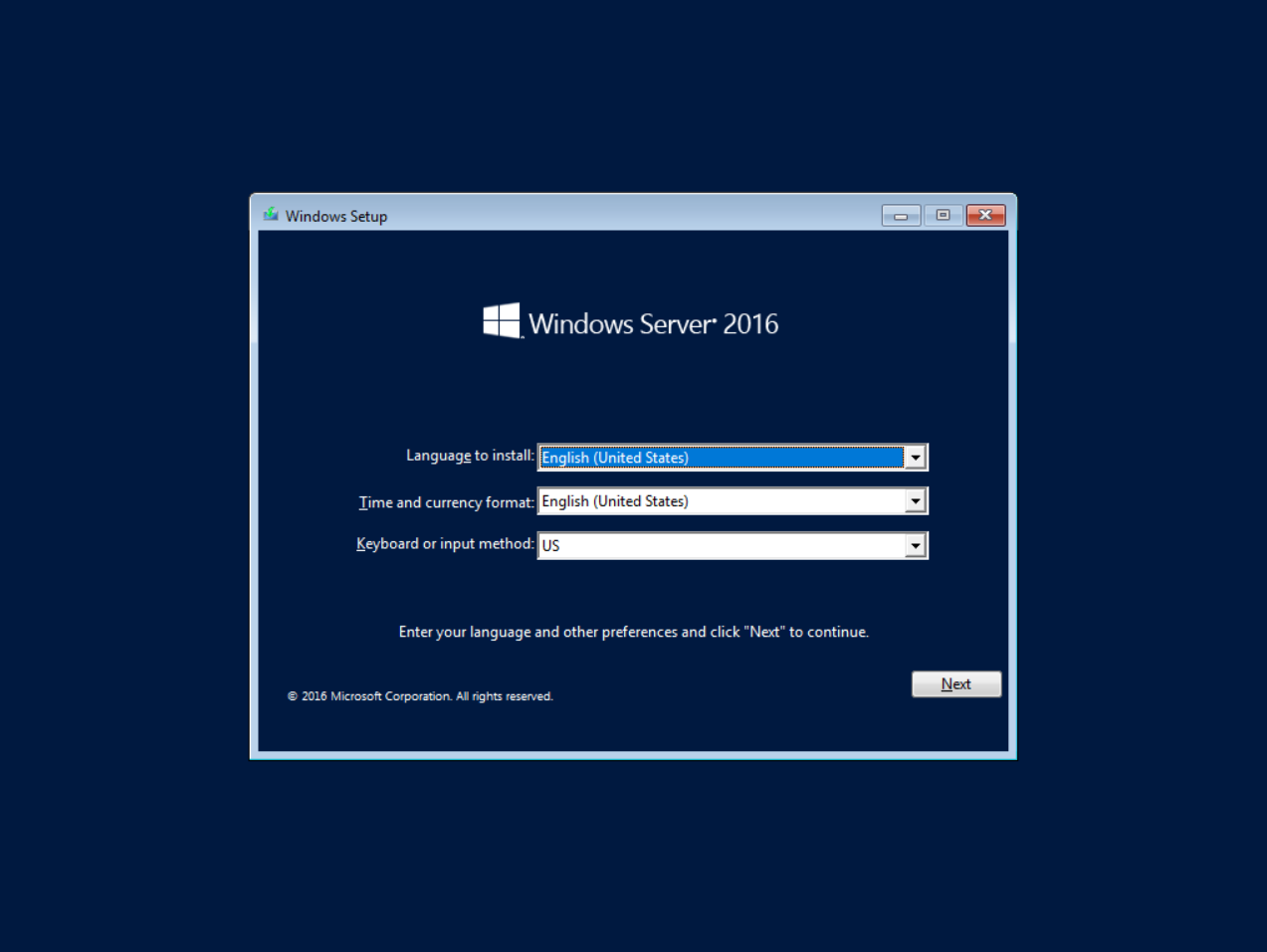
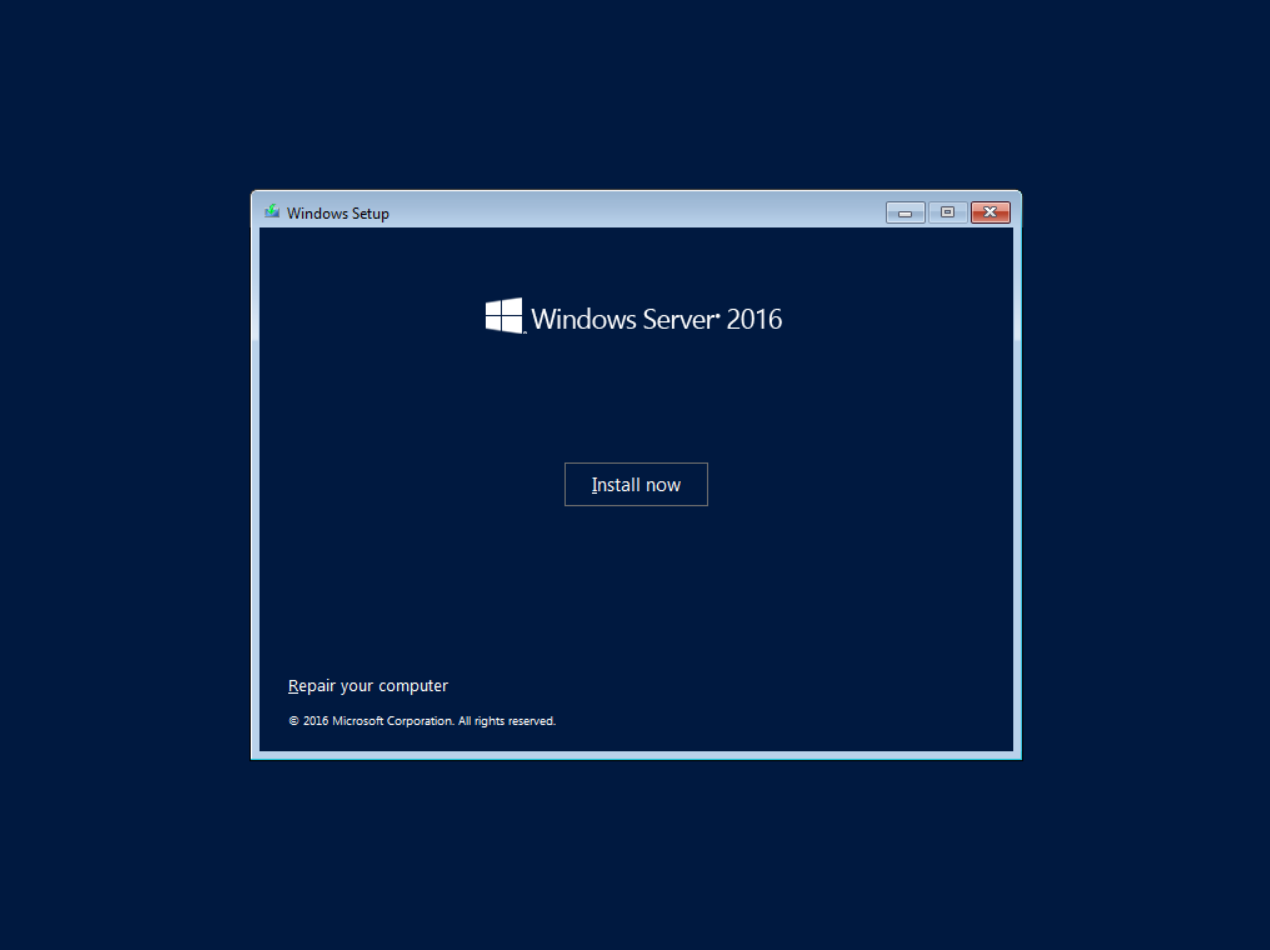
- Enter to "Repair you computer".
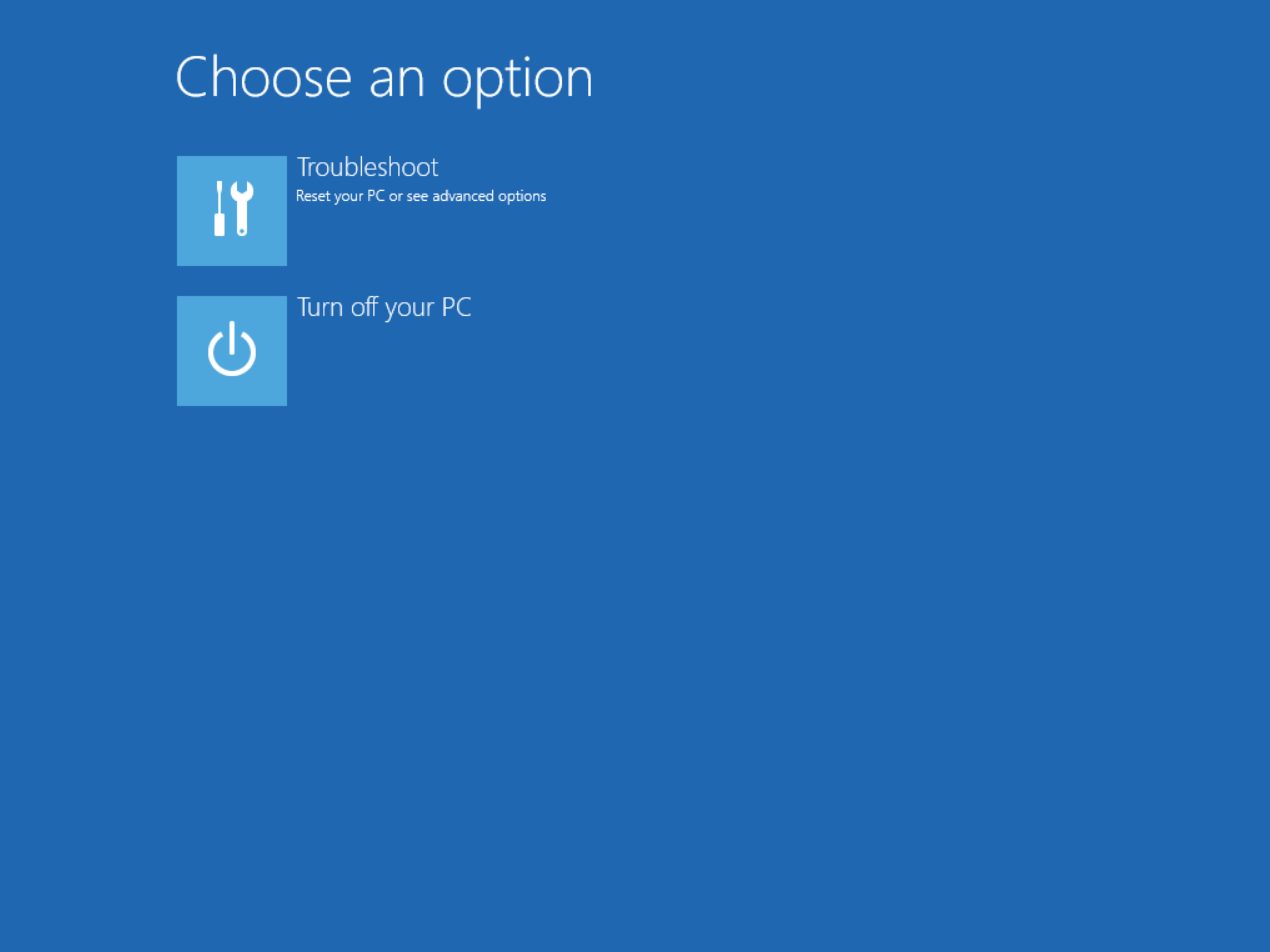
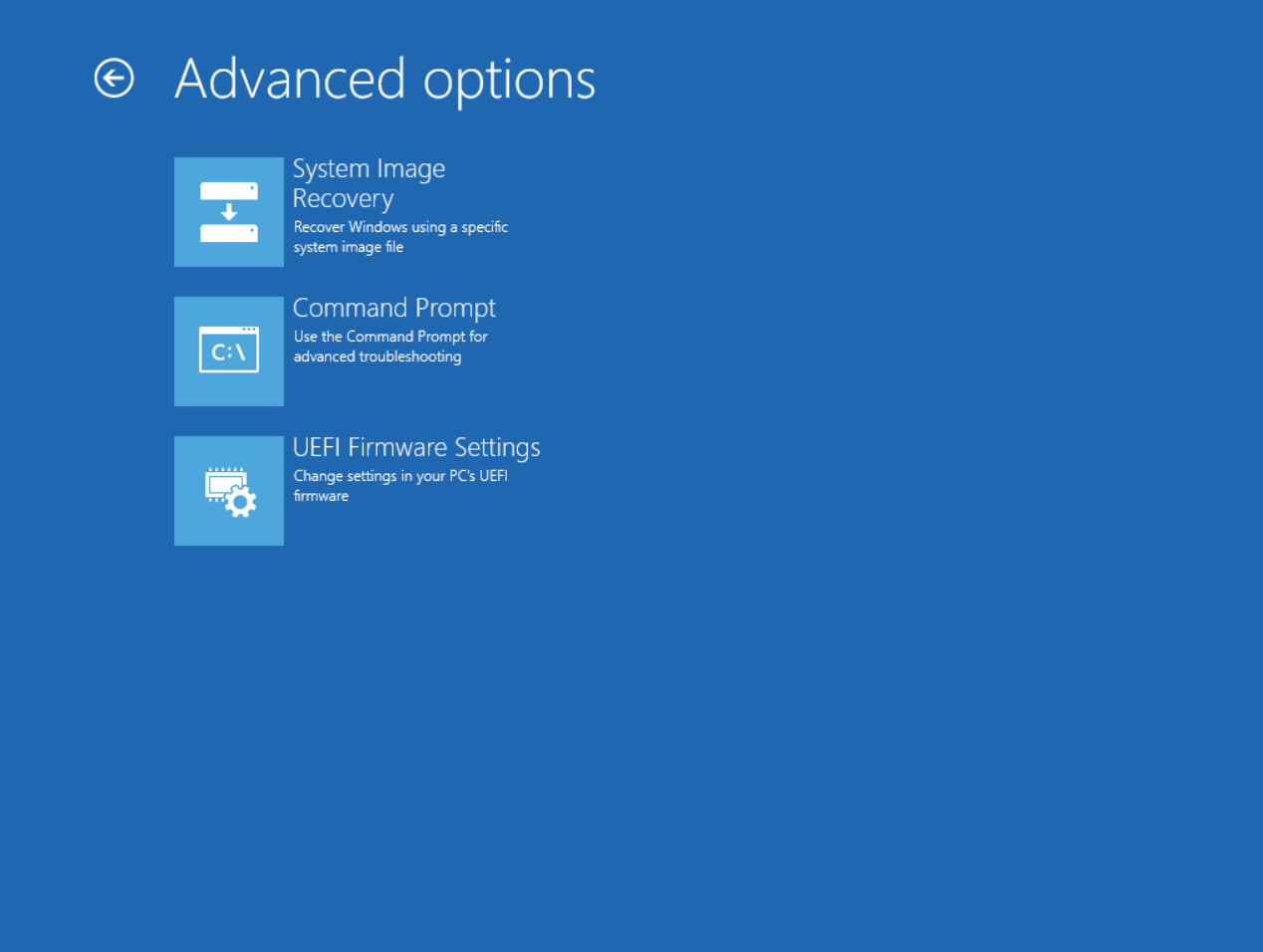
- Select "Troubleshoot".
- Select "System Image Recovery".
- Check restore souce is show on page "Select a system image backup". Next.

- Additional restore plan page. Can click next to process.
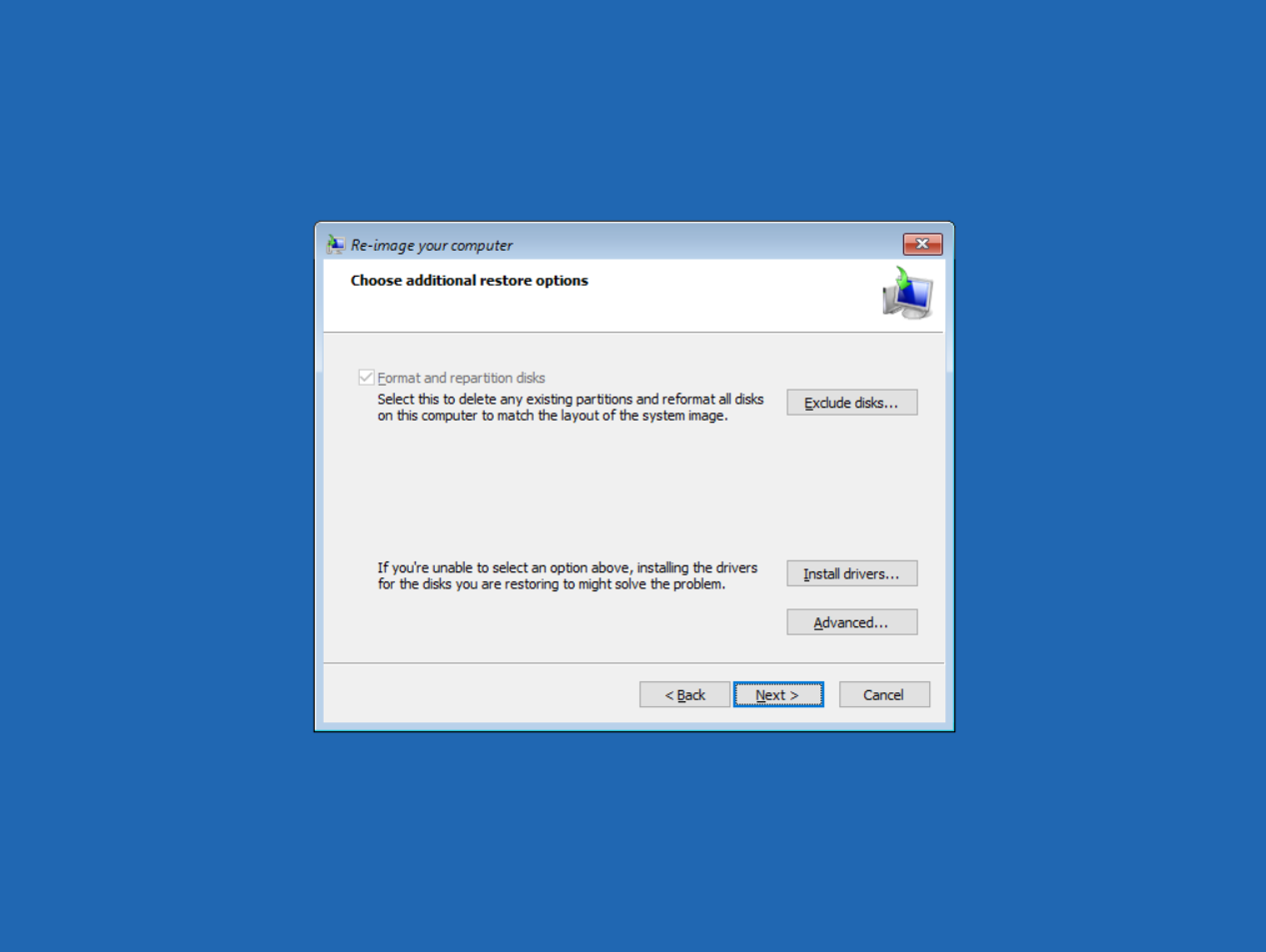
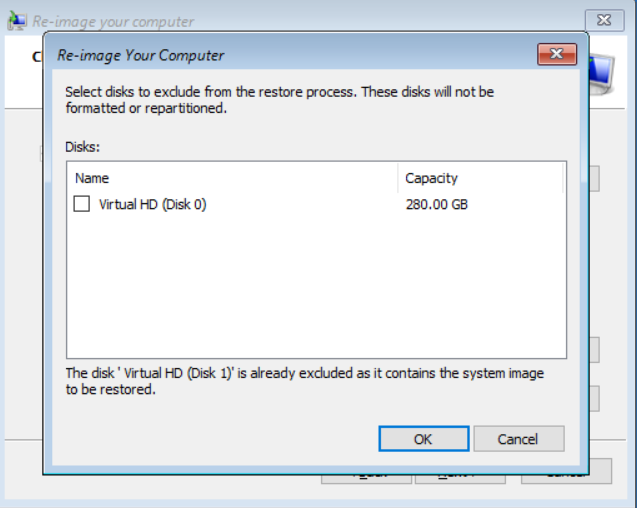
7.1 Optional: Exclude data. For select disk to exclude from the restore process.
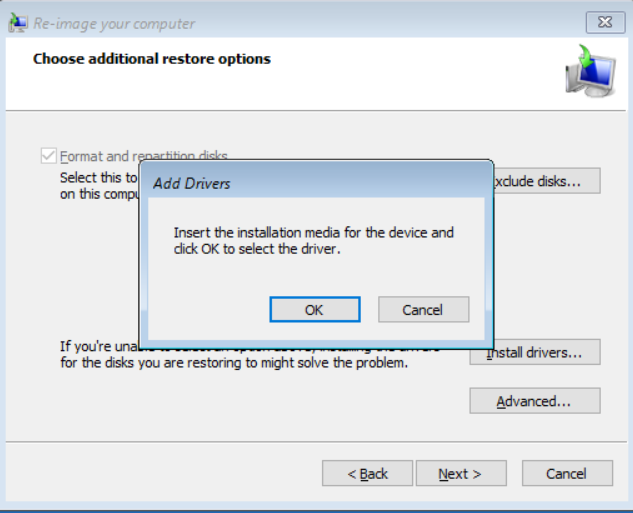
7.2 Optional: Install driver.
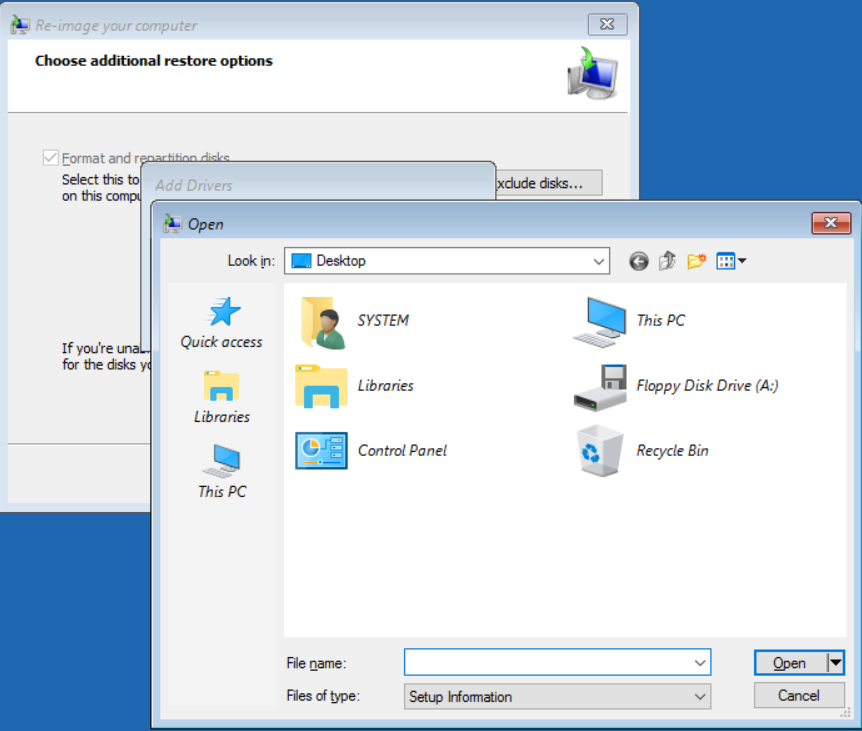
7.3 Optional: Advance.
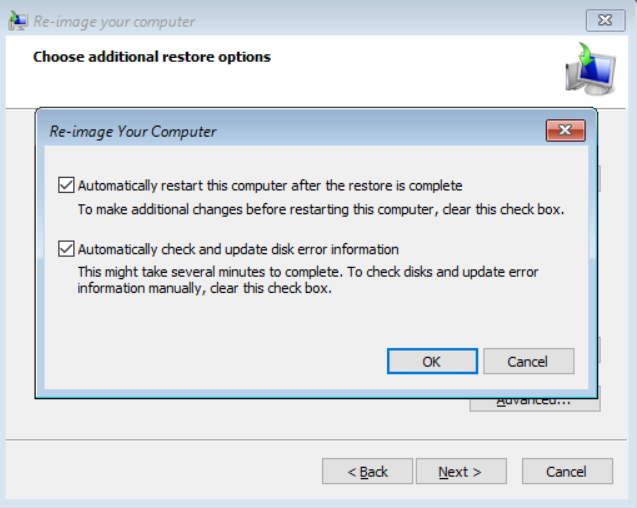
- Finish to start process.

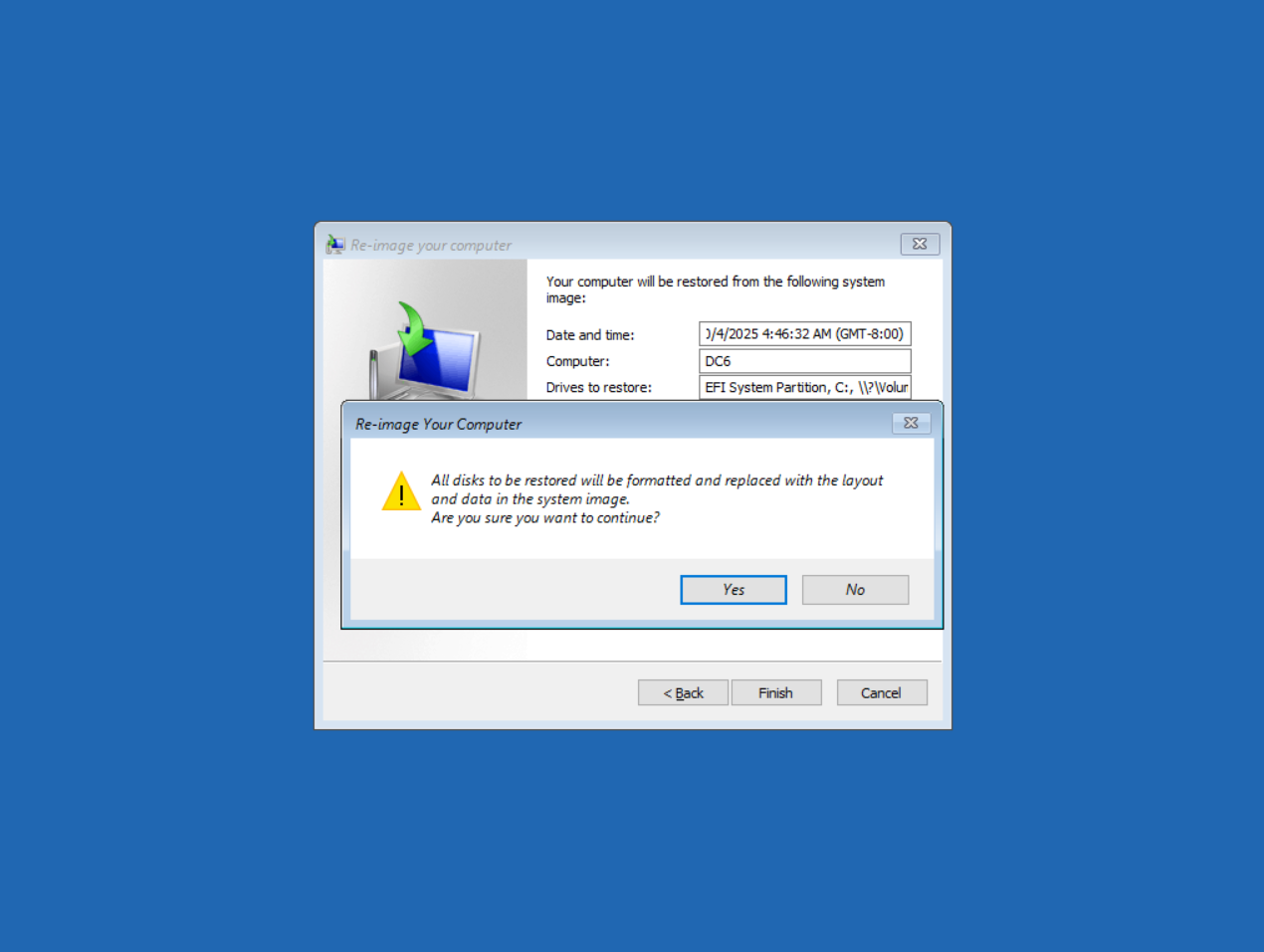
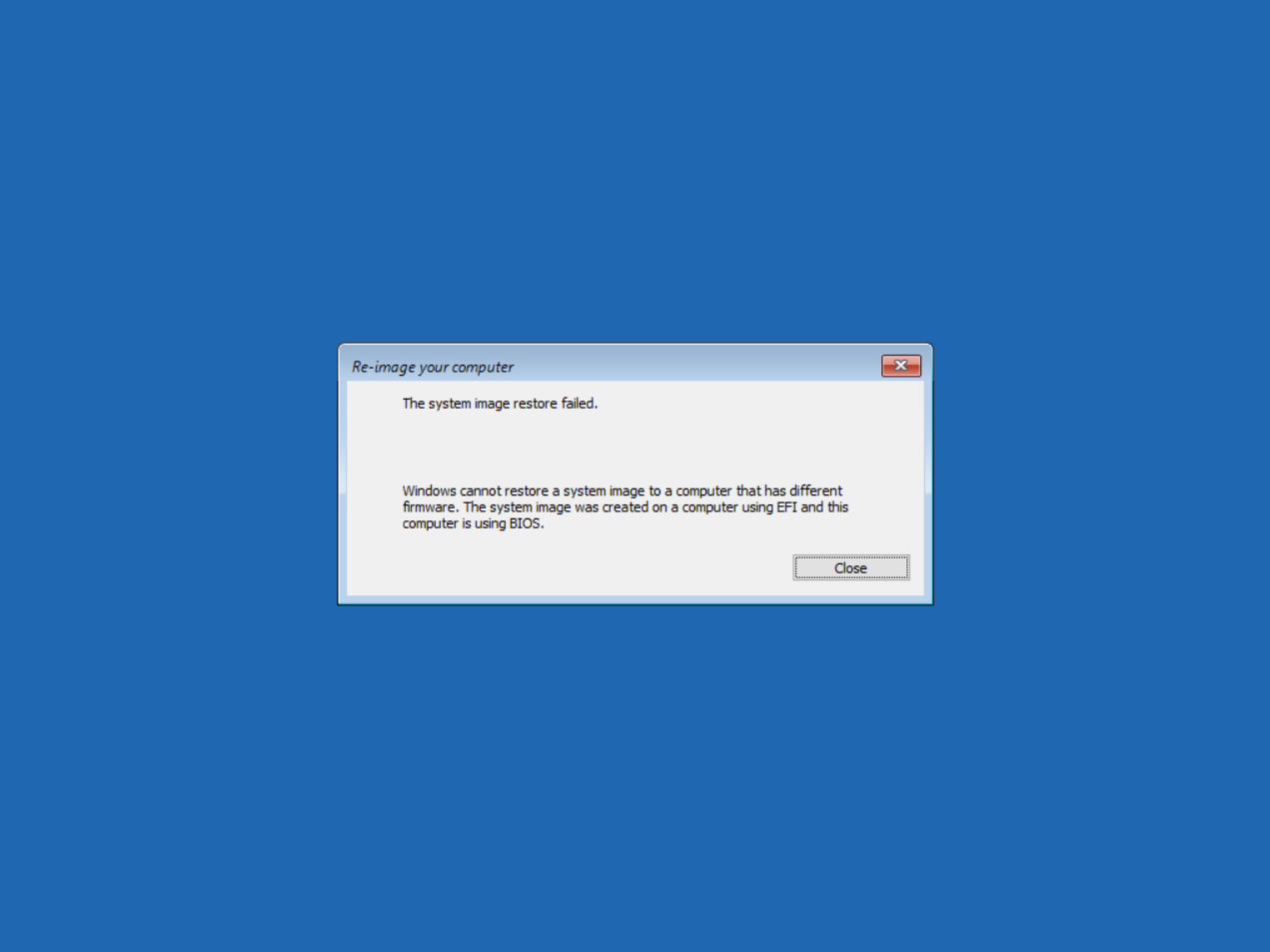
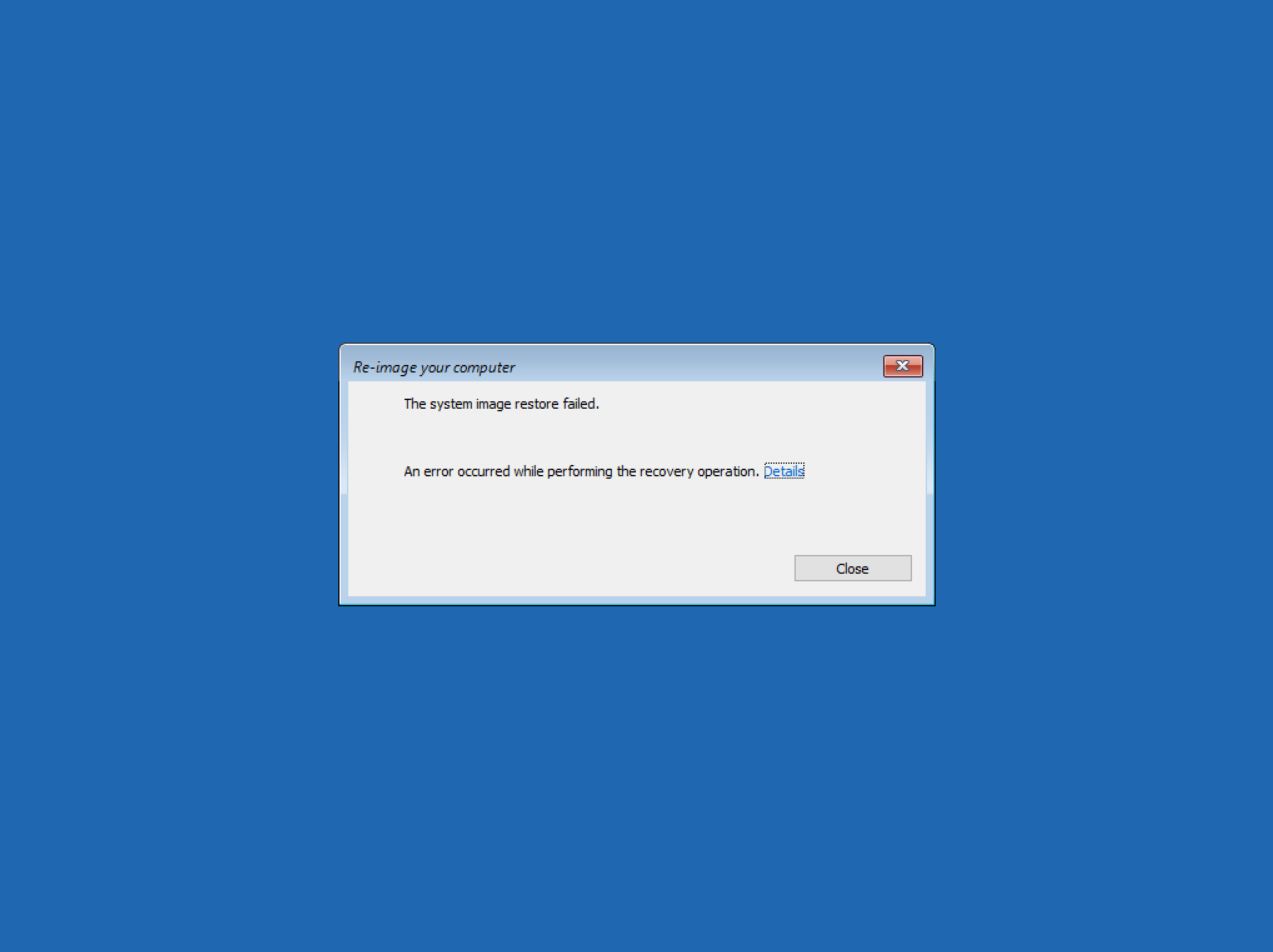
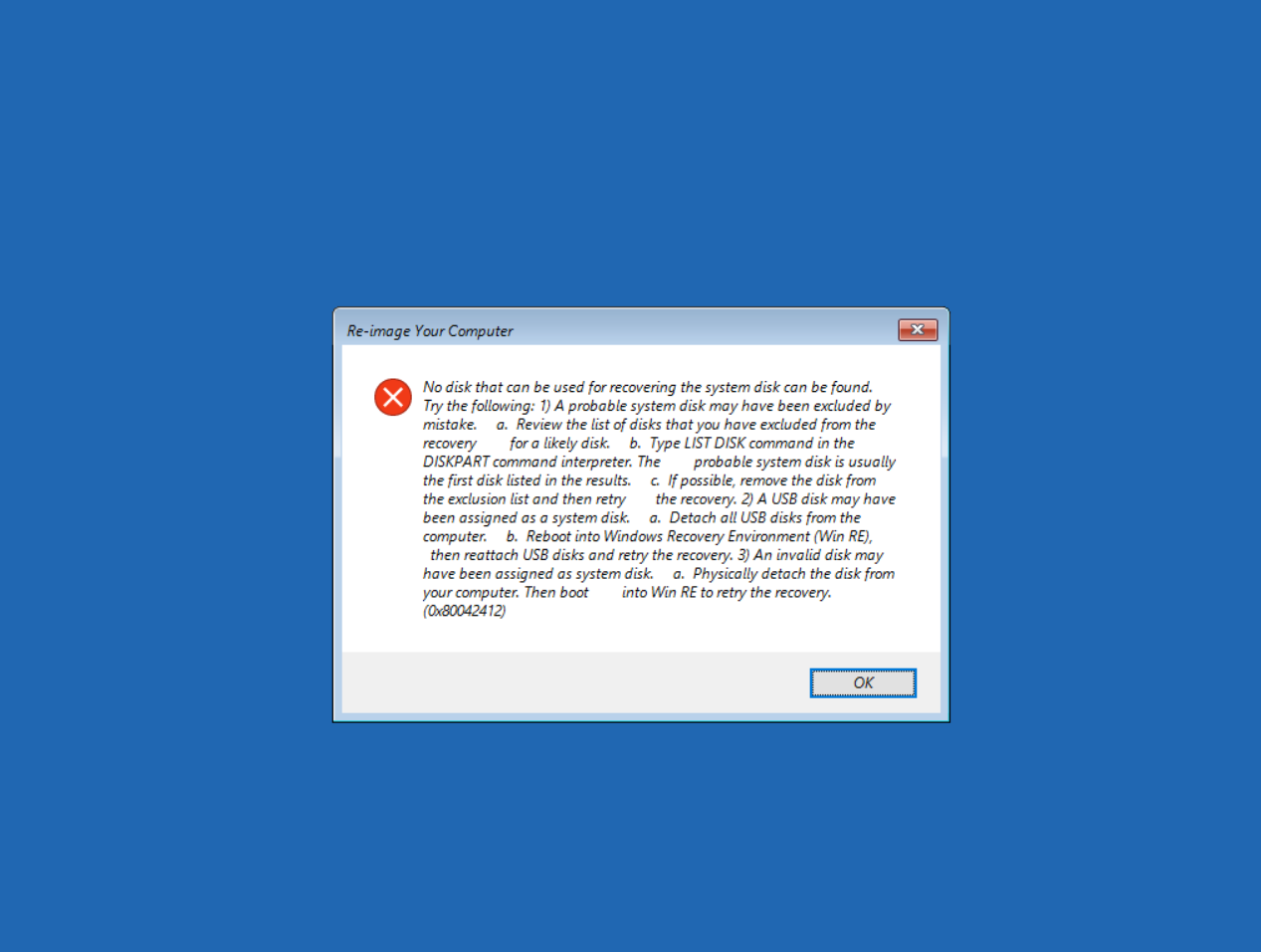
8.1 If destination volume less than source volume. it might show some error like this.
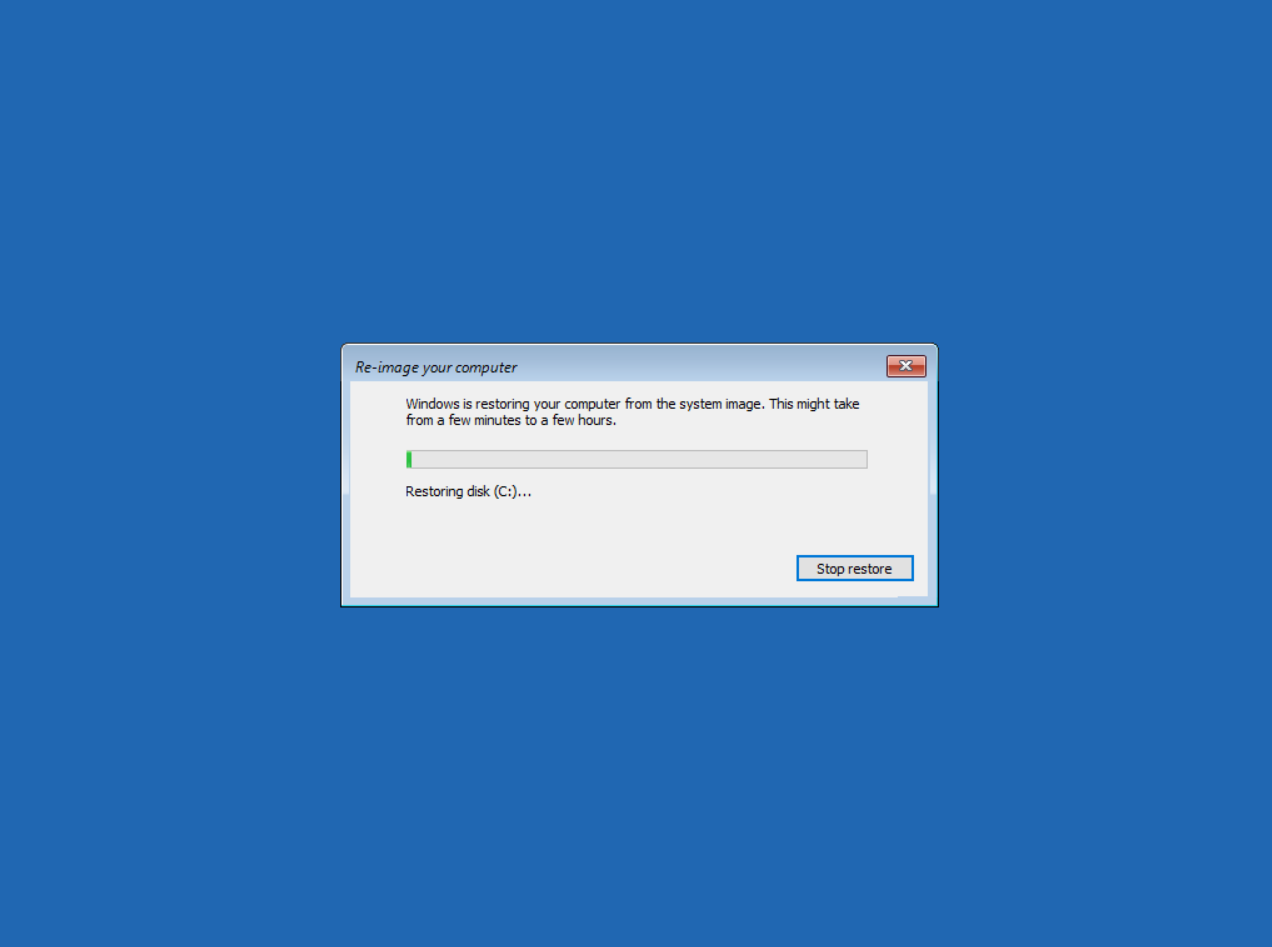
- The Windows is restoring your computer from the system image.
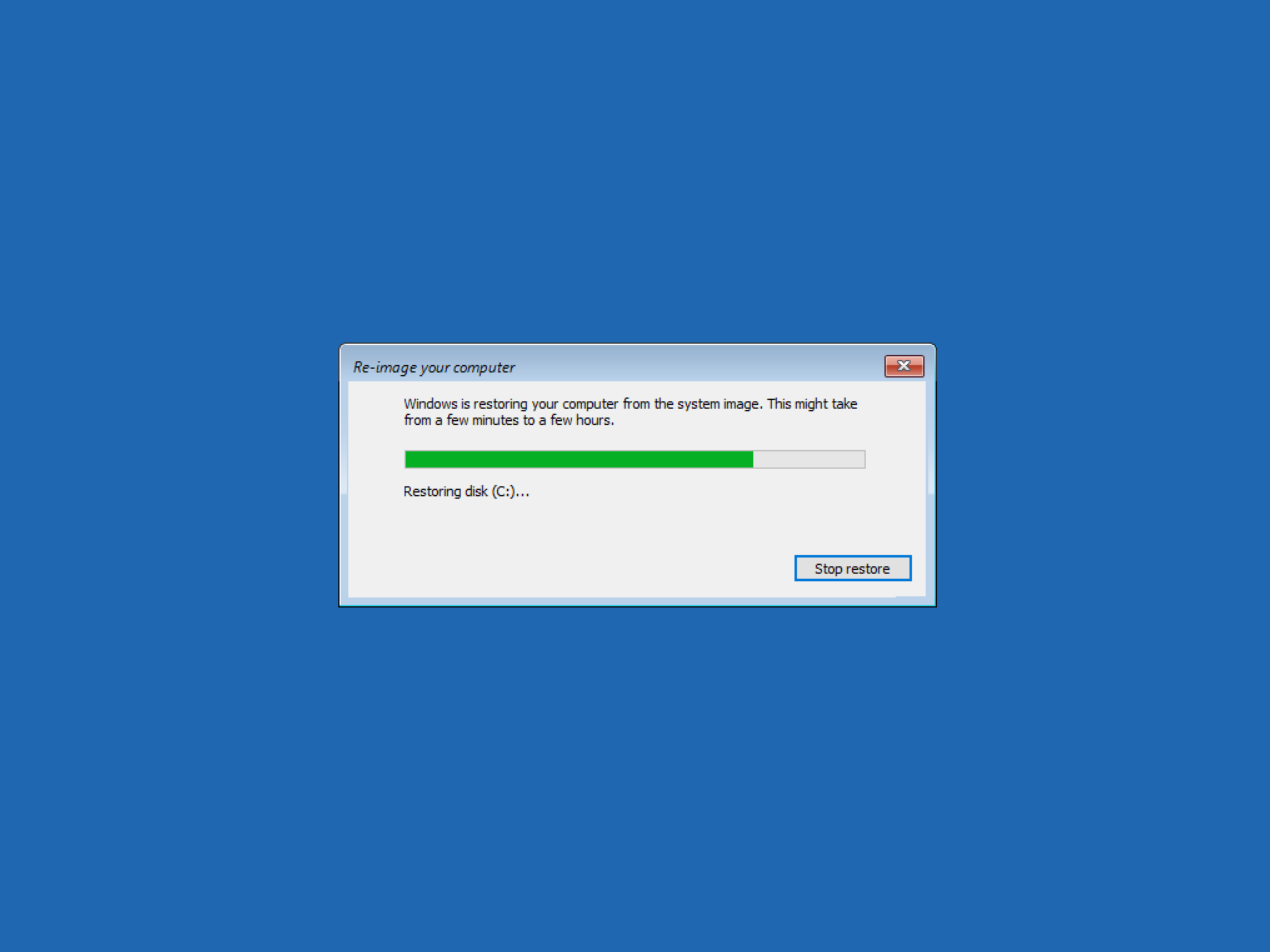
- After restore finish it will restart.
- Prompt to login.
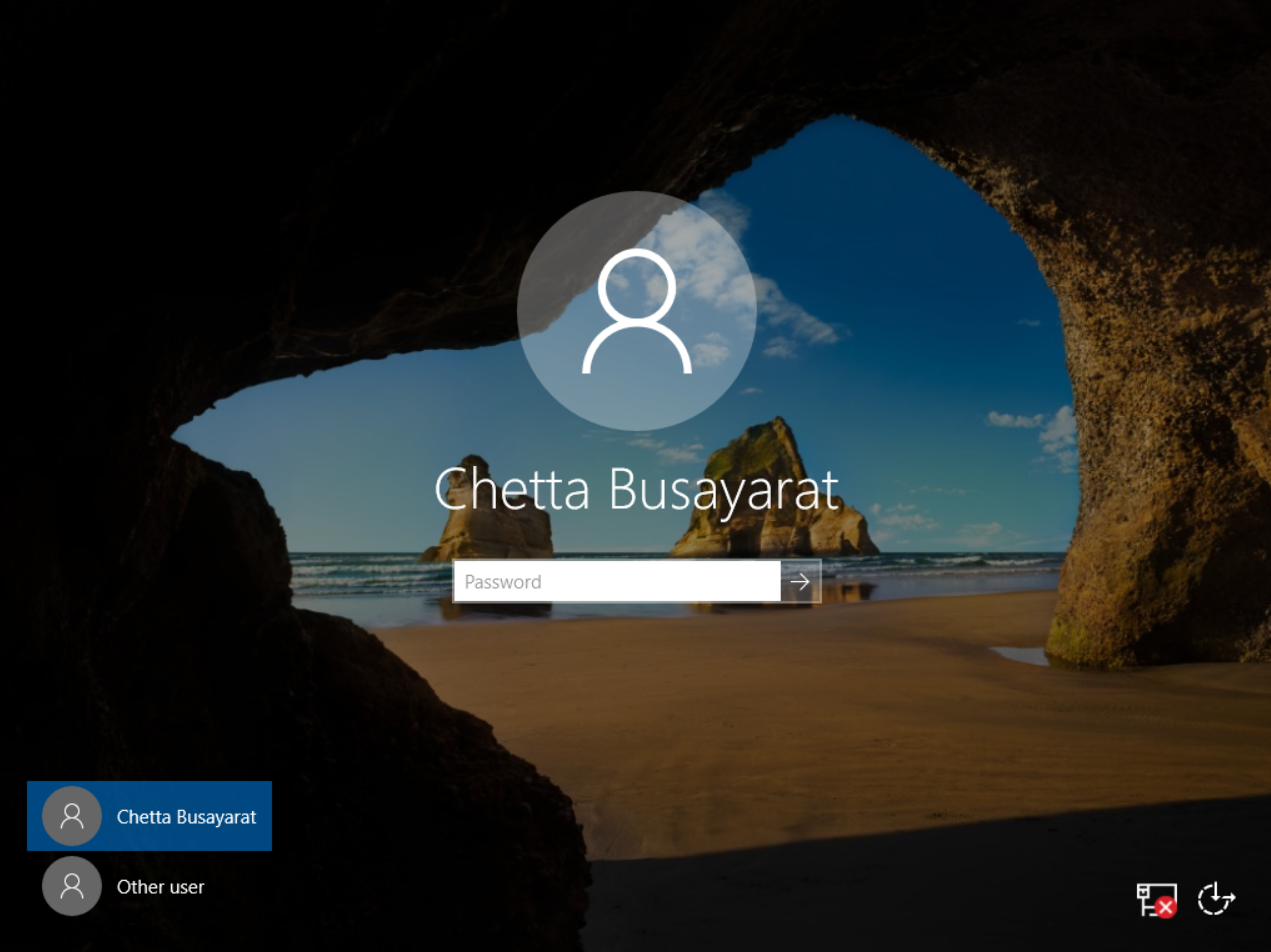
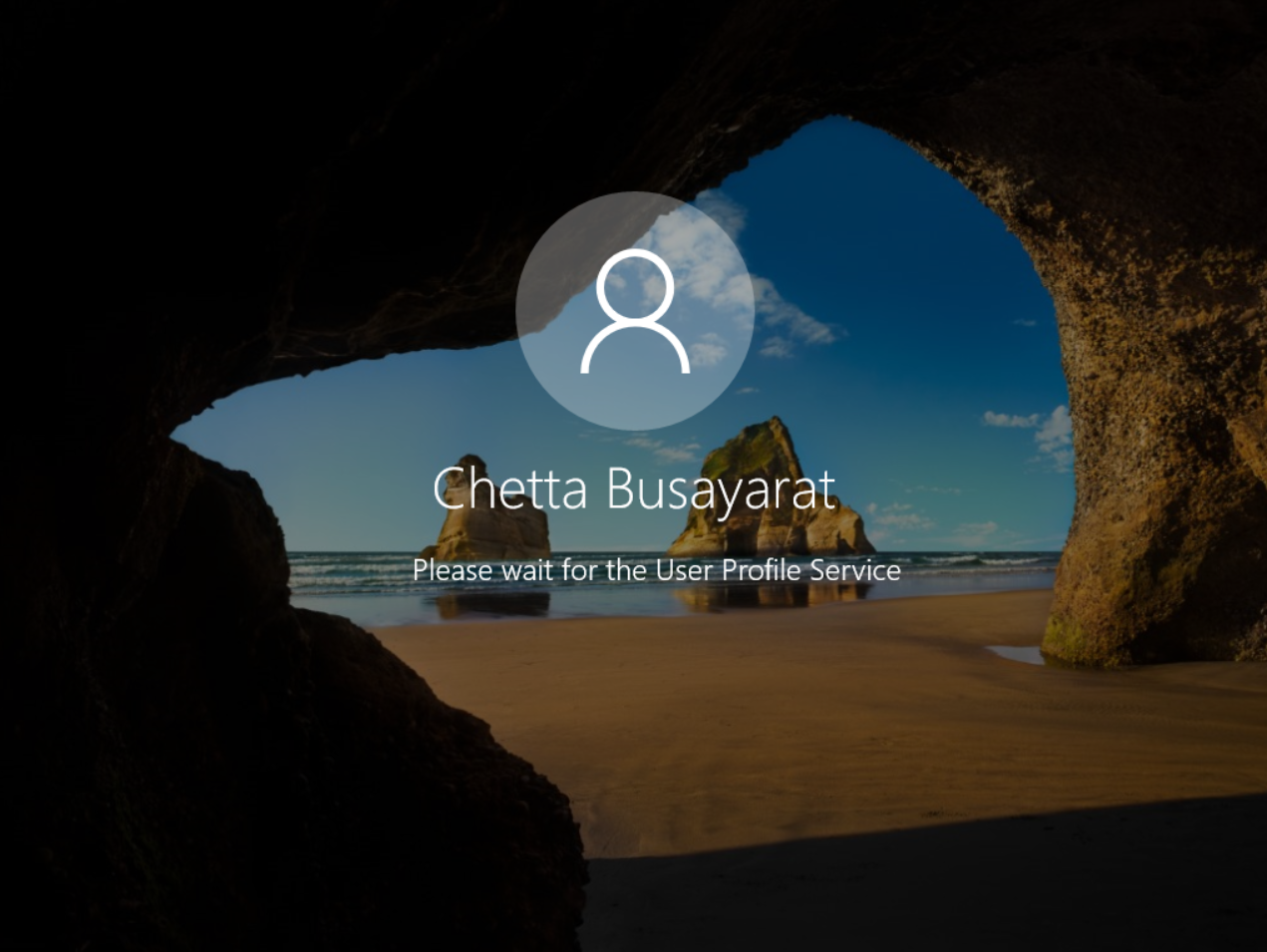
- Try to login.
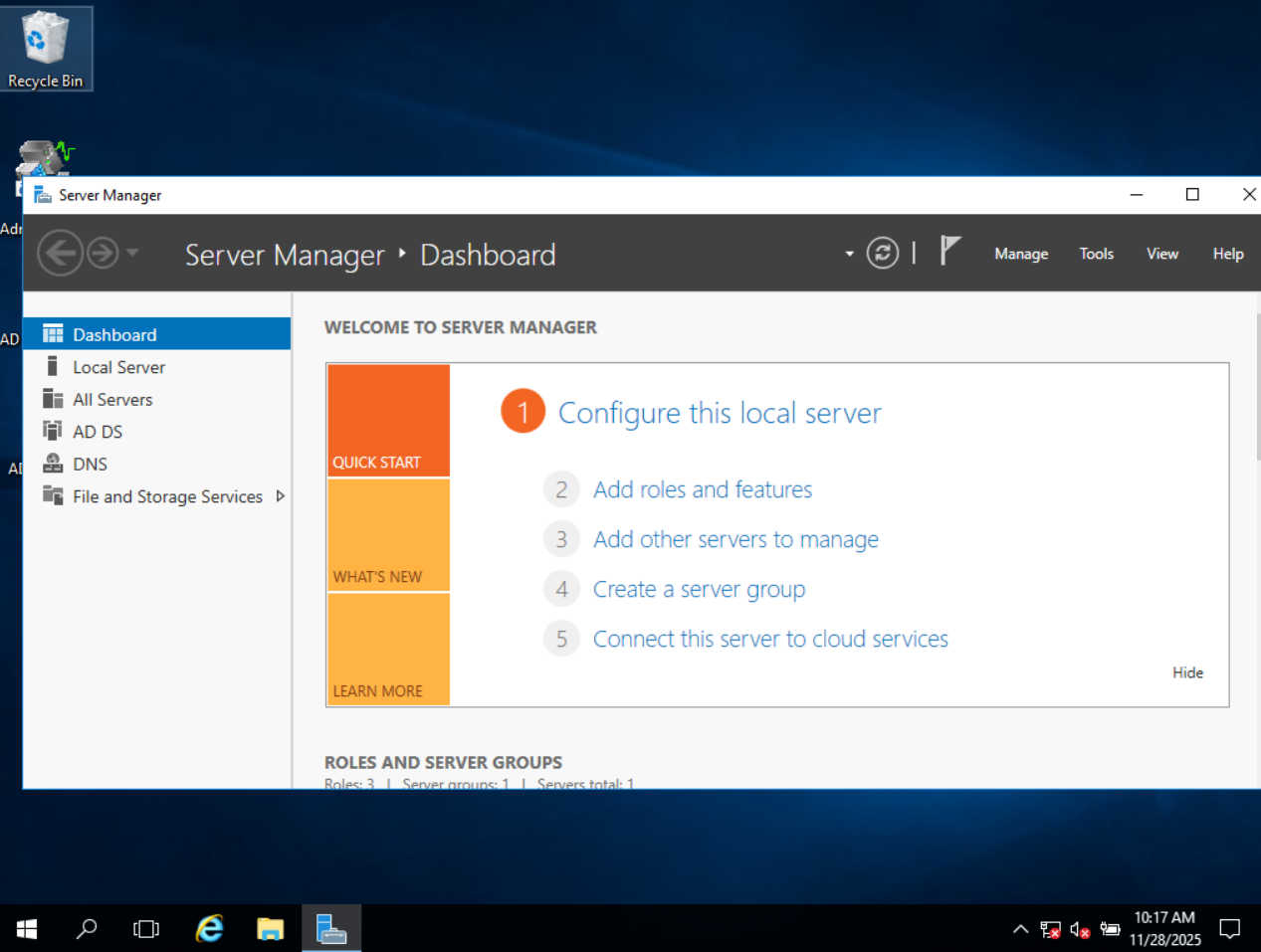
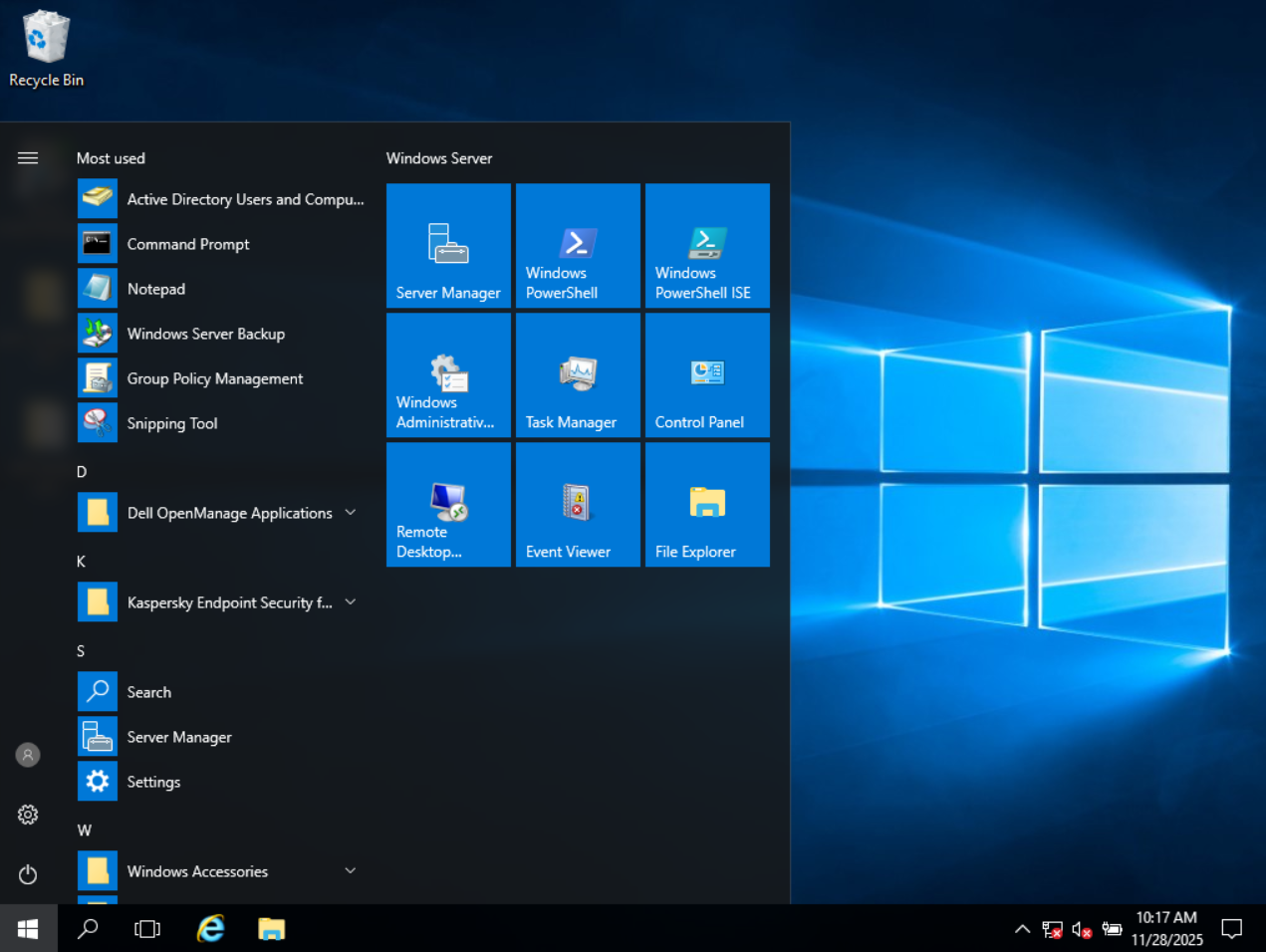
- Try to boote with DSRM (Directory Services Restore Mode) and check FSMO Roles and status
- If cannot open acitve directory / group policy or after run command "netdom query fsmo" cannot get the rol try next step.
- Open register editor (command prompt as admin > regedit)
- Goto "HKEY_LOCAL_MACHINE\SYSTEM\CurrentControlSet\Services\Netlogon\Parameters"
- Check "SysVolReady", Value data should = 1 (if 0 change to 1).
- Restart service "Netlogon"
- Try to run command "netdom query fsmo" again.
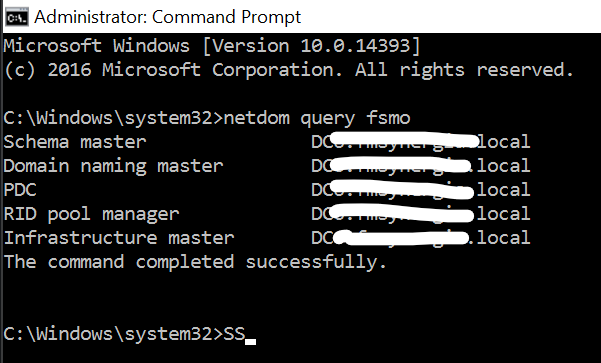
- If role showed try open active directory user and computer / group policy manager. it should can start now.