
Set guest invite user restrctions and check who invite guest users


For M365 admin for manage user. If founed unknow user guest on your system.
It may case from your user try to invite someone out off your company.
To check who invited external user for guest.
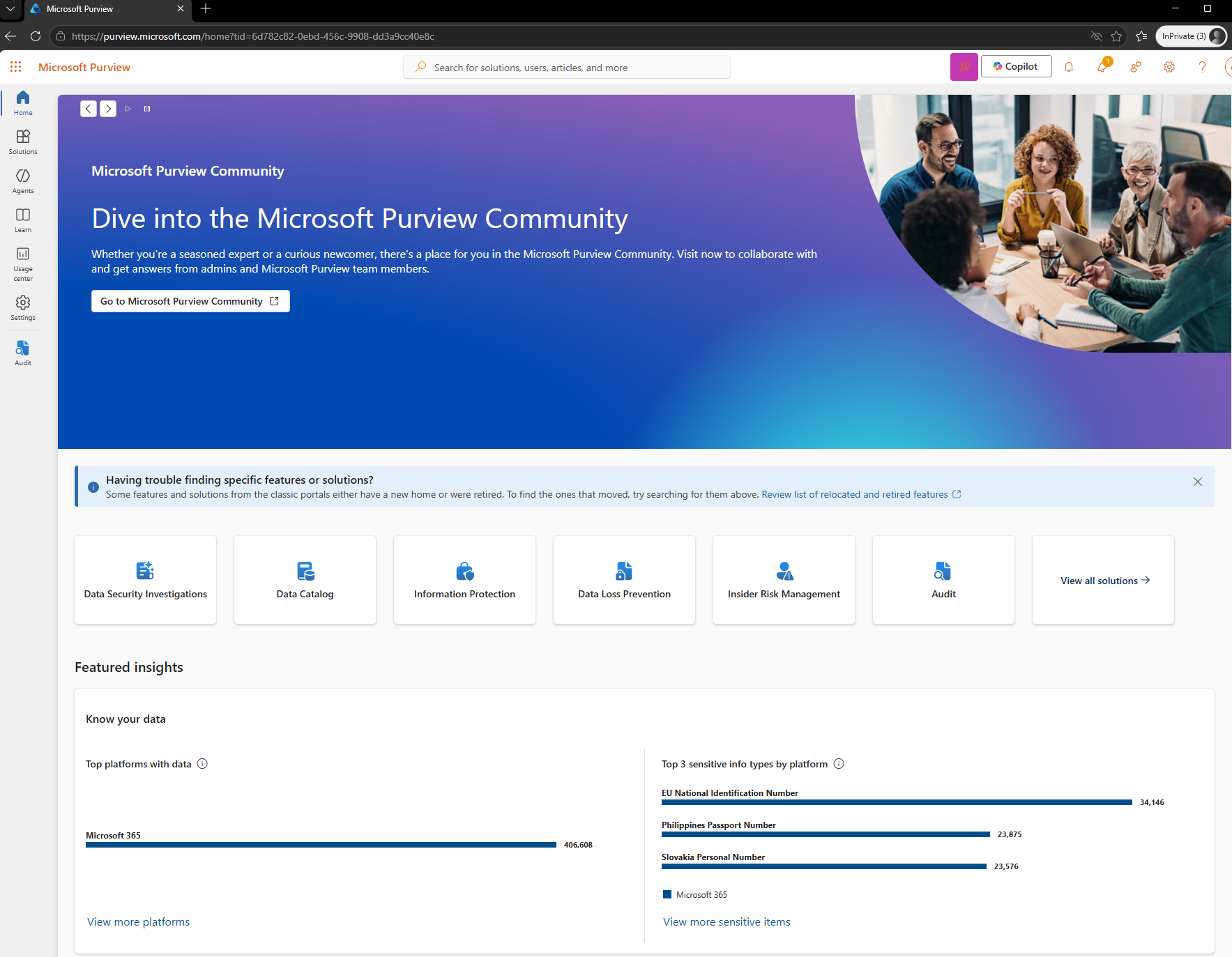
- Login to https://purview.microsoft.com/ with your admin user.
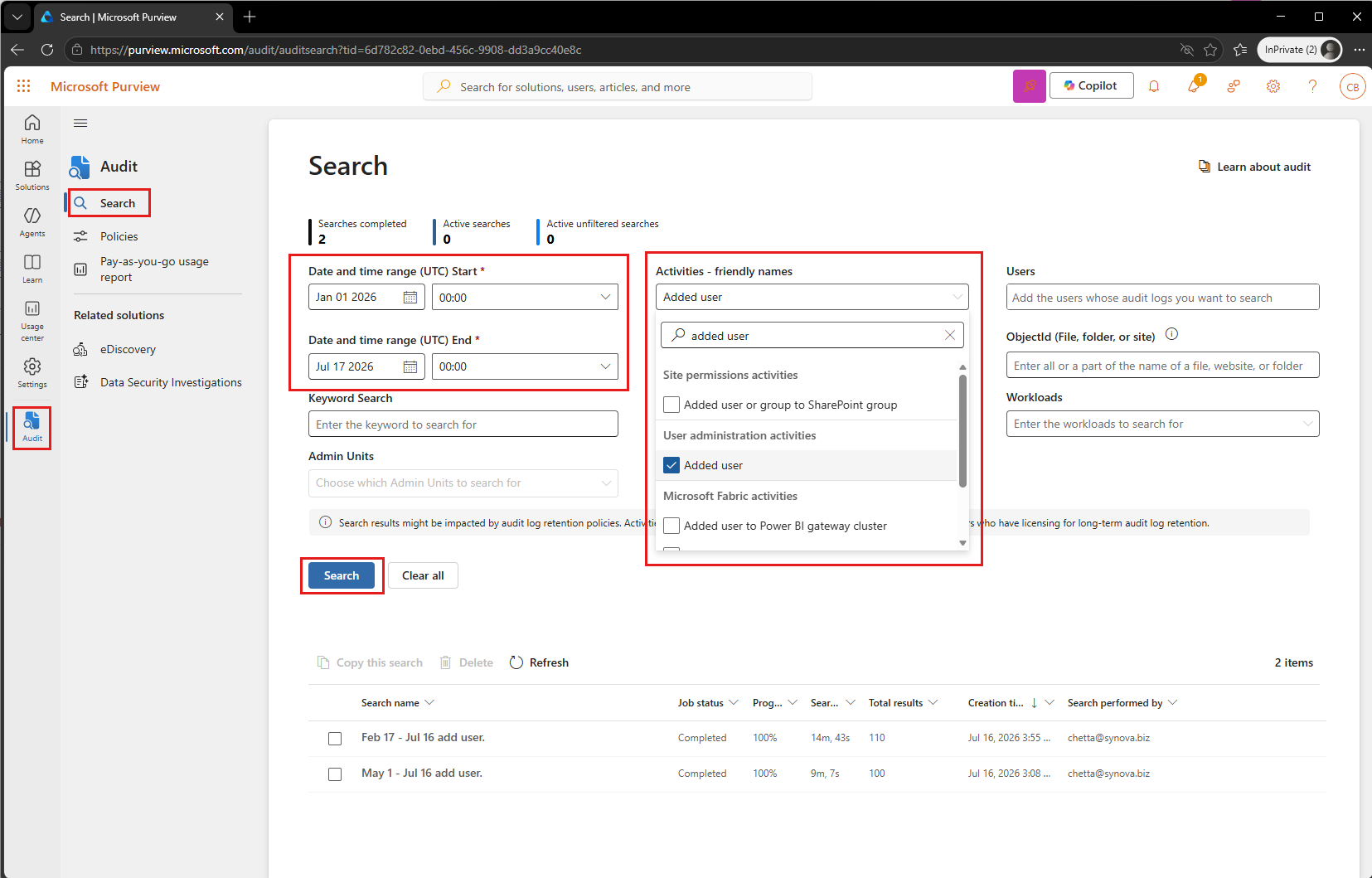
- Goto "Audit" > "Search" > Set "Date and time range" (Not over 180 days) > Set "Activities - friendly name" : Added user (Check activities about added user). then chck "Search".
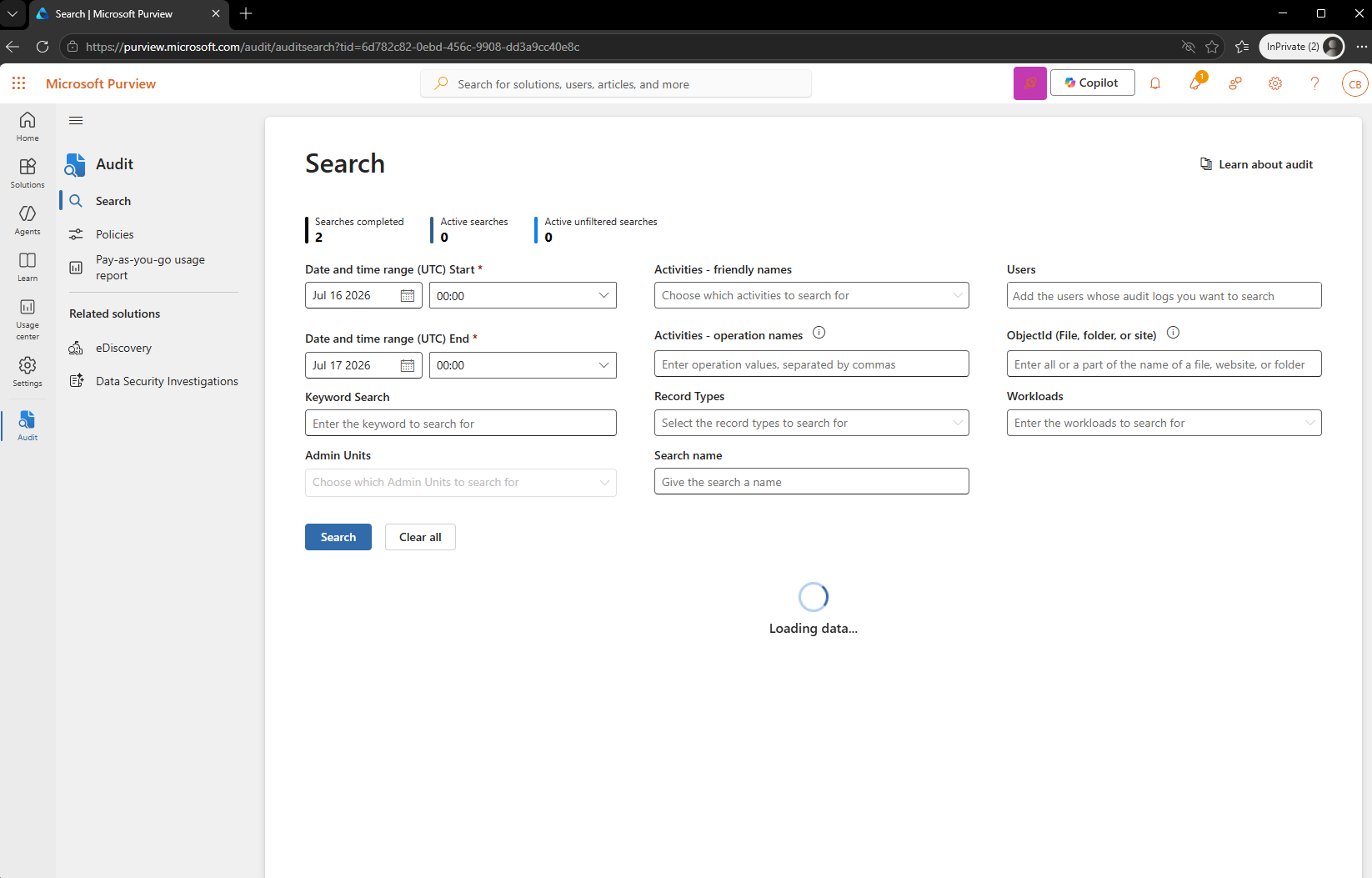
- If time range over 180 days it will show error.
- Change time with in 180 days. and search again. Search name will showed on the list as job status "Queued".
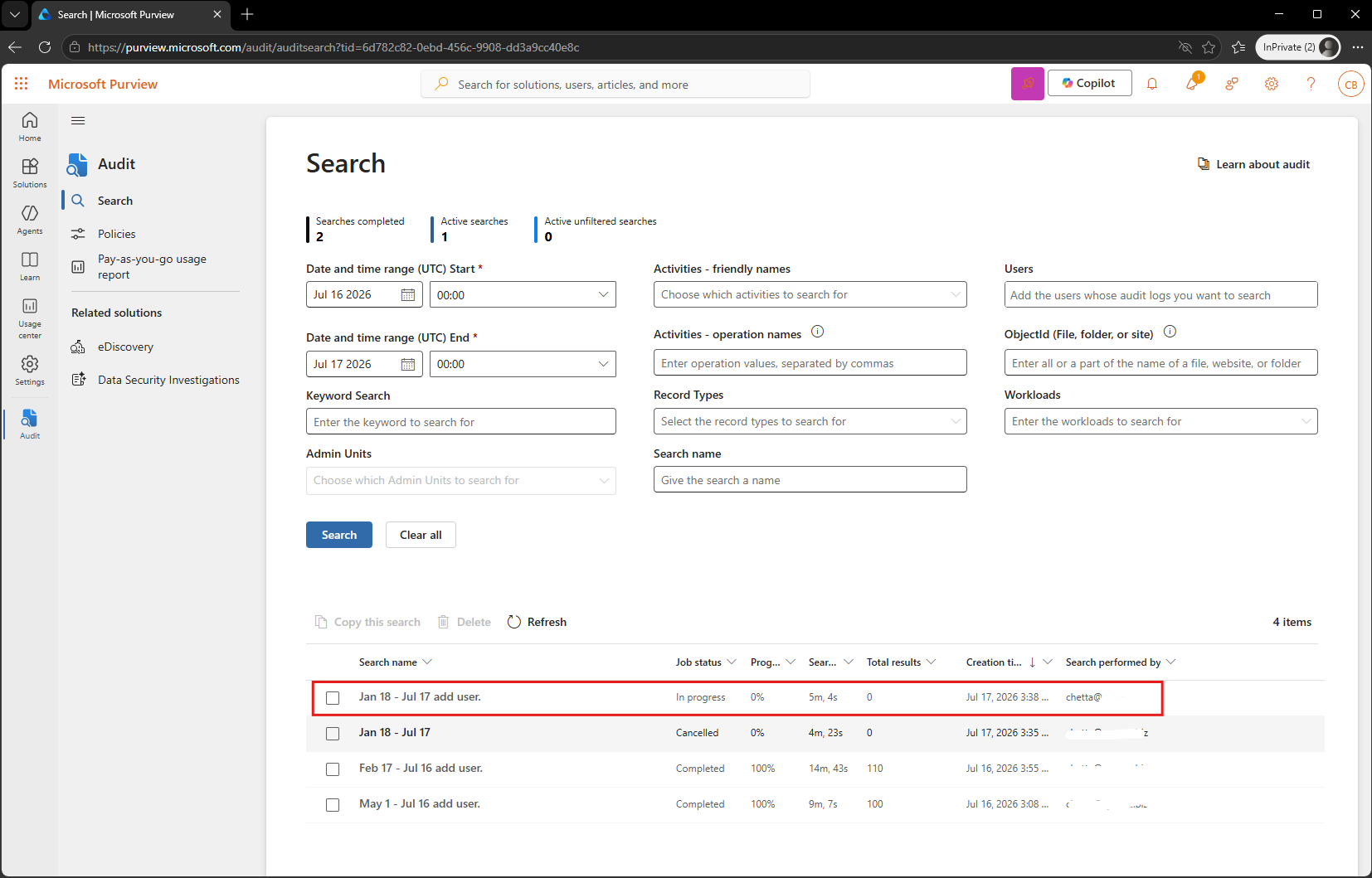
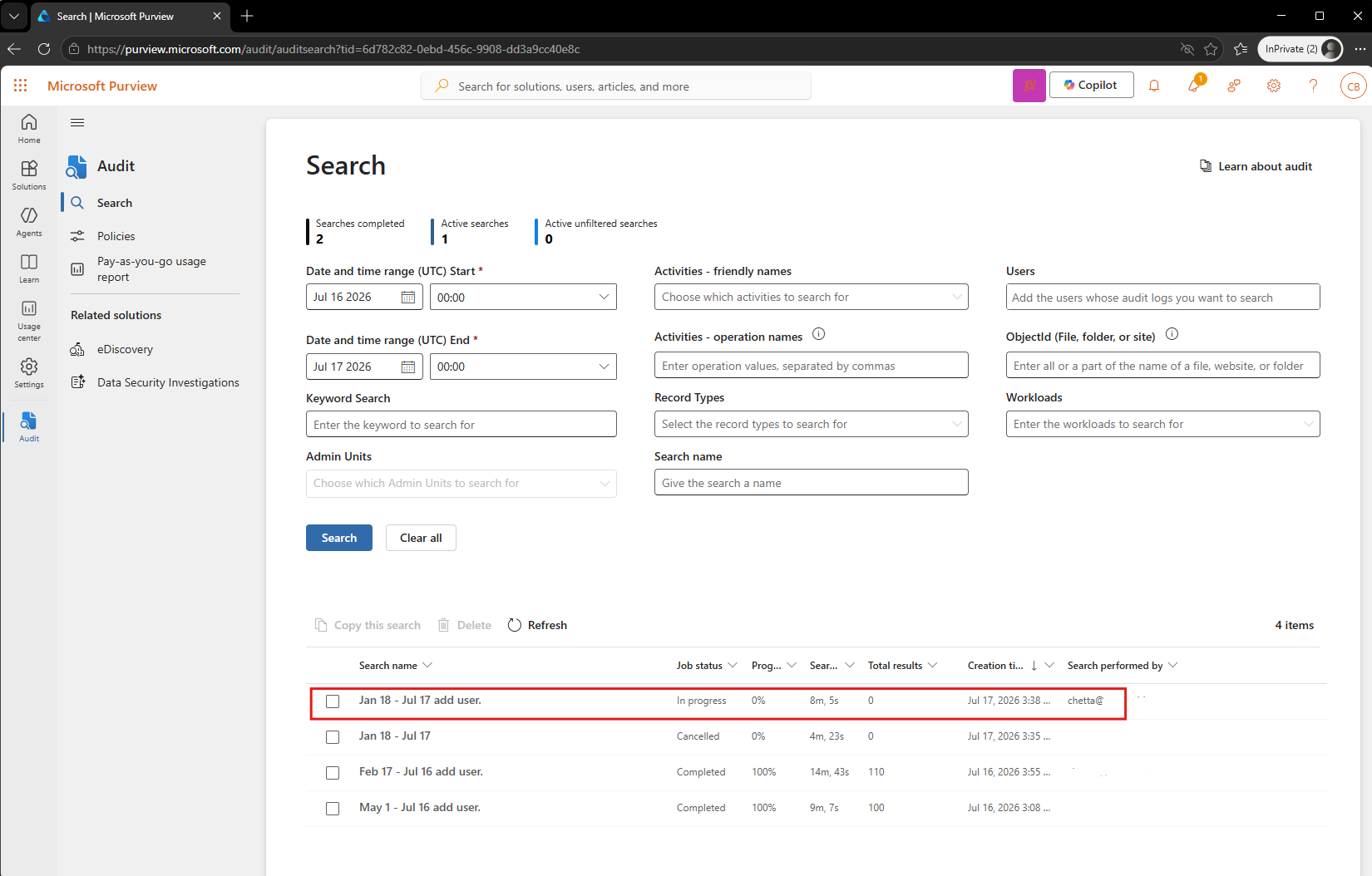
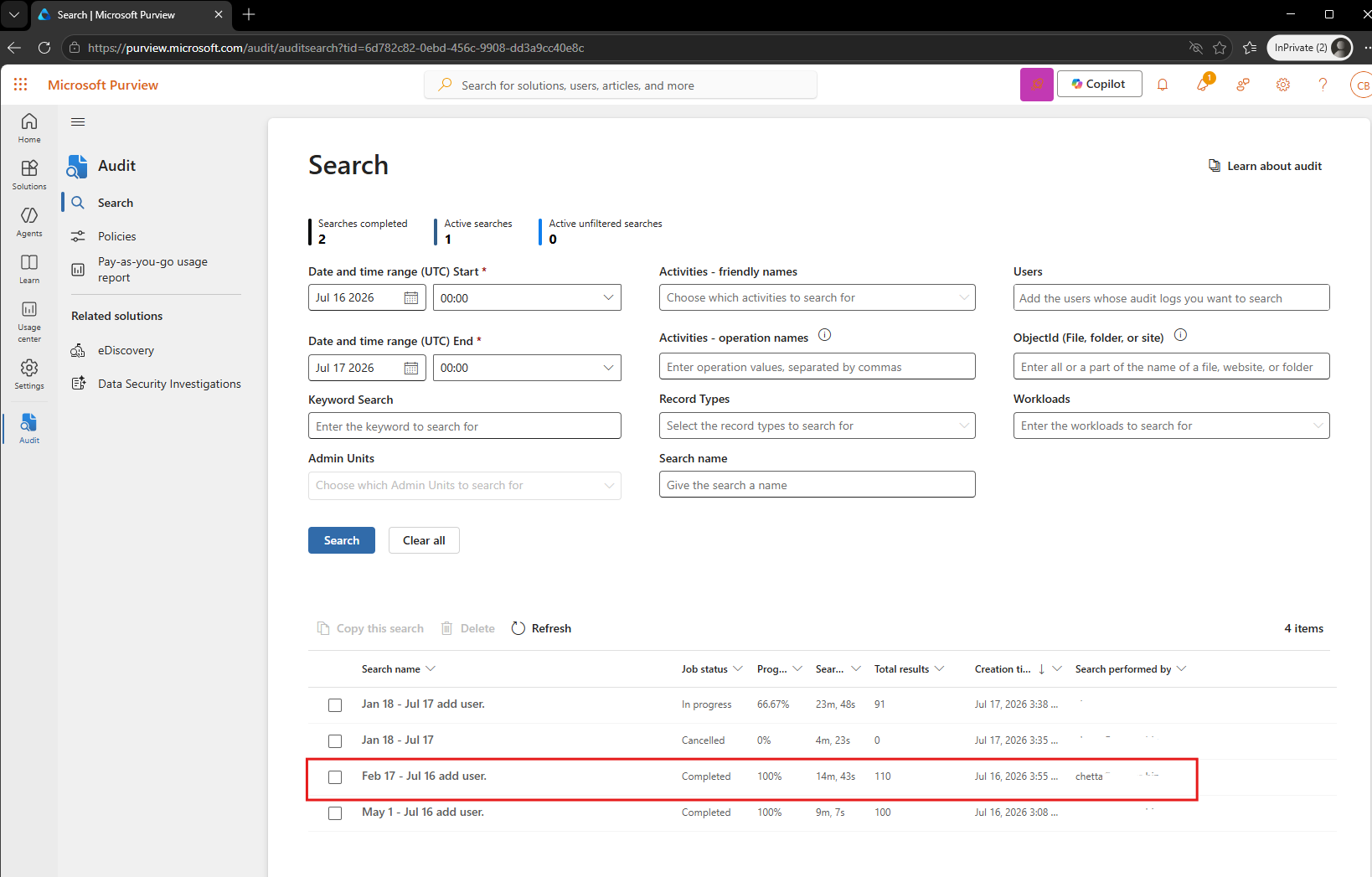
- When finish status will show Complete 100% > Click on the
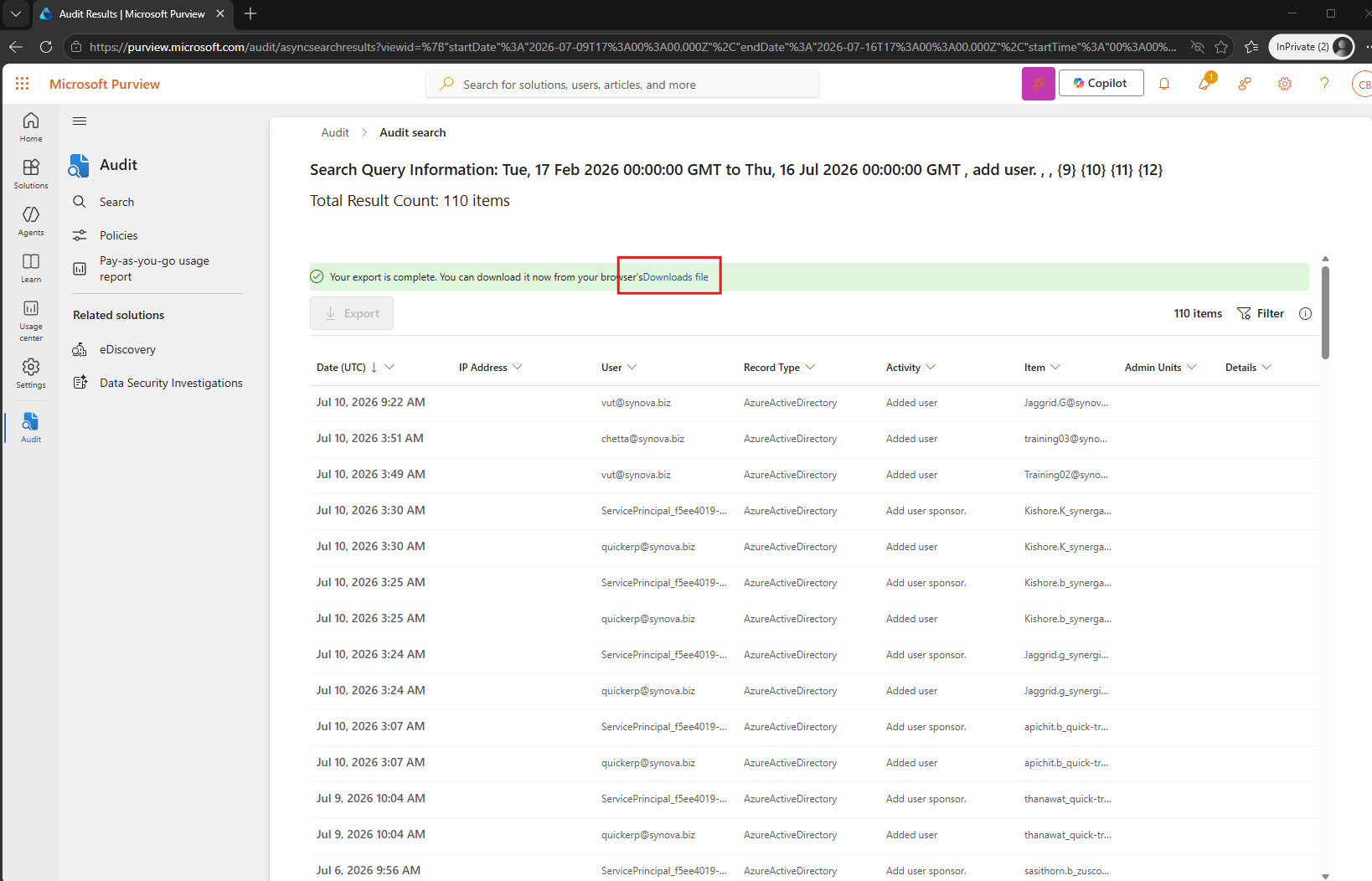
- This page will show Query Information. Also can download the file by click "Download file".
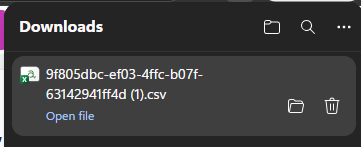
- Try open downloaded file with excel.
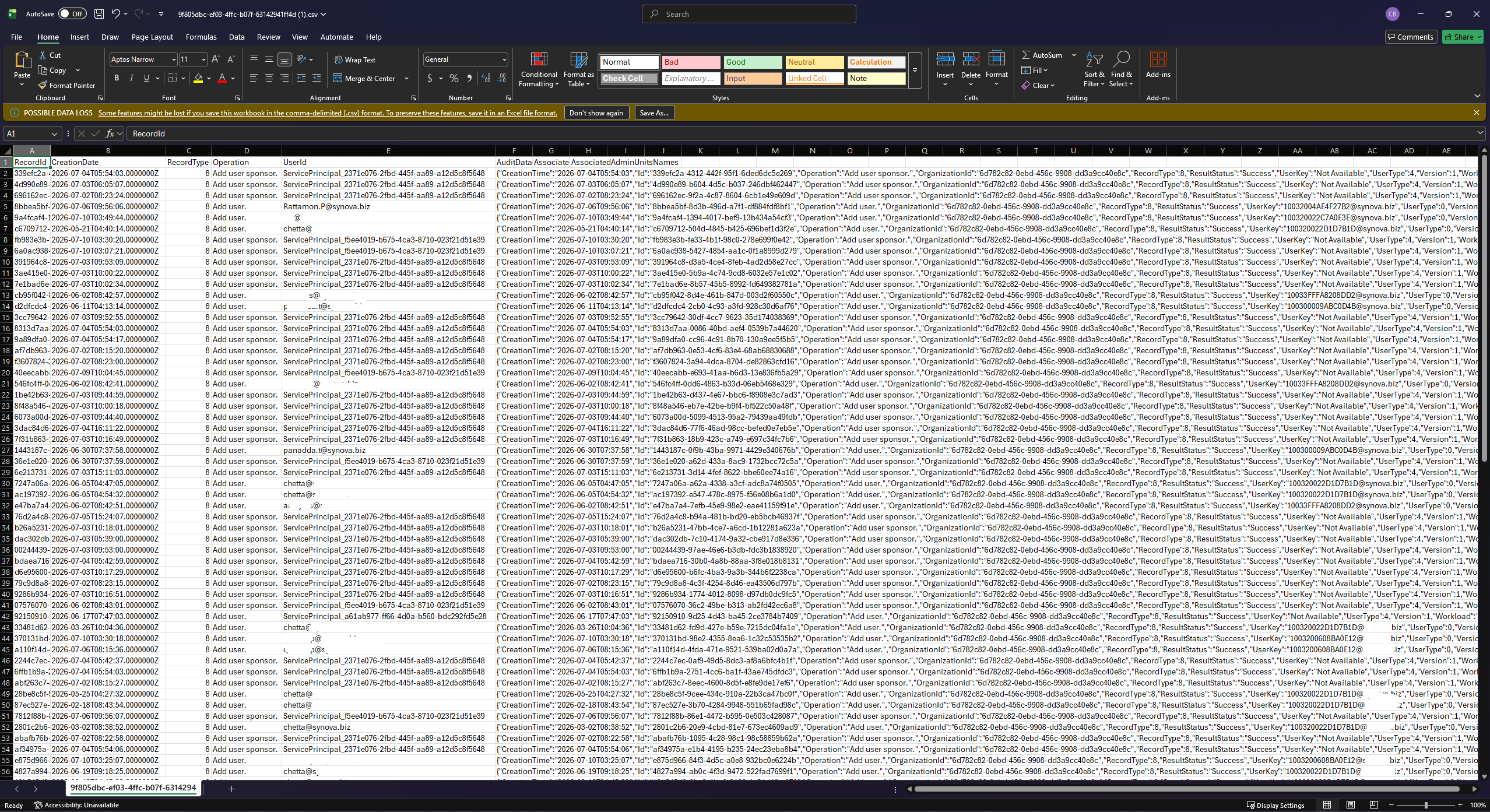
- Filter "UserId" for check the user invite activities.

This can block by following this step.
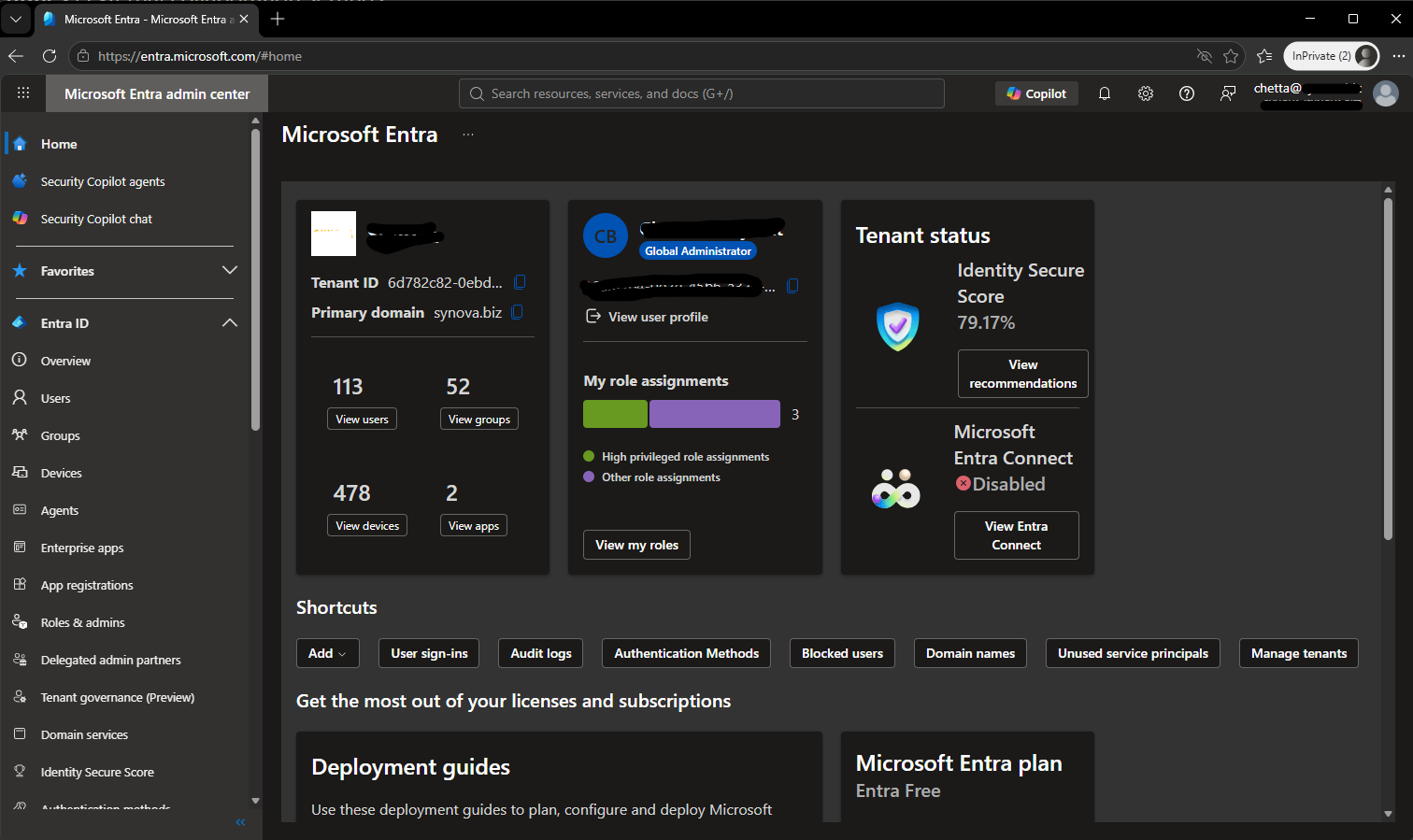
- Login to https://entra.microsoft.com/ with your admin user.
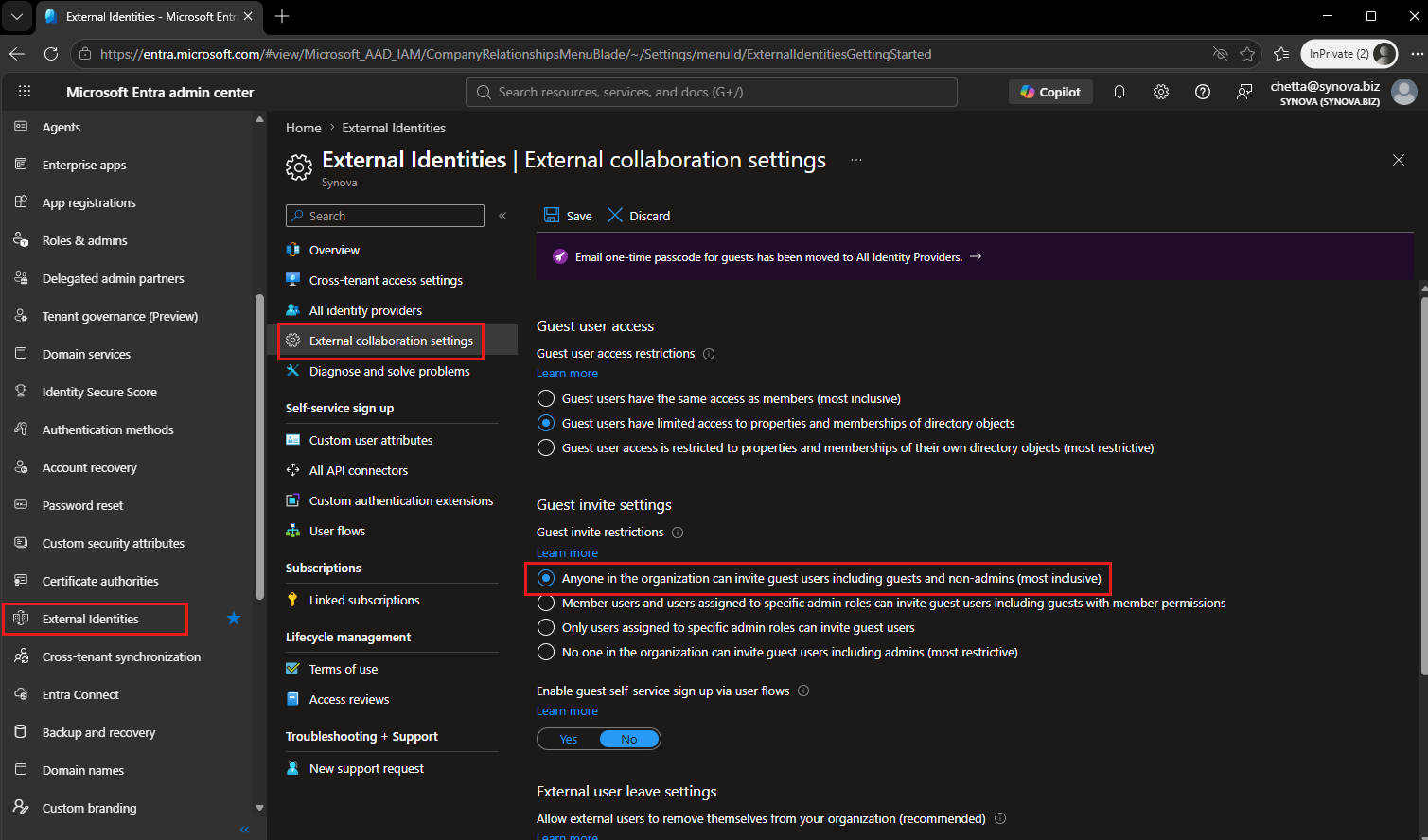
- Goto "External Identities" > "External collaboration settings" > "Guest invite settings"
- Default setting is "Anyone in the organization can invite guest users includeing guests and non-admins (most inclusive)"
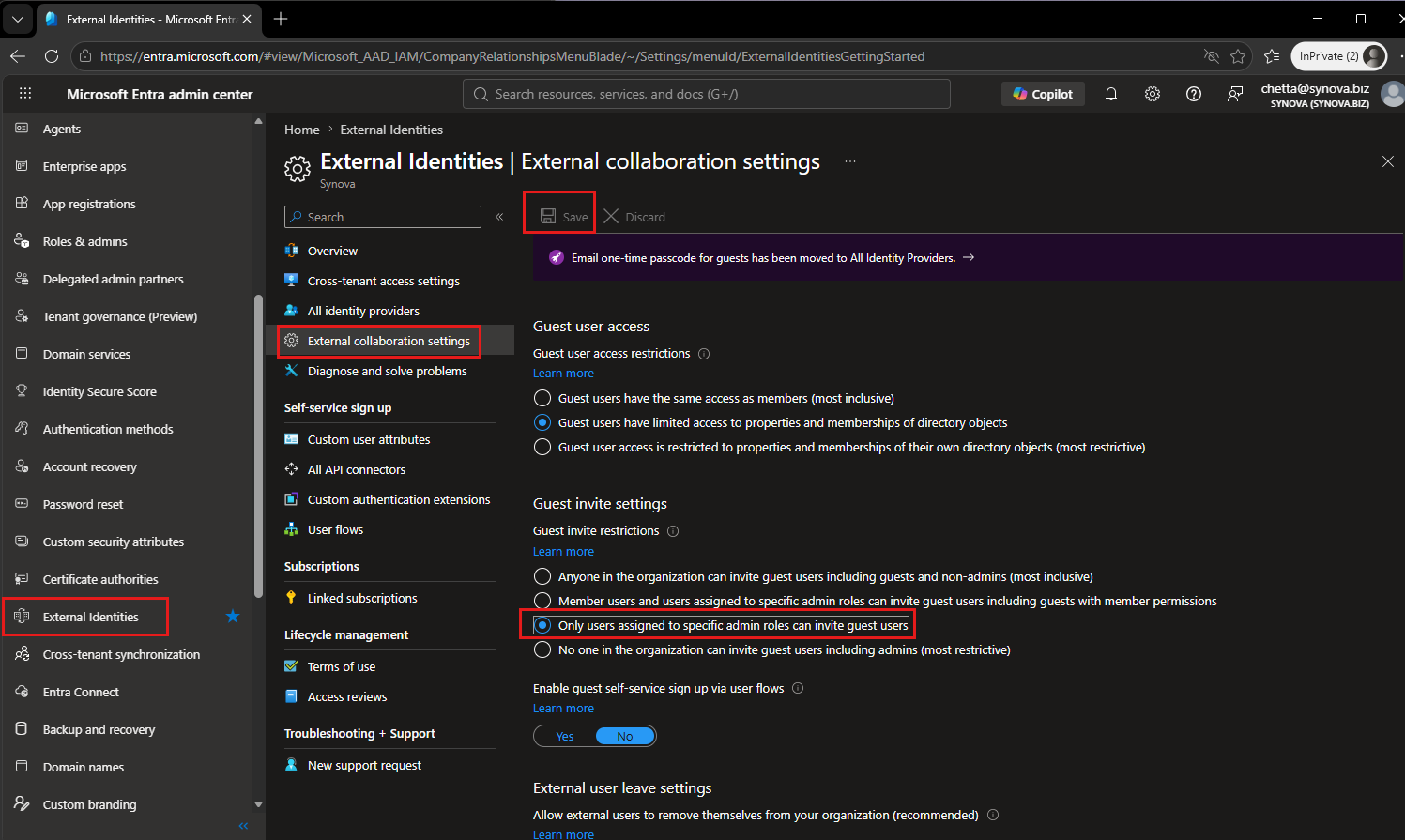
- This example will changed to "Only user assigned to specific admin roles can invite guest users" and don't forget to "Save".
- Anyone in the organization can invite guest users including guests and non-admins (most inclusive): To allow guests in the organization to invite other guests including users who aren't members of an organization, select this radio button.
- Member users and users assigned to specific admin roles can invite guest users including guests with member permissions: To allow member users and users who have specific administrator roles to invite guests, select this radio button.
- Only users assigned to specific admin roles can invite guest users: To allow only those users with User Administrator or Guest Inviter roles to invite guests, select this radio button.
- No one in the organization can invite guest users including admins (most restrictive): To deny everyone in the organization from inviting guests, select this radio button.
Ref: https://learn.microsoft.com/en-us/entra/external-id/external-collaboration-settings-configure