Synology: How to Back Up Your Synology NAS to Another NAS with Hyper Backup


This sample show how to backup the data in synology nas to another nas by hyper backup. Hyper backp can backup to multiple of target (Folders and Packages: Synology Hyper Backup Archive, Entire System: Remote NAS, C2 Storage, LUNs: Local NAS, Remote NAS, USB)
- Login to synology nas web control.
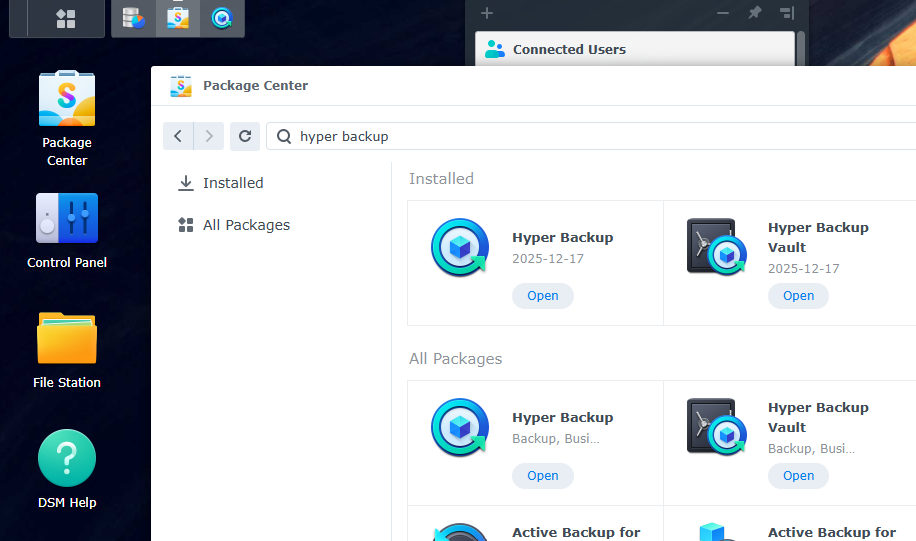
- Open "Package Center".
- Search "Hyper Backup" > Open (if not install yet. jutst click install).
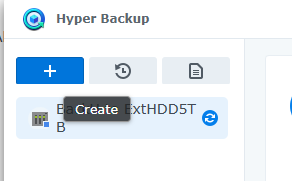
4. Create the backup job by click on "+".
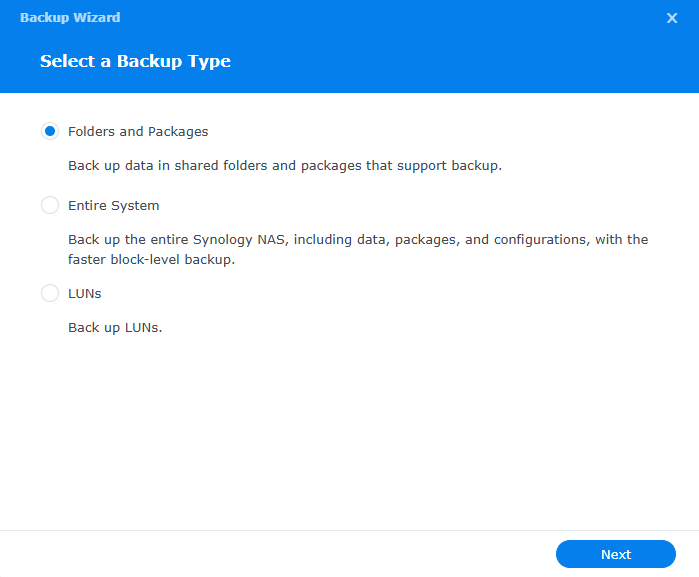
- Select a Backup Type.
5.1 Folders and Packages (Standard)
This is the most common choice if you want to be selective about what you store.
- What it does: Backs up specific Shared Folders (like your Photos or Documents) and settings for specific Applications (like Plex or Synology Photos).
- Best for: Most users. It saves space because you aren't backing up the operating system (DSM) files that can be easily reinstalled.
- Flexibility: You can choose exactly what stays and what goes to save on cloud storage costs or external drive space.
- Granularity: High (Select specific folders)
- Storage Usage: Lower (Only what you select)
- Restoration: Easy to restore specific files
- Destination: Cloud, USB, Remote NAS
5.2 Entire System (Bare Metal)
This is a comprehensive "image" of your NAS.
- What it does: It copies everything—data, applications, system settings, and even the DSM configurations. It uses block-level backup, which is generally faster for massive amounts of data.
- Best for: Disaster recovery. If your NAS hardware fails or your drives die, you can restore this to a new unit and have it look exactly like your old one in one step.
- Note: This requires a destination with a lot of storage, as it mirrors the entire footprint of your NAS.
- Granularity: Low (Backs up the entire NAS)
- Storage Usage: Higher (Full capacity of data)
- Restoration: Rapid full-system recovery
- Destination: Remote NAS, Synology C2 Storage
5.3 LUNs (Logical Unit Numbers)
This is a specialized technical option.
- What it does: Backs up iSCSI LUNs. These are virtual disks usually used by servers or virtual machines (like VMware or Hyper-V) that see your NAS as a direct hard drive.
- Best for: Business environments or power users running Virtual Machines. If you don't know what a LUN is, you almost certainly don't need this option.
- Granularity: Medium (Backs up virtual disks)
- Storage Usage: Medium to High
- Restoration: Restores virtual disk images
- Destination: Local NAS, Remote NAS, USB
- Select Backup Destination.
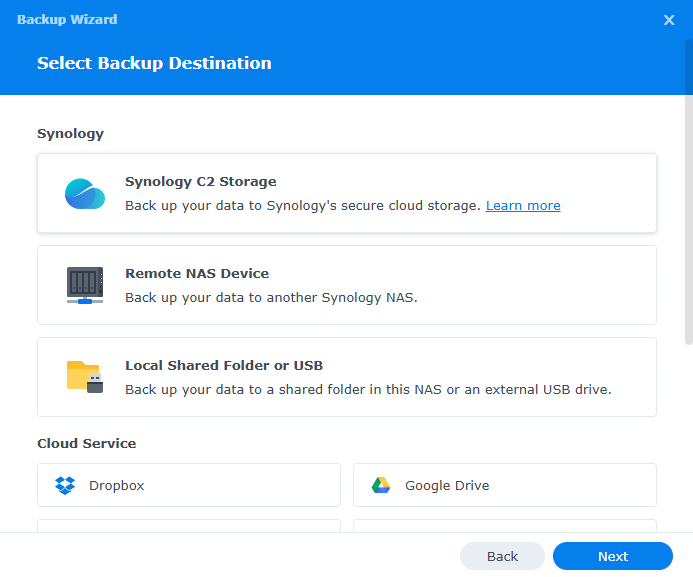
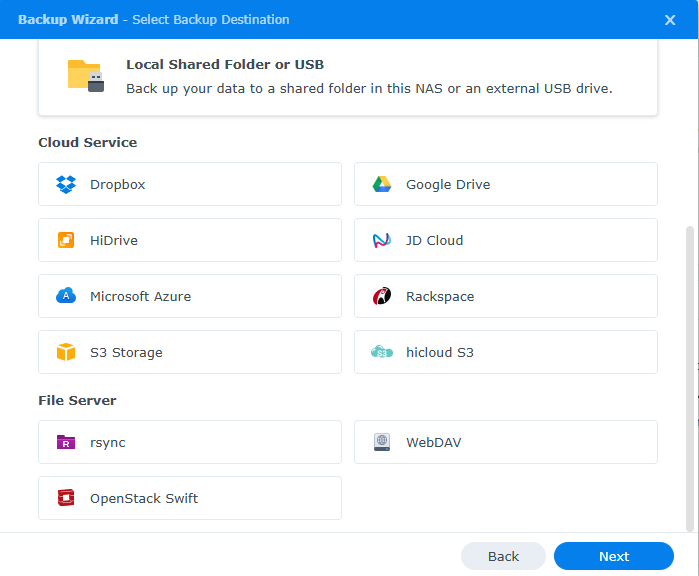
7. Select "Remote NAS Device" and "Next".
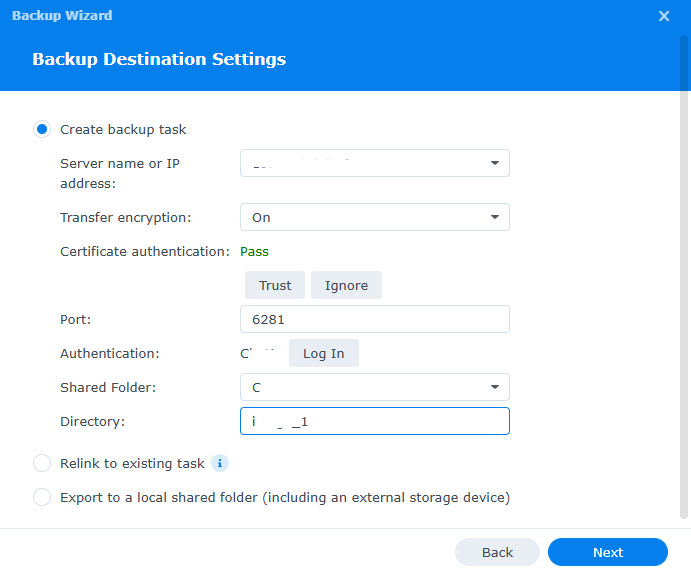
- Backup Destination Settings.
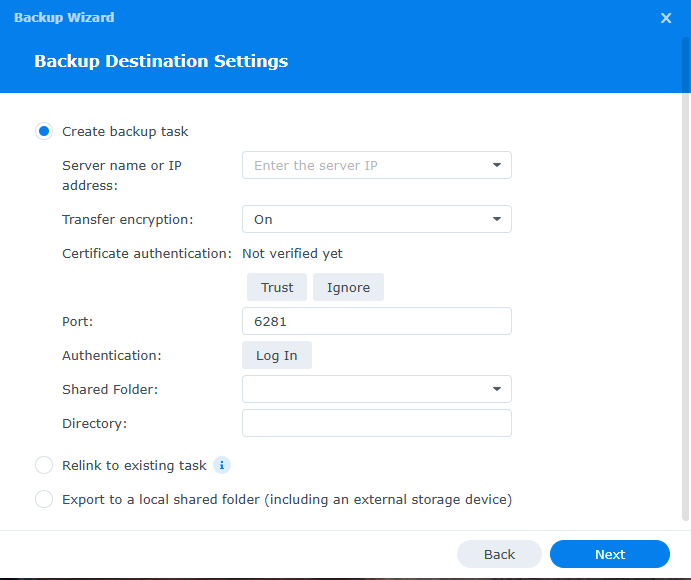
- Enter Server name or IP.
- Certificate authentication > click "Trust".
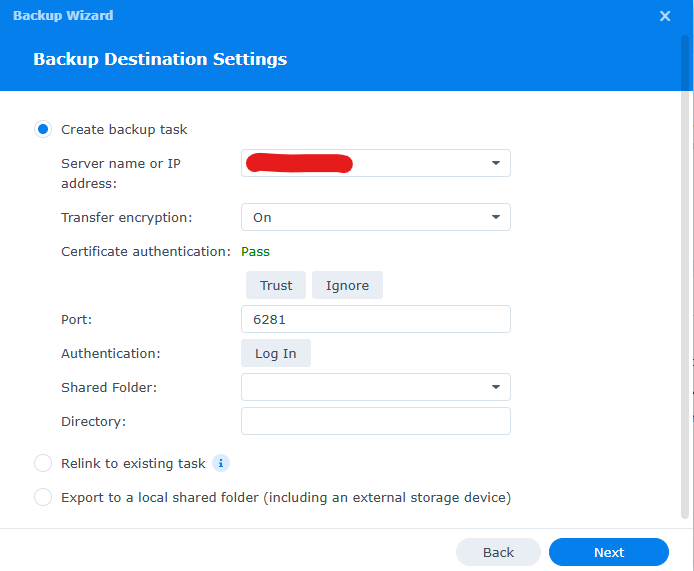
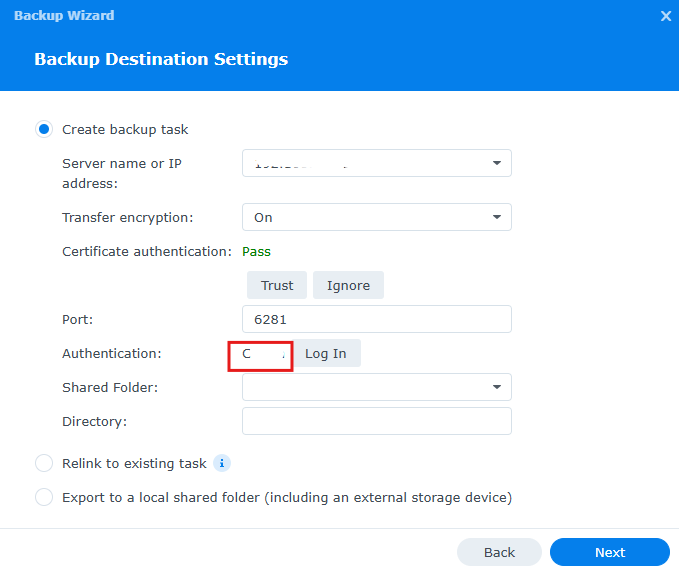
- Authentication: Click "Log In"
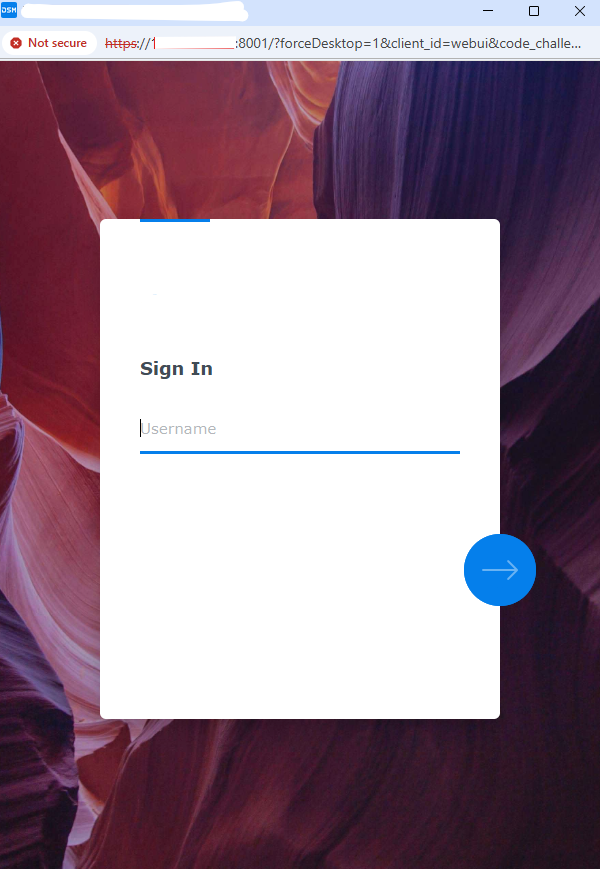
- Windows pop up new page to login. Enter user name.
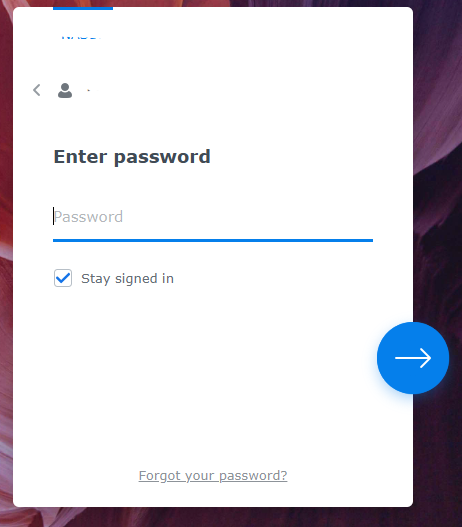
- Enter "Password".
- After login finish. User will show on "Authentication".
- Select "Shared Folder"
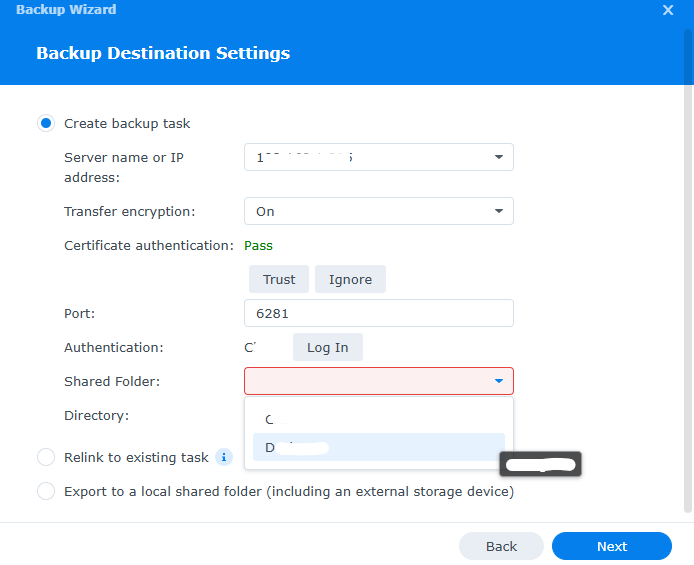
16. Directory: specific name for the directory and "Next".
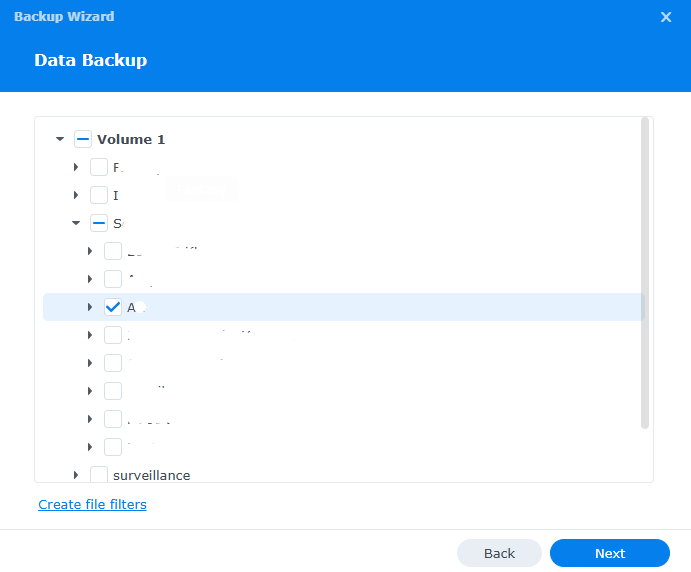
- Select "Data Backup".
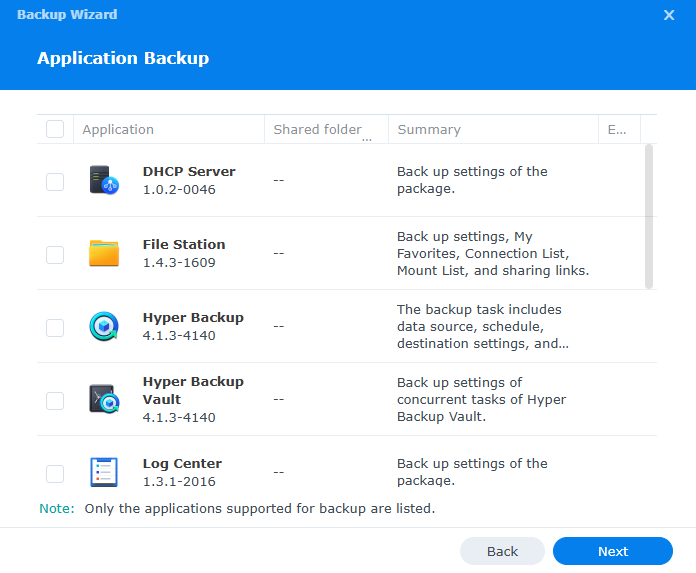
18. For Application Backup leave blank as we do not backup application for this time. Just click next.
- Backup setting. This can set backup schedule.

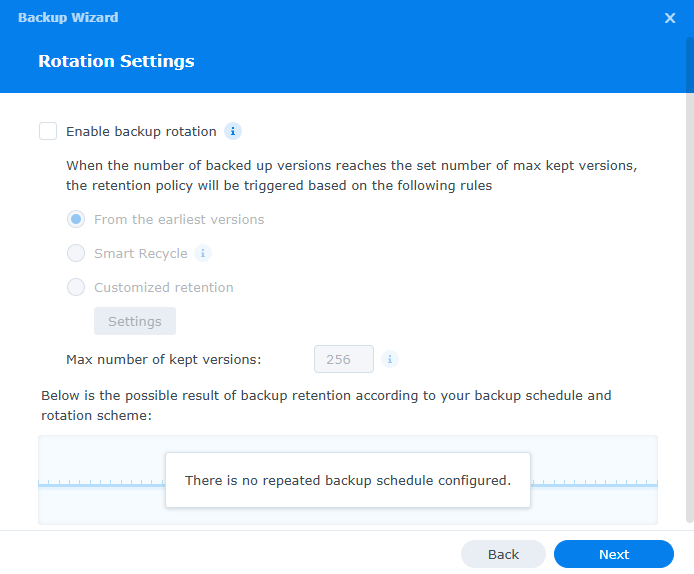
- Rotation Setting: if enable schedule backup this will manage version as if the backup reaches the sert number of max kept version, the retention policy will be triggered based on the follwing rule.
- Check "Summary" and click "Done" to confirm.
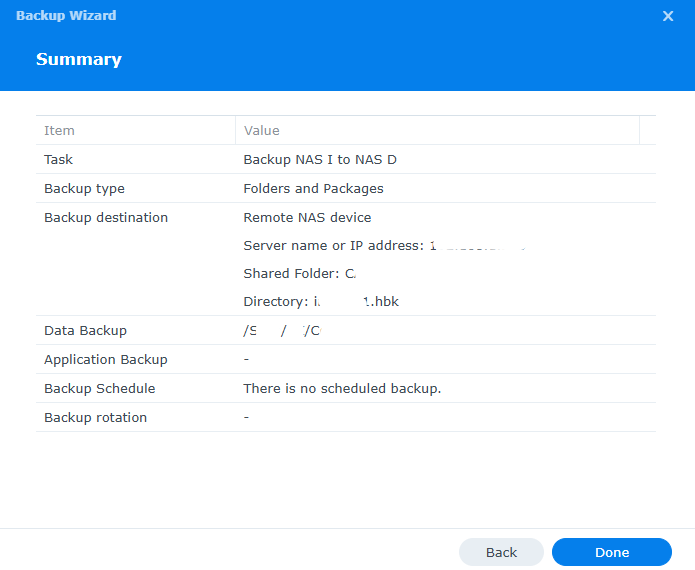
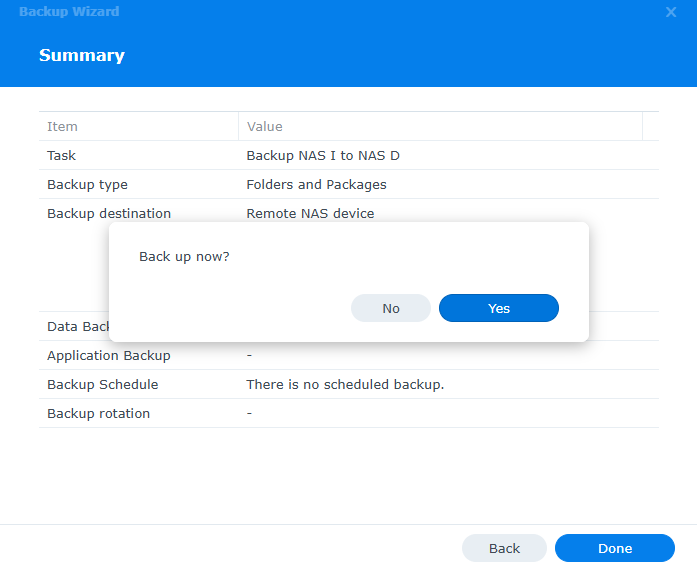
- When finish setting it will ask to back up now. If perfer to backup now click "Yes", Otherwise click "No".
- The backup job will show on the list. When click on the job name it will show the setting like the target and task setting. This can perform backup by click "Back Up Now"
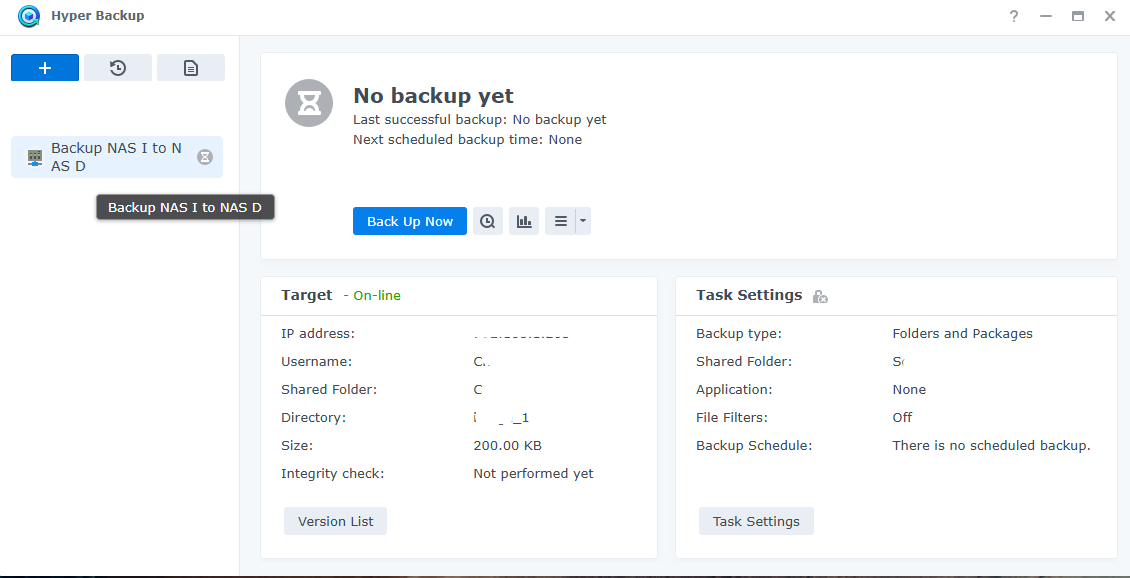
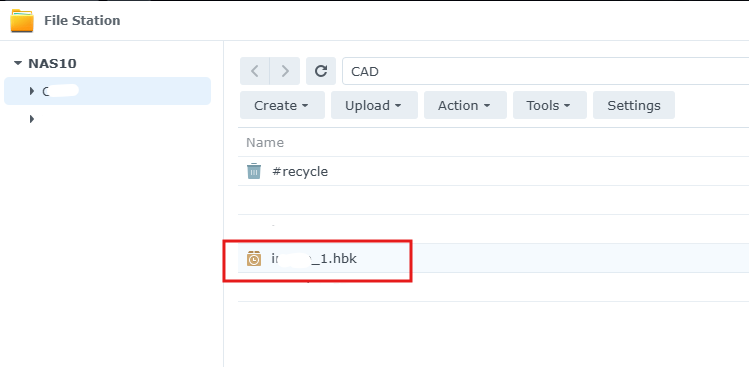
- On the target nas. if you login to the target nas and brows the folder same as destination setting it will show the file .hbk (Synology Hyper Backup Archive)