Using OData Queries in Power BI


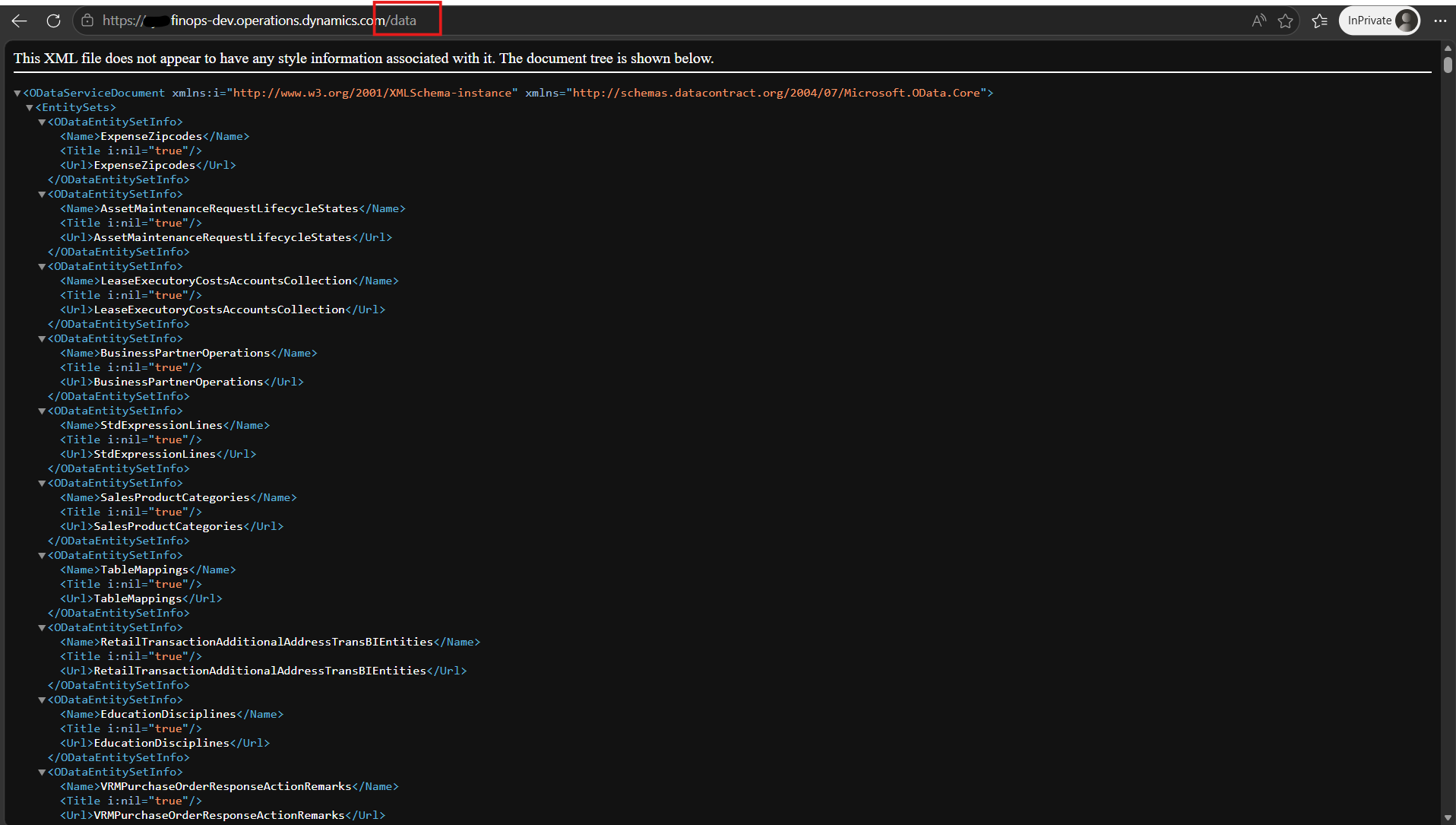
Dynamics 365 provides an OData feed for data retrieval via a REST API web service; simply append `/data` to the URL.
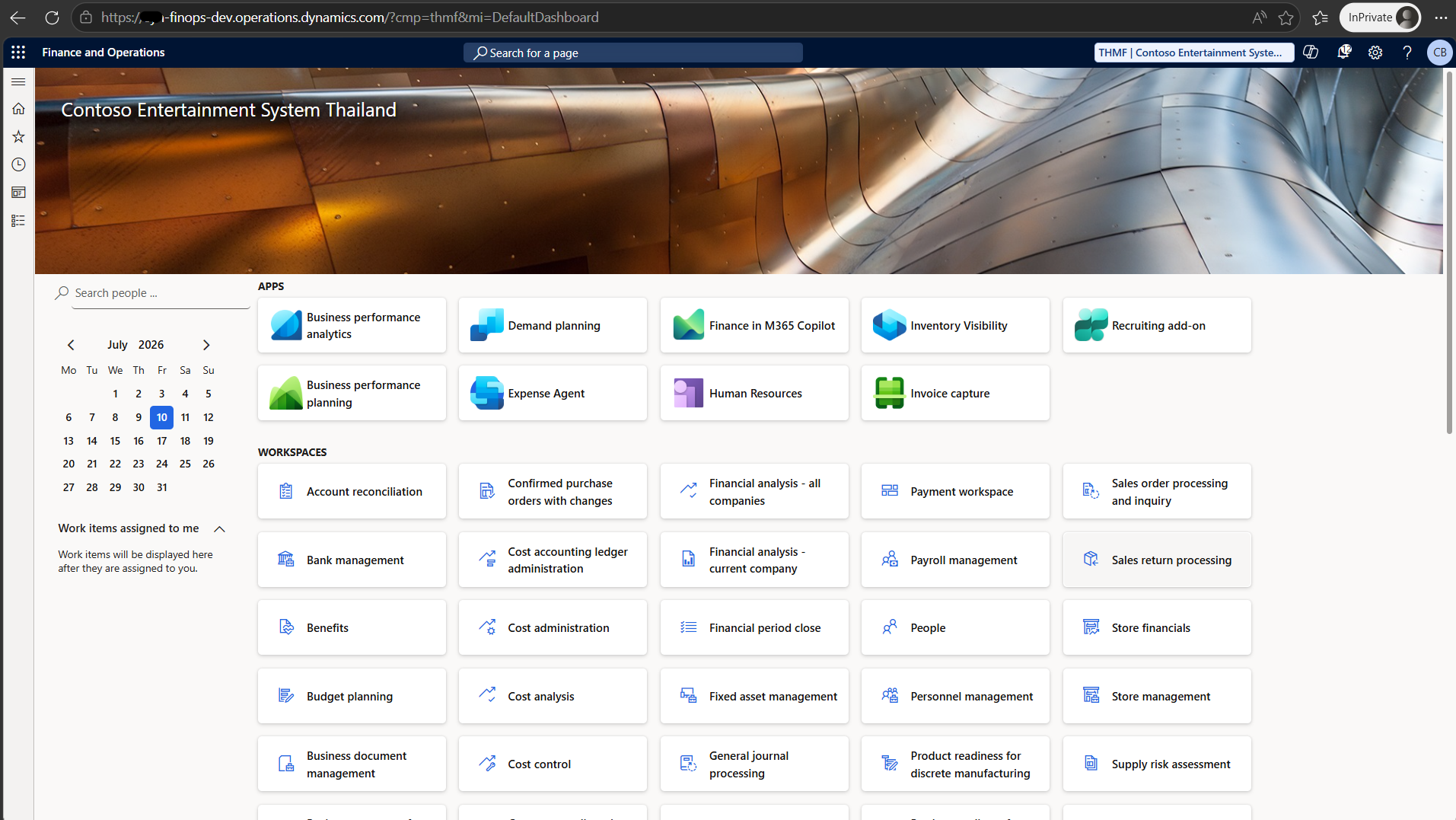
- Example to feed data user your web service URL/data
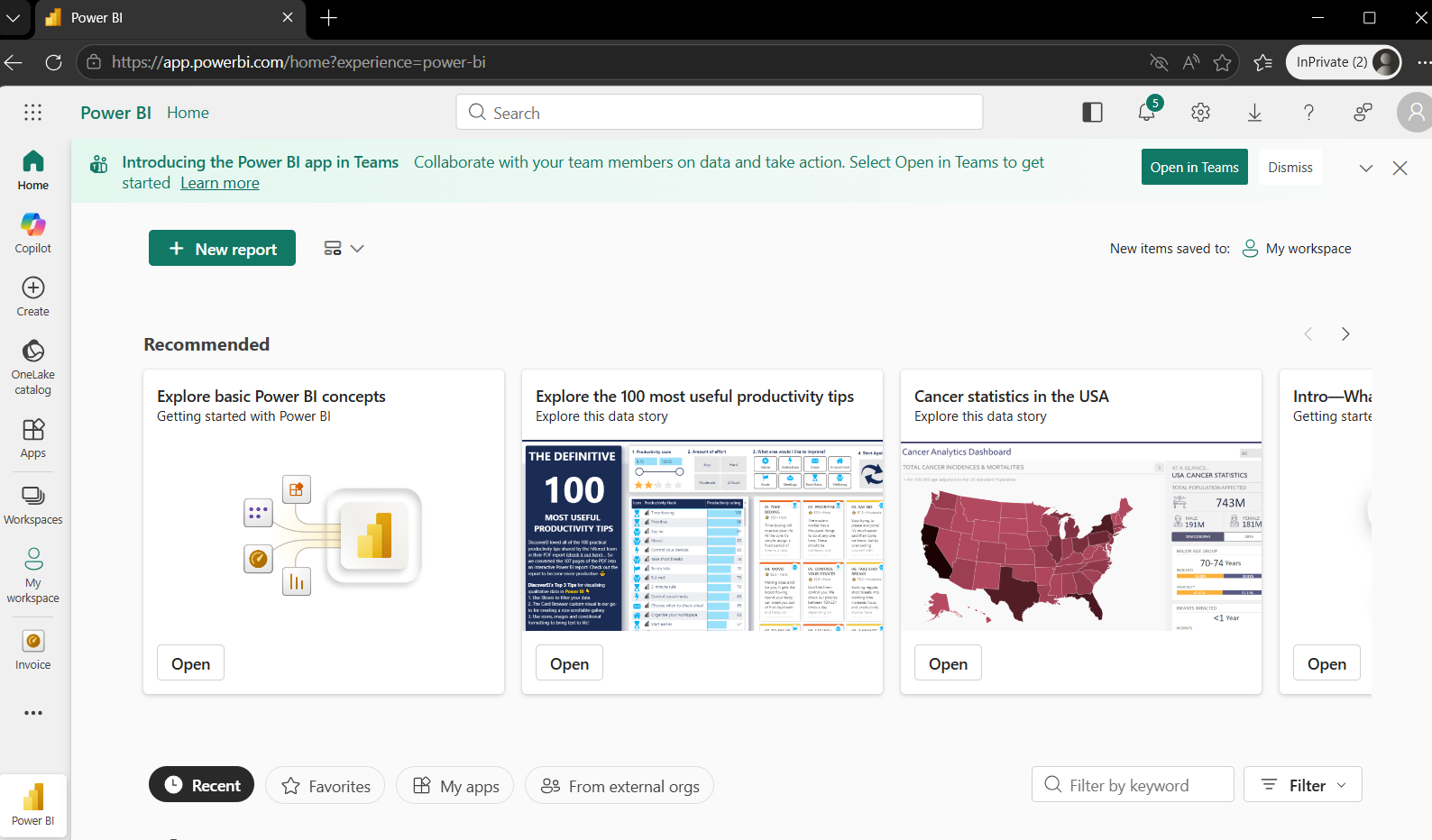
- Goto power BI (https://app.powerbi.com/) to connect to the data.
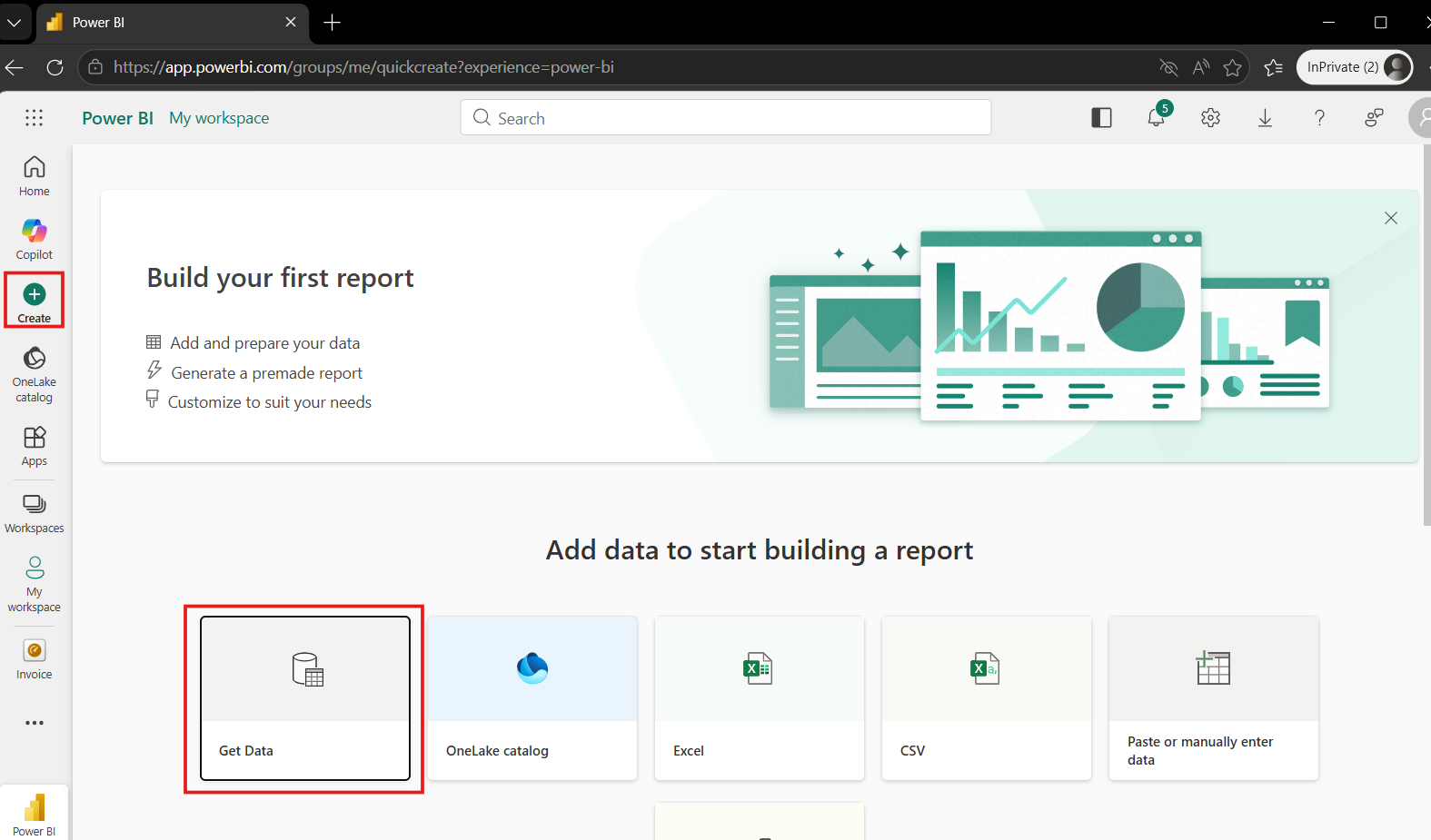
- Goto "Create" > "Get Data".
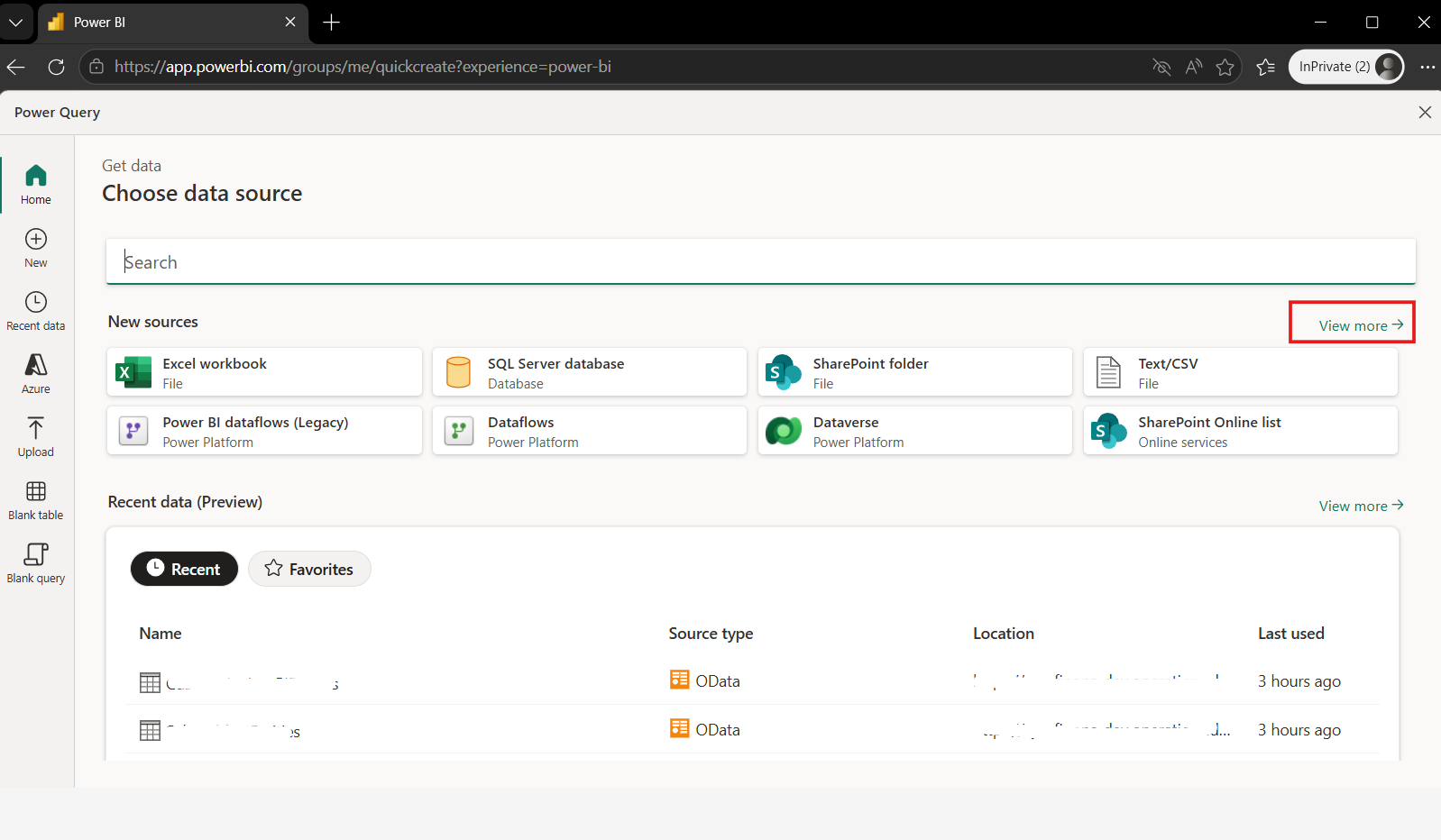
4. Choose data source > New sources > "View more".
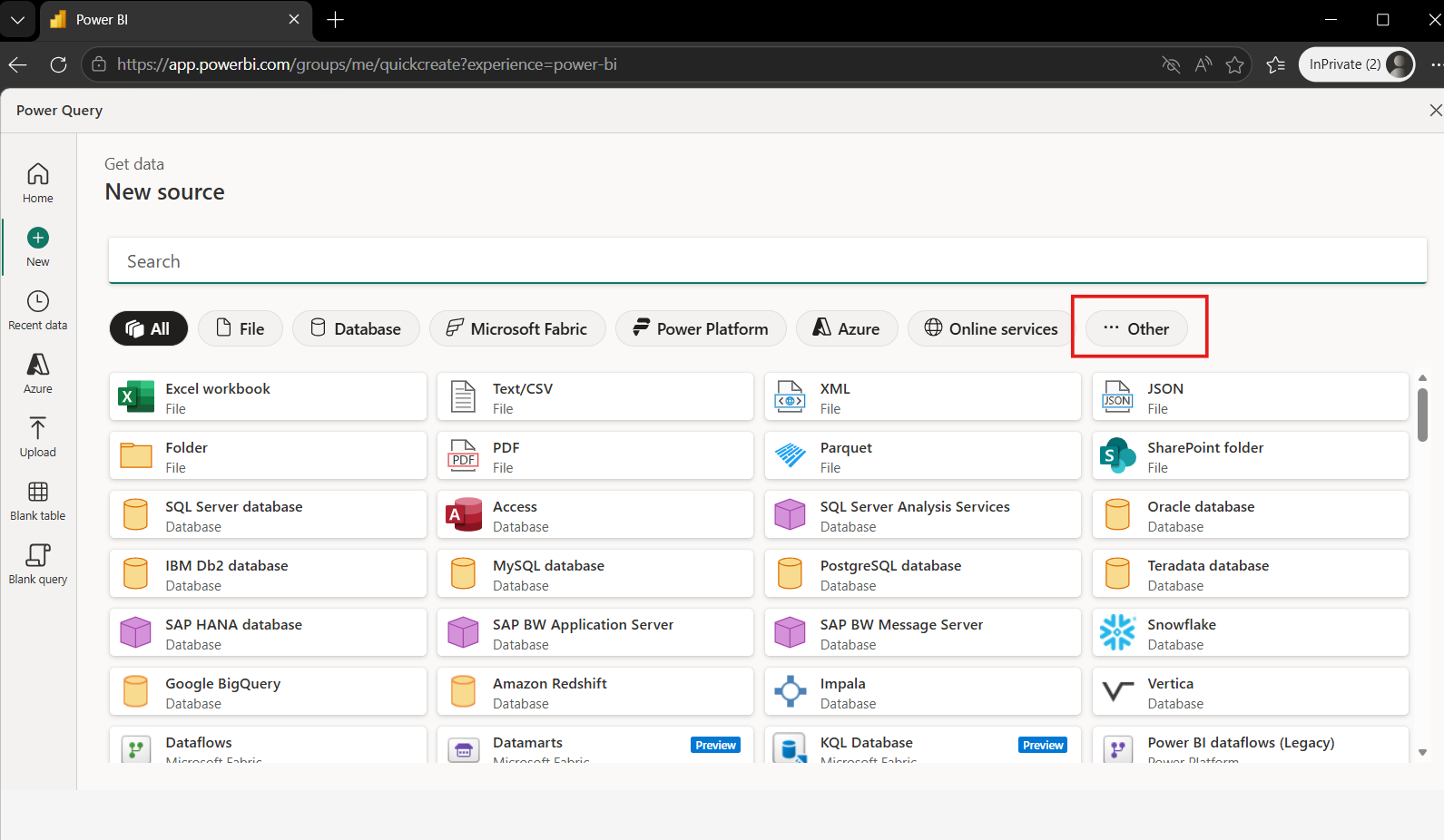
5. Choose "Other".
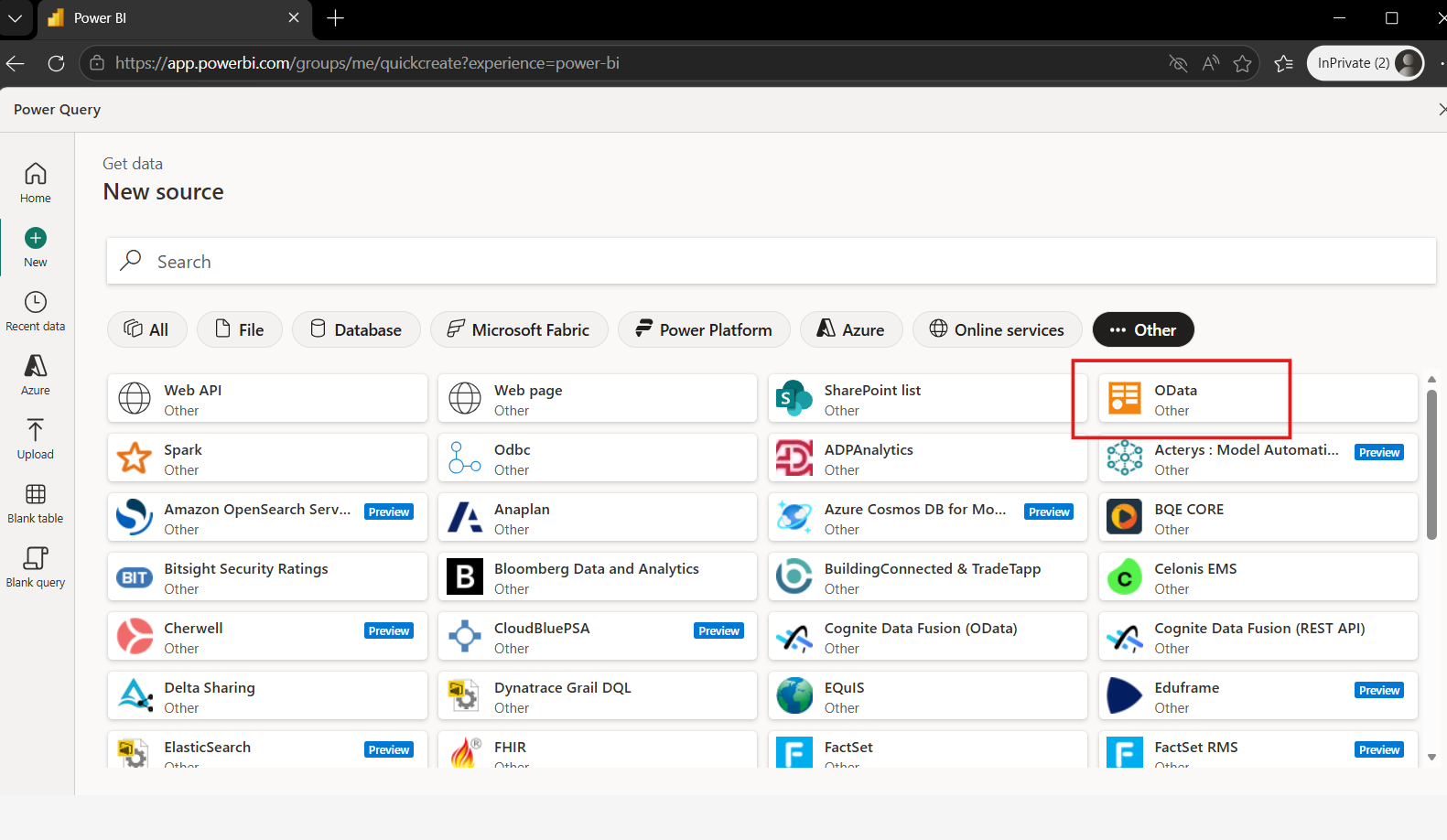
- Choose "OData".
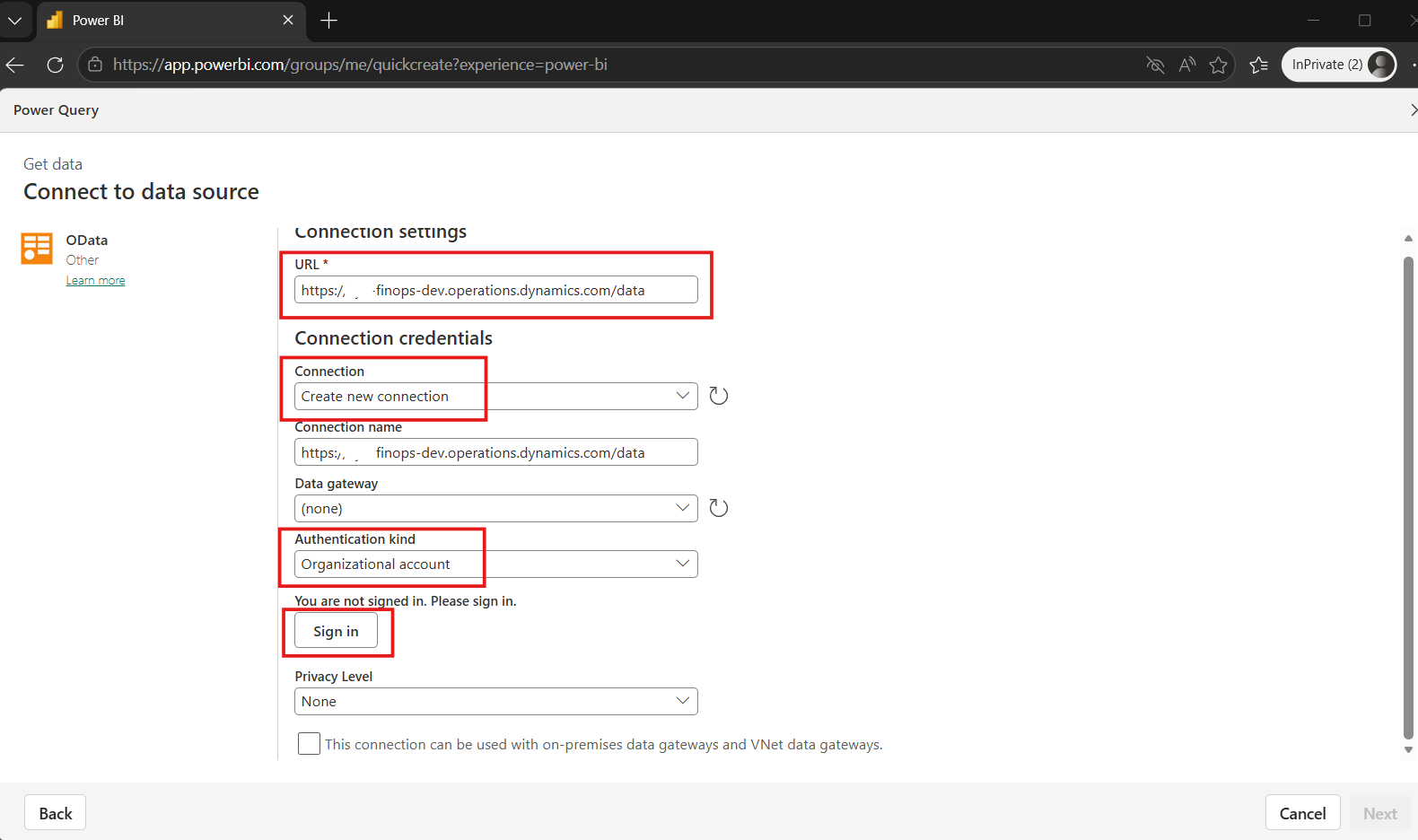
- Copy URL on step 1 and past on "URL text box".
Connection: "Create new connection"
Authentication kind: "Organizational account"
and click "Sing in" button.
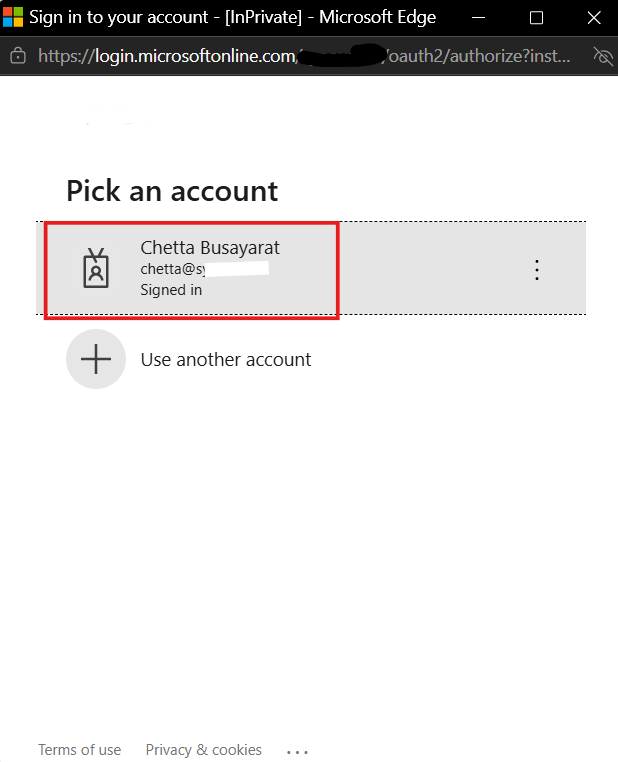
- When click sign in will show account to select.
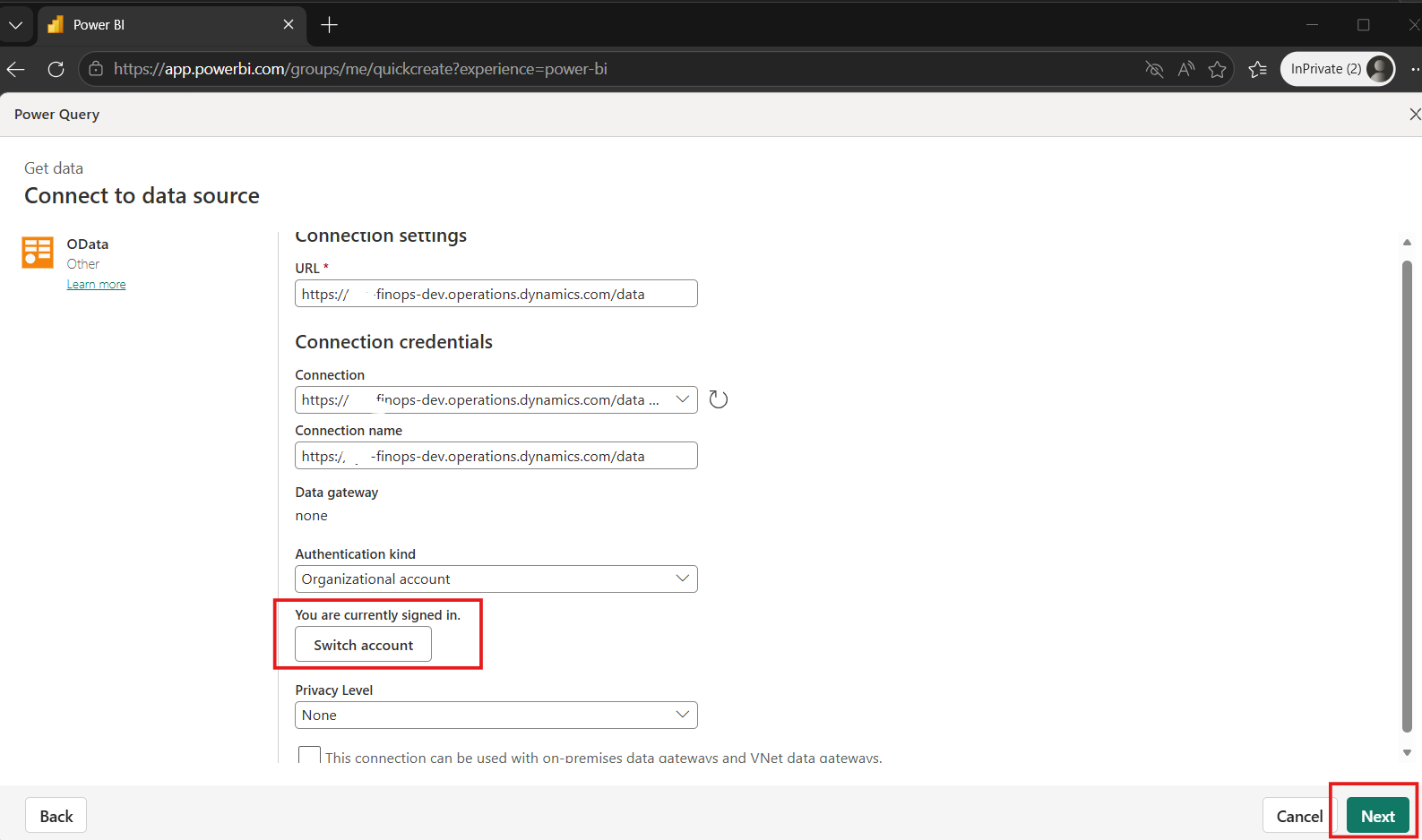
- After Singed botton will change from "Sing in" to "Switch account". Then click "Next".
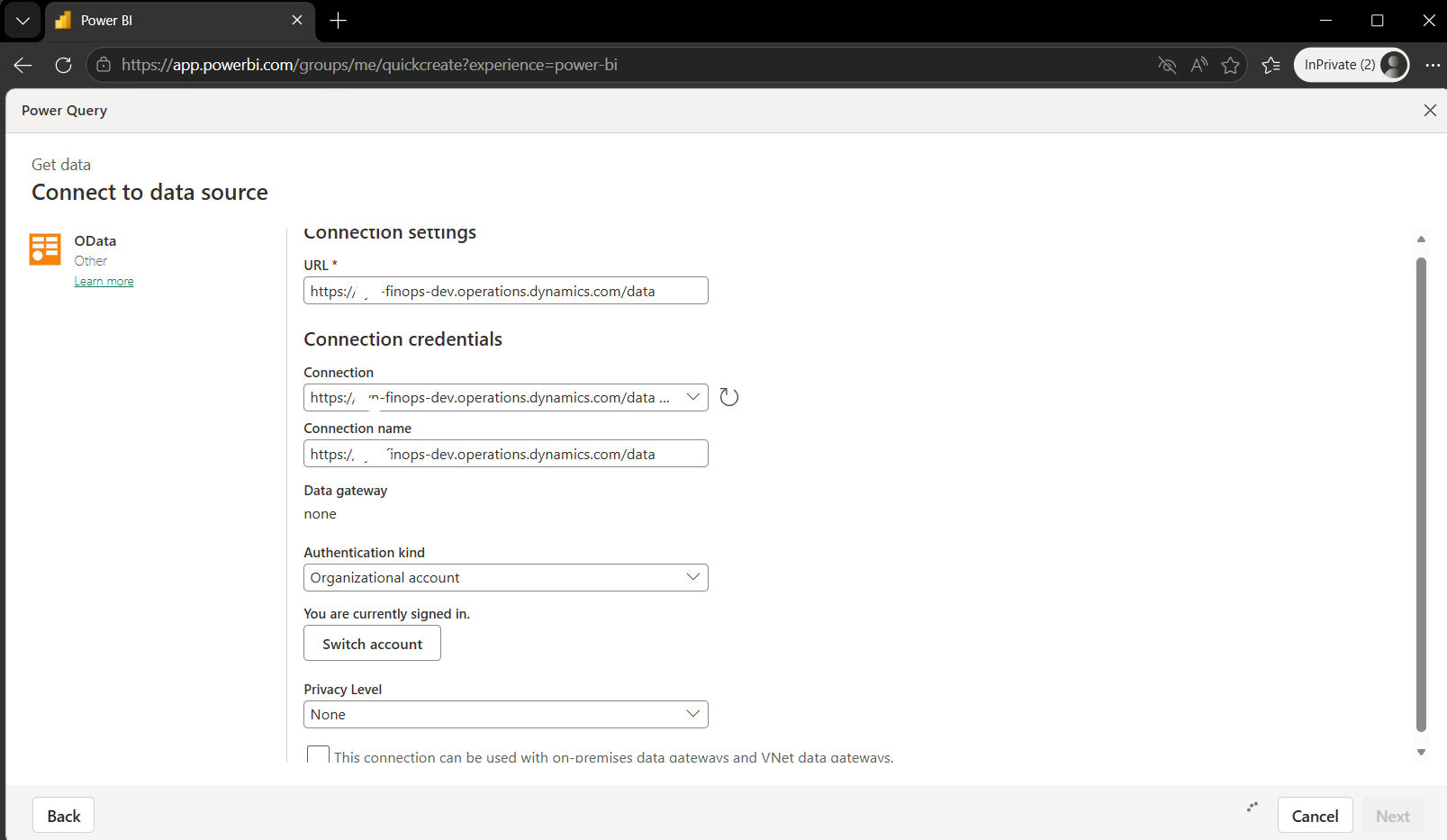
- It will show "Power Query".
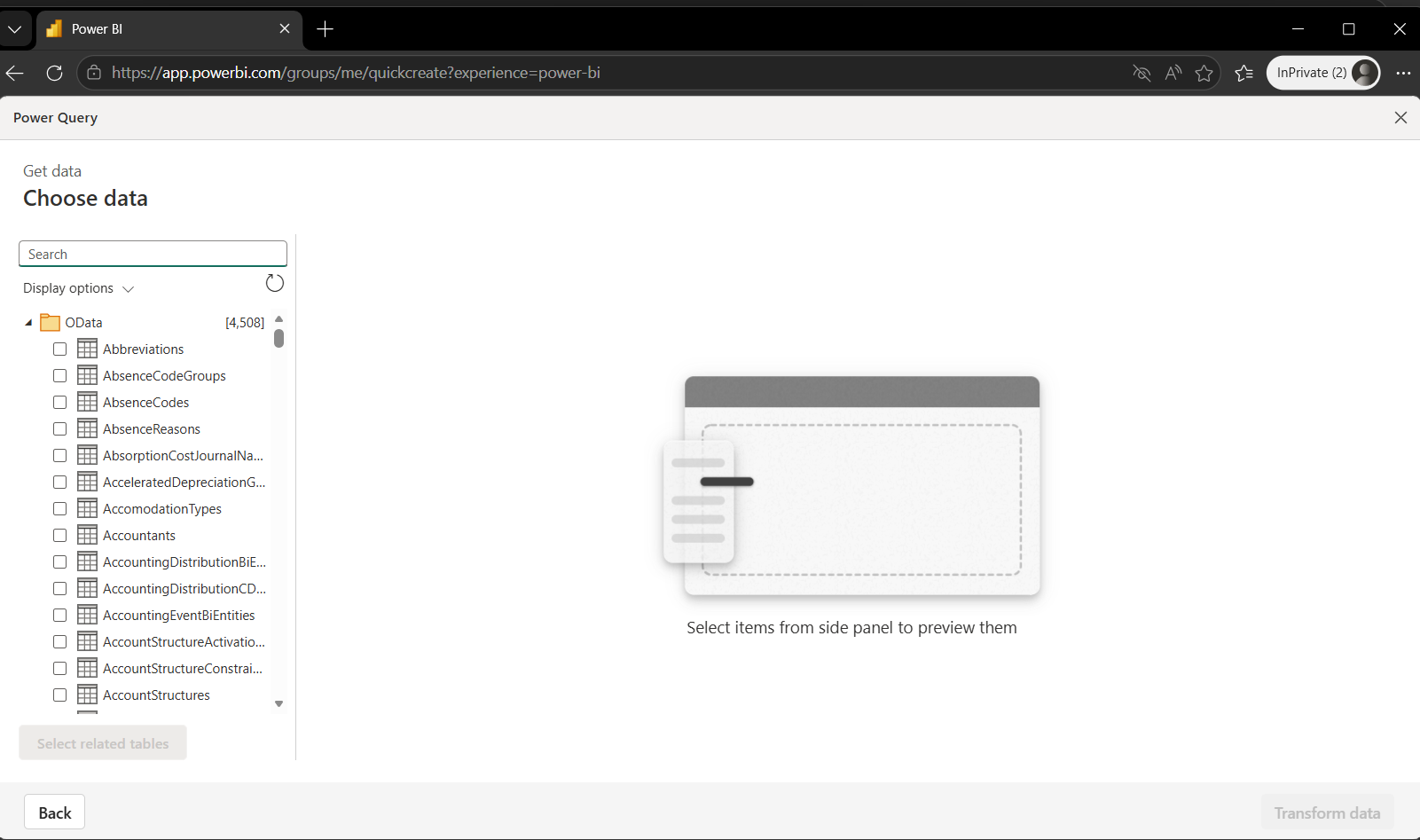
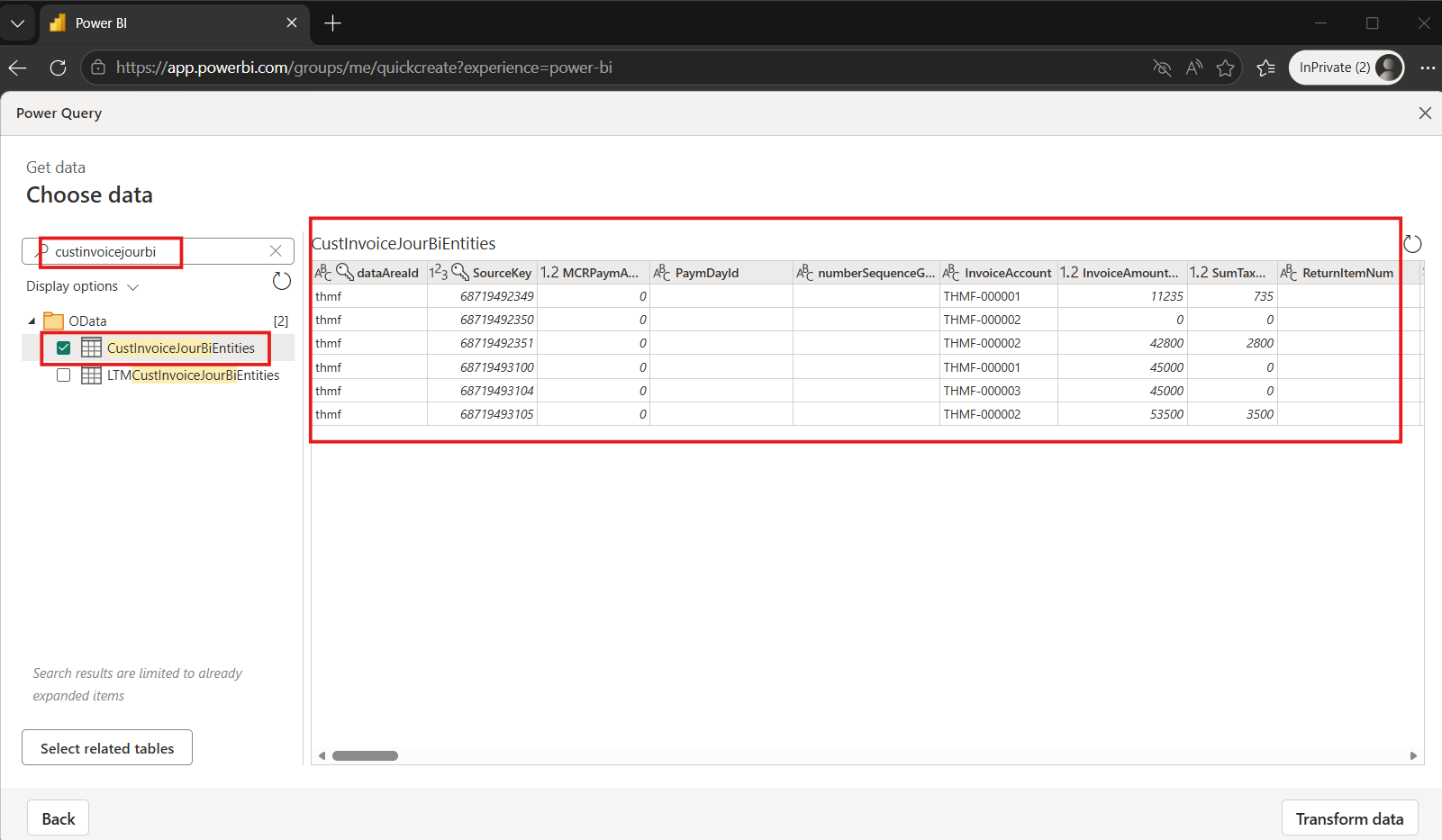
- Choose data (Example: custinvoicejourbi)
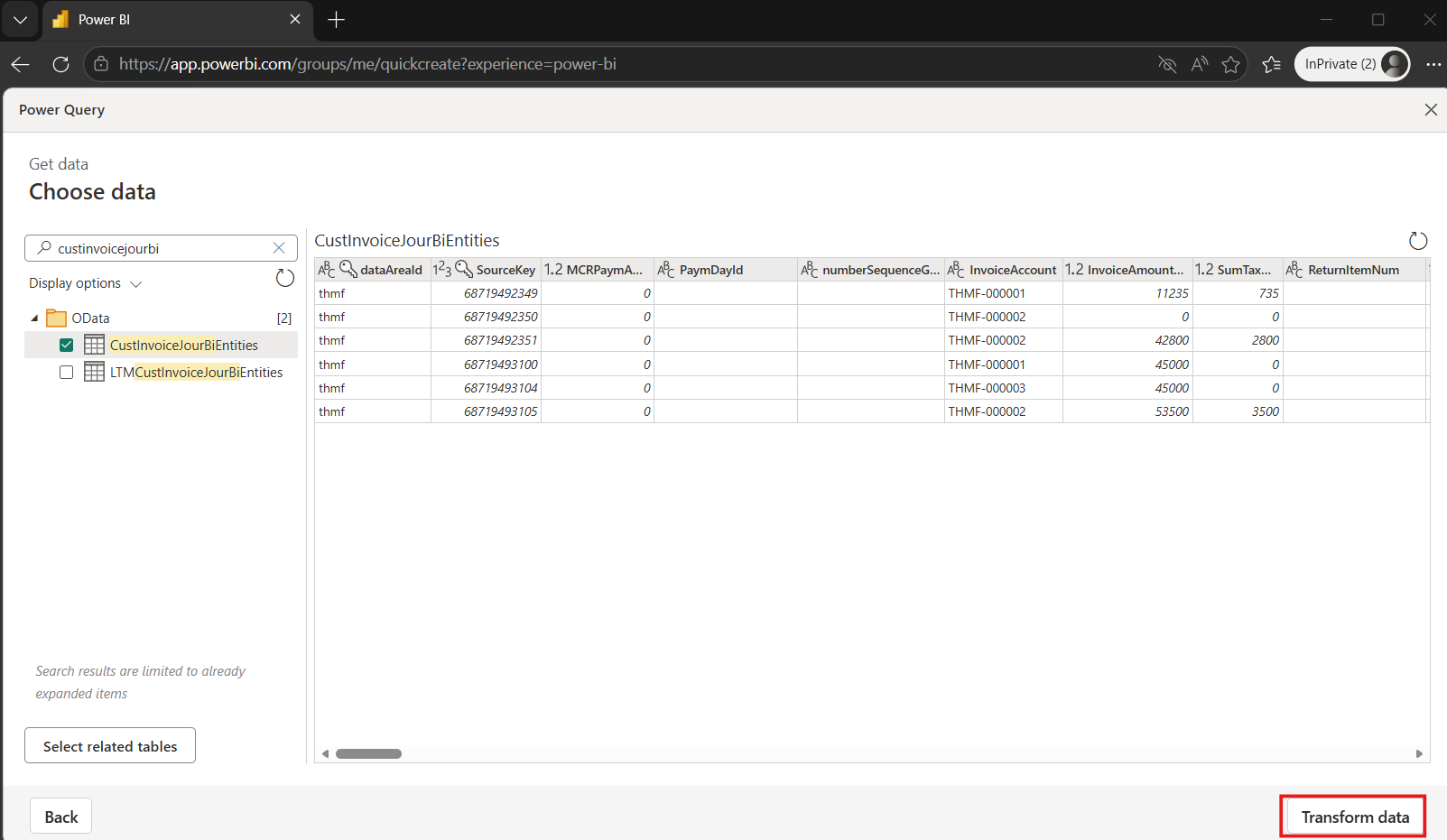
- Click "Transform data".
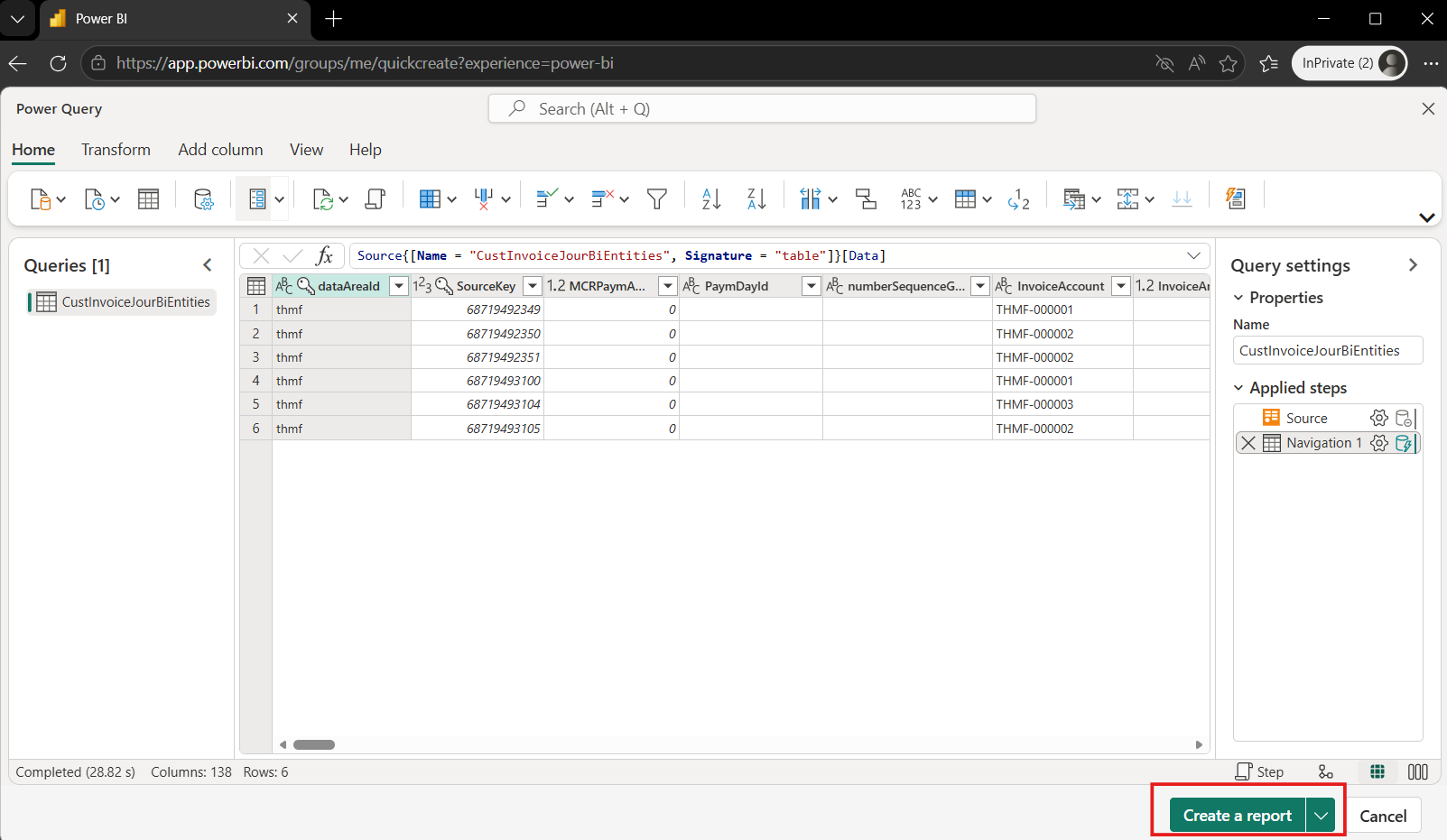
- Click "Create a report".
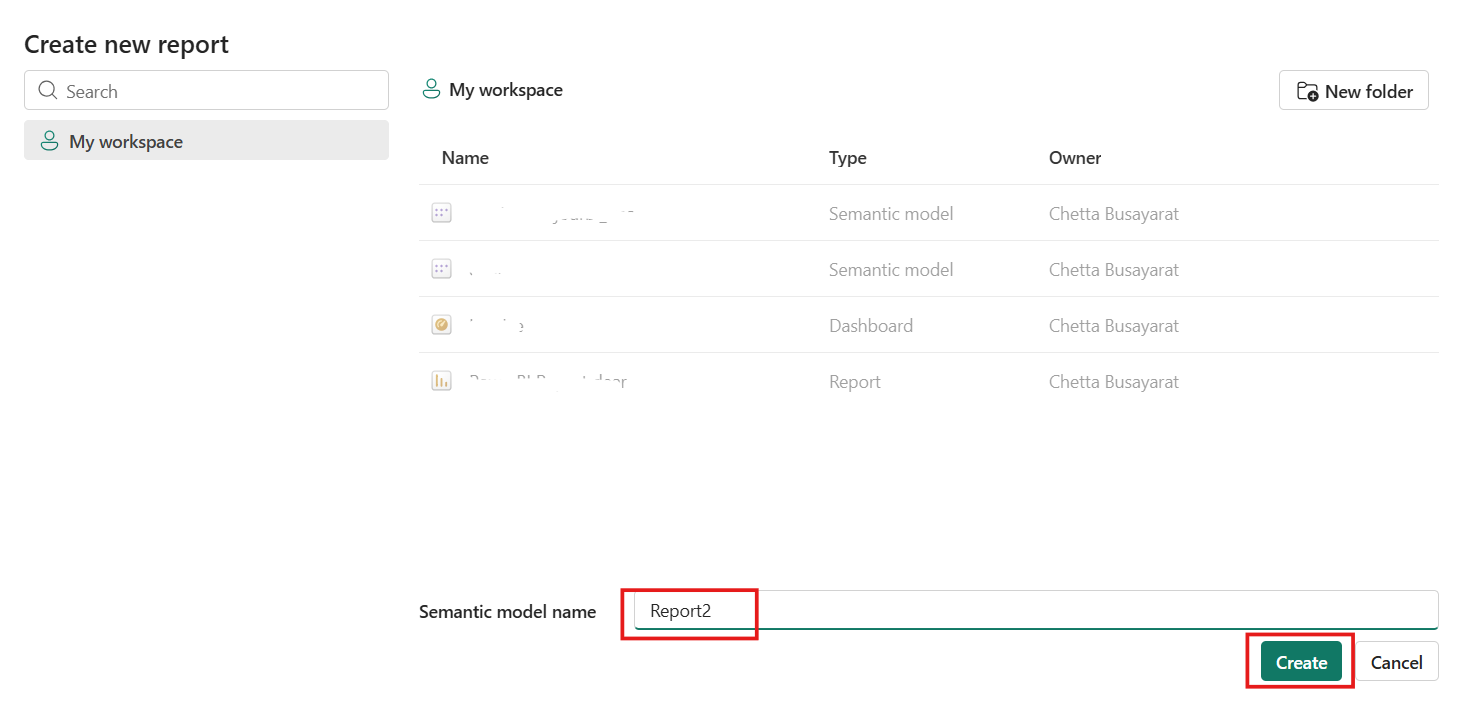
- Name the "Semantic model name" and click "Create".
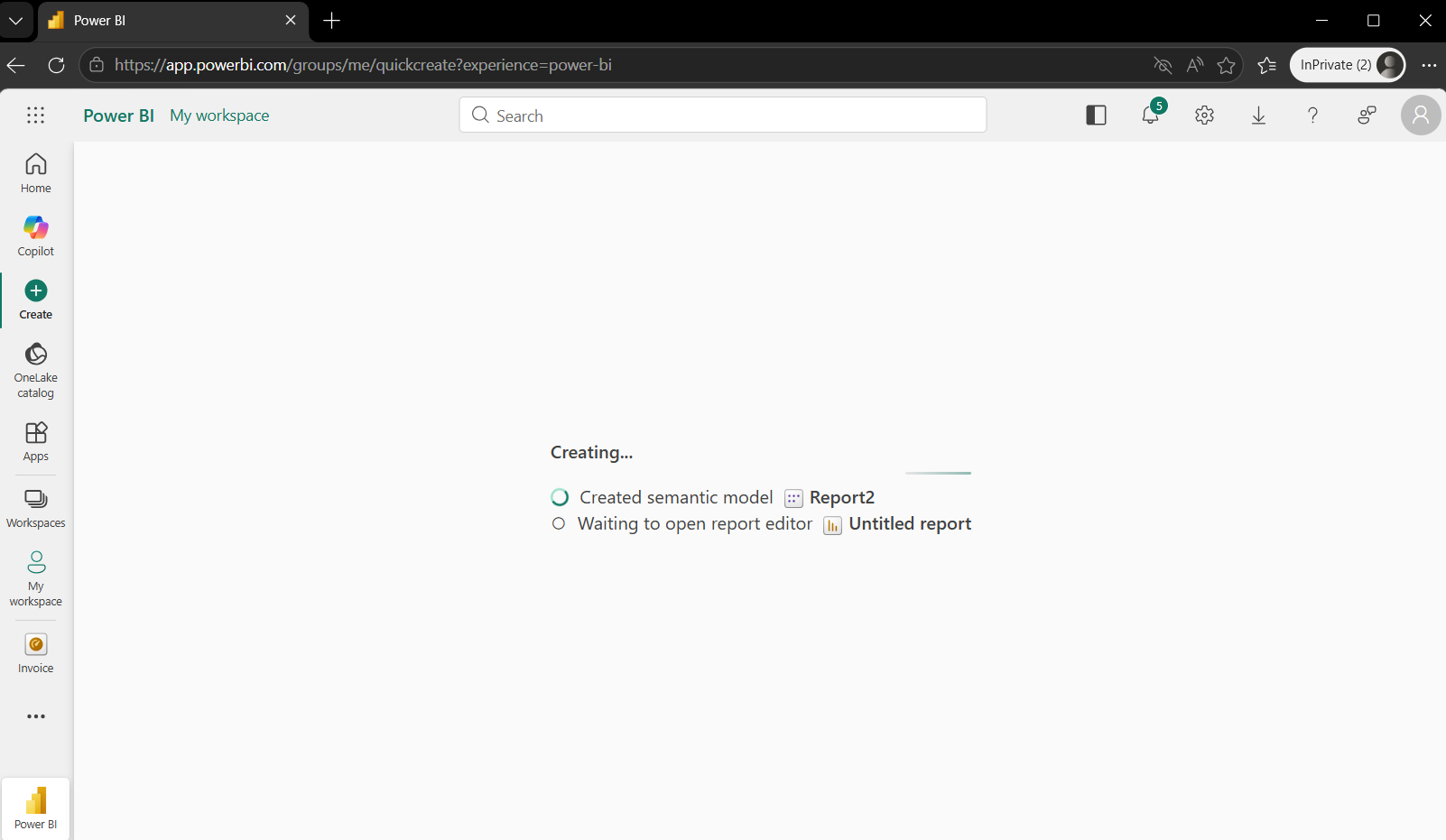
- Creating.
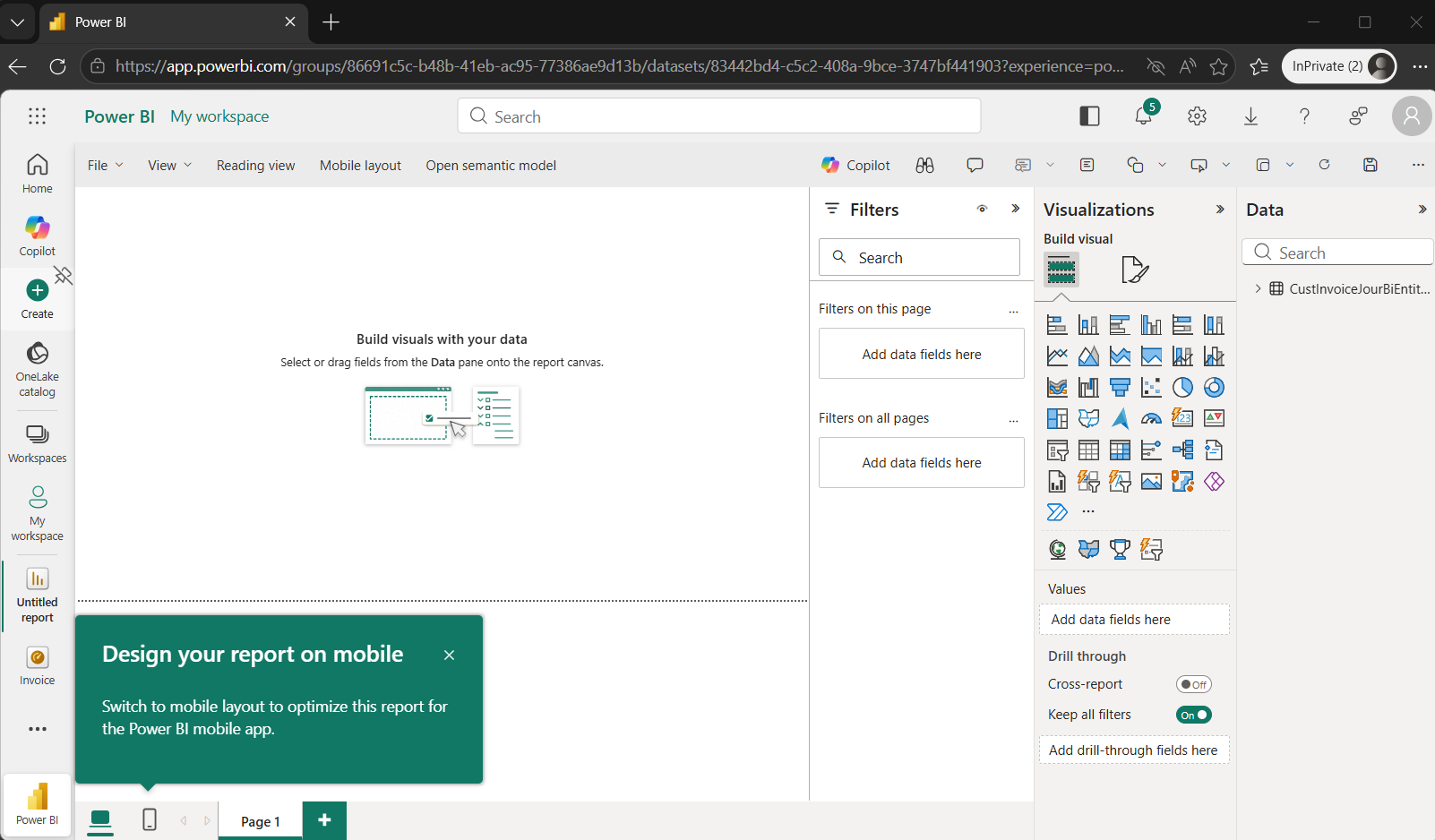
- Design report page.
- Select "Vusualization" to show.
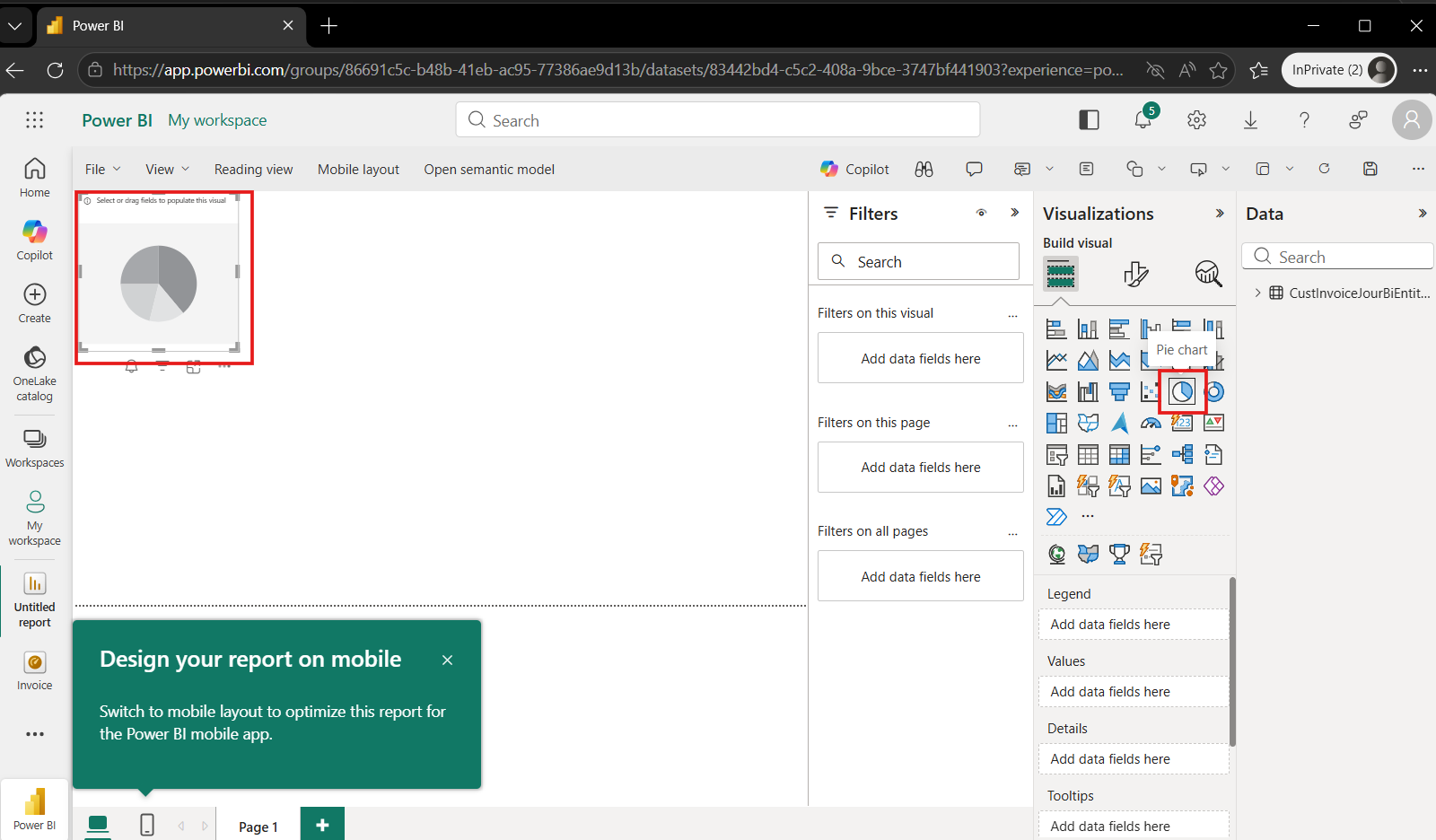
- Select "Data" to show.
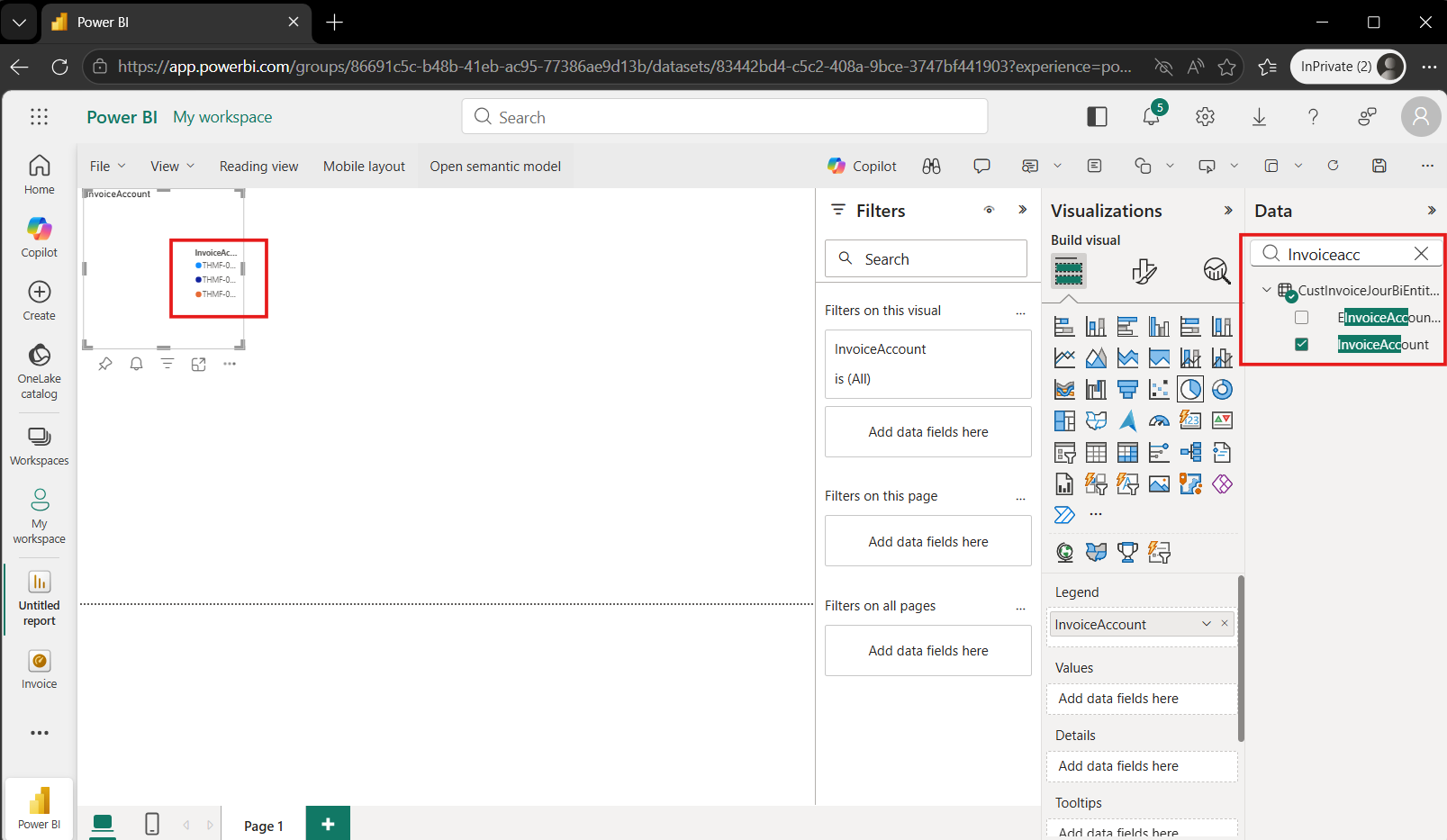
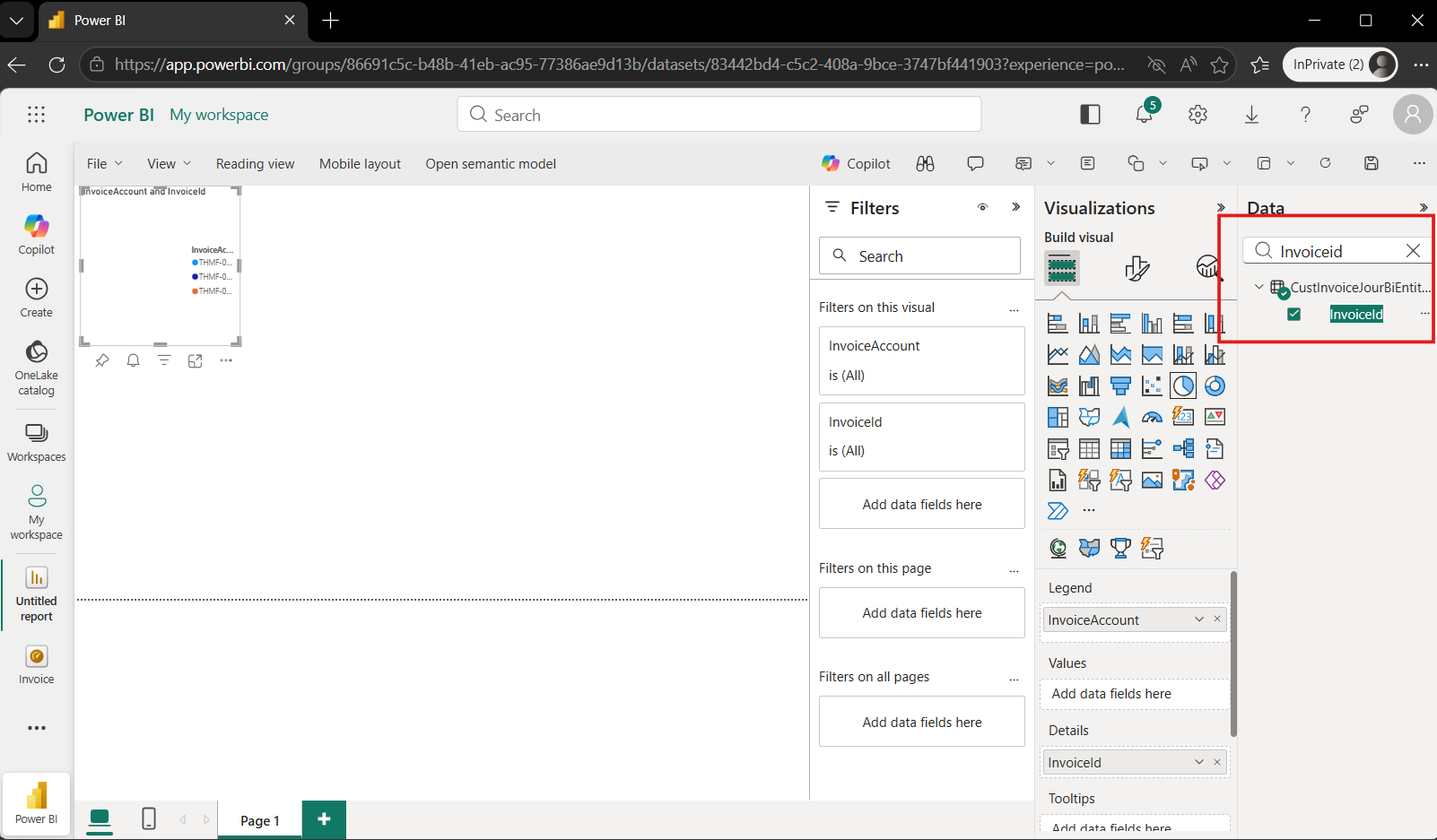
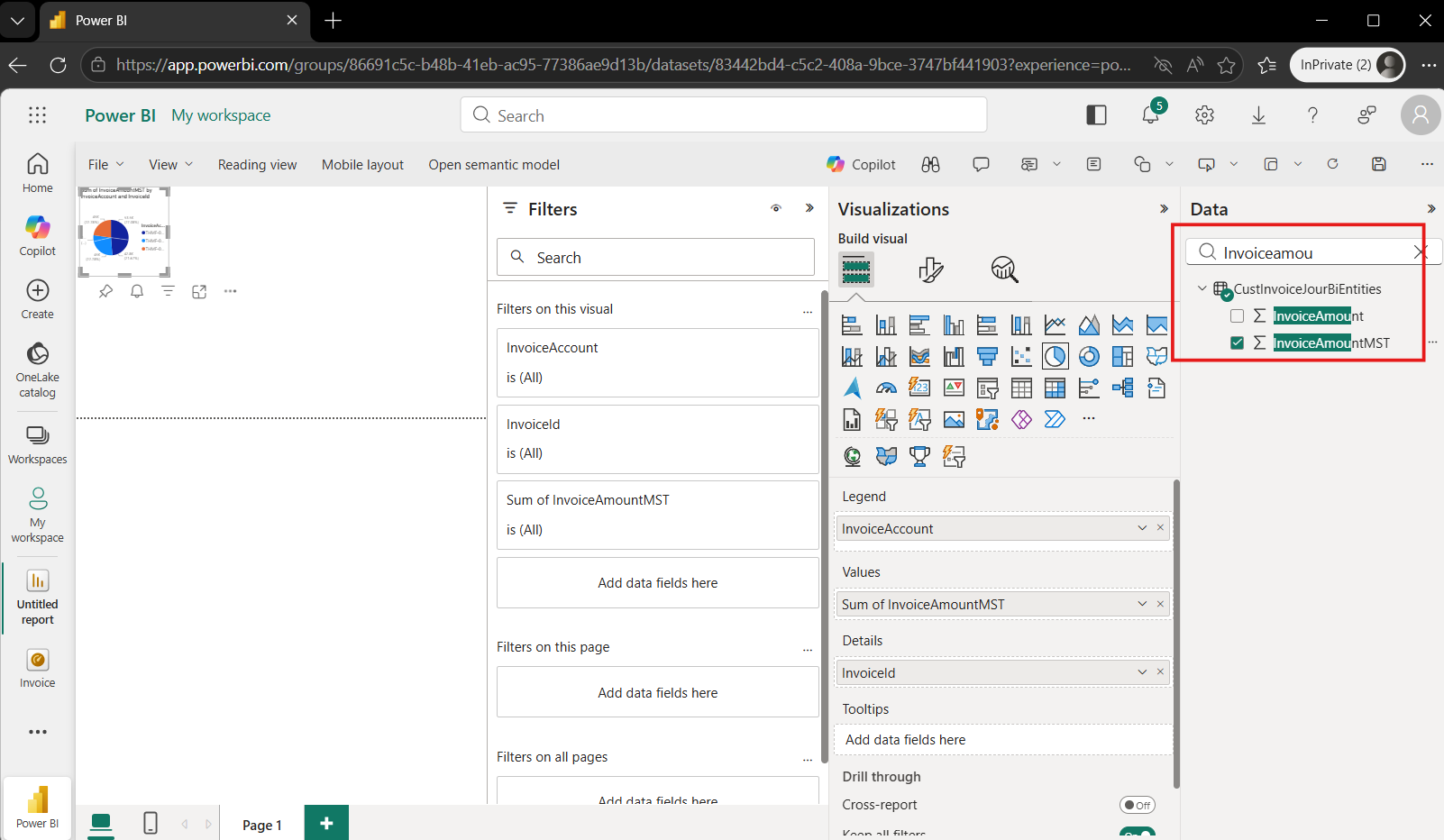
- Add more view by click on blank space.
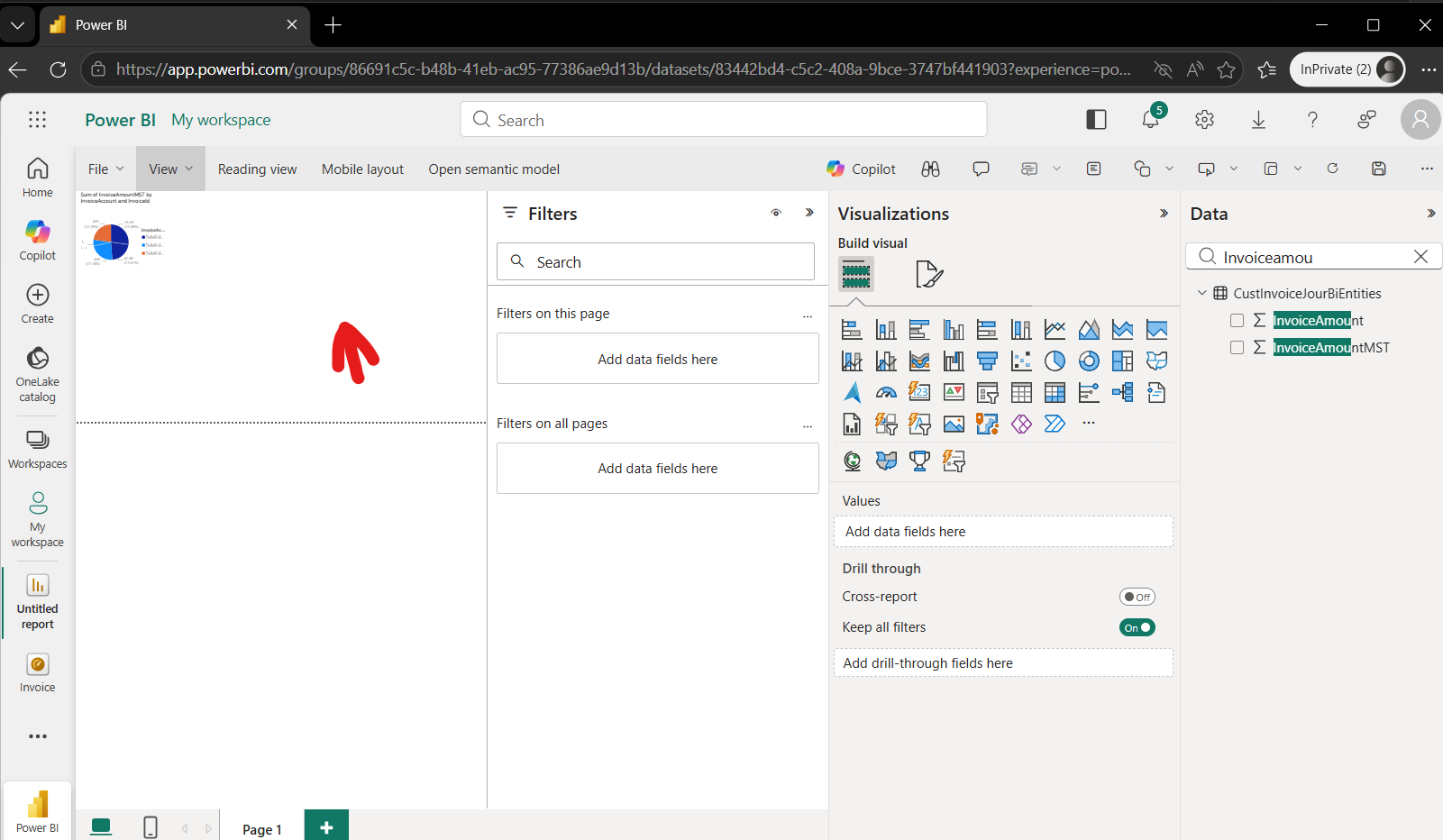
- And slect more "Visualizations"
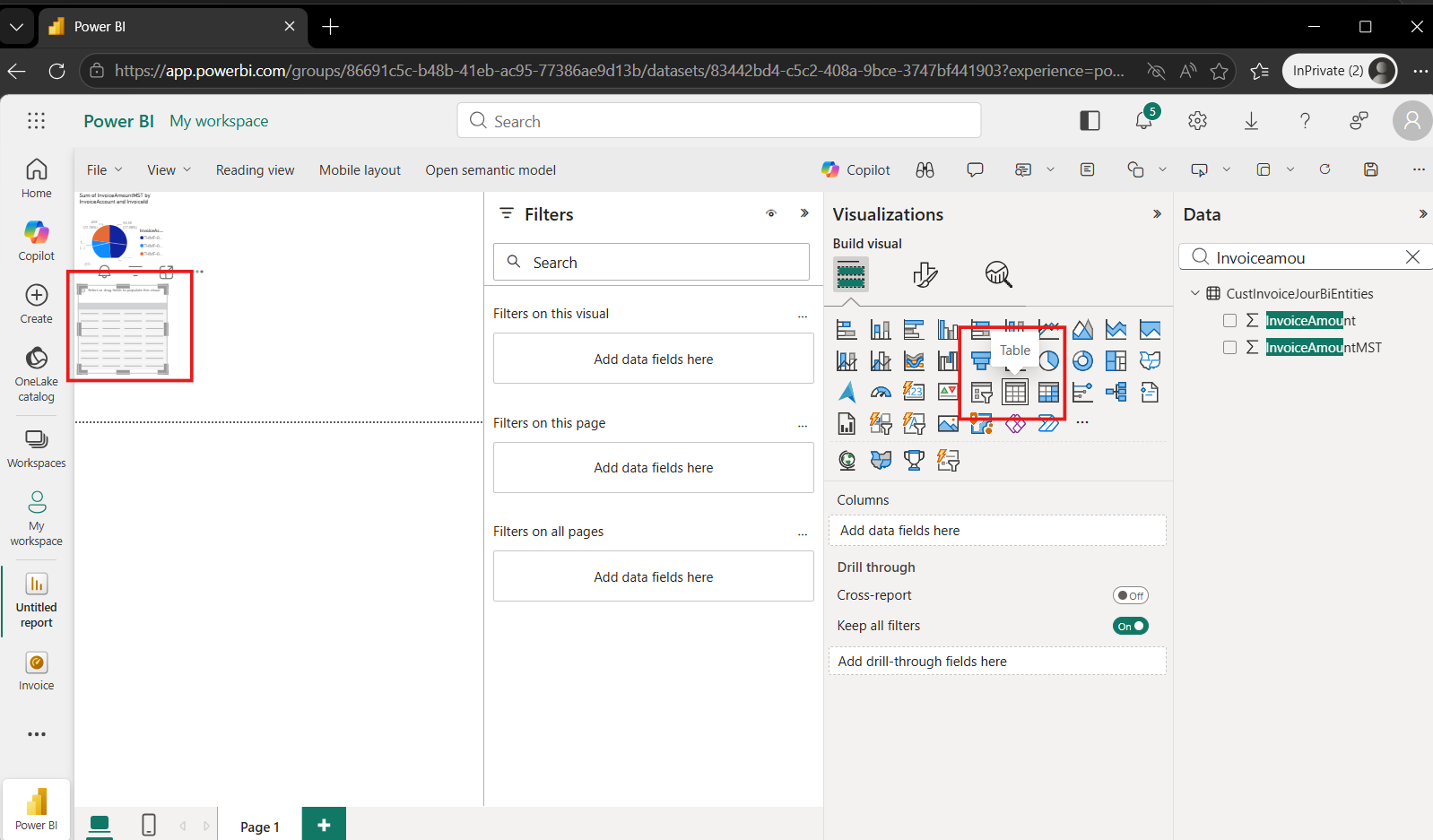
- Select "Data".
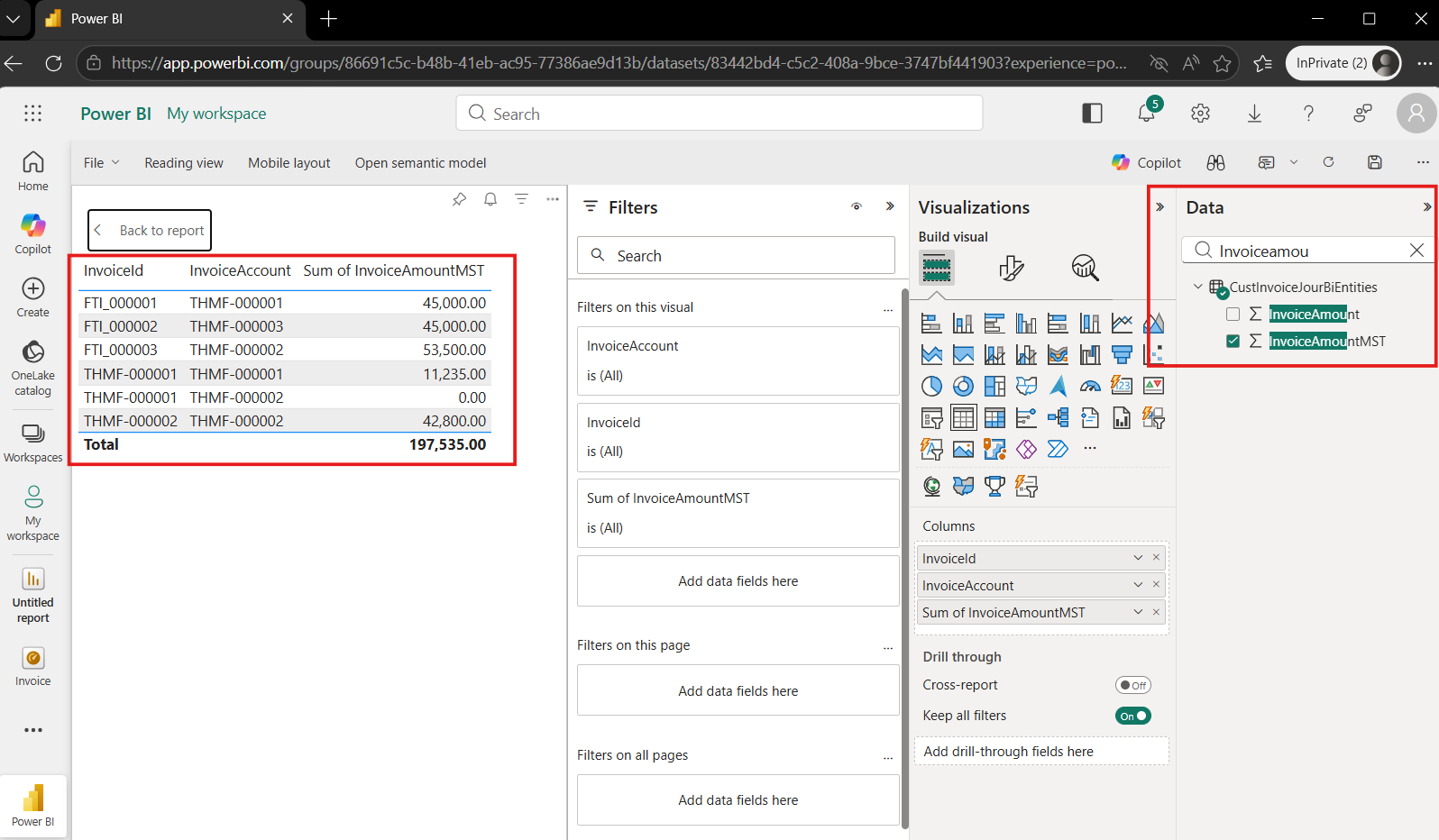
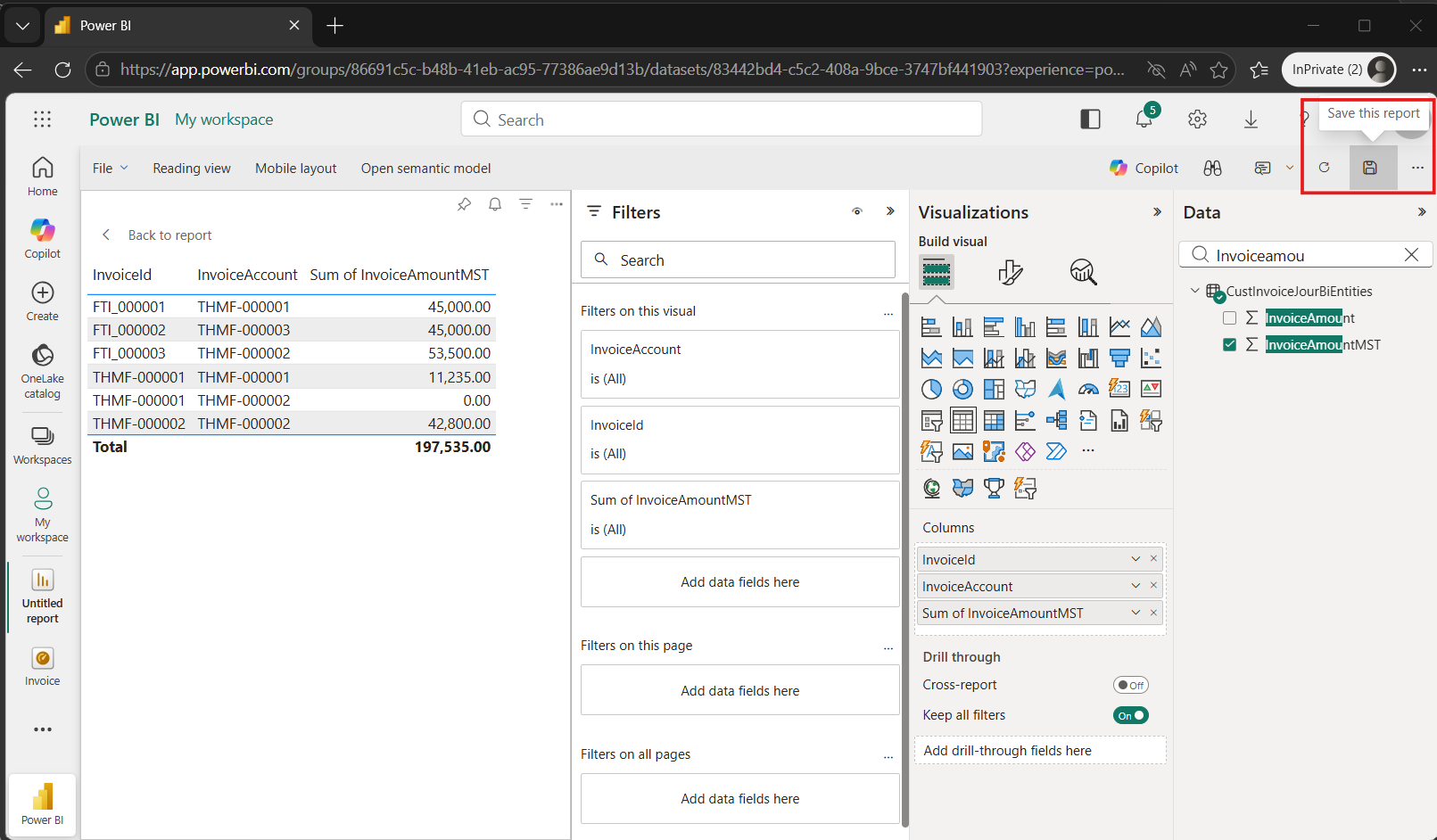
- When finish click "Save this report".
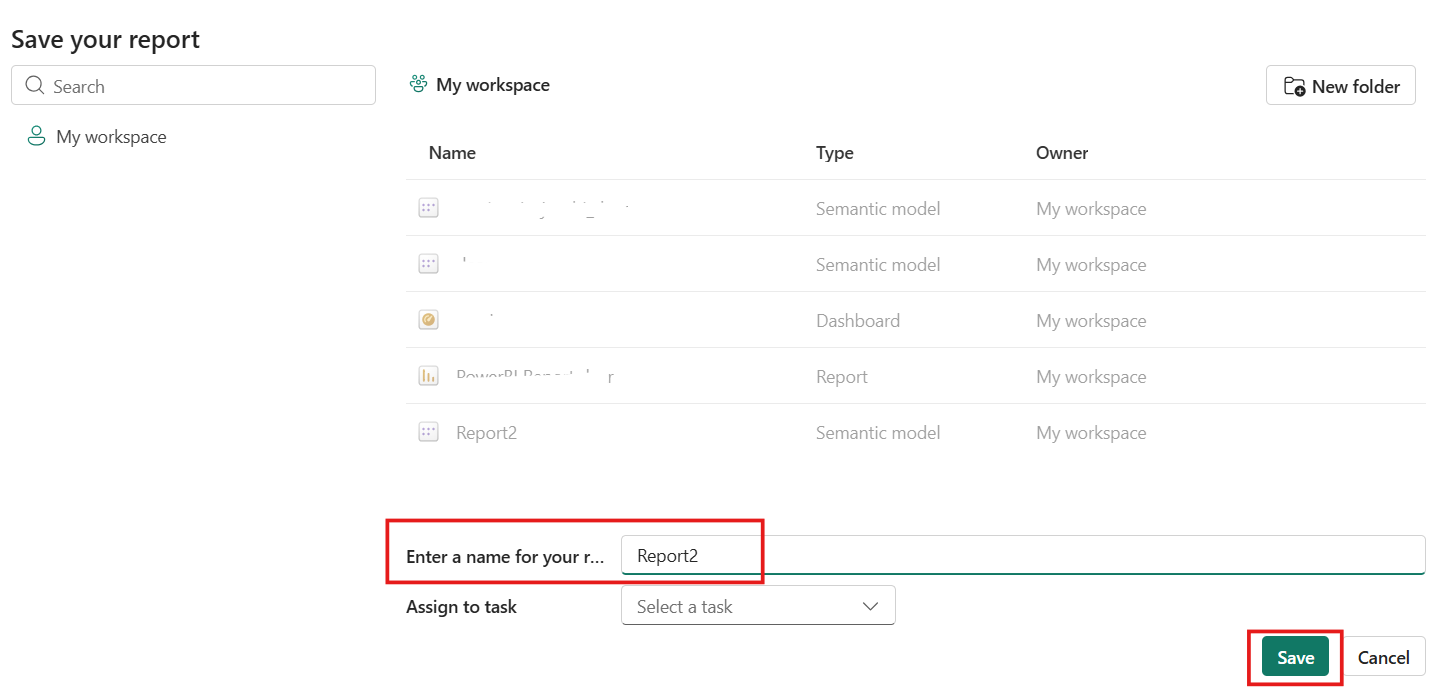
- Enter a name of your report and click "Save".
- Now report ready to use.
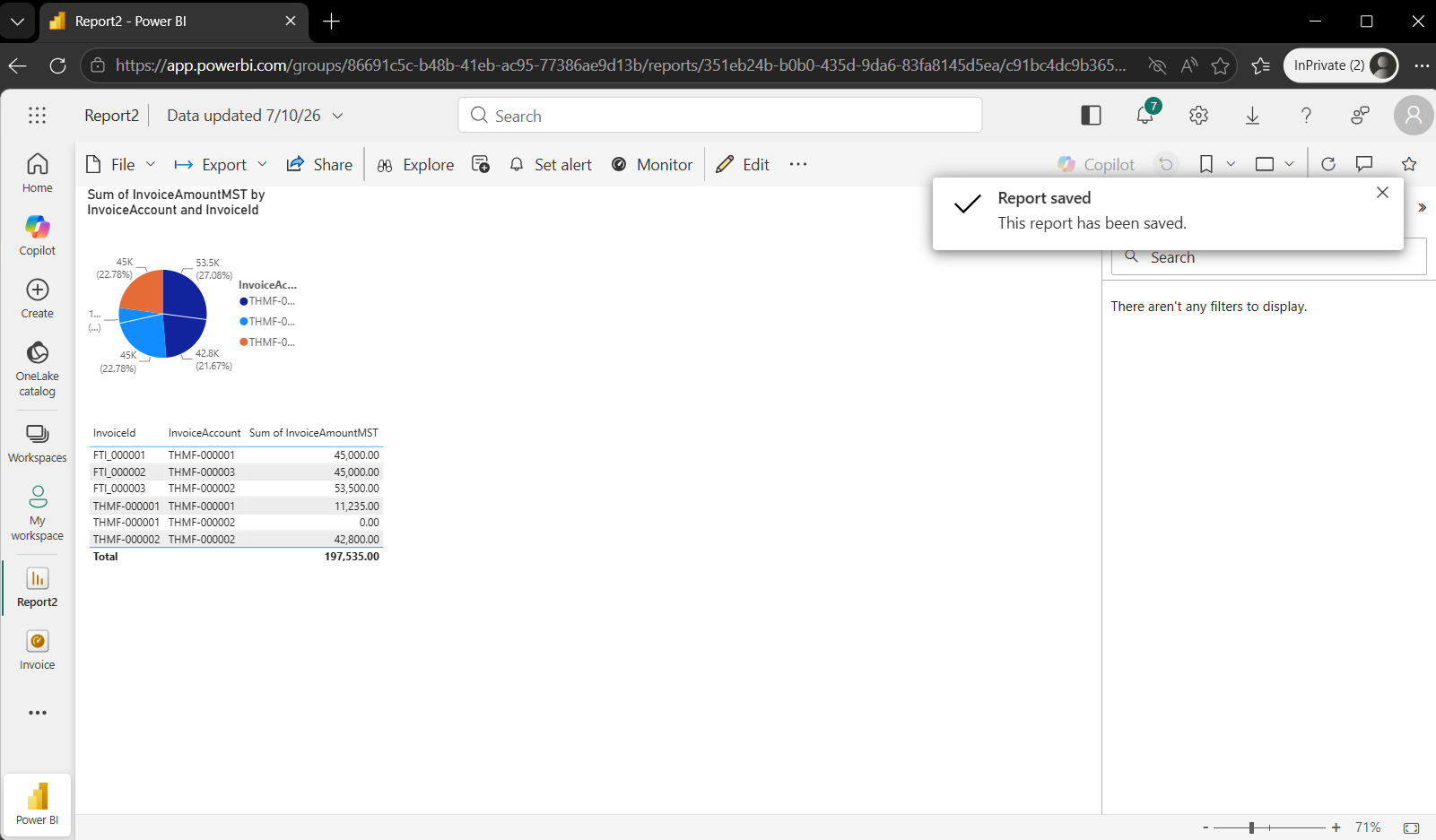
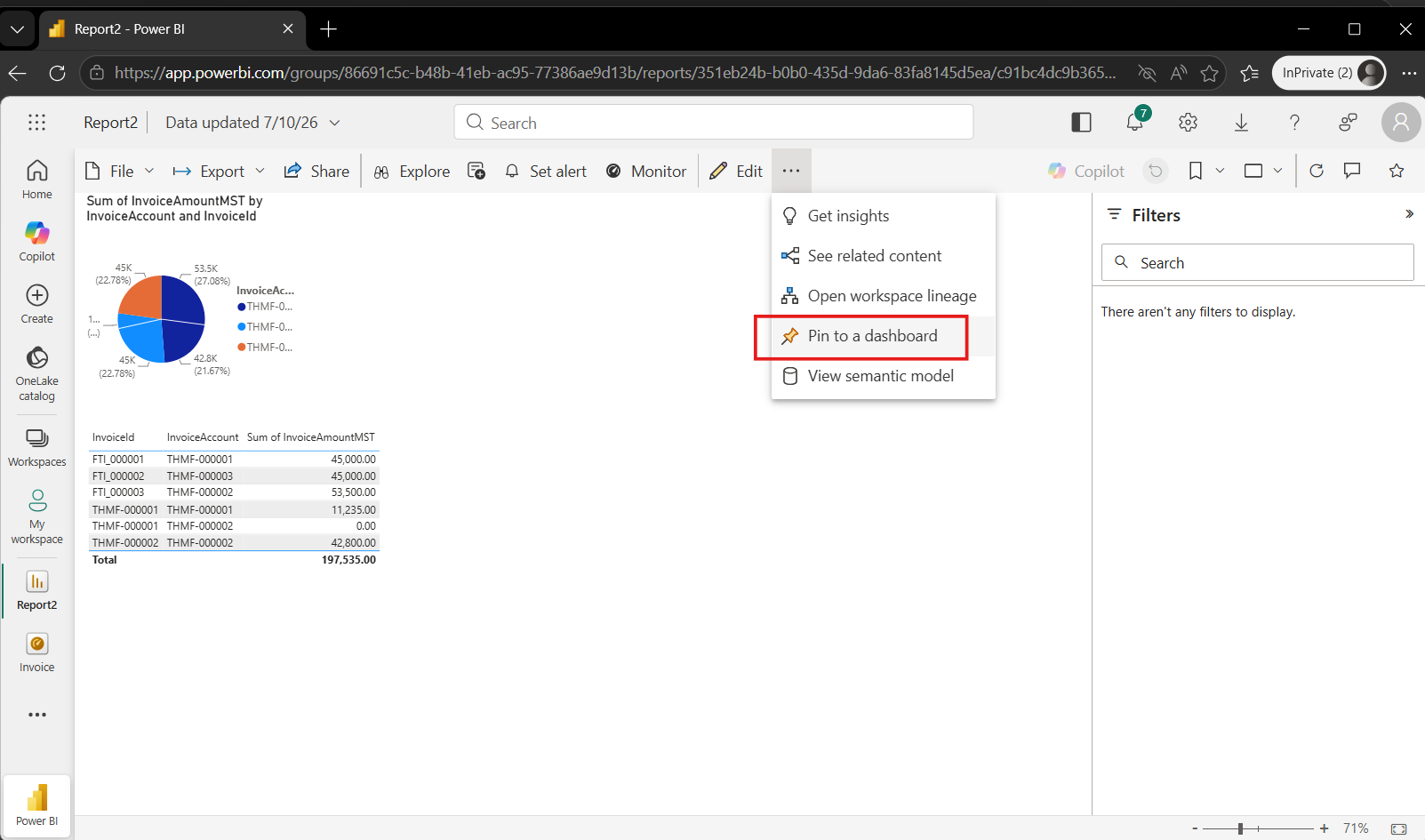
- Use "Pin to a dashboard".
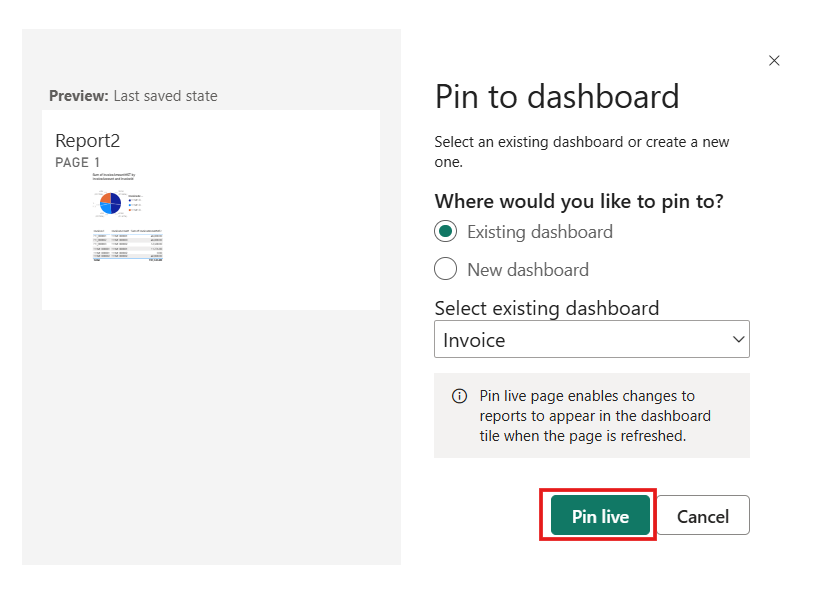
- Pin live.
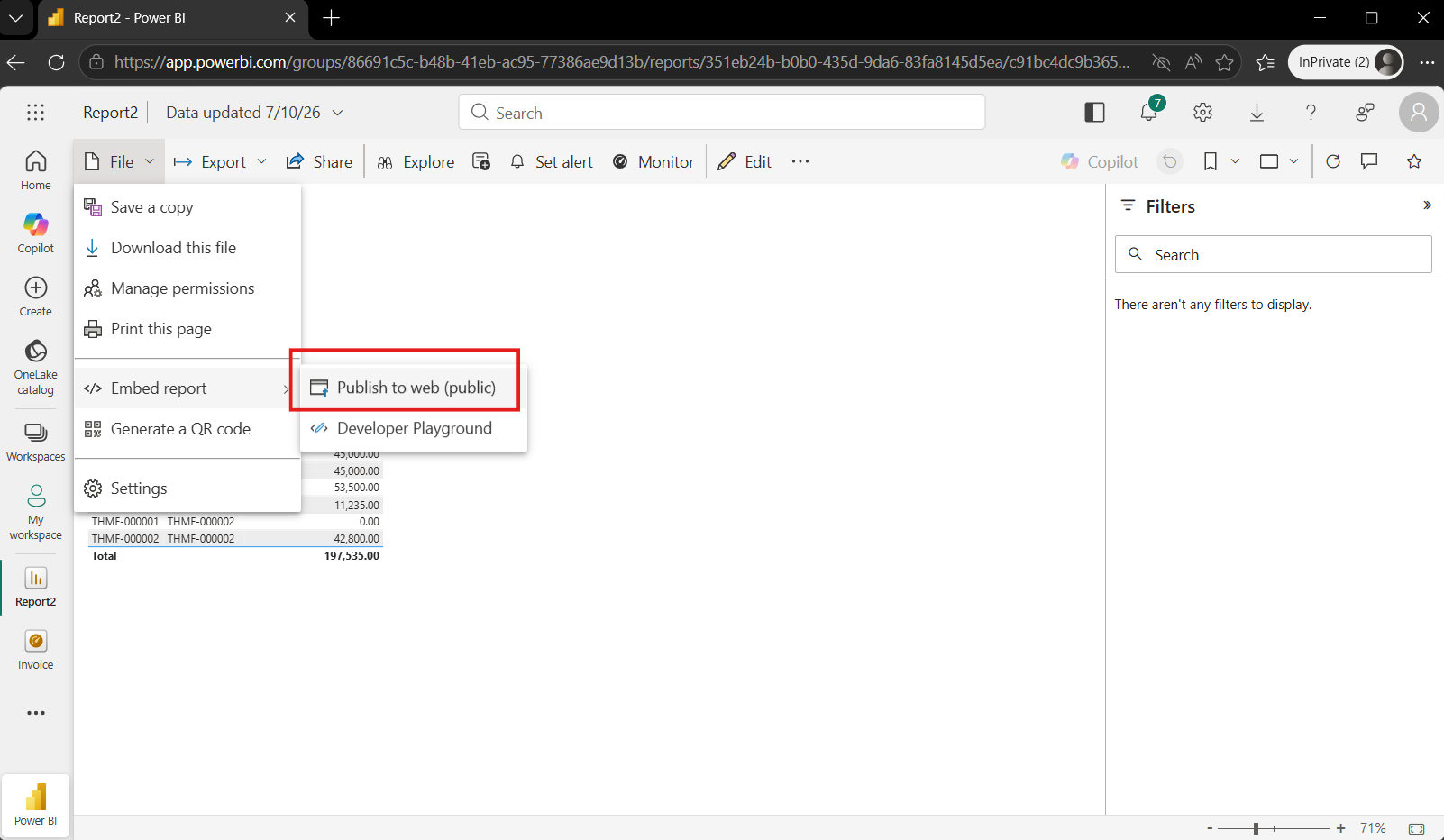
- Or "File" > "Embed report" > "Publish to web (public)".